
How to Change Your Squarespace Template
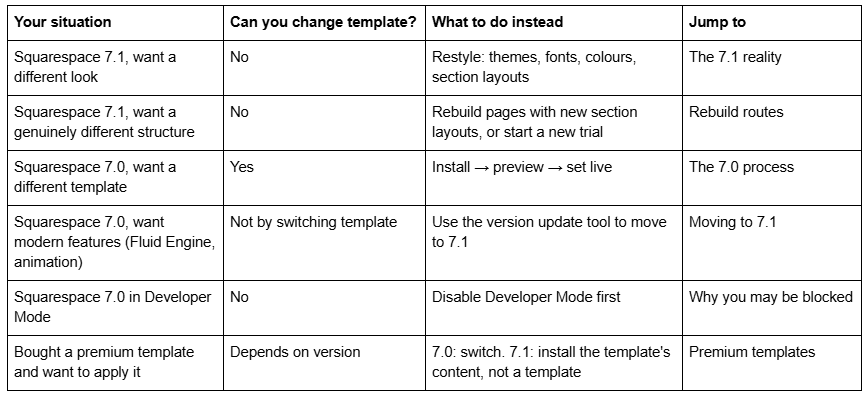
The short answer depends entirely on which version you are on. On Squarespace 7.0 you can change templates, as many times as you like, from Design → Template. On Squarespace 7.1 you cannot — Squarespace's own documentation states plainly that "it's not possible to change templates on a version 7.1 site," because every 7.1 site is part of the same template family with the same features. What a 7.1 template gives you is a starting layout and a style preset, not a switchable design engine.
So before anything else, find out which version you are on. Everything downstream of that answer is different.
Which route applies to you
How to tell whether you are on Squarespace 7.0 or 7.1
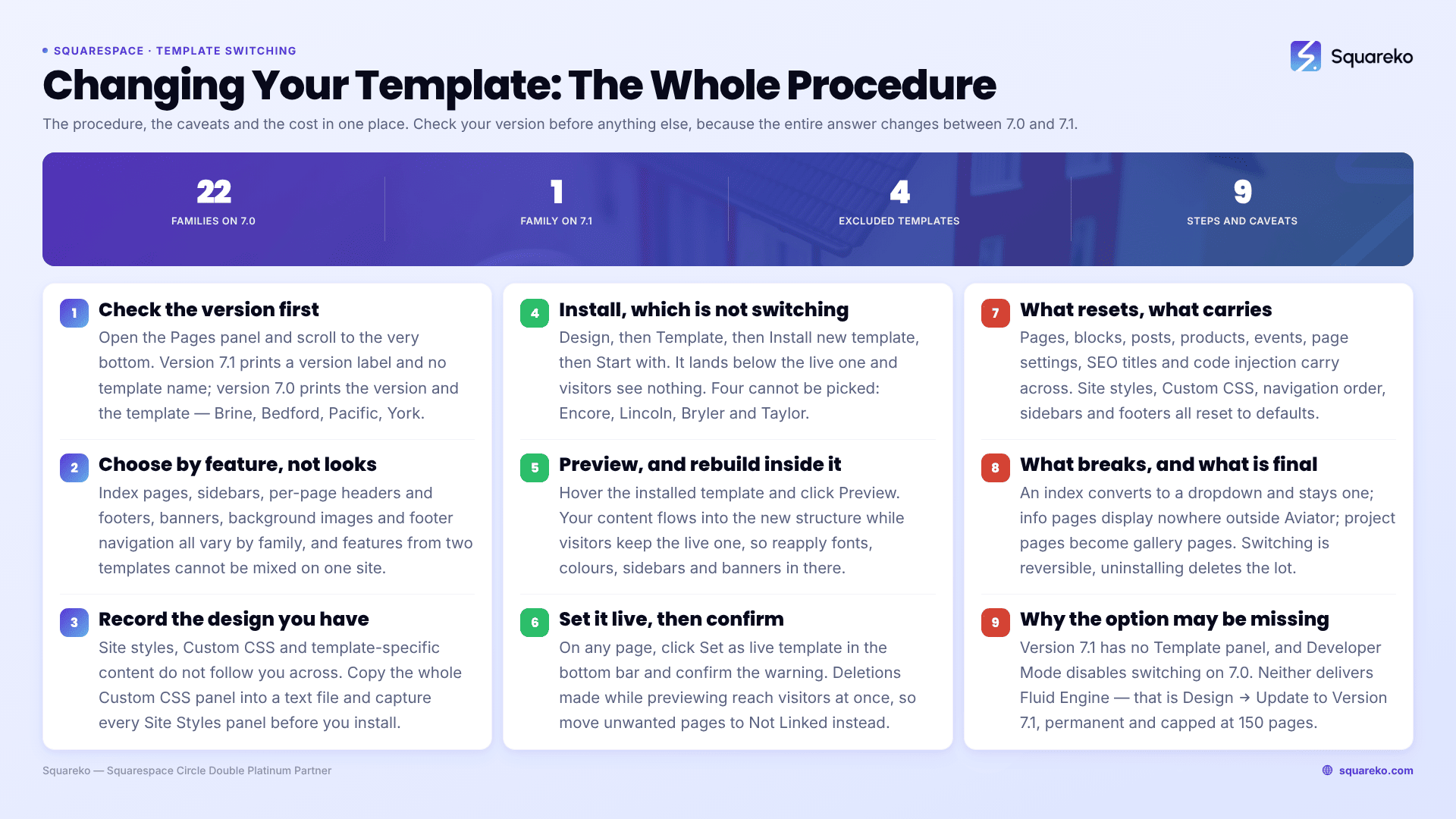
Open the Pages panel and scroll to the very bottom of it. Squarespace prints the version there.
If you see a version 7.1 label, you are on 7.1 and there is no template name to see. Template switching does not exist for you.
If you are on version 7.0, the panel shows the version and your template's name — Brine, Bedford, Pacific, York and so on.
That template name matters more than it looks, because on 7.0 features belong to families, not to individual templates. All templates in a family share the same underlying structure, style options and special features. The Bedford family, for instance, contains Anya, Bedford, Bryant and Hayden; they look different and behave identically. Squarespace's own guidance is that any documentation about the Brine template applies to your site if your template is anywhere in the Brine family.
A useful piece of context on how rare 7.0 now is: across 54 Squareko-built client sites we measured in August 2026 (Playwright/Chromium lab test, cloud datacenter, unthrottled, single run per site), 53 of 54 run Squarespace 7.1. Template switching is a real feature, but it applies to a shrinking minority of live sites — and to almost no site built in the last four years.
What "changing a Squarespace template" actually means on 7.0
On Squarespace 7.0, a template is a distinct codebase. Each family ships its own page types, its own set of style tweaks, and its own structural features. That is why template switching exists there at all: you switch templates to get access to different features, not simply to get a different look.
Version 7.0 has 22 template families in total, ten of which contain more than one template. The full list is in Squarespace's What's my site's version and template? — Adirondack, Avenue, Aviator, Bedford, Brine, Farro, Five, Flatiron, Forte, Galapagos, Ishimoto, Marquee (discontinued), Momentum, Montauk, Native, Pacific, Skye, Supply, Tremont, Wells, Wexley and York. Brine alone holds 47 templates.
The features that vary between families are the ones people actually switch for:
Index pages — availability and behaviour
Sidebars, per-page headers and per-page footers
Banner images and background images
Footer navigation
Specialised page types: the info page (Aviator family only) and the project page (York family only)
Album, blog, events, gallery and store page styling
Two rules constrain all of this, and both are stated by Squarespace directly. You cannot mix and match features from more than one template — you cannot take an index page from one family and a gallery page from another. And you can only install one copy of each template.
Cover pages are the exception worth knowing: they use layouts rather than templates, and those layouts are available on every 7.0 site regardless of which template is live.
How to change template on Squarespace 7.0: the safe process
Six steps. The order matters, and step 1 is the one people skip.
Step 1 — Decide by feature, not by screenshot. Before you install anything, list the structural features your current site relies on: sidebars, banners, background images, per-page headers or footers, footer navigation, index pages. Then pick a template that supports them. Squarespace publishes template comparison charts for exactly this. Choosing on looks alone is how people end up rebuilding navigation.
Step 2 — Record your current design before you touch anything. Site styles, Custom CSS and template-specific content do not follow you across. Copy the whole Custom CSS panel into a text file, screenshot every Site Styles panel, and take full-page captures of the live site on desktop and mobile. This is ten minutes that saves an afternoon.
Step 3 — Install the new template. Open the Design panel, click Template, click Install new template, browse, then hover over the one you want and click Start with. The template now sits in your Template panel below the live one. Installing is not switching — nothing has changed for visitors yet.
Step 4 — Preview it. Hover over the installed template and click Preview. While logged in you will see your existing pages and content flow into the new template's structure. Your preview is visible only to you; visitors continue to see the live template. To back out, click Cancel preview in the bottom bar — any changes you made to that template are saved for next time.
Step 5 — Rebuild and restyle in preview. Open the Pages panel and work through the site. Reapply fonts and colours in site styles, re-add sidebar and footer content, rebuild banners. Squarespace's own warning here is important: do not delete pages while in preview mode, because deletions affect your live site. Move pages to the Not Linked section instead until you publish.
Step 6 — Set it live. On any page of your site, click Set as live template in the bottom bar, then click Confirm in the warning message. Visitors now see the new template.
If the preview shows "We couldn't find the page you were looking for", the previewed template has no homepage assigned. Open the Pages panel and set one.
The mechanics, screen by screen, are covered in how to switch templates on Squarespace safely.
What carries over and what resets when you change a Squarespace template
This is the table to read twice. Squarespace splits everything on your site into template-specific items, which are stored against each individual template, and not template-specific items, which belong to the site and follow you everywhere.
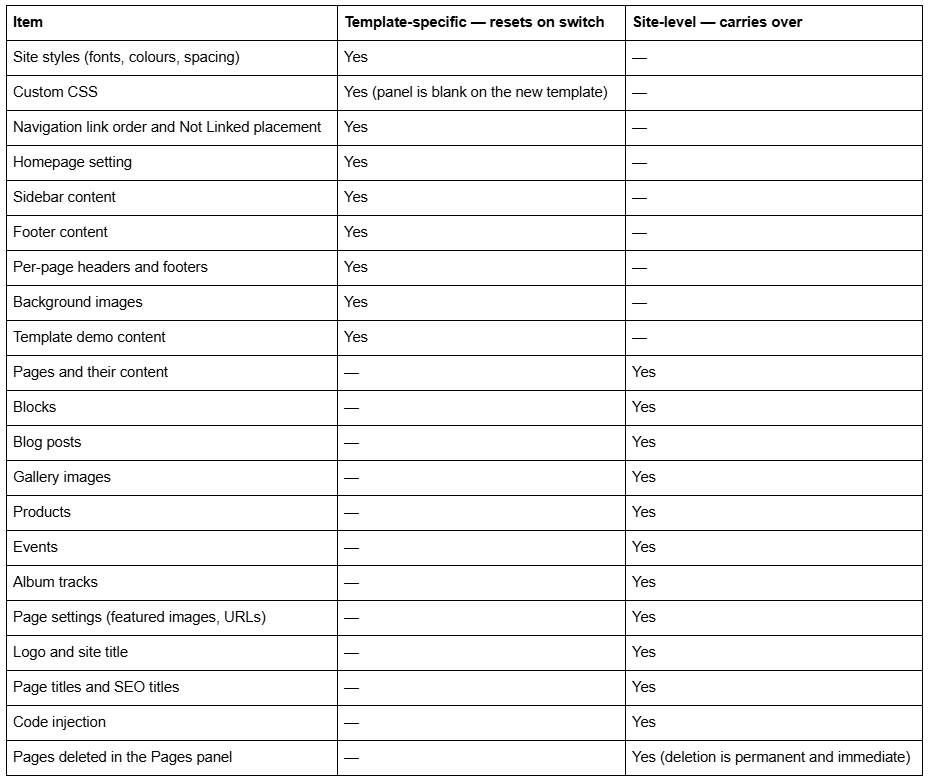
Two consequences fall straight out of that table.
Nothing in the right-hand column is protected by preview mode. If you delete a page, edit a blog post or reorder products while previewing a new template, that change is live for visitors immediately. Preview protects design, not content.
Everything in the left-hand column is preserved on the template you left. Squarespace stores those values per template. Switch back to Bedford after a month on Brine and Bedford looks exactly as you left it, Custom CSS included — provided you never uninstalled it. That is covered in detail in if I change my Squarespace template, can I change back?.
The per-content-type detail — what happens to galleries, products, code blocks and forms specifically — is in changing templates in Squarespace: 9 things to do first.
What you actually lose when changing a Squarespace template
Beyond the styling reset, four things genuinely break, and none of them are obvious in advance.
Index pages convert, sometimes permanently. If your new template has no index page, the index converts to a dropdown in the navigation. Switch onward to a third template that does support index pages and it stays a dropdown — the conversion is not re-evaluated. The only way back is returning to the original template, and only if you never uninstalled it. Sub-pages that the new template's index does not support remain in the Pages panel but stop appearing on the published site.
Info pages disappear. The info page belongs to the Aviator family. On any other template it will not display, and if it is your homepage the switch fails until you set a different homepage first.
Project pages become gallery pages. The project page belongs to the York family. Switching away converts it to a gallery page; switching back does not convert it return — you rebuild it.
Uninstalling is the destructive action, not switching. Switching is reversible. Uninstalling a template permanently deletes every template-specific change you made to it: styles, navigation order, sidebars, footer content, Custom CSS. And if the template is discontinued, you cannot reinstall it at all. Check before you uninstall anything.
The full pre-flight list is in switching Squarespace templates: the full risk checklist.
Why you may not be able to change your Squarespace template
If the option is missing or the template you want is greyed out, it is almost always one of these:
You are on 7.1. There is no Template panel. This is the most common cause by a wide margin.
Developer Mode is on. In Developer Mode you cannot switch templates and you do not receive template updates. Turn it off in Settings → Developer Tools → Developer Mode — noting that Developer Platform changes disappear when you do, so save your site files locally first.
The template is one of the four excluded from switching. Encore (Aviator family), Lincoln (Brine family), Bryler (Pacific family) and Taylor (York family) cannot be selected when switching. Pick another template from the same family instead — it has identical features.
Your site language is not English. The template options you see depend on your site's language setting. Only Julia, Kent and Om (Montauk), Charlotte, Naomi and Pacific (Pacific), and all Bedford, Brine and York templates support non-English languages. To reach the full store, change the site language to English first — which also changes built-in visitor-facing text like dates and form labels.
The template is discontinued and was previously uninstalled.
More on each in why can't I change my Squarespace template?.
The Squarespace 7.1 reality: one template family
Here is the fact that half the ranking pages for this keyword either bury or get wrong.
Squarespace 7.1 has exactly one template family. Every 7.1 site — whatever template name you picked at signup — shares the same underlying codebase, the same page types, the same features and the same style options. Squarespace's documentation is unambiguous: "We designed version 7.1 to remove the need to switch templates, so the template you choose when creating a 7.1 site is only meant as a starting point. All version 7.1 sites are part of the same template family, with the same features and style options."
The practical effects:
There is no Template panel in a 7.1 site. Nothing is hidden or moved; the feature does not exist.
Your template's name does not appear in the Pages panel after signup — only a version 7.1 label.
A 7.1 "template" is a set of demo pages, section layouts, a colour palette and a font pack. Everything it contains is available to every other 7.1 site.
Therefore anything one 7.1 template can do, yours can do too. You are not locked out of a layout you saw in the template store. You are looking at settings you already have.
This is why "how to change template on Squarespace 7.1" is the wrong question with a better answer underneath it. What people mean is "how do I make my site look like that one." That is a styling and section-layout job, and it is entirely achievable.
The 7.1-specific walkthrough is can you change templates in Squarespace 7.1?.
The four ways to change how a Squarespace 7.1 site looks
In rough order of effort.
1. Apply a theme (style pack). While editing a page, open Site styles and click Themes. Squarespace ships preset packs — Professional, Bold, Playful and others — that swap the colour palette and font pairing in one action. You can then adjust individual fonts and colours afterwards. One warning: applying a pack overwrites your current values with no undo and no version history. Record your hex codes and font settings first.
2. Change colours and fonts individually. In 7.1 you set a palette, and Squarespace generates around ten section colour themes from it that you assign per section. Fonts work the same way — a font pack plus per-group assignments. To start over, Site styles → Fonts → Reset Font Pack returns the defaults without touching content.
3. Swap in pre-built section layouts. This is the one that changes structure rather than skin. While editing a page, click + and choose a section type — Images, Newsletter, Music, and so on — then pick a layout. You can also add whole pre-built pages: Pages panel → + → Page Layouts, then a type like Contact, Services or Team. Blocks can be moved between sections on the same page, though not between pages.
4. Rebuild the page in Fluid Engine. Section layouts in 7.1 are drawn on a Fluid Engine grid — 24 columns on desktop, a separate 8-column grid on mobile, with the breakpoint at 767px. Once you are comfortable dragging blocks on that grid, you are no longer constrained by any starting layout at all. See how Squarespace Fluid Engine works.
If you are on 7.0 and what you really want is 7.1
Many people searching for how to change their Squarespace template are on 7.0 and want features that no 7.0 template has — Fluid Engine, site-wide animation, auto-layouts, course pages, video pages. No amount of template switching gets you those. The version update tool does.
Design panel → Update to Version 7.1 → Get Started → Preview site in 7.1. You preview first and can cancel at any point.
Before you start, know these constraints:
The update is permanent. Once published, you cannot revert to 7.0.
150-page limit on the update tool, and 200 products per store page.
Developer Mode must be off, and disabling it discards Developer Platform changes.
Discontinued templates must be switched away from first — which is one of the few genuinely good reasons to change a 7.0 template in 2026.
Album pages do not exist in 7.1 and disappear. Save the audio and text locally first.
Sub-pages inside index pages lose their page settings, including SEO titles and descriptions. Move them out of the index before updating.
Squarespace confirms that SEO settings, orders, sales, customer data, members, domains and URL mappings all survive intact.
If the option does not appear in the Design panel, you are either on an unsupported template or Developer Mode is still on.
The rebuild routes: duplicate, or start a new trial
Two options remain when neither switching nor restyling gets you there.
Duplicate the site and experiment on the copy. From your Account Dashboard, click … on the site and choose Duplicate Website. The copy carries pages, sections, blocks, collection items, style settings, code injection, the template and your site title. It does not carry selling settings, domains, blog comments, audio files or stock images, and it arrives as a new trial that needs its own billing plan if you keep it. Sites over 150 pages and sites using the Developer Platform cannot be duplicated. As a risk-free sandbox for a redesign, it is excellent.
Start a fresh trial. This is the honest answer when a 7.0 site is small, or when a 7.1 site's structure is so far from where you want it that editing is slower than rebuilding. You recreate content by hand, then move the domain and any Google Workspace subscription across, publish, and cancel the original. The trade is obvious: total design freedom, total content re-entry.
Squarespace's own framing of the decision is the right one — ask how much existing content you have, and whether you can tolerate changes going live before you are ready.
Premium templates and what "installing" one means
A premium template bought from a third-party shop is not the same object on the two versions, and this trips people up constantly.
On 7.0, a premium template is usually a real template plus a style and CSS package, and applying it involves the switching process above.
On 7.1, a premium template is a site to duplicate or a set of sections, styles and code to import — because there is no template slot to install into. Reputable shops deliver 7.1 products either as a duplicable trial site or as step-by-step section-by-section instructions plus a Custom CSS file.
If a vendor tells you their 7.1 template will "replace" your current template, they are describing something the platform does not do. What they mean is a rebuild.
Squareko's own template products are built for 7.1 for that reason, and the distinction is covered in how to install a Squarespace template.
Does changing a Squarespace template affect SEO?
Directly, less than people fear. Structurally, more than they expect.
Squarespace's position is that all templates support the same built-in SEO features, but that templates have different code bases and may differ in JavaScript weight, heading tag structure and page load time. Your page titles, SEO titles, meta descriptions and URLs are site-level and carry over untouched.
The real risks are the ones you introduce yourself:
Heading structure changes. A different template may render your page title as an h1 where the old one used h2, or wrap section titles differently. Worth auditing after a switch.
URL changes. Squarespace never creates an automatic redirect when you change a page's slug — not on 7.0, not on 7.1, not ever. If a URL changes you must add the redirect yourself in Developer tools → URL mappings, using the format /old-url -> /new-url 301. For a whole collection, use the [name] variable: /blog/[name] -> /posts/[name] 301. Redirects only fire once the old page is deleted or disabled.
Content deleted during a rebuild. Deletions in preview mode are live immediately.
Speed. Template weight varies. For reference, across 54 Squareko-built sites measured in August 2026 the median mobile LCP was 2.01s and the median page weight 3.0 MB across 93 requests — a well-built 7.1 site is not the bottleneck; uploaded imagery usually is.
Detail in does changing your Squarespace template affect SEO? and the practical version, how to change a Squarespace template without hurting your SEO.
Choosing between switching and restyling
Work it in this order and you will not waste a weekend:
Check your version in the Pages panel. On 7.1, stop — restyle instead.
On 7.0, ask what you are actually missing. If it is a structural feature another family has, switch. If it is modern editing, use the update tool. If it is only a look, restyle in site styles and save yourself the rebuild.
Record your styles and CSS before touching anything.
Install and preview — never set live to "have a look".
Rebuild sidebars, footers, banners and CSS in preview, moving unwanted pages to Not Linked rather than deleting.
Set live, then audit headings, navigation and any URL that changed.
Most people reading this are on 7.1 and have been told they need a new template when what they need is a palette, a font pack and three replaced sections. That is a Saturday, not a project.
Where it genuinely stops being a DIY job is a 7.0 site with hundreds of pages, a heavily customised Brine-family template and a stylesheet nobody has documented — or a 7.1 site where the rebuild has to happen without losing a search ranking that is currently paying the bills. That is the situation our premium Squarespace templates and build service exist for. If your site is a dozen pages and a blog, the steps above are all you need.
FAQ
-
On Squarespace 7.0, yes — install a new template from Design → Template, preview it, then click Set as live template. On Squarespace 7.1 you cannot. Squarespace states it is not possible to change templates on a 7.1 site, because every 7.1 site belongs to the same template family with identical features.
-
You do not, because there is no template to change. Instead, restyle: apply a theme in Site styles, edit your colour palette and font pack, and swap in pre-built section layouts from the + menu. Every layout in the 7.1 template store is available to every 7.1 site already.
-
No. Pages, blog posts, products, events, gallery images, blocks, page settings and SEO titles all carry over. What resets is presentation — site styles, Custom CSS, sidebars, footers, per-page headers and background images. Those stay attached to the old template and return if you switch back.
-
Open the Pages panel and scroll to the bottom. Version 7.1 sites show a "version 7.1" label and no template name. Version 7.0 sites show the version plus the template name — Brine, Bedford, Pacific and so on. That template name tells you which family's features you have.
-
Yes, on 7.0, provided you never uninstalled the old template. Set it live again from the Template panel and its styles, Custom CSS, sidebars and footers return as you left them. Content changes made since the switch stay. Uninstalling a template deletes those settings permanently.
-
Almost always because you are on version 7.1, which has no Template panel and never had one. On version 7.0 the panel is at Design → Template, listing every installed template with the live one at the top. If it is missing there, Developer Mode is switched on, which disables template switching entirely.

Author Bio
I'm Walid Hasan, a Certified Squarespace Expert and Squarespace Circle Platinum Partner with over 12 years of hands-on experience designing and optimizing high-performing websites. Over the years, I've had the privilege of building more than 2,000 Squarespace websites for clients around the world, always focusing on clean design, strong user experience, and conversion-driven results.
