Can You Change Templates in Squarespace 7.1?
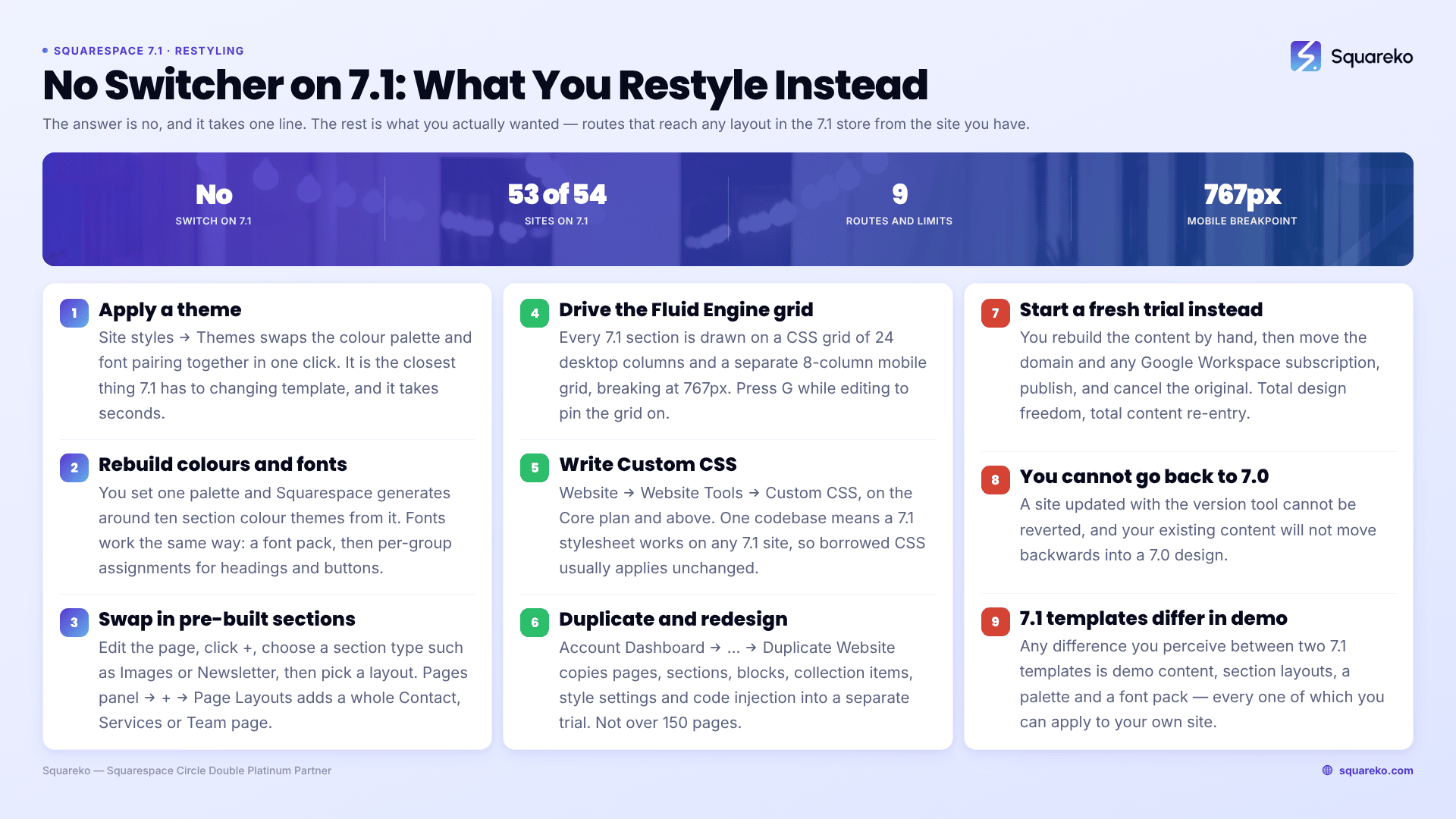
No, and there is no workaround, because there is nothing to switch to. Every Squarespace 7.1 site belongs to a single template family with identical features and identical style options. Squarespace states it directly: "It's not possible to change templates on a version 7.1 site." What that means in practice is better than it sounds — every layout, section and style in the 7.1 template store is already available on your site. You do not need a different template. You need to restyle the one everybody has. The version 7.0 side of the story is in the complete guide to changing your Squarespace template.
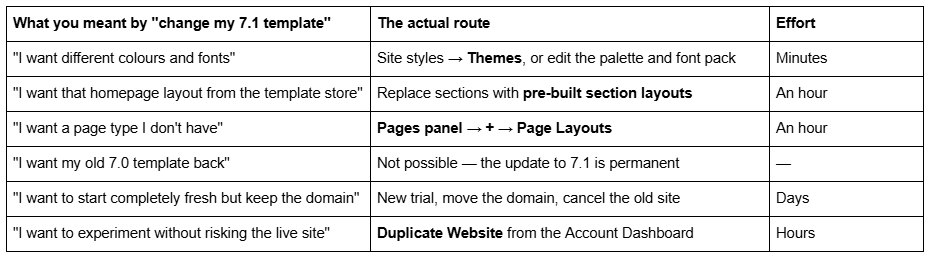
What you actually wanted, and what to do instead
Why Squarespace 7.1 has no Template panel
On Squarespace 7.0, a template is a distinct codebase. Different families ship different page types and different style controls, so switching templates was the only way to get access to features you did not have. That is why the Template panel exists there at all.
Squarespace 7.1 removed the reason. Its documentation is explicit: "We designed version 7.1 to remove the need to switch templates, so the template you choose when creating a 7.1 site is only meant as a starting point. All version 7.1 sites are part of the same template family, with the same features and style options."
Three observable consequences:
There is no Template panel anywhere in a 7.1 site. It has not been renamed or moved.
Your template's name stops appearing in the Pages panel after signup — you see only a version 7.1 label.
A 7.1 template is demo content plus settings. Page layouts, section layouts, a colour palette and a font pack. All of it is available to every other 7.1 site.
The forum phrasing captures the confusion exactly — "I can't find the option to browse templates in the main menu like I could with our previous website." Nothing has been hidden. The feature was retired along with the need for it.
For context on how universal this now is: across 54 Squareko-built client sites measured in August 2026 (Playwright/Chromium lab test, cloud datacenter, unthrottled, single run per site), 53 of 54 run Squarespace 7.1. Almost every site that will ever ask this question is on the version where the answer is no.
Route 1 — Apply a theme (the closest thing to switching)
While editing a page, open Site styles and click Themes. Squarespace ships preset style packs — Professional, Bold, Playful and others — each of which swaps the colour palette and font pairing together in one action.
This is the nearest equivalent 7.1 has to changing template, and it takes seconds. You can adjust individual fonts and colours afterwards.
The one warning that matters: applying a theme overwrites your current values, and there is no undo. Site styles has no version history, and Squarespace's own guidance is that once saved, it is not possible to revert to a previous version unless you reset to defaults. Before you click anything in the Themes panel, copy your hex codes and font settings into a text file. On Squarespace 7.0 the old values were safely stored on the old template; on 7.1 nothing is stored for you.
Route 2 — Rebuild the colour and font systems yourself
Squarespace 7.1 colour works in two layers. You set one palette, and Squarespace generates around ten section colour themes from it. You then assign a theme per section, which is how a single page can carry light, dark and accent sections without any custom code.
Fonts work the same way: a font pack at the site level, then per-group assignments — headings, paragraphs, buttons, navigation — each with their own size, weight, line height and letter spacing.
Practical notes:
To start clean, Site styles → Fonts → Reset Font Pack restores defaults without touching content.
To change the palette, Site styles → Colors, then Customize → Edit Palette for the full preset list.
Text carrying local formatting applied through the text toolbar overrides site styles and will not follow any of this. If a heading refuses to change, clear its toolbar formatting first.
Rebuild global before local: palette, then fonts, then buttons, then per-section overrides. Working the other way means redoing section decisions every time a global value moves.
Route 3 — Replace sections with pre-built layouts
This is the route that changes structure, and it is what most people actually mean when they ask how to change their Squarespace 7.1 template.
To add a pre-built section: open the page, click Edit, click + on the page, choose a section type — Images, Newsletter, Music, Gallery and so on — then browse the available layouts and pick one. Each arrives with demo blocks you replace with your own content.
To add a whole pre-built page: Pages panel → + → Page Layouts, then a layout type such as Contact, Services or Team.
To compare options in place: Squarespace lets you try out new layouts per Fluid Engine section, so you can see two arrangements of the same content before committing.
One constraint worth knowing before you plan a rebuild: you can move blocks between sections on the same page, but not between pages. Restructuring across pages means recreating blocks.
Route 4 — Take control of the Fluid Engine grid
Every pre-built section in Squarespace 7.1 is drawn on Fluid Engine, a CSS Grid editor with 24 columns on desktop and a separate 8-column grid on mobile. The mobile breakpoint is 767px, and the two layouts are independent — moving a block on desktop does not move it on mobile.
Once you are comfortable dragging blocks on that grid, no starting layout constrains you. Any arrangement you saw in the 7.1 template store is reproducible, because it was built on the same grid you are using. Press G while editing a section to pin the grid on.
That is the real answer to "I want my site to look like that template": it is a grid exercise, not a template problem. The full mechanics are in how Squarespace Fluid Engine works.
Route 5 — Custom CSS, where the template question stops mattering
Everything above is achievable with no code. The reason a well-built Squarespace 7.1 site can look nothing like the template it started from is the layer underneath: Website → Website Tools → Custom CSS, available on the Core plan and above.
Because all 7.1 sites share one codebase, a stylesheet written for 7.1 works on any 7.1 site — which is the opposite of the 7.0 situation, where CSS was written against a specific family's markup and rarely survived a template switch. It also means CSS you find in tutorials and forum answers is far more likely to apply to your site unchanged.
Two things to know before you lean on it. Fluid Engine writes layout values as inline styles directly on the element, and inline styles beat every stylesheet rule regardless of specificity — !important is the only override. And 7.1's mobile breakpoint is 767px, so media queries written at 768px fire at the wrong moment.
The single-template-family model is a constraint on switching and a genuine advantage everywhere else.
If restyling genuinely is not enough
Two honest fallbacks, both of which cost money or time rather than clicks.
Duplicate the site and redesign the copy. From the Account Dashboard, click … on the site and choose Duplicate Website. The copy carries pages, sections, blocks, collection items, style settings, code injection, the site title and the template. It does not carry selling settings, domains, blog comments, audio files or licensed stock images, and it arrives as a separate trial needing its own billing plan. Sites over 150 pages and sites using the Developer Platform cannot be duplicated. As a redesign sandbox it is the safest option there is.
Start a new trial on the template whose layouts you wanted. You rebuild content by hand, then move the domain and any Google Workspace subscription, publish, and cancel the original. Total design freedom, total content re-entry. Squarespace's own framing of the trade-off is the right one: how much existing content do you have, and can you tolerate changes going live before you are ready?
Whichever you choose, remember that changing a page slug creates no automatic 301 redirect on Squarespace — ever. If URLs change during a rebuild, add the redirects yourself at Developer tools → URL mappings, in the form /old-url -> /new-url 301, with [name] for whole collections. The old page must be deleted or disabled before the redirect fires.
Two questions that always follow
Can I go back to Squarespace 7.0? No. If your site was updated from 7.0 using the version update tool, that update is permanent. You can start a new trial on the version 7.0 template store if you genuinely want a 7.0 template, but your existing 7.1 site cannot be reverted and its content will not move backwards.
Do different 7.1 templates have different features? No. That is the whole point of the single family. Any difference you perceive between two 7.1 templates is demo content, section layouts, a palette and a font pack — every one of which you can apply to your own site.
What to do this afternoon
If you came here to change your Squarespace 7.1 template, do this instead, in order:
Record your current hex codes, font settings and Custom CSS in a text file. Nothing in 7.1 site styles is undoable.
Open Site styles → Themes and try two or three style packs. This alone resolves most "I want a different template" feelings.
Replace your homepage's hero section with a pre-built layout. Structure changes perception more than colour does.
Only then consider a duplicate-site rebuild.
The version 7.1 single-family model is a genuine constraint, but it is a much smaller one than the search results suggest — the ceiling on a 7.1 site's design is set by Fluid Engine and Custom CSS, not by which template name you clicked at signup.
Where it becomes worth handing over is a site that needs to look fundamentally different while keeping its rankings and its commerce data intact, because that is a rebuild sequenced around redirects rather than a styling job. Our premium Squarespace templates are built as 7.1 products for exactly that reason. If you just want the site to look better than it does today, the five routes above will get you there without spending anything.
FAQ
-
No. Squarespace states it is not possible to change templates on a version 7.1 site, because every 7.1 site belongs to the same template family with identical features and style options. There is no Template panel and no workaround. Restyling achieves what template switching used to.
-
No. Squarespace states the preview template is visible only to you while logged in, and visitors keep seeing the live template. Other contributors do not see your preview automatically either. Content changes are the exception — those go live immediately, preview or not.
-
Click Cancel preview in the bottom bar. Your site returns to the live template and every change you made to the previewed template is saved against it, so you can pick the preview up again later without redoing the work.
-
Open Design → Template, hover the old template and set it live. Its site styles, Custom CSS, sidebars, footers and navigation order return exactly as you left them. This only works if you never uninstalled it — uninstalling deletes those settings permanently.
-
Set a different template live first, since the live template cannot be uninstalled. Then hover the template in Design → Template and click Uninstall, then Confirm. Check whether the template is discontinued first — discontinued templates cannot be reinstalled once removed.
-
The previewed template has no homepage assigned. Open the Pages panel and set a homepage. This happens most often when the old homepage was an info page, which only exists in the Aviator family and will not display in any other template.

Author Bio
I'm Walid Hasan, a Certified Squarespace Expert and Squarespace Circle Platinum Partner with over 12 years of hands-on experience designing and optimizing high-performing websites. Over the years, I've had the privilege of building more than 2,000 Squarespace websites for clients around the world, always focusing on clean design, strong user experience, and conversion-driven results.