
How to Change a Squarespace Template Without Hurting Your SEO
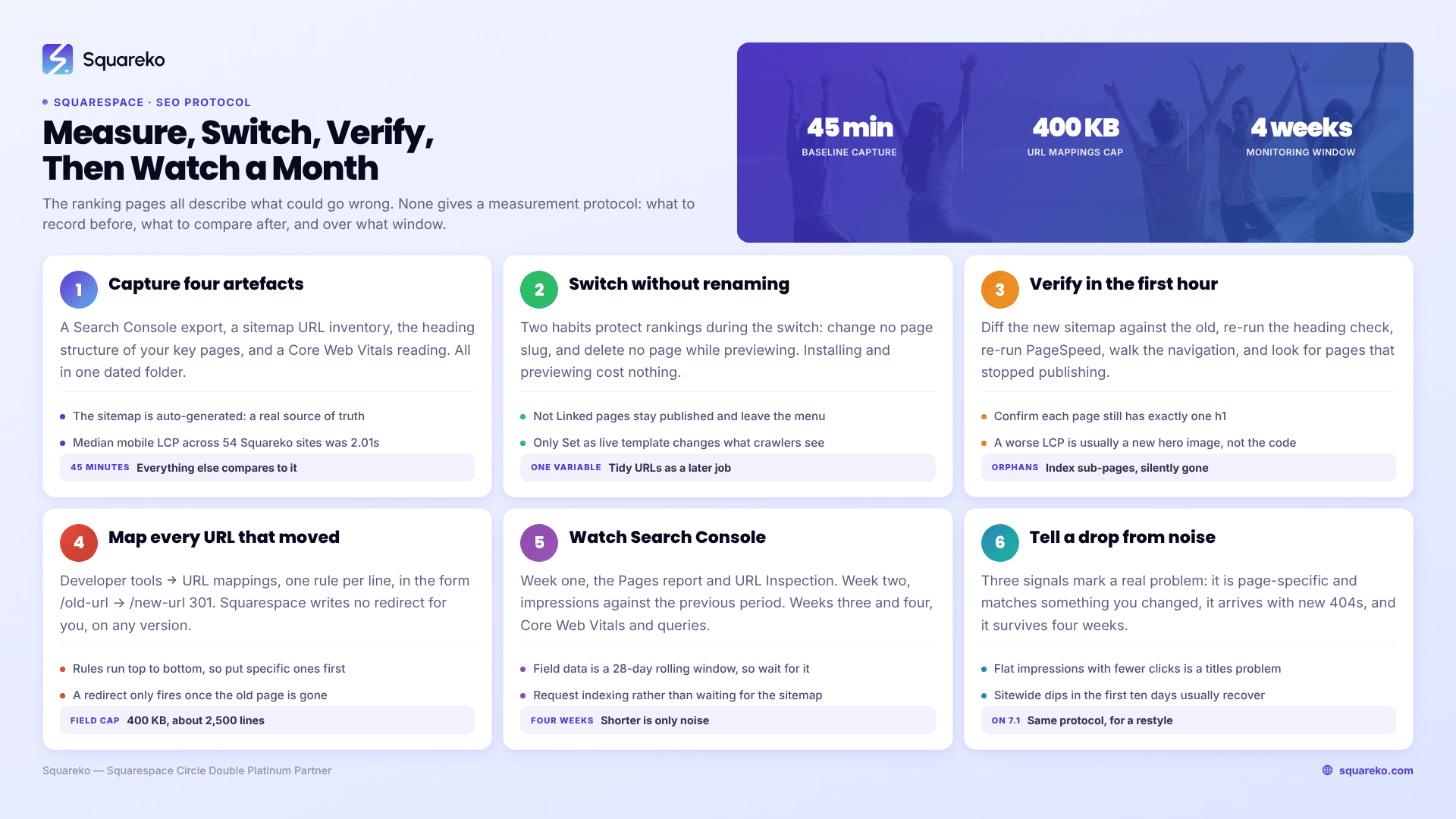
The whole job is measurement, not caution. Capture a baseline before you touch anything — rankings, URLs, heading structure, Core Web Vitals. Switch the template. Verify each of those four against the baseline within the first hour. Add URL mappings for any slug that moved, because Squarespace never creates a redirect for you. Then watch Google Search Console for four weeks. Without a baseline you cannot tell a real drop from ordinary noise.
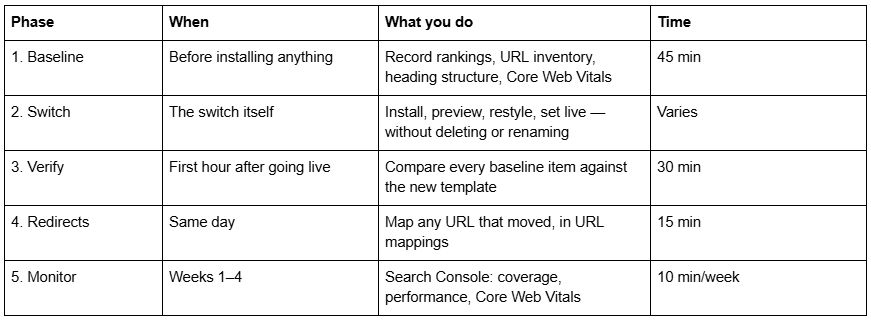
Here is the process, in the order it has to happen.
The five phases
Phase 1 — Capture the baseline before you install anything
Four artefacts. Save all of them into one folder named with the date.
1. Your Search Console performance export. Google Search Console → Performance → Search results, set the date range to the last three months, then Export → Download CSV for both the Queries and the Pages tabs. This is your before picture. Everything in phase 5 compares against it.
2. A complete URL inventory. Every Squarespace site publishes a sitemap at yourdomain.com/sitemap.xml. Open it and copy every URL into a spreadsheet. This is the definitive list of what is currently indexable, and in phase 3 you will diff the new sitemap against it. The Squarespace sitemap is auto-generated and cannot be edited, which makes it a reliable source of truth.
3. Your heading structure. For your homepage, your top three landing pages and one blog post, record the h1 and the h2s. The fastest method is the browser console — open each page and run:
// Paste into the browser console on any page.
// Lists every heading in document order with its level.
document.querySelectorAll('h1,h2,h3').forEach(h =>
console.log(h.tagName, '—', h.textContent.trim().slice(0, 80))
);
Copy the output into your spreadsheet. Squarespace states that templates have different code bases and can differ in heading tag structure, so this is the check most likely to find a real problem.
4. A Core Web Vitals baseline. Run PageSpeed Insights on the same pages and record mobile LCP, INP and CLS. Also screenshot the Core Web Vitals report in Search Console, which shows field data across your whole site rather than a single lab run.
For a sense of what "good" looks like on a well-built Squarespace site: across 54 Squareko-built client sites measured in August 2026 (Playwright/Chromium lab test, cloud datacenter, unthrottled, single run per site, load-only CLS), median mobile LCP was 2.01s, median TTFB 514ms, and median page weight 3.0 MB across 93 requests. If your before numbers are already worse than that, the template is probably not your problem — imagery is.
Phase 2 — Switch with the two habits that protect rankings
The switching procedure itself is covered step by step in how to switch templates on Squarespace safely. Two rules matter specifically for SEO.
Do not rename anything. Every page slug you change costs you the links pointing at it and creates a 404 until you add a redirect by hand. If the rebuild tempts you to tidy URLs, do it as a separate project, after the switch has settled, so you never have two variables moving at once.
Do not delete pages while previewing. Deletions are not template-specific — they hit the live site the moment you click, and a deleted page is a 404 for however long the switch takes you. Move pages to Not Linked in the Pages panel instead. Not Linked pages stay published at their URL and simply leave the navigation, so nothing 404s and no link equity evaporates.
One thing that is safe and often overlooked: installing a template to look at it costs nothing. Only Set as live template changes what visitors and crawlers see. Preview as long as you like.
Phase 3 — Verify against the baseline in the first hour
Do this immediately after setting the new template live, while you still remember what you changed.
Diff the sitemap. Load yourdomain.com/sitemap.xml again and compare it against the phase 1 spreadsheet. Any URL present before and missing now is either deleted or unpublished, and needs a decision — restore it, or redirect it in phase 4.
Re-run the heading script on the same pages. Confirm each page still has exactly one h1 and that it still contains the words it did before. If a page has lost its h1, fix it in the editor by setting that text block to Heading 1 rather than trying to patch it with CSS.
Re-run PageSpeed Insights on the same pages and compare mobile LCP, INP and CLS against your recorded numbers. A worse LCP after a switch is almost always a new hero image or background video, not template code.
Check the mobile rendering on a real phone. Google indexes the mobile version. Squarespace 7.1's breakpoint is 767px and Fluid Engine keeps a separate mobile layout per section, so a desktop-perfect page can be broken on mobile.
Walk the navigation. Navigation link order is template-specific and will have reset. Sitewide navigation is a real share of internal linking on a small site — rebuild it to match what you had.
Check for orphaned pages. If an index page converted to a navigation dropdown, sub-pages the new template does not support stay in the Pages panel but stop appearing on the published site. They will still be in your old sitemap and gone from the new one, which is why step 1 catches them.
Run the Rich Results Test on one blog post to confirm Squarespace is still emitting its automatic Article block and that any structured data you added via code injection survived.
Phase 4 — Map any URL that moved
Squarespace never creates an automatic 301 redirect when a page slug changes. Not on 7.0, not on 7.1, not ever. If phase 3 found a URL that moved or disappeared, this is where you fix it.
Open Developer tools → URL mappings and add one rule per line:
/old-page-url -> /new-page-url 301
/services/old-service -> /services/new-service 301
The syntax is exact. A dash immediately followed by > with no space between them, a space either side of the arrow, and 301 for a permanent move or 302 for a temporary one.
For a whole collection that moved, use the [name] variable instead of writing one line per item:
/blog/[name] -> /journal/[name] 301
Four operational facts about URL mappings:
The field caps at 400 KB, roughly 2,500 redirect lines.
Rules are processed top to bottom, so a broad rule placed above a specific one will swallow it. Put specific rules first.
A redirect only fires if the old page is deleted or disabled. A rule pointing away from a page that still exists does nothing.
Redirects are not retroactive fixes for lost content — they preserve link equity and stop 404s, they do not restore rankings on their own.
Then tell Google. Use the URL Inspection tool in Search Console on your most important changed pages and click Request Indexing. Squarespace's sitemap update lag is documented at days to weeks, and Squarespace's own redesign guidance is to request indexing in Google Search Console and Bing Webmaster Tools rather than wait.
Phase 5 — The Search Console monitoring window
Four weeks, checked weekly. Anything shorter is noise; anything longer and you have stopped being able to attribute a change to the switch.
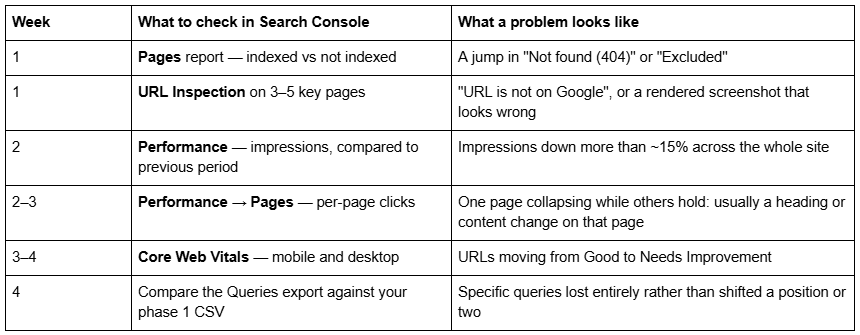
Field data in the Core Web Vitals report is a 28-day rolling window, so it will not reflect the switch fully until roughly a month has passed. Do not act on it in week one.
Telling a real drop from ordinary movement
Rankings move constantly. Three signals distinguish a template-caused problem from background noise:
It is page-specific and matches something you changed. A single page dropping while the rest of the site holds points at that page's headings, content or internal links — not at the template.
It coincides with a coverage error. A drop plus new 404s in the Pages report is a URL problem, and the fix is a redirect, not a content rewrite.
It survives four weeks. Sitewide impression dips in the first ten days after any change are common and usually recover without intervention.
If impressions are flat and clicks are down, that is a titles-and-descriptions problem, not a template one — and SEO titles survive a switch, so it is likely unrelated.
If you are on Squarespace 7.1: the same process, for a restyle
Squarespace states that "it's not possible to change templates on a version 7.1 site" — every 7.1 site shares one template family. But the SEO risk of a restyle is identical in kind, so run the identical process.
Swapping a section layout can change a heading's level. Applying a theme in Site styles overwrites your palette and font pack with no undo and no version history, which changes text size and contrast sitewide. Adding image-led sections changes LCP. Renaming a page still changes its URL with no automatic redirect.
Capture the same four baseline artefacts, make the changes, verify, redirect, monitor. The version does not change the protocol.
The process in one list
Baseline — Search Console CSV export, sitemap URL inventory, heading structure, Core Web Vitals.
Switch — install and preview freely; never rename a slug, never delete a page mid-preview, use Not Linked.
Verify within the hour — sitemap diff, heading re-check, PageSpeed re-run, real-phone mobile check, navigation rebuild, orphan hunt.
Redirect — /old -> /new 301 in URL mappings for anything that moved; request indexing on key pages.
Monitor for four weeks — Pages report, Performance, Core Web Vitals, then compare queries against the baseline.
Most template switches on Squarespace hold their rankings, because the platform keeps URLs and metadata at site level rather than template level. The ones that do not hold usually failed at step two — somebody renamed a page while tidying, or deleted one while previewing. If you have not yet decided whether to switch at all, start at how to change your Squarespace template.
If the honest answer is that your site's search traffic is paying the bills and the switch cannot be rehearsed on a duplicate first, that is the point to bring in help. Where we usually get called is a 7.0 site with rankings worth protecting and no way to restyle into what the owner actually wants — which is what our premium Squarespace templates and build service are for. For a site with a dozen pages and a blog, the five phases above are the whole job, and they take a day.
FAQ
-
No, never — not on version 7.0 and not on 7.1. Changing a page slug produces a 404 at the old address until you add the rule yourself in Developer tools → URL mappings, using the format /old-url -> /new-url 301. Redirects only fire once the old page is deleted or disabled.
-
Load yourdomain.com/sitemap.xml and copy every URL into a spreadsheet. Squarespace generates the sitemap automatically and it cannot be edited, so it is a reliable inventory of what is currently indexable. Diff the new sitemap against it after the switch.
-
Click Cancel preview in the bottom bar. Your site returns to the live template and every change you made to the previewed template is saved against it, so you can pick the preview up again later without redoing the work.
-
Open Design → Template, hover the old template and set it live. Its site styles, Custom CSS, sidebars, footers and navigation order return exactly as you left them. This only works if you never uninstalled it — uninstalling deletes those settings permanently.
-
Set a different template live first, since the live template cannot be uninstalled. Then hover the template in Design → Template and click Uninstall, then Confirm. Check whether the template is discontinued first — discontinued templates cannot be reinstalled once removed.
-
Allow two to four weeks. Google has to recrawl before any change registers, and Squarespace's sitemap update lag is documented at days to weeks. Request indexing for your most important pages in Google Search Console straight after the switch rather than waiting.

Author Bio
I'm Walid Hasan, a Certified Squarespace Expert and Squarespace Circle Platinum Partner with over 12 years of hands-on experience designing and optimizing high-performing websites. Over the years, I've had the privilege of building more than 2,000 Squarespace websites for clients around the world, always focusing on clean design, strong user experience, and conversion-driven results.
