
If I Change My Squarespace Template, Can I Change Back?
Yes — provided the old template is still installed in your Template panel. Squarespace stores site styles, Custom CSS, sidebars, footers and navigation order against each individual template, so setting a previous template live again brings its whole design back exactly as you left it. There are two exceptions, both permanent: you uninstalled the old template, or it was discontinued and removed.
Here is where each situation lands.
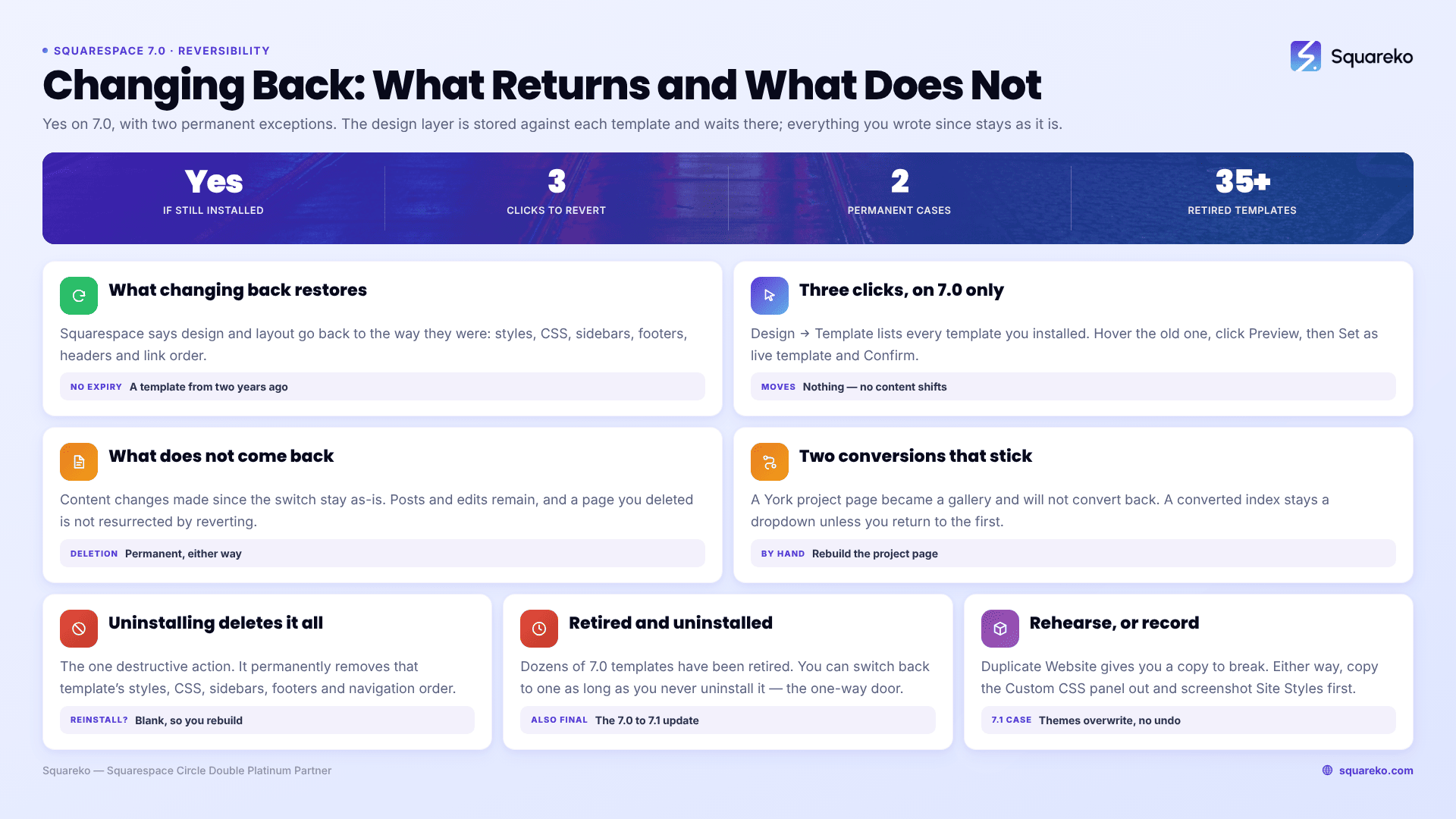
Can you change back? Every scenario
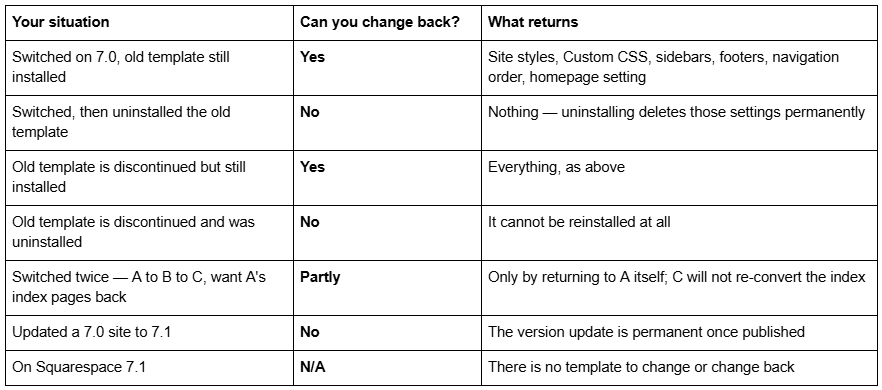
What changing back actually restores
Squarespace's documentation is direct on this: you can set a previously used template as your live template from the Template panel, and "changes to your site's design and layout will go back to the way they were."
That works because everything in the styling layer is template-specific — stored against each template, not against your site. Install Brine over Bedford and Bedford's settings do not go anywhere. They sit dormant. Set Bedford live again and they come straight back:
Site styles — fonts, colours, spacing, every style parameter
Custom CSS — the CSS Editor reloads exactly what you had on that template
Sidebar and footer content
Per-page headers and per-page footers
Background images
Navigation link order and Not Linked placement
The homepage setting
Any template demo content
There is no time limit on this. A template you last used two years ago still holds its settings, as long as it is still in the panel.
How to switch back to a previous Squarespace template
Three steps, on version 7.0 only.
Design → Template. The panel lists every template you have installed, with the live one at the top and previously used templates below it.
Hover the old template and click Preview. Only you see the preview; visitors keep seeing the current live template. Confirm your styles look the way you remember.
Click Set as live template, then Confirm.
That is the whole operation. Nothing is downloaded, nothing is reinstalled, and no content moves.
What does not come back
Reverting the template does not revert your site. Squarespace's wording is precise: "most content changes you've made since switching templates will stay as-is."
Content is site-level, so everything you wrote, edited, published or deleted while on the new template stays exactly as it is now. That includes:
Blog posts, products, events and gallery images added or edited since the switch — they remain, which is usually what you want
Pages you deleted. Deletion is permanent and immediate regardless of which template was live. Changing back does not resurrect them.
Page settings and URL slugs you changed
Project pages. A project page belongs to the York family and converts to a gallery page when you switch away. Switching back does not convert it in return — you rebuild it by hand.
Index pages converted in a chain. If you went from a template with index pages to one without, the index converted to a navigation dropdown. Going on to a third template that does support index pages leaves it a dropdown, because the conversion is not re-evaluated. Only returning to the original template restores it.
The two situations where you genuinely cannot go back
1. You uninstalled the old template. Uninstalling is the only destructive action in the whole switching process. It permanently deletes every template-specific setting attached to that template — styles, Custom CSS, sidebars, footers, navigation order. If the template is still available in the store you can reinstall it, but it comes back as a blank slate with default styling. You are rebuilding, not reverting.
There is no reason to uninstall a template. An unused template in the panel costs nothing, uses no resources and does not affect your site. Leave every template you have ever used installed.
2. The template was discontinued and you uninstalled it. Squarespace has retired more than 35 version 7.0 templates, including the whole Marquee family and names like Amelie, Atelier, Devlin, Hudson, Jensen, Metro and Peak. Squarespace's position is exact: a discontinued template "is no longer available for installation," but "you can switch to a different template, and switch back to the discontinued template as long as you don't uninstall it."
That combination — discontinued plus uninstalled — is the only way a Squarespace template switch becomes truly one-way. It is also entirely avoidable.
There is a third one-way door worth naming, though it is not a template switch: the 7.0→7.1 version update tool is permanent once published. You can preview 7.1 and cancel, but once you publish there is no route back to 7.0 or to any 7.0 template.
Protect yourself before you switch: duplicate the site
If you want a switch you can genuinely undo, do it on a copy first.
Account Dashboard → click … on the site → Duplicate Website. The copy arrives as a new trial and carries pages, sections, blocks, collection items, site title, logo, style settings, the template and your code injection. Perform the entire switch on the duplicate, break whatever you like, and decide from evidence rather than from a preview.
Two limits to know: duplication is not available for sites over 150 pages or Developer Platform sites, and the duplicate does not carry selling settings, orders, domains, blog comments, audio files or authenticated third-party integrations. It is a design rehearsal environment, not a backup. The full method is in how to change a Squarespace template without losing content.
Whether you duplicate or not, do the ten-minute capture: copy the whole Custom CSS panel into a text file and screenshot every Site Styles panel before you install anything.
On Squarespace 7.1 there is nothing to change back to
Squarespace states that "it's not possible to change templates on a version 7.1 site" — every 7.1 site belongs to one shared template family, so there is no switch to undo.
The 7.1 equivalent of an irreversible move is applying a theme in Site styles. It overwrites your colour palette and font pack with no undo and no version history. Record your hex codes and font settings before you click one. Fonts have a partial escape hatch — Site styles → Fonts → Reset Font Pack returns the defaults without touching content — but colours do not.
When switching back is the wrong call
Reverting is easy, which makes it tempting to revert the moment something looks wrong. Two questions first:
Is what you are seeing a missing feature or a missing setting? A vanished sidebar is a rebuild, not a defect — sidebar content is template-specific and always starts empty on a new template.
Is the problem in the family or in the styling? If the new family genuinely lacks index pages or per-page footers, go back. If it has them and they are simply unconfigured, spend the hour configuring.
The family-level version of that question — which features live where — is in how to change a Squarespace 7.0 template.
The short answer
Switching is reversible. Uninstalling is not. Discontinued plus uninstalled is permanent. The 7.0→7.1 update is permanent. Everything else can be walked back by setting the old template live again, and the design settings you had on it will be exactly where you left them.
Before any switch: duplicate the site if you can, copy your Custom CSS out, screenshot your Site Styles, and never click uninstall. The full decision, on both versions, is in how to change your Squarespace template.
The case where none of this is enough is a site whose old template was discontinued and whose owner needs a modern build rather than a revert — at which point the honest answer is a rebuild on 7.1, which is what our premium Squarespace templates exist for. For anyone still holding an installed template in the panel, changing back is three clicks.
FAQ
-
No, never — not on version 7.0 and not on 7.1. Changing a page slug produces a 404 at the old address until you add the rule yourself in Developer tools → URL mappings, using the format /old-url -> /new-url 301. Redirects only fire once the old page is deleted or disabled.
-
Load yourdomain.com/sitemap.xml and copy every URL into a spreadsheet. Squarespace generates the sitemap automatically and it cannot be edited, so it is a reliable inventory of what is currently indexable. Diff the new sitemap against it after the switch.
-
Click Cancel preview in the bottom bar. Your site returns to the live template and every change you made to the previewed template is saved against it, so you can pick the preview up again later without redoing the work.
-
Open Design → Template, hover the old template and set it live. Its site styles, Custom CSS, sidebars, footers and navigation order return exactly as you left them. This only works if you never uninstalled it — uninstalling deletes those settings permanently.
-
Set a different template live first, since the live template cannot be uninstalled. Then hover the template in Design → Template and click Uninstall, then Confirm. Check whether the template is discontinued first — discontinued templates cannot be reinstalled once removed.
-
No. The version update tool is permanent once published. You can preview your site in 7.1 and cancel before publishing, but after publishing there is no route back to version 7.0 or to any 7.0 template.

Author Bio
I'm Walid Hasan, a Certified Squarespace Expert and Squarespace Circle Platinum Partner with over 12 years of hands-on experience designing and optimizing high-performing websites. Over the years, I've had the privilege of building more than 2,000 Squarespace websites for clients around the world, always focusing on clean design, strong user experience, and conversion-driven results.
