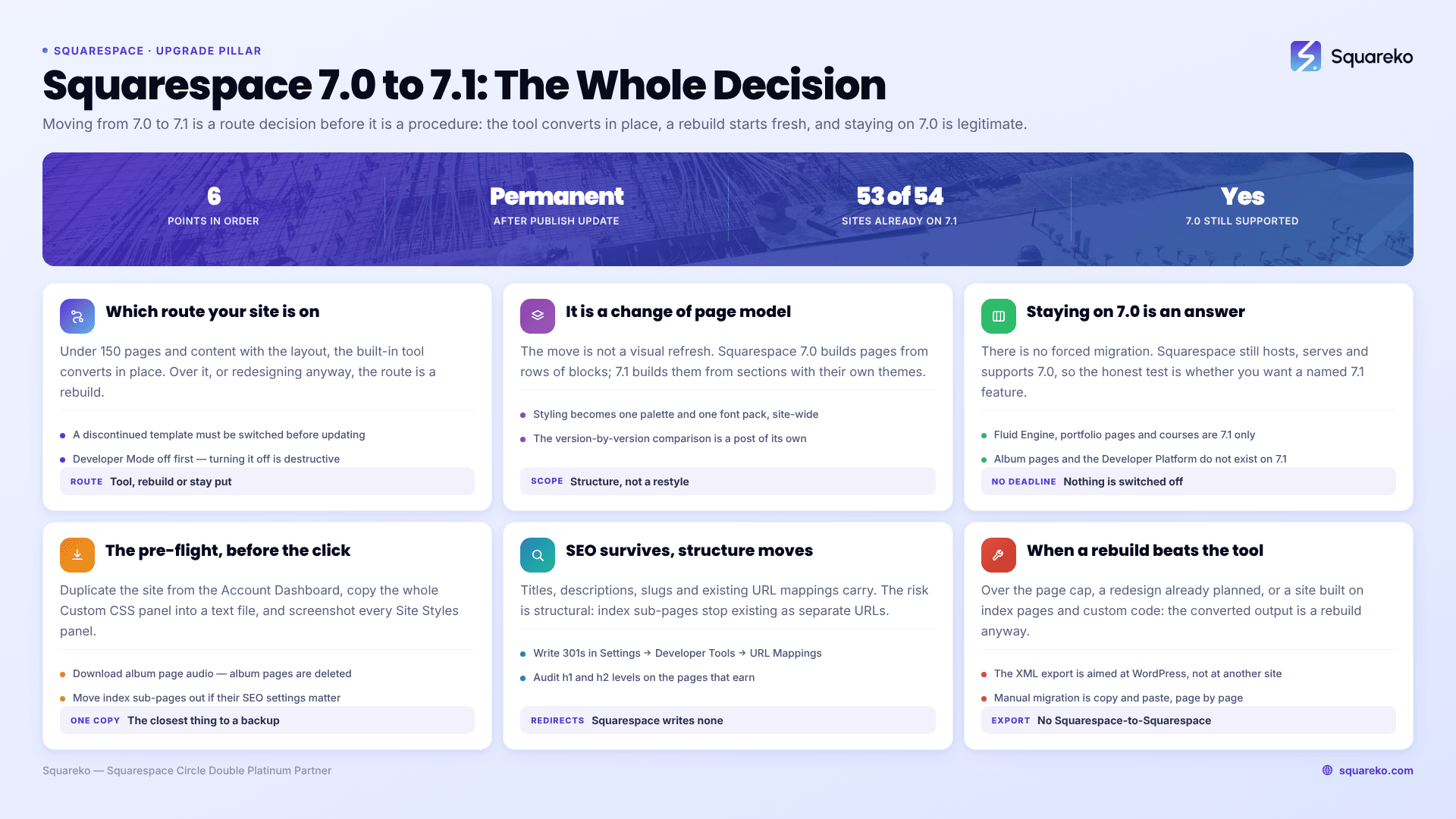
Squarespace 7.0 to 7.1: The Complete Upgrade Guide
Squarespace has a built-in tool that converts a 7.0 site to 7.1 in place, at Design → Update to Version 7.1. It preserves your pages, blog posts, products, orders, customer data, SEO settings, domains and URL mappings. It is also permanent — once you click Publish update there is no route back to 7.0 — and it will not run on a site over 150 pages or a store page over 200 products. The single detail most guides omit: after the update, your Custom CSS is commented out and has to be switched back on by hand.
Everything else follows from those four facts. Here is the whole decision, in order.
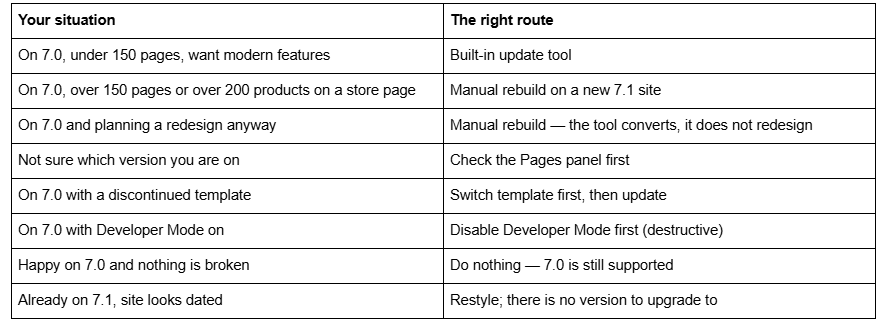
Which Squarespace 7.0 to 7.1 route applies to you
How to tell whether you are on Squarespace 7.0 or 7.1
Open the Pages panel and scroll to the very bottom of it. Squarespace prints the version there.
Version 7.1 sites show a version 7.1 label and no template name, because every 7.1 site belongs to the same template family.
Version 7.0 sites show the version and the template name — Brine, Bedford, Pacific, York, Wells and so on.
If you cannot see it, there is a second test that works from the front end: 7.0 sites build pages from blocks laid out in rows, and the Design panel contains a Template item. Squarespace 7.1 sites build pages from sections, and there is no Template panel at all.
That template name matters for the upgrade, not just for identification, because eligibility and conversion quality both depend on the family you are in. The detail is in what version of Squarespace am I on? and how to tell what Squarespace template I'm using, and if you are checking someone else's site from the outside, the Squarespace template detector method covers reading it from the page source.
Some context on how rare 7.0 now is. Across 54 Squareko-built client sites we measured in August 2026 (Playwright/Chromium lab test, cloud datacenter, unthrottled, single run per site), 53 of 54 run Squarespace 7.1. Version 7.0 is still supported and still works, but it is a shrinking minority of live sites and effectively none of the sites built in the last four years.
What actually changes when you move from Squarespace 7.0 to 7.1
The move is not a visual refresh. It is a change of the underlying page model.
Squarespace 7.0 has 22 template families. Features belong to families, not to the platform. Index pages, sidebars, per-page headers, banner images and specialised page types are available on some families and absent from others. Choosing a 7.0 template was choosing a feature set.
Squarespace 7.1 has one template family. Every 7.1 site shares the same codebase, the same page types and the same style options. The template you pick at signup is a starting layout and a colour-and-font preset. Anything one 7.1 template can do, every 7.1 site can do.
Pages are built from sections, not rows of blocks. In 7.0 a page is a stack of blocks arranged in rows and columns. In 7.1 a page is a stack of sections, each with its own background, colour theme, height and layout. Sections are the unit you add, reorder, duplicate and save.
Styling is global, not per template. In 7.1 you set one colour palette, Squarespace generates around ten section colour themes from it, and you assign a theme per section. Fonts work the same way through a font pack.
A plain-language, non-technical walk through all of this is in the difference between Squarespace 7.0 and 7.1, explained simply.
Should you move from Squarespace 7.0 to 7.1 at all?
There is no forced migration. Squarespace continues to host, serve and support 7.0 sites, and nothing on your site stops working because you stayed. The honest test is whether you want a specific 7.1 feature.
Reasons that justify the move:
Fluid Engine. The drag-and-drop grid editor with independent mobile layouts exists only in 7.1.
Portfolio pages, video pages and courses. None exist in 7.0.
Auto layouts, section dividers, shape blocks, saved sections, block pinning. All 7.1 only.
Commerce scale. 7.1 supports up to 10,000 products per site and 250 variants per product, against 200 products per store page and 100 variants in 7.0.
A discontinued template. If your 7.0 template is discontinued you cannot reinstall it once removed, which makes staying more fragile over time.
Nobody left who knows your template. Brine-family CSS written by a designer you can no longer reach is a real maintenance risk.
Reasons to stay on 7.0 for now:
You depend on a page type 7.1 does not have — album pages in particular, which disappear entirely.
You use the Developer Platform, which does not exist in 7.1.
Your site is heavily custom-coded and the code is load-bearing rather than cosmetic.
Nothing is broken and there is no feature you are missing.
The full argument, including the cases where staying is genuinely the better business decision, is in should I upgrade to Squarespace 7.1? and the head-to-head judgement is in is Squarespace 7.1 better than 7.0?. If your concern is that 7.0 will be switched off, the state of Squarespace 7.0 end of life sets out what Squarespace has and has not said.
The Squarespace 7.0 to 7.1 update tool and its hard limits
The tool lives in the Design panel, as Update to Version 7.1. It converts your existing site in place rather than creating a new one, which is why domains, orders, customer accounts and URL mappings survive.
Four constraints decide whether you can use it at all:

Squarespace states what the update preserves in plain terms: "site structure and information like SEO, orders, sales, customer data, members, domains, URL mappings, and subscriptions." Blog comments transfer with their visitor information. Product data, custom domain connections and Google Workspace associations all carry.
And the sentence that governs everything else: "After you click Publish update, you can't undo your changes or revert to version 7.0." There is no rollback, no version history, and no support ticket that reverses it. The full weight of that is unpacked in is the Squarespace 7.1 upgrade irreversible?.
An honest audit of what the tool handles well and what it quietly leaves behind is in the Squarespace 7.1 migration tool reviewed.
Before you start: the Squarespace 7.0 to 7.1 pre-flight list
The update itself takes minutes. The preparation is where the work is, and skipping it is how people lose things they cannot get back.
Duplicate the 7.0 site. From the Account Dashboard, click … on the site and choose Duplicate Website. This is the closest thing to a backup Squarespace offers, and Squarespace's own documentation recommends it. Note the copy does not carry selling settings, orders, domains, blog comments, audio files or stock images, and it arrives as a new trial needing its own plan if you keep it. Sites over 150 pages and Developer Platform sites cannot be duplicated at all.
Copy the entire Custom CSS panel into a text file. You will need it later, and after the update the panel contents are commented out.
Screenshot every Site Styles panel, and take full-page captures of the live site on desktop and mobile. Ten minutes now, an afternoon saved later.
Download album page audio. Album pages do not exist in 7.1 and their content disappears.
Move sub-pages out of index pages if their SEO titles and descriptions matter — index sub-page settings do not transfer.
Split any store page over 200 products.
Turn off Developer Mode at Settings → Developer Tools → Developer Mode. Developer Platform changes disappear when you do, so save your site files locally first.
Record every URL that currently ranks, from Search Console or your analytics. You will check them again afterwards.
A printable version of this, with the post-update checks as well, is in the Squarespace 7.0 to 7.1 checklist.
Running the Squarespace 7.0 to 7.1 update, step by step
Five steps, and only the last one is irreversible.
Step 1 — Open the Design panel and click Update to Version 7.1. If the option is not there, the cause is almost always Developer Mode still being on or a discontinued template.
Step 2 — Click Get Started and read the summary screen Squarespace shows you. It lists the specific features on your site that will not carry.
Step 3 — Click Preview site in 7.1. Squarespace builds a 7.1 version of the site that only you can see. Visitors continue to see the live 7.0 site.
Step 4 — Work through the preview. While previewing you can add content and make style changes, and "all other site functions are disabled until you publish or end the preview." You cannot edit blog posts, take orders or change most settings. Cancel at any point and the preview is discarded; the 7.0 site is untouched.
Step 5 — Click Publish update. This is the irreversible one. The 7.1 site becomes live for visitors immediately.
The full walkthrough with the pre-flight backup steps in sequence is in how to upgrade your Squarespace site to 7.1.
What breaks in the move from Squarespace 7.0 to 7.1
This is the section people wish they had read first. Everything below is documented by Squarespace, not speculation.
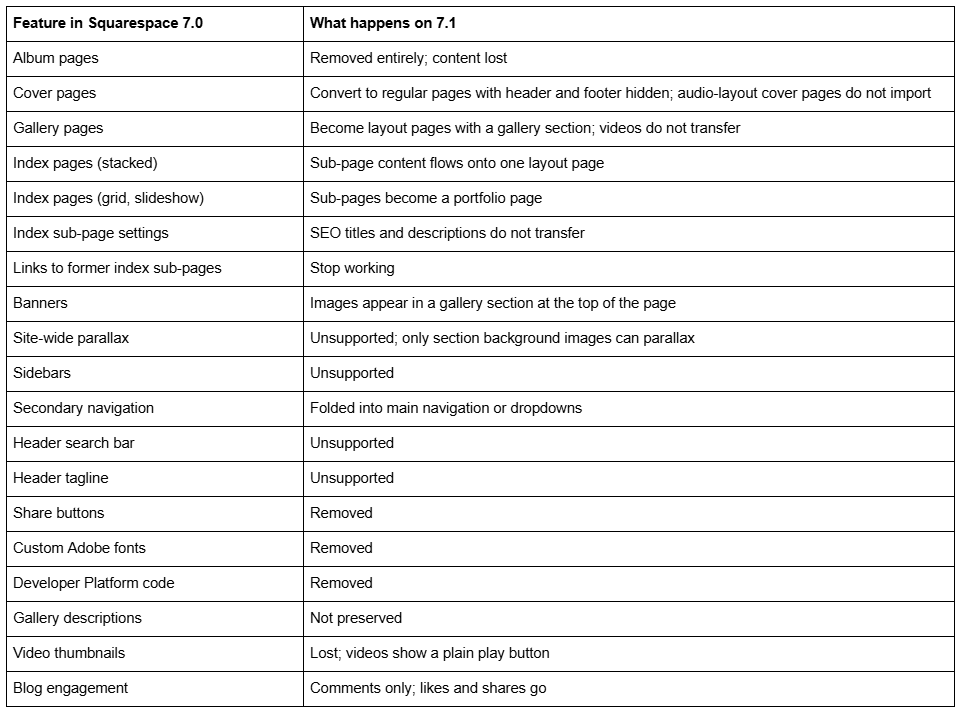
Two of these deserve their own sections, because they are the ones that generate the most "my site is broken" messages.
Custom CSS is commented out after the Squarespace 7.1 update
Squarespace's documentation states it directly: "Custom CSS may be commented out after the update." Your code is still in the panel. It is simply wrapped in comment markers so the browser ignores every rule.
This is the correct default behaviour, and it is the right decision on Squarespace's part — 7.0 CSS written against .sqs-row, .sqs-col-6, .span-6, template-family classes and Brine's index markup would produce something worse than an unstyled site if it were left running. But it means the site you see immediately after publishing is your content with none of your styling, and almost nobody is warned about it in advance.
What to do about it:
Open Website → Website Tools → Custom CSS (Core plan or above required).
Do not simply delete the comment markers and republish. Most of what is inside them targets markup that no longer exists.
Work through the file rule by rule against the new 7.1 markup, uncommenting what still matches and rewriting what does not. Squarespace 7.1 uses section wrappers with data-section-id, .page-section, and Fluid Engine sections built on CSS Grid.
Anything keyed to a 7.0 block ID is almost certainly dead, because the update rebuilds blocks.
Anything keyed to a collection ID usually survives, because collection IDs are preserved.
Budget real time for this. On a lightly styled site it is twenty minutes. On a Brine site with 800 lines of CSS it is a day, and it is the single largest hidden cost of the move.
Index pages, gallery pages and the page types that convert or break
Version 7.0's specialised page types are where the conversion is most lossy, because 7.1 does not have equivalents for all of them.
Index pages. A stacked index becomes one layout page containing the content of every enabled sub-page. A grid or slideshow index becomes a portfolio page. In both cases the sub-pages stop being separate URLs, so any link pointing at /index-page/sub-page breaks and the SEO title and description you set on each sub-page is gone. If those sub-pages have inbound links or rankings, move them out of the index before updating and write URL mappings for the ones that still change.
Disabled sub-pages simply vanish. Only enabled sub-pages convert. Anything you had switched off inside an index is not carried across.
Gallery pages become layout pages with a gallery section, and Squarespace applies the closest matching style tweaks. Images transfer; videos and gallery descriptions do not.
Cover pages convert to regular pages with the header and footer hidden, so your first job afterwards is deciding whether to unhide them. Cover pages built on audio layouts do not import at all.
Album pages are the only page type that is simply deleted. Download the audio first.
Info pages (Aviator family) and project pages (York family) are family-specific 7.0 page types. If you are switching template before updating — which discontinued-template sites must do — read how to change a Squarespace 7.0 template first, because switching away from Aviator or York destroys those page types before the update tool ever sees them.
You do not get Fluid Engine automatically
This surprises people, and it is worth stating plainly: the Squarespace 7.0 to 7.1 update does not put your site into Fluid Engine. Converted pages arrive as 7.1 classic editor sections. You are on 7.1 — you have the 7.1 style system, the 7.1 page types and the 7.1 commerce limits — but the editing experience on existing pages is still the row-and-column one.
To move a section onto the Fluid Engine grid, click Edit on the page, then click Upgrade in the top-left corner of the classic section. Two things to know before you do:
It is one-way once you save. Undo works before you save; after you save, the classic version of that section is gone.
Expect the layout to shift. Classic spacing came from spacer blocks and column proportions; Fluid Engine has to translate that into grid coordinates on a 24-column desktop grid and a separate 8-column mobile grid, pivoting at 768px. The translation is approximate.
Note also that blog posts always use the classic editor. There is no Fluid Engine option inside a blog post on any 7.1 site, so the blog you convert is the blog you keep.
The grid, the mobile divergence and the CSS consequences are covered in full in how Squarespace Fluid Engine works.
SEO and URLs after moving from Squarespace 7.0 to 7.1
Squarespace preserves page titles, SEO titles, meta descriptions, URL slugs and existing URL mappings through the update. The risks are the ones the conversion introduces structurally.
Index sub-page URLs. This is the big one. Sub-pages inside an index stop existing as separate pages, so every URL under that index 404s unless you map it. Squarespace never creates an automatic 301 — not on 7.0, not on 7.1, not ever. Write them yourself in Settings → Developer Tools → URL Mappings:
/about/our-team -> /about 301
/portfolio/[name] -> /work/[name] 301
The mappings file is capped at 400 KB, roughly 2,500 lines, and redirects only fire once the old page is deleted or disabled.
Heading structure. Section titles in 7.1 do not always render at the same heading level the 7.0 template used. Audit your h1/h2 structure on key pages after publishing.
Internal links. Any link you hard-coded in a text block or code block to an index sub-page is now pointing at a dead URL. Search your content for them.
Speed. Version 7.1 is generally lighter than a heavily customised 7.0 template, but imagery is what usually decides it. For reference, across 54 Squareko-built sites measured in August 2026 the median mobile LCP was 2.01s and the median page weight 3.0 MB across 93 requests — the platform is rarely the bottleneck.
The content-preservation angle specifically is in how to migrate 7.0 to 7.1 without losing content.
When the update tool is the wrong route: the manual rebuild
Three situations make the tool a bad choice even when it is technically available.
Your site is over 150 pages or a store page is over 200 products. The tool will not run. Splitting a 200-page site down to 150 to satisfy the tool is usually worse than rebuilding.
You want a redesign, not a conversion. The tool reproduces your 7.0 layout as faithfully as 7.1 allows. If the plan was always to redesign, converting first means restyling a layout you are about to throw away.
Your site leans hard on index pages, sidebars and custom code. When most of what makes the site work is on the "does not transfer" list, the conversion output is a site you have to rebuild anyway, on a version you can no longer leave.
The manual route is building a fresh 7.1 site alongside the live 7.0 one and moving content across by hand. Be clear-eyed about what that costs: Squarespace does not support exporting content from one Squarespace site and importing it into another. The XML export exists, but it is aimed at WordPress and it excludes index pages, cover pages, album pages, portfolio pages, store pages, product blocks, video blocks, audio blocks, drafts, style settings and Custom CSS. Manual migration means copy and paste, page by page.
The full sequence — inventory, rebuild, URL matching, cutover — is in how to migrate from Squarespace 7.0 to 7.1 manually.
Working the Squarespace 7.0 to 7.1 move in order
If you take nothing else from this page, take the sequence:
Confirm your version at the bottom of the Pages panel.
Decide whether you actually want a 7.1 feature. If nothing is missing, staying on 7.0 is a legitimate answer.
Check the two limits — 150 pages, 200 products per store page.
Duplicate the site, save the CSS, screenshot the styles, download album audio.
Move index sub-pages out if their URLs or SEO settings matter.
Preview, and work the preview properly — it is free and it is the last reversible moment.
Publish, then repair: uncomment and rewrite Custom CSS, fix headings, write URL mappings, re-add video thumbnails.
Convert sections to Fluid Engine deliberately, one at a time, not in a single afternoon.
Most 7.0 sites — a dozen pages, a blog, a handful of products — go through the tool cleanly in an evening, and the repair afterwards is an hour of CSS. That is a job you can do yourself, and the steps above are all you need.
Where it stops being a DIY job is a large Brine-family site with a decade of blog posts, index pages that rank, and a stylesheet nobody has documented — because there the irreversible click is the first step, not the last, and there is no undo to fall back on. That is the situation our premium Squarespace templates and migration builds exist for: a 7.1 site built properly alongside the live one, with the URL map written before anything goes live. If your site is smaller than that, work the list.
FAQ
-
No, never — not on version 7.0 and not on 7.1. Changing a page slug produces a 404 at the old address until you add the rule yourself in Developer tools → URL mappings, using the format /old-url -> /new-url 301. Redirects only fire once the old page is deleted or disabled.
-
Load yourdomain.com/sitemap.xml and copy every URL into a spreadsheet. Squarespace generates the sitemap automatically and it cannot be edited, so it is a reliable inventory of what is currently indexable. Diff the new sitemap against it after the switch.
-
Click Cancel preview in the bottom bar. Your site returns to the live template and every change you made to the previewed template is saved against it, so you can pick the preview up again later without redoing the work.
-
Open Design → Template, hover the old template and set it live. Its site styles, Custom CSS, sidebars, footers and navigation order return exactly as you left them. This only works if you never uninstalled it — uninstalling deletes those settings permanently.
-
Set a different template live first, since the live template cannot be uninstalled. Then hover the template in Design → Template and click Uninstall, then Confirm. Check whether the template is discontinued first — discontinued templates cannot be reinstalled once removed.
-
Allow two to four weeks. Google has to recrawl before any change registers, and Squarespace's sitemap update lag is documented at days to weeks. Request indexing for your most important pages in Google Search Console straight after the switch rather than waiting.

Author Bio
I'm Walid Hasan, a Certified Squarespace Expert and Squarespace Circle Platinum Partner with over 12 years of hands-on experience designing and optimizing high-performing websites. Over the years, I've had the privilege of building more than 2,000 Squarespace websites for clients around the world, always focusing on clean design, strong user experience, and conversion-driven results.