How to Upgrade Squarespace 7.0 to 7.1
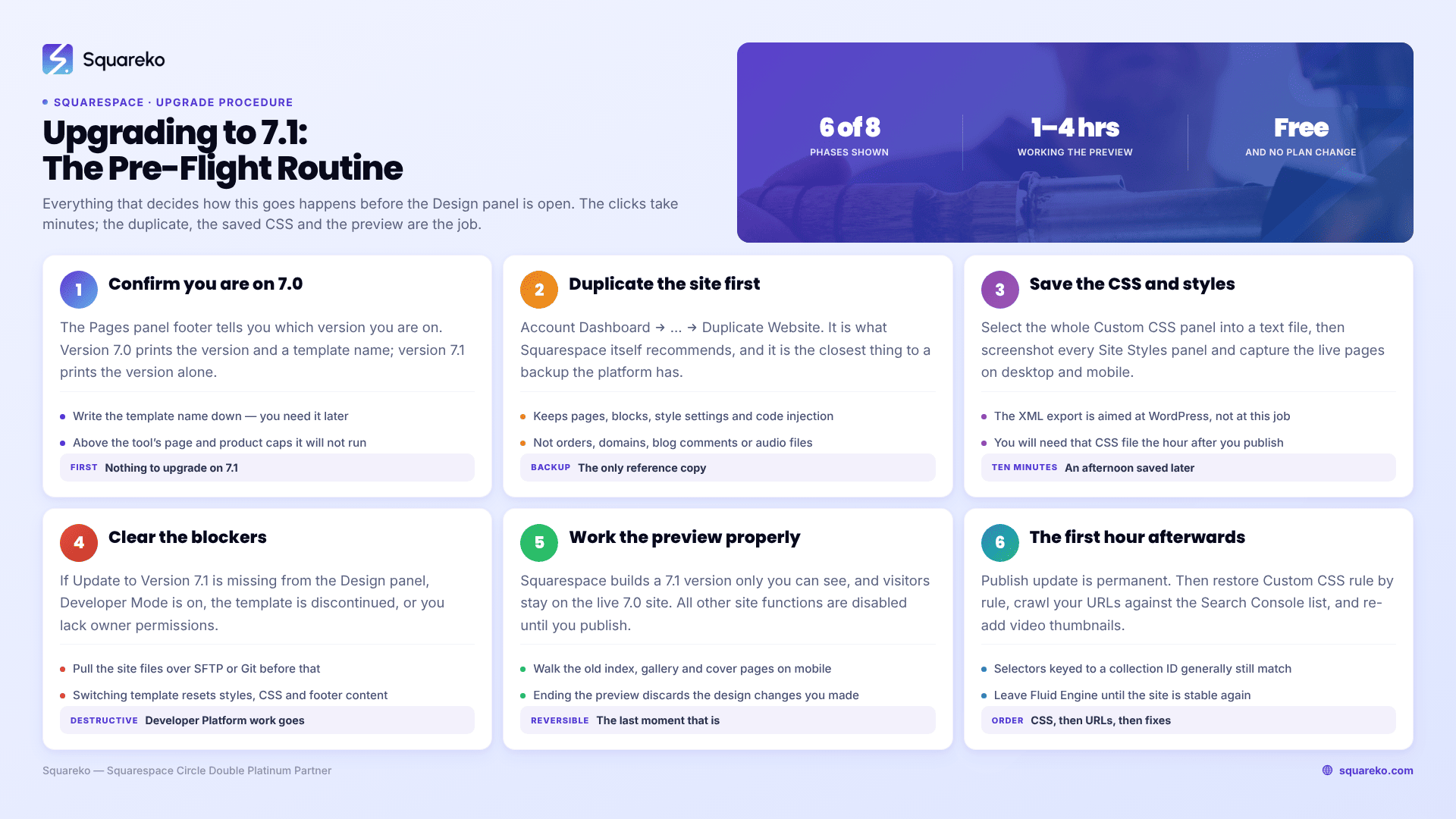
The Squarespace upgrade to 7.1 runs from Design → Update to Version 7.1, and the tool itself is five clicks. The clicks are not the risky part. Publish update is permanent — there is no revert to 7.0 on any plan, through any support channel. So the real procedure is a pre-flight routine you run before you open the Design panel: duplicate the site, copy the Custom CSS out, download anything on the "does not transfer" list, then run the tool.
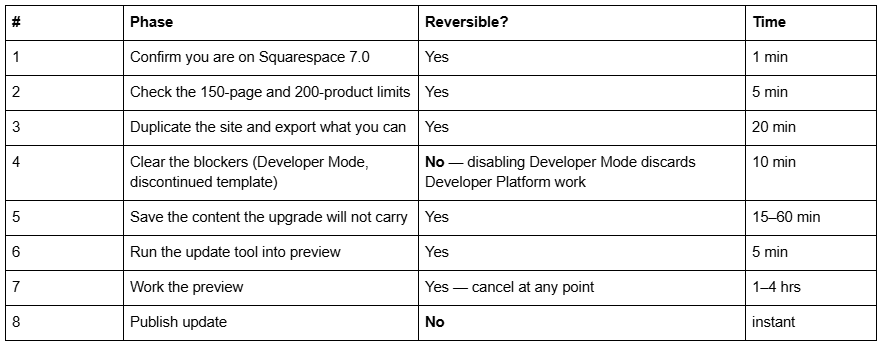
Here is the whole sequence, in the order you should execute it.
The Squarespace 7.1 upgrade in eight phases
Phase 1 — Confirm you are actually on Squarespace 7.0
Open the Pages panel and scroll to the bottom. Squarespace prints the version there.
Version 7.0 shows the version and a template name — Brine, Bedford, Pacific, York, Wells.
Version 7.1 shows a version 7.1 label and no template name.
If it says 7.1, there is nothing to upgrade. Every 7.1 site is already on the current version; what changes over time is which features Squarespace adds, and those arrive automatically. Full detail in what version of Squarespace am I on?.
Write the template name down. You need it in Phase 4, and you need it if you ever have to explain to someone what the site used to be.
Phase 2 — Check the two limits that block the Squarespace 7.1 upgrade
Two hard numbers decide whether the tool will run at all:
150 pages. Over that, the update will not proceed. Count everything in the Pages panel including Not Linked pages — several page types count toward the limit.
200 products per store page. Over that, you get an error. Split the store page before you start; Squarespace 7.1 allows up to 10,000 products per site, so this constraint disappears once you are across.
If you are over either limit and cannot reasonably get under it, the tool is not your route. Build a new 7.1 site instead and move content manually — see how to migrate from Squarespace 7.0 to 7.1 manually.
Phase 3 — How to back up a Squarespace 7.0 site before upgrading to 7.1
Squarespace has no backup button and no version history that reaches across a version change. There are three things you can preserve, and all three are worth doing.
1. Duplicate the site. From the Account Dashboard, click … on the site and choose Duplicate Website. This is what Squarespace itself recommends. The copy keeps pages, sections, blocks, collection items, style settings, code injection, the template and your site title. It does not keep selling settings, orders, subscriptions, domains, blog comments, audio files, stock images or unused asset library items, and it arrives as a new trial that needs its own plan if you decide to keep it beyond the trial window. Sites over 150 pages and sites using the Developer Platform cannot be duplicated.
2. Copy the entire Custom CSS panel into a text file. Open Website → Website Tools → Custom CSS, select all, paste into a plain text file, save it somewhere that is not your desktop. You will need this after the upgrade, because the tool comments the panel out.
3. Capture the design. Screenshot every Site Styles panel. Take full-page captures of the live site on desktop and on mobile, on the pages that matter. When you are rebuilding a header in 7.1 three weeks later, a screenshot is worth more than a memory.
One thing not to bother with: the XML export. Squarespace's export is aimed at WordPress and, in Squarespace's own words, it is not possible to export content from one Squarespace site and import it into another. It also omits index pages, cover pages, album pages, portfolio pages, store pages, product blocks, video blocks, audio blocks, drafts, style settings and Custom CSS. As a backup of a 7.0 site it is close to useless.
Phase 4 — Clear the blockers before you upgrade Squarespace to 7.1
If Update to Version 7.1 is missing from the Design panel, one of these is why.
Developer Mode is on. Turn it off at Settings → Developer Tools → Developer Mode. Read the warning properly: any changes you've made on the Developer Platform will disappear. Pull your site files down over SFTP or Git first. This step is destructive in its own right, and it happens before the upgrade even starts.
Your template is discontinued. Discontinued 7.0 templates cannot go through the tool. Switch to a current template — ideally another one in the same family, which has identical features — then upgrade. The switching procedure and the family rules are in how to change a Squarespace 7.0 template and the template switching pillar. Be aware that switching template is itself lossy: site styles, Custom CSS, sidebars, footers and per-page headers all reset.
You are not the owner. The upgrade requires owner or administrator permissions.
Phase 5 — Save the content the Squarespace 7.1 upgrade will not carry
Work this list before you preview, because some of it cannot be recovered afterwards.
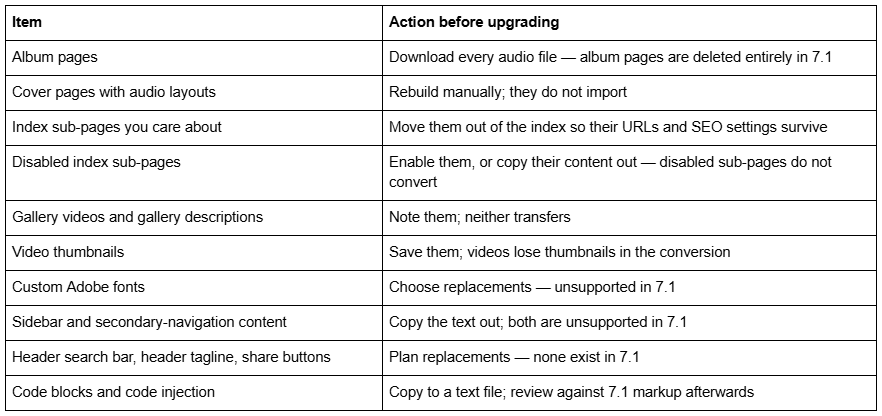
Also export your current URL list from Search Console. After the upgrade you will compare against it, and any URL that has moved needs a manual 301 — Squarespace never creates one automatically.
Phase 6 — How to upgrade Squarespace to 7.1: running the tool
With preparation done, the tool itself is short.
Open the Design panel and click Update to Version 7.1.
Click Get Started. Squarespace shows a summary of what will and will not carry from your site specifically. Read it — it is site-aware, not generic.
Click Preview site in 7.1.
Squarespace now builds a 7.1 version of your site. Visitors continue to see the live 7.0 site throughout. Nothing you do in preview reaches the public site until you publish.
Conversion takes anywhere from under a minute to several minutes depending on how many pages and collection items you have.
Phase 7 — What you can and cannot do in Squarespace 7.1 preview mode
Preview is deliberately restricted, and understanding the restriction saves an hour of confusion.
You can: add content, add and rearrange sections, change site styles, set colour themes, adjust fonts, and work through the layout page by page.
You cannot: use most other site functions. Squarespace's wording is that "all other site functions are disabled until you publish or end the preview" — so no editing blog posts, no order management, no settings changes outside design.
Use the time properly. This is the last fully reversible moment in the whole process. Walk every page. Check the header and the footer. Check mobile. Look specifically at the pages that were index pages, gallery pages or cover pages in 7.0, because those are where the conversion is lossiest.
A concrete list of what to open in the Squarespace 7.1 preview, in priority order:
Your homepage on mobile. Converted banners land as a gallery section at the top, which reads very differently on a phone than a 7.0 banner did.
Every page that used to be an index. Confirm which sub-pages made it across and note the URLs that no longer exist.
Navigation. Secondary navigation is folded into the main navigation or into dropdowns, so the menu will not match what you had.
The blog. Post content transfers; sidebar navigation and the like/share controls do not.
Any store page. Category navigation in 7.1 cannot be hidden, always shows dividers between categories, and scrolls horizontally on mobile rather than collapsing into a dropdown.
Forms and newsletter blocks. Check they still point at the right storage or mailing list.
To back out, end the preview. Your 7.0 site is untouched and the design changes you made in preview are discarded.
Phase 8 — Publishing the Squarespace 7.1 upgrade
Click Publish update.
That is the irreversible click. Squarespace states it plainly: after you click Publish update, you cannot undo your changes or revert to version 7.0. Your site is now a 7.1 site, permanently, and the duplicate you made in Phase 3 is the only record of what it used to look like. More on why there is no way back in is the Squarespace 7.1 upgrade irreversible?.
The upgrade itself is free. It does not change your billing plan and it does not require a plan upgrade — although Custom CSS still requires a Core plan or above afterwards, exactly as it did on 7.0.
The first hour after you upgrade Squarespace to 7.1
Do these in order, on the day.
1. Turn your Custom CSS back on — carefully. Squarespace's documentation says Custom CSS may be commented out after the update, and in practice it usually is. Open Website → Website Tools → Custom CSS and you will find your code wrapped in comment markers. Do not uncomment the whole file and republish. Most 7.0 selectors — .sqs-row, .sqs-col-6, .span-6, Brine's index classes, individual block IDs — match nothing in 7.1. Go rule by rule, restore what still applies, rewrite what does not. Selectors keyed to a collection ID generally survive because collection IDs are preserved.
2. Crawl your own URLs. Compare against the Search Console list from Phase 5. Every URL that changed — especially old index sub-pages — needs a redirect written by hand in Settings → Developer Tools → URL Mappings:
/portfolio/kitchen-remodel -> /work/kitchen-remodel 301
/services/[name] -> /what-we-do/[name] 301
The mappings file is capped at 400 KB, roughly 2,500 lines, and a redirect only fires once the old page is deleted or disabled.
3. Fix the visible breakages. Re-add video thumbnails. Unhide the header and footer on converted cover pages if you want them. Rebuild gallery descriptions. Replace Adobe fonts.
4. Audit heading structure. Section titles in 7.1 do not always land on the same heading level your 7.0 template used. Check h1 and h2 on your money pages.
5. Leave Fluid Engine until tomorrow. Your pages arrive as 7.1 classic editor sections, not Fluid Engine. You convert them one at a time with the Upgrade button in the top-left of each classic section while editing, and that conversion is one-way once you save the page. Do it deliberately, section by section, after the site is stable. See how Squarespace Fluid Engine works.
Working the upgrade in order
Confirm the version, check the two limits, duplicate the site, copy the CSS out, save the album audio and index sub-pages, clear Developer Mode, preview thoroughly, publish, then spend an hour restoring CSS and writing redirects. On a normal small business site — a dozen pages, a blog, a contact form — that is an evening's work and it goes cleanly.
It stops being an evening's work when the site is large, the CSS is undocumented, or the pages that rank are index sub-pages whose URLs are about to disappear. In that case the irreversible click comes at the start of the repair job rather than the end, and there is nothing to fall back on.
That is the case our premium Squarespace templates and migration builds are for — a properly structured 7.1 site with the URL map written before anything goes live. For most 7.0 sites, the eight phases above are the whole job.
FAQ
-
Open the Design panel, click Update to Version 7.1, click Get Started, then Preview site in 7.1. Work through the preview, then click Publish update. Before any of that, duplicate the site, copy your Custom CSS to a text file and download any album page audio, because those cannot be recovered afterwards.
-
Load yourdomain.com/sitemap.xml and copy every URL into a spreadsheet. Squarespace generates the sitemap automatically and it cannot be edited, so it is a reliable inventory of what is currently indexable. Diff the new sitemap against it after the switch.
-
Duplicate the site from the Account Dashboard using the … menu and Duplicate Website, copy the whole Custom CSS panel into a text file, and screenshot every Site Styles panel plus the live pages. Squarespace's XML export is aimed at WordPress and cannot be imported into another Squarespace site.
-
Open Design → Template, hover the old template and set it live. Its site styles, Custom CSS, sidebars, footers and navigation order return exactly as you left them. This only works if you never uninstalled it — uninstalling deletes those settings permanently.
-
Set a different template live first, since the live template cannot be uninstalled. Then hover the template in Design → Template and click Uninstall, then Confirm. Check whether the template is discontinued first — discontinued templates cannot be reinstalled once removed.
-
Allow two to four weeks. Google has to recrawl before any change registers, and Squarespace's sitemap update lag is documented at days to weeks. Request indexing for your most important pages in Google Search Console straight after the switch rather than waiting.

Author Bio
I'm Walid Hasan, a Certified Squarespace Expert and Squarespace Circle Platinum Partner with over 12 years of hands-on experience designing and optimizing high-performing websites. Over the years, I've had the privilege of building more than 2,000 Squarespace websites for clients around the world, always focusing on clean design, strong user experience, and conversion-driven results.