
The Difference Between Squarespace 7.0 and 7.1, Explained Simply
Squarespace 7.0 and 7.1 are two generations of the same website builder, and the difference comes down to one thing: how much your template decides for you. On Squarespace 7.0 you picked one of 22 template families, and that choice locked in which features your site could ever have. On Squarespace 7.1 there is only one family. Every site has every feature, and the template you pick is just a starting look you can change at any time.
If you want the analogy: 7.0 is buying a house with the rooms already fixed. 7.1 is buying the same square footage with movable walls.
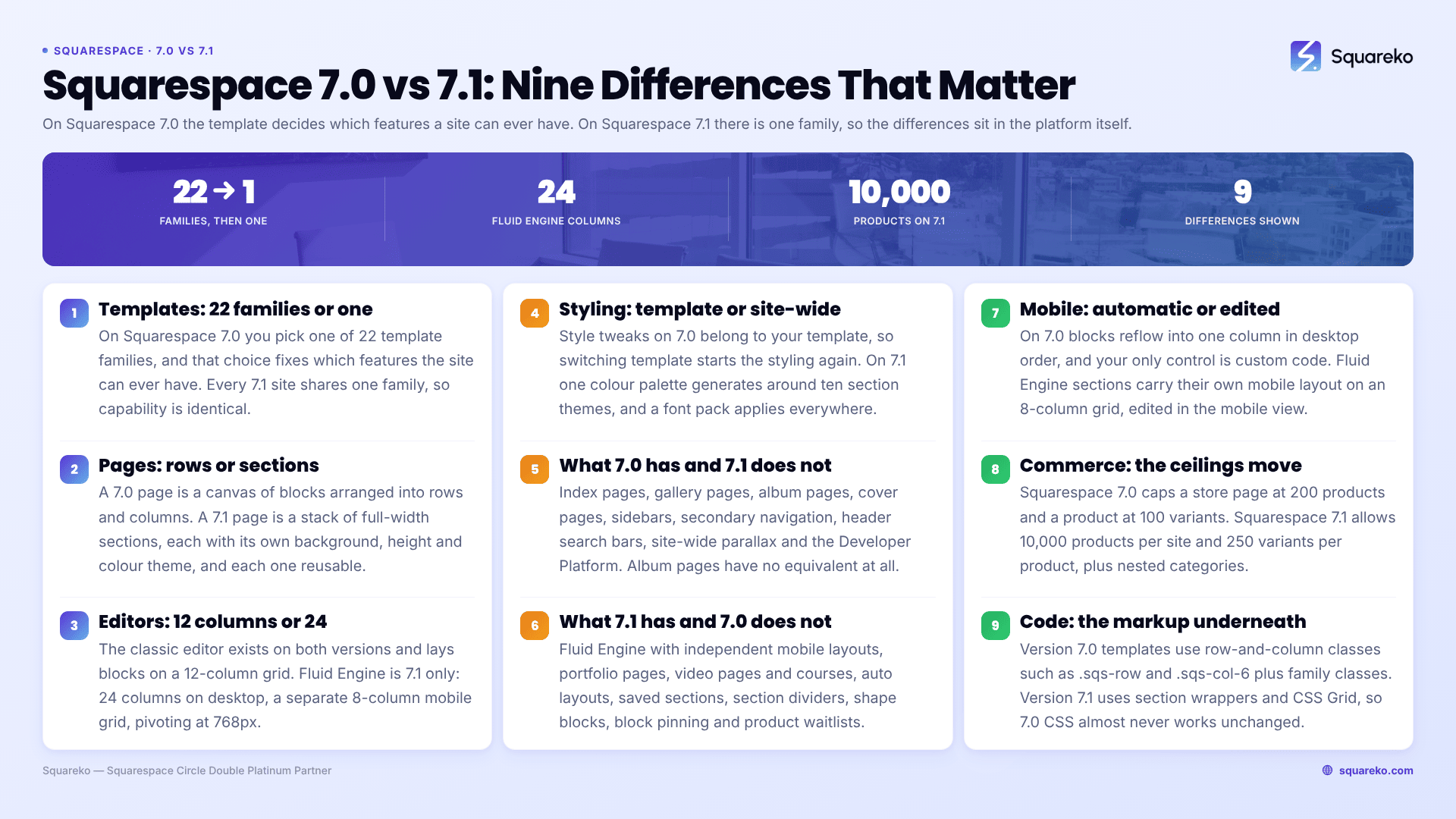
Squarespace 7.0 vs 7.1 at a glance
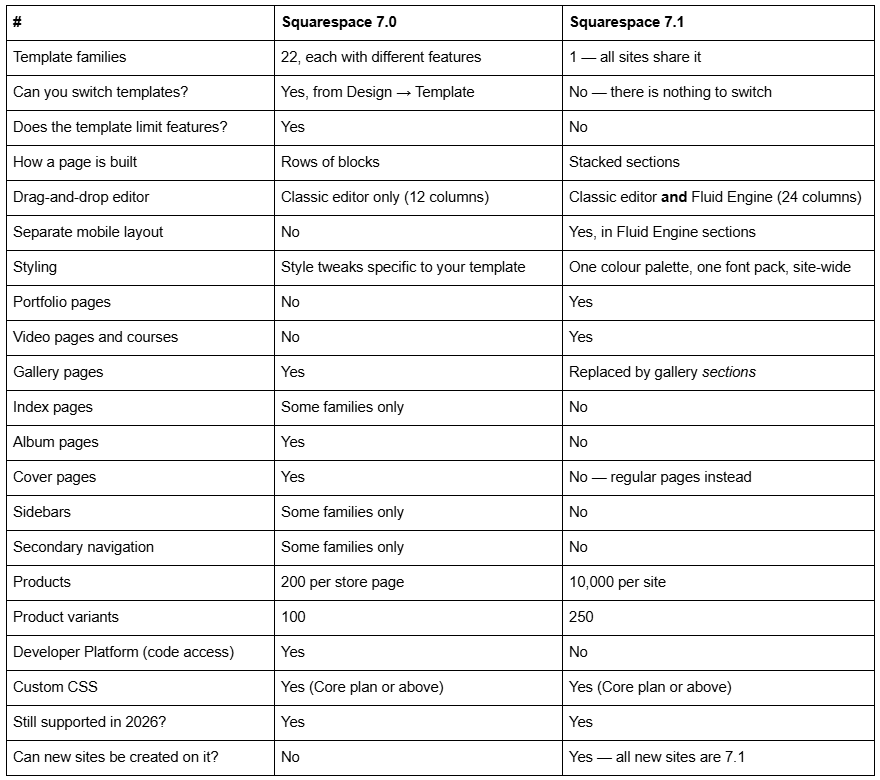
The one-sentence difference between Squarespace 7.0 and 7.1
In Squarespace 7.0, your template is a product. In Squarespace 7.1, your template is a preset.
That is the whole thing. On 7.0, choosing the Brine template rather than the Bedford template meant choosing a different underlying codebase with a different set of capabilities. Some things Brine could do, Bedford could not, and no amount of settings would change that. If you wanted a feature your template did not have, you had to switch to a template that did — and switching reset all your styling.
On 7.1, the template you pick when you sign up is a bundle of demo pages, a colour scheme and a font pairing. Everything inside it is available on every other 7.1 site too. Squarespace's own wording is that version 7.1 was designed "to remove the need to switch templates."
Templates: 22 families in Squarespace 7.0, one in 7.1
A template family is a group of Squarespace 7.0 templates that share the same underlying code. They look different but behave identically. The Bedford family, for example, contains Anya, Bedford, Bryant and Hayden.
Squarespace 7.0 has 22 families: Adirondack, Avenue, Aviator, Bedford, Brine, Farro, Five, Flatiron, Forte, Galapagos, Ishimoto, Marquee, Momentum, Montauk, Native, Pacific, Skye, Supply, Tremont, Wells, Wexley and York. Brine alone contains 47 individual templates.
On 7.0 you can install a new template and set it live, which is genuinely useful and genuinely disruptive — your fonts, colours, Custom CSS, sidebars and footer content all reset, because Squarespace stores those separately for each template. Four templates cannot be selected when switching to them: Encore, Lincoln, Bryler and Taylor. You can switch away from them freely — only uninstalling is irreversible.
On Squarespace 7.1 there is no Template panel. Not hidden, not moved — the feature does not exist, because there is only one family and switching between identical things would achieve nothing. The full explanation is in how to change your Squarespace template, and the 7.0 family rules are in how to change a Squarespace 7.0 template.
How pages are built: blocks in rows vs sections
A block is a single piece of content — a paragraph, an image, a button, a form. Both versions use blocks.
The difference is what holds them.
Squarespace 7.0 pages are rows. You drag blocks onto a page and they arrange themselves into rows and columns, the way a table does. The page is one continuous canvas, and where a block sits is determined by which row and column it landed in.
Squarespace 7.1 pages are sections. A section is a full-width horizontal band with its own background colour or image, its own height, and its own contents. You build a 7.1 page by stacking sections: a header banner section, a text section, a gallery section, a testimonial section, a contact section. You can reorder, duplicate, save and reuse whole sections.
This is the change most people actually notice when they see a 7.1 site being edited for the first time. It is also why converting a 7.0 page to 7.1 rarely looks identical — the two systems describe layout in different terms.
The editor: classic editor vs Fluid Engine
This is where most confusion lives, so take it slowly.
Fluid Engine is not the same thing as Squarespace 7.1. Fluid Engine is a drag-and-drop editor that exists only on 7.1. But a 7.1 site can also use the older classic editor for any given section. Being on 7.1 does not mean everything is Fluid Engine.
The classic editor — available in both 7.0 and 7.1 — arranges blocks on a 12-column grid, and blocks snap into rows. Whatever you build on desktop is what mobile visitors get, reflowed automatically into one column. You have no separate control over the mobile version.
Fluid Engine — 7.1 only — is a true grid. It uses 24 columns on desktop and a separate 8-column grid on mobile, and it switches between them at 768px screen width. Because the two grids are separate, you can drag a block to one position on desktop and a completely different position on mobile without affecting the other.
Fluid Engine also allows things the classic editor cannot do at all: overlapping blocks, blocks that bleed to the edge of the screen, and solid shape blocks.
One exception worth knowing: blog posts always use the classic editor. There is no Fluid Engine inside a blog post on any 7.1 site. Everything about the grid, the mobile behaviour and the trade-offs is in how Squarespace Fluid Engine works.
Styling: per-template tweaks vs one site-wide system
On Squarespace 7.0, the Design panel gives you style tweaks that belong to your template. Brine's tweaks are not Bedford's tweaks. Change template and you start again.
On Squarespace 7.1, you set one colour palette for the whole site. Squarespace generates around ten section colour themes from that palette — combinations of background, text, button and link colours — and you assign a theme to each section. Fonts work the same way: you choose a font pack, and it applies everywhere, with per-group adjustments available.
The practical effect is that a site-wide colour change on 7.1 is one action, where on 7.0 it was often a per-page hunt. The trade is less individual control per template and more consistency across the site.
What Squarespace 7.0 has that 7.1 does not
7.1 is not a strict superset. Real things went away.
Index pages. A 7.0 page type that stacks several sub-pages into one scrolling page or a grid. 7.1 uses sections and portfolio pages instead. Index pages exist only on some 7.0 families.
Gallery pages. In 7.1 you add a gallery section to a normal page instead. Squarespace's own guidance says exactly that.
Album pages. Gone entirely. There is no equivalent in 7.1.
Cover pages. 7.1 uses regular pages with the header and footer hidden.
Sidebars. A vertical column beside your content, available on some 7.0 families. Not supported in 7.1.
Secondary navigation. A second menu, usually above or beside the main one. Not supported in 7.1.
Header search bars and header taglines. Not supported in 7.1.
Site-wide parallax. In 7.1 only a section's background image can parallax.
The Developer Platform. Full code access over Git or SFTP, letting you edit template files directly. 7.0 only.
Info pages and project pages. Two specialised page types belonging to the Aviator and York families respectively.
What Squarespace 7.1 has that 7.0 does not
Fluid Engine, with independent mobile layouts.
Portfolio pages for showing project work, with up to 60 projects each.
Video pages and courses for selling or gating video content.
Auto layouts, which arrange a set of items — team members, services, testimonials — into a consistent grid automatically.
Saved sections, so a section built once can be reused on any page.
Section dividers, shape blocks, block pinning, text highlights and background videos.
Site themes and a layout switcher, which propose alternative arrangements of the content you already have.
Bigger commerce limits — 10,000 products per site against 200 per store page, and 250 product variants against 100.
Product waitlists and nested product categories.
Mobile: what changed between Squarespace 7.0 and 7.1
Both versions produce mobile-responsive sites. The difference is how much say you have.
On 7.0, mobile is automatic. Blocks reflow into a single column in the order they appear on desktop, and your control is limited to hiding elements with custom code.
On 7.1, sections built in Fluid Engine have their own mobile layout on an 8-column grid, edited by switching to the mobile view in the editor. You can move a block, resize it, or place it in a different order on mobile than on desktop. Sections still on the classic editor behave like 7.0 — automatic reflow, no separate control.
The switch between the two layouts happens at 768px. If you write custom code, note that Squarespace 7.1's main CSS breakpoint for hiding and restyling elements is 767px.
Commerce differences between Squarespace 7.0 and 7.1
If you sell, the numbers are the headline. Squarespace 7.0 caps a store page at 200 products and a product at 100 variants. Squarespace 7.1 allows 10,000 products per site and 250 variants per product.
There are behavioural differences too. In 7.1, Afterpay appears on the product detail page as well as at checkout. Store category navigation in 7.1 cannot be hidden, always shows vertical dividers between categories, and scrolls horizontally on mobile instead of collapsing into a dropdown menu. 7.1 also adds product waitlists and nested categories.
Orders, customer accounts, subscriptions and product data all exist on both versions and carry across if you move.
Custom code and CSS: what differs
Both Squarespace 7.0 and 7.1 have a Custom CSS panel at Website → Website Tools → Custom CSS, and both require a Core plan or above to use it. Both support code injection and code blocks.
What differs is the markup underneath. Squarespace 7.0 templates use row-and-column classes such as .sqs-row and .sqs-col-6, plus classes specific to your template family. Squarespace 7.1 uses section wrappers and, in Fluid Engine sections, CSS Grid. That means CSS written for a 7.0 site almost never works unchanged on 7.1, which matters a great deal if you ever move between them.
The Developer Platform — direct access to template files over Git or SFTP — exists only on 7.0.
How to tell which version of Squarespace you have
Open the Pages panel and scroll to the very bottom.
Version 7.1 sites show a version 7.1 label and no template name.
Version 7.0 sites show the version and the template name, such as Brine or Bedford.
Two quicker tells if you are not logged in: 7.1 sites have no Template panel in the Design menu, and 7.1 pages are edited as sections rather than as rows of blocks. Step-by-step in what version of Squarespace am I on?.
Can you move between Squarespace 7.0 and 7.1?
In one direction only.
7.0 → 7.1: yes. Squarespace has a built-in update tool at Design → Update to Version 7.1 that converts your site in place, keeping pages, blog posts, products, orders, customer data, domains and SEO settings. It works on sites up to 150 pages with no more than 200 products on a store page. It is permanent — once published, there is no revert.
7.1 → 7.0: no. There is no downgrade, and no new site can be created on 7.0.
Also worth knowing: all new Squarespace sites are 7.1. Version 7.0 is not being sold, but it is still supported and still works. Across 54 Squareko-built client sites we measured in August 2026 (Playwright/Chromium lab test, cloud datacenter, unthrottled, single run per site), 53 of 54 run Squarespace 7.1.
What this means for your site
If you are on 7.1, you already have every feature the platform offers, and any 7.1 site you admire is built from settings you already own.
If you are on 7.0, nothing is broken and nothing is being switched off. The question is only whether there is a specific 7.1 feature you want — Fluid Engine, portfolio pages, courses, or the larger store limits. That is a judgement call, and it is covered properly in is Squarespace 7.1 better than 7.0? and should I upgrade to Squarespace 7.1?. If you have decided, the process is in the Squarespace 7.0 to 7.1 upgrade guide.
The one situation where this stops being a reading exercise is a 7.0 site that earns money, ranks well and was heavily customised by someone you can no longer reach — because the move is irreversible and the custom work does not come with it. That is what our premium Squarespace templates and migration builds are for. For everyone else, understanding the difference is usually enough to make the decision obvious.
FAQ
-
On Squarespace 7.0 your template decides which features your site can have, and there are 22 template families with different capabilities. On Squarespace 7.1 every site shares one template family, so every site has every feature and the template you choose is only a starting look.
-
Load yourdomain.com/sitemap.xml and copy every URL into a spreadsheet. Squarespace generates the sitemap automatically and it cannot be edited, so it is a reliable inventory of what is currently indexable. Diff the new sitemap against it after the switch.
-
Index pages, gallery pages, album pages, cover pages, sidebars, secondary navigation, header search bars, site-wide parallax, and the Developer Platform for direct code access. Version 7.1 replaces several of these with sections and portfolio pages, but album pages have no equivalent at all.
-
Open Design → Template, hover the old template and set it live. Its site styles, Custom CSS, sidebars, footers and navigation order return exactly as you left them. This only works if you never uninstalled it — uninstalling deletes those settings permanently.
-
Yes. Squarespace still hosts, serves and supports version 7.0 sites, and there is no forced migration. New sites can only be created on 7.1, so 7.0 is a shrinking population, but nothing on an existing 7.0 site stops working because you stayed.
-
Allow two to four weeks. Google has to recrawl before any change registers, and Squarespace's sitemap update lag is documented at days to weeks. Request indexing for your most important pages in Google Search Console straight after the switch rather than waiting.

Author Bio
I'm Walid Hasan, a Certified Squarespace Expert and Squarespace Circle Platinum Partner with over 12 years of hands-on experience designing and optimizing high-performing websites. Over the years, I've had the privilege of building more than 2,000 Squarespace websites for clients around the world, always focusing on clean design, strong user experience, and conversion-driven results.
