
How to Migrate Squarespace 7.0 to 7.1 Manually
There are two ways to migrate a Squarespace 7.0 site to 7.1, and this is the second one. The built-in tool converts your site in place, but it refuses to run above 150 pages or 200 products on a store page, and it reproduces your existing layout rather than improving it. When either of those is a problem, you migrate manually: build a new Squarespace 7.1 site alongside the live 7.0 one, move the content across by hand, match every URL, then swap the domain over.
The one thing to understand before you start: Squarespace does not let you export content from one Squarespace site and import it into another. Manual migration is genuinely manual.
Which route you should be on
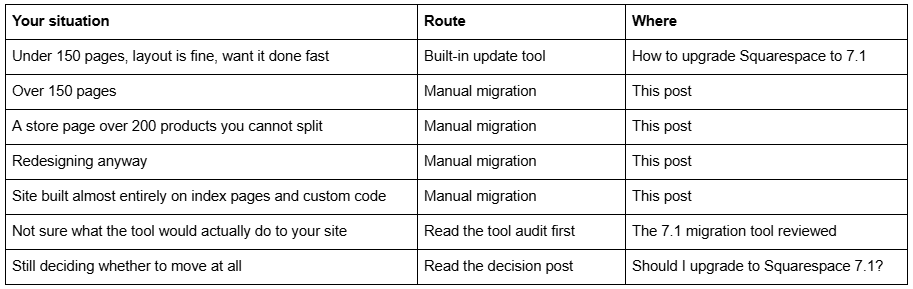
When manual migration from Squarespace 7.0 to 7.1 is the right call
Four situations, and they are not edge cases.
1. The site is over pages. The update tool will not proceed. Deleting live pages to squeeze under the cap trades a controlled rebuild for uncontrolled data loss, and it is almost always the worse deal.
2. A store page holds more than 200 products. You can split the store page in 7.0 to satisfy the tool, but on a large catalogue that reorganisation is a project in itself — and 7.1's 10,000-product ceiling means you will want to restructure the store anyway.
3. You were going to redesign regardless. The tool is a converter, not a designer. It reproduces your 7.0 layout as closely as 7.1 permits, which means you would then restyle a layout you already decided to throw away. Building fresh in Squarespace 7.1 is faster than un-converting.
4. The site is mostly index pages, sidebars and custom code. These are the parts the tool handles worst. If most of what makes your site work is on the "does not transfer" list, the conversion produces a site you have to rebuild — on a version you can no longer leave, because the update is permanent.
The trade-off is honest. Manual migration keeps you fully reversible until the moment you point the domain, and it produces a site designed for 7.1 rather than translated into it. What it costs is time, and the loss of two things the tool preserves automatically: order history and customer accounts stay with the original site, and blog comments do not move.
Why you cannot export a Squarespace site and import it into another
This is the constraint that shapes the whole job, and most people discover it two hours in.
Squarespace has an export at Settings → Import & Export Content → Export, but it produces a WordPress-format XML file, and Squarespace's own documentation is explicit that it is not possible to export content from one Squarespace site and import it into another.
What the export contains is limited even for WordPress: layout pages, one blog page with its posts and up to 1,000 comments per post, text blocks, image blocks, and the text of embed blocks. What it leaves out is most of a real site — album pages, cover pages, index pages, info pages, calendar pages, portfolio pages, store pages, page-specific headers, footers and sidebars, any second blog page, dropdowns, audio blocks, product blocks, video blocks, drafts, style settings and Custom CSS.
There are two things you genuinely can move mechanically:
Products, via the store's CSV export and import. This works well and is the single biggest time saver on a commerce site.
Nothing else. Blog posts, pages and sections are copy-and-paste.
Plan the schedule around that reality rather than hoping for a shortcut.
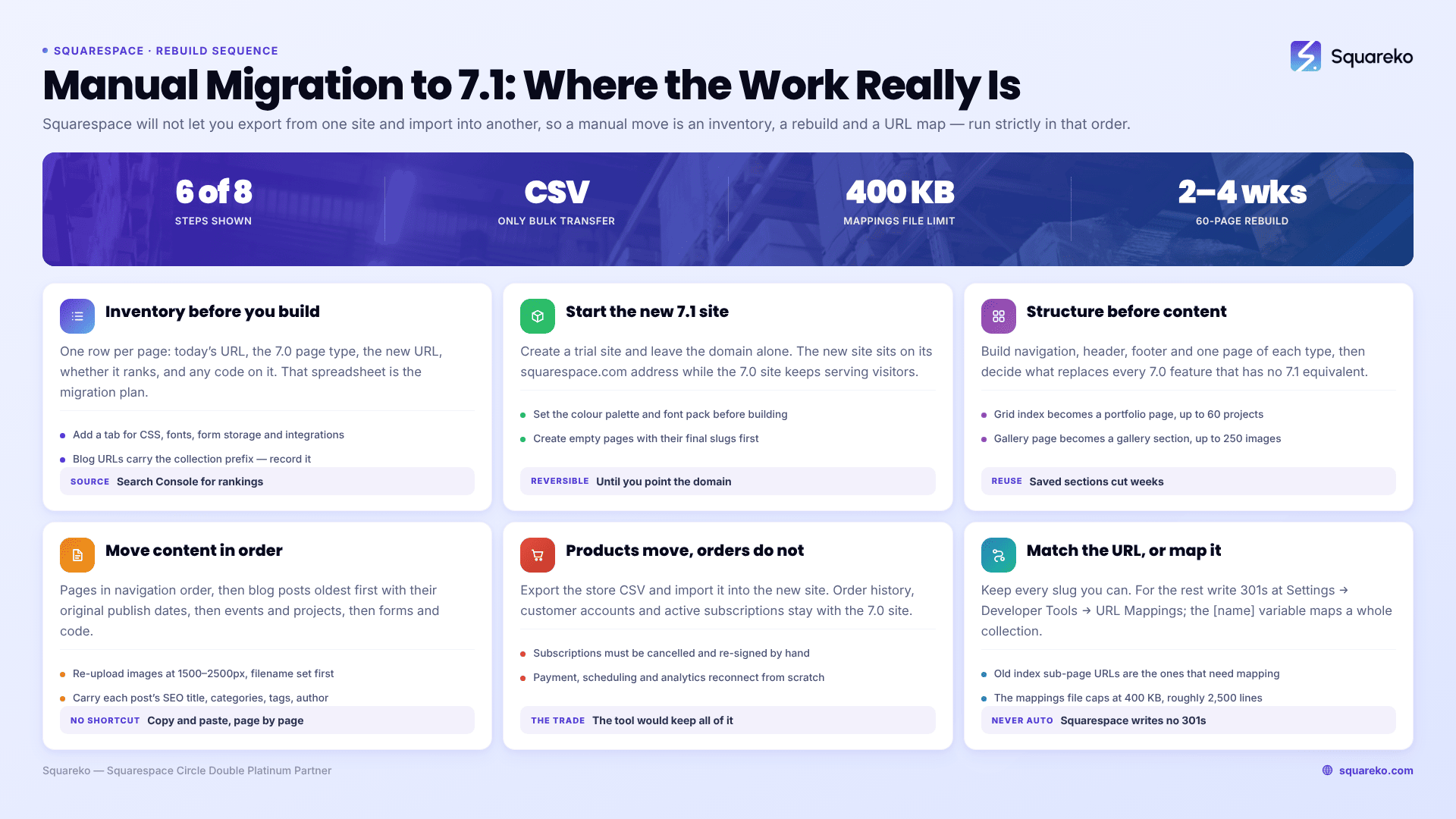
Step 1 — Build an inventory of the Squarespace 7.0 site
Before you create anything, write down what exists. A spreadsheet with one row per page and these columns:
URL (exactly as it is today, including the collection prefix on blog posts: /blog-page-slug/post-slug)
Page type in 7.0 — layout, blog, gallery, index, cover, album, store, event
New URL on 7.1 (leave blank for now; most should match the old one)
Ranks / has backlinks — pull this from Search Console
Custom code on the page — page header injection, code blocks
Owner — who has to sign off the content
Add a second tab for site-wide items: Custom CSS, site-wide code injection, fonts, colours, form storage destinations, third-party integrations, and any DNS records that are not the Squarespace defaults.
This inventory is the migration plan. Everything downstream is working through it.
Step 2 — Start the new Squarespace 7.1 site
Create a new trial site from your Account Dashboard and pick a 7.1 template whose starting layout is closest to what you want. Remember the template is only a preset — every 7.1 site has identical features, so pick on demo content and layout, not on capability.
Do not connect your domain. The new site sits on its built-in *.squarespace.com address until launch day, which is exactly what you want: the live 7.0 site keeps serving visitors and rankings throughout.
Two things to set up immediately, because retrofitting them is painful:
The colour palette and font pack, in Site styles. Everything you build afterwards inherits from them.
The page structure, as empty pages with their final URL slugs, matching your inventory.
Step 3 — Rebuild structure before you move content
Build the shell first: navigation, header, footer, and one representative page of each type. Get those right, then produce the rest.
The 7.0 features with no 7.1 equivalent need decisions made here, not later:
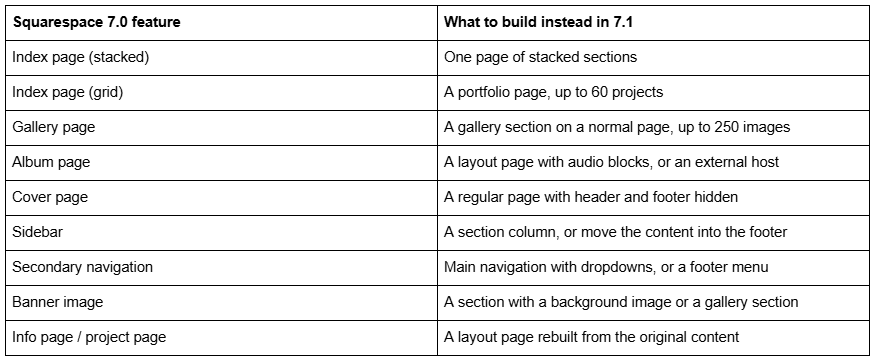
Use saved sections for anything that repeats. Building your CTA section once and saving it is the difference between a two-week migration and a four-week one.
Step 4 — Move the content in the right order
Order matters, because later steps depend on earlier ones.
Pages, in navigation order. Copy text into text blocks; re-upload images at 1500–2500px wide with the filename set correctly before upload, since Squarespace cannot rename an uploaded file.
Blog posts, oldest first, so your archive order comes out right. Set each post's publish date to the original date — this matters for both readers and search engines. Copy the SEO title, description, categories, tags and author on each one. Blog posts always use the classic editor on 7.1, so the paste is straightforward.
Events, then portfolio projects.
Forms, rebuilt and re-pointed at the correct storage — a Google Sheet, an email address, or your mailing list. Test each one by submitting it.
Code blocks and code injection, reviewed rather than pasted. Anything that referenced 7.0 markup needs rewriting.
Do not copy blog posts by exporting and reimporting. It does not work between Squarespace sites, and the attempt costs an afternoon.
Step 5 — Products, orders and customer data
Products move cleanly. Everything around them does not.
Products: export the CSV from the 7.0 store, import it into the 7.1 store. Check variants carefully — 7.0 allowed 100 per product and 7.1 allows 250, so nothing is lost, but variant option names and SKUs are worth spot-checking after import. Product images sometimes need re-uploading.
Orders, customers and subscriptions do not move. This is the single largest disadvantage of manual migration against the built-in tool. Order history stays with the 7.0 site. If you have active subscriptions, they must be cancelled on the old site and re-signed on the new one, which is a customer-facing exercise you need to plan and communicate.
Payment processors must be reconnected on the new site. So must any scheduling, email marketing or analytics integration — Squarespace does not carry authenticated third-party connections between sites.
If order history and live subscriptions are central to the business, weigh that against the reasons for going manual. In some cases splitting a store page down to 200 products and using the tool is the lesser evil.
Step 6 — Match every URL, or write the redirect
This is the step that decides whether the migration costs you traffic.
Keep URLs identical wherever you can. Every page URL you can carry unchanged is a redirect you do not have to write and a ranking you do not have to risk. Set slugs deliberately during Step 2, not by accident.
For everything that must change, write a 301. Squarespace never creates one automatically — not on 7.0, not on 7.1, not ever. On the new site, go to Settings → Developer Tools → URL Mappings and use this syntax:
/old-url -> /new-url 301
/portfolio/kitchen-remodel -> /work/kitchen-remodel 301
/blog/[name] -> /journal/[name] 301
The [name] variable maps a whole collection in one line, which is how you handle a blog page slug change without writing 400 rules. The mappings file is capped at 400 KB, roughly 2,500 lines.
Two things people get wrong. A mapping only fires once the old page is deleted or disabled — on a fresh site there is no old page, so mappings for URLs that only ever existed on the 7.0 site work immediately. And index sub-page URLs are the ones that most often need mapping, because index pages have no 7.1 equivalent, so /services/roofing becomes an anchor on /services rather than a page of its own.
Step 7 — Rebuild Custom CSS against Squarespace 7.1 markup
Do not paste your 7.0 stylesheet into the 7.1 site. It will not work and it will waste a day.
Squarespace 7.0 templates use row-and-column classes — .sqs-row, .sqs-col-6, .span-6 — plus classes specific to your template family. Squarespace 7.1 uses section wrappers with data-section-id and .page-section, and Fluid Engine sections are built on CSS Grid. Almost nothing survives a straight copy.
Work through your saved 7.0 CSS rule by rule and ask, for each one, whether 7.1 now does it natively. A large proportion of 7.0 custom CSS existed to achieve things that are now settings: full-width sections, background overlays, button styling, section colour themes, mobile hiding. Delete those rules rather than porting them.
For what remains, write fresh selectors in Website → Website Tools → Custom CSS (Core plan or above) against the new markup. Note that Fluid Engine writes inline positioning styles onto blocks, which beat any stylesheet rule regardless of specificity — see how Squarespace Fluid Engine works for what that means in practice.
Step 8 — Launch day
Run it in this order, and the switch takes under an hour.
Final content check against the inventory. Every row accounted for.
Add a billing plan to the new 7.1 site.
Move the domain. If the domain is registered with Squarespace, transfer it between sites from the Domains panel. If it is external, repoint the DNS records at the new site. Expect propagation delay and plan a low-traffic window.
Move Google Workspace, if the domain carries it.
Verify the new site in Search Console and submit the sitemap.
Crawl the new site and check for 404s against the inventory URL list.
Leave the 7.0 site up but unlinked for a few weeks, on its *.squarespace.com address, as a reference. Cancel it once you are confident.
Watch Search Console for coverage errors for a month. Sitemap processing lag on Squarespace is documented at days to weeks.
How long a manual Squarespace 7.0 to 7.1 migration takes
Rough planning figures, from sites we have moved: a 15-page brochure site with a small blog is two to four days of focused work. A 60-page site with several hundred blog posts is two to four weeks, most of it blog transfer. A commerce site adds a week for catalogue verification and integration reconnection.
The dominant cost is always blog posts, because there is no import path. If your archive runs to hundreds of posts, decide early which ones are worth moving. Posts with no traffic and no links usually are not — and 301ing them to a relevant live page is a better outcome than reproducing them.
Most people reading this have a site under 150 pages and should use the built-in tool instead; the manual route only pays when the tool genuinely will not serve. Where it stops being a DIY project is a large catalogue, a ranking blog archive, and a launch date — because the URL map has to be right on the first attempt and there is no staging environment to test it in. That is what our premium Squarespace templates and migration builds exist for. If your site is a dozen pages and a blog, the eight steps above are the whole job.
FAQ
-
Not automatically. Squarespace states it is not possible to export content from one Squarespace site and import it into another. Products can be moved with the store's CSV export and import. Pages, sections and blog posts have to be copied by hand, which is the main cost of a manual migration.
-
Load yourdomain.com/sitemap.xml and copy every URL into a spreadsheet. Squarespace generates the sitemap automatically and it cannot be edited, so it is a reliable inventory of what is currently indexable. Diff the new sitemap against it after the switch.
-
Index pages, gallery pages, album pages, cover pages, sidebars, secondary navigation, header search bars, site-wide parallax, and the Developer Platform for direct code access. Version 7.1 replaces several of these with sections and portfolio pages, but album pages have no equivalent at all.
-
Keep every URL identical where you can, and write a manual 301 in Settings → Developer Tools → URL Mappings for every URL that changes. Squarespace never creates redirects automatically. Old index sub-page URLs need particular attention, because index pages have no version 7.1 equivalent.
-
Yes. Squarespace still hosts, serves and supports version 7.0 sites, and there is no forced migration. New sites can only be created on 7.1, so 7.0 is a shrinking population, but nothing on an existing 7.0 site stops working because you stayed.
-
A 15-page site with a small blog takes two to four days. A 60-page site with several hundred blog posts takes two to four weeks, most of it blog transfer. A store adds roughly a week for catalogue checks and reconnecting payment, scheduling and email integrations.

Author Bio
I'm Walid Hasan, a Certified Squarespace Expert and Squarespace Circle Platinum Partner with over 12 years of hands-on experience designing and optimizing high-performing websites. Over the years, I've had the privilege of building more than 2,000 Squarespace websites for clients around the world, always focusing on clean design, strong user experience, and conversion-driven results.
