
Switching Squarespace Templates: The Risk Checklist
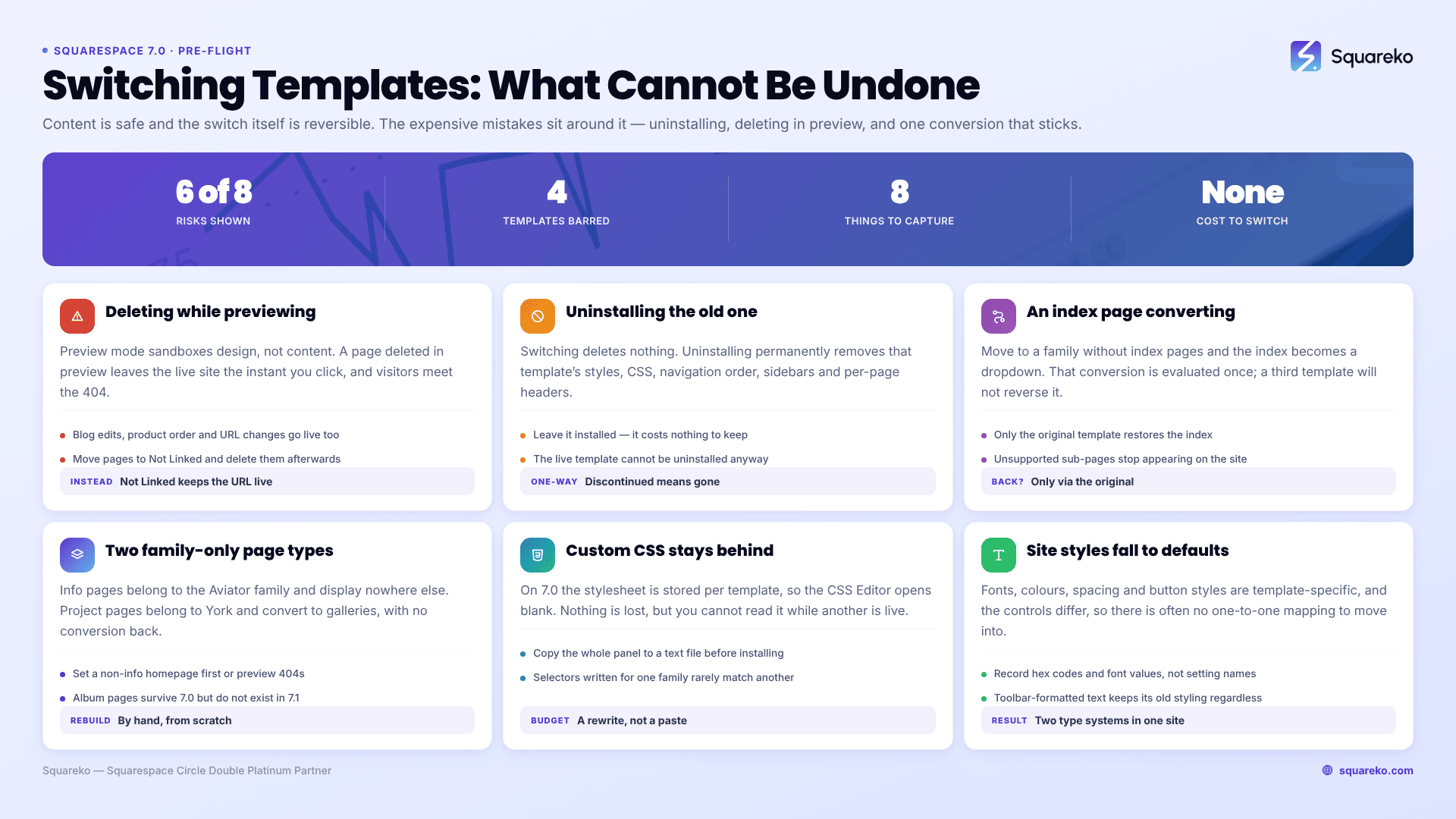
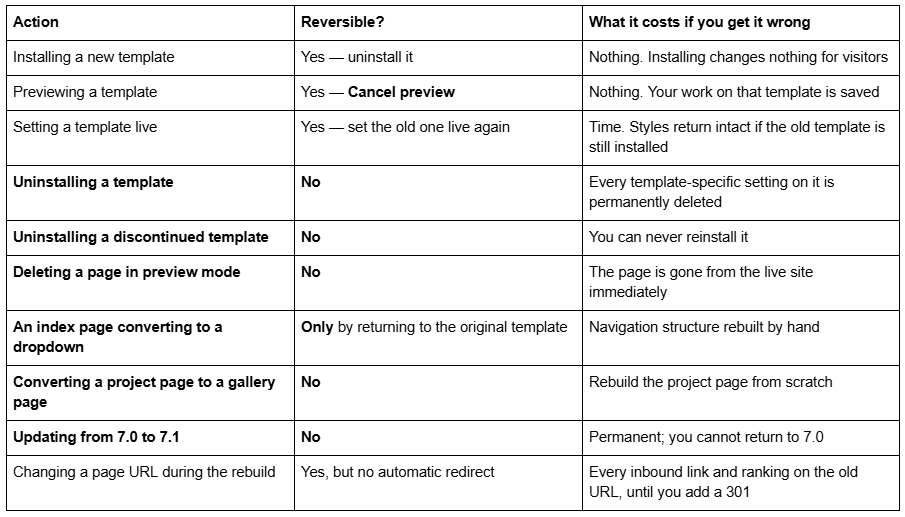
Switching a Squarespace template is reversible; almost everything around it is not. The switch itself can be undone by setting the old template live again. What cannot be undone: uninstalling a template, deleting a page while previewing, converting an index page, moving to version 7.1, or overwriting the record of a design nobody wrote down. Read the reversibility table below before you install anything.
This applies to Squarespace 7.0 only, and assumes you have already read the complete guide to changing your Squarespace template and decided to go ahead. Squarespace 7.1 has one template family and no switching feature at all — the equivalent risk on 7.1 is applying a style pack, which overwrites your styles with no undo.
What is reversible and what is not
Risk 1 — Deleting pages while previewing goes live instantly
This is the most expensive mistake in the whole process, and it is easy to make because everything else about preview mode feels sandboxed.
Preview mode protects design, not content. Squarespace's own guidance says not to delete pages in preview mode, because deleting affects your live site. The same is true of any content edit: rewrite a blog post, reorder products, change a page's URL, and visitors see it immediately even though you are looking at a template that is not live.
The list of things that are not template-specific — and therefore go live the moment you save them — is: pages and their content, blocks, blog posts, gallery images, products, events, album tracks, page settings including featured images and URLs, logo and site title, page and SEO titles, code injection, and page deletions.
The safe habit: move pages you no longer want into the Not Linked section of the Pages panel instead of deleting them. Delete them properly once the new template is live and you have looked at the site logged out. Keep an incognito window open while you work.
Risk 2 — Uninstalling is the one destructive button
Switching templates never deletes anything. Uninstalling does.
When you uninstall a template, every template-specific change you made to it is permanently deleted: its site styles, its Custom CSS, its navigation order, its sidebar content, its footer content, its per-page headers. That is the entire record of your old design.
Two rules follow:
Do not uninstall the old template until the new one has been live and stable for weeks. There is no cost to leaving it installed. It sits in the Template panel doing nothing.
Check whether it is discontinued first. Discontinued templates cannot be reinstalled once removed. The whole Marquee family — Adversary, Alex, Eamon, Ginger, Marquee, Mint and Shift — is discontinued, and a number of individual templates in other families are too. If your current template is on that list, uninstalling it is a one-way door.
You also cannot uninstall the template that is currently live. Set a different template live first.
Risk 3 — Index pages convert, and the conversion sticks
If your Squarespace 7.0 template uses an index page and the template you switch to does not support one, the index converts to a dropdown in the navigation.
The part people miss: that conversion is evaluated once. Switch onward to a third template that does support index pages and it stays a dropdown. The only route back is returning to the original template where the index was created — and only if you never uninstalled it.
Two related behaviours:
Where both templates support index pages, the index survives but its design changes, because each template's index behaves differently.
Each template's index supports different sub-page types. Sub-pages the new template's index does not support stay visible in the Pages panel but stop appearing on the published site. You rebuild that content on a layout page.
Check the template comparison charts for index support before you commit rather than after.
Risk 4 — Two page types exist in only one family each
Info pages belong to the Aviator family. Switch to any other template and the info page will not display. If it is your homepage, set a different homepage before switching, or the preview will show "We couldn't find the page you were looking for". Switch back to Aviator and the info page returns as you left it.
Project pages belong to the York family. Switch away and each project page converts to a gallery page. Switching back does not convert it back — you recreate the project page and move the images into it manually.
Album pages are worth flagging even though they survive a 7.0 switch: they do not exist in version 7.1 at all. If moving to 7.1 is anywhere in your plan, save the audio files and text locally now.
Risk 5 — Your Custom CSS does not travel
On Squarespace 7.0, Custom CSS is stored per template. Install a new template and the CSS Editor is blank. Nothing has been lost — the stylesheet is still attached to the old template — but you cannot read it while a different template is live.
Worse, pasting it into the new template rarely works unaltered. Template families use different class names and different markup, so selectors written for a Brine-family site frequently match nothing in a Bedford-family one. Budget for a rewrite, not a paste.
Copy the whole panel into a text file before you install anything. This is the single highest-value five minutes in the process. The related symptom — CSS apparently vanishing — is covered in what happens to Custom CSS during a template change.
Risk 6 — Site styles reset to the new template's defaults
Fonts, colours, spacing, button styles and every other site-styles value are template-specific. The new template starts at its own defaults, and the controls themselves differ — templates expose different tweaks, so there is often no one-to-one mapping to migrate into.
Record hex codes and font values, not setting names. And know the one thing that does not reset: text carrying local formatting applied through the text toolbar keeps that formatting through the switch, which is why a freshly switched site often ends up with two typographic systems in it. Detail in why fonts and colours change after a Squarespace template switch.
Risk 7 — Things that quietly block the switch
Worth checking before you plan the afternoon around it:
Developer Mode disables template switching entirely, and turning it off discards Developer Platform changes. Save your site files locally first.
Four templates cannot be selected when switching to them: Encore (Aviator), Lincoln (Brine), Bryler (Pacific) and Taylor (York). Switching away from them is unrestricted. Choose a sibling from the same family — features are identical within a family.
Site language filters the template store. Non-English sites see a curated subset; only Julia, Kent and Om (Montauk), Charlotte, Naomi and Pacific (Pacific), and all Bedford, Brine and York templates support non-English languages.
Previewing may interfere with logging in or connecting a domain. If either misbehaves, cancel the preview, finish the task, restart the preview.
You cannot mix features from two templates. No index page from one family with a gallery page from another.
Risk 8 — SEO exposure during the rebuild
Squarespace confirms that all templates support the same built-in SEO features, and that page titles, SEO titles and URLs are site-level and carry across untouched. The exposure is in what you do during the rebuild, not in the switch itself.
Three specifics:
Squarespace never creates an automatic redirect when a URL changes. Not on 7.0, not on 7.1, not ever. If a slug changes you add the 301 yourself at Developer tools → URL mappings, in the form /old-url -> /new-url 301, and the old page must be deleted or disabled before the redirect fires.
Heading structure can change. Templates differ in heading tag formats, so a title rendered as h1 in one template may render differently in another. Audit after switching.
Templates differ in JavaScript weight and load time. Squarespace states this directly. For context, across 54 Squareko-built sites measured in August 2026 (Playwright/Chromium lab test, cloud datacenter, unthrottled, single run per site) the median mobile LCP was 2.01s with a median page weight of 3.0 MB across 93 requests — template code is rarely the bottleneck; imagery usually is.
More in does changing your Squarespace template affect SEO?.
The eight-item backup checklist
None of this lives in a Squarespace export, so capture it into a text file outside the platform:
The entire Custom CSS panel — Design → Custom CSS, select all, copy.
Every hex code, read from Site styles → Colours or the browser inspector on the live site.
Font families, sizes, weights, line heights and letter spacing per text group.
Sidebar and footer content, including block order.
Which pages carry banner or background images, and which images.
A screenshot of the Pages panel, including the Not Linked section, to preserve navigation order.
Full-page captures of the live site, desktop and mobile.
A list of every page URL, so you can spot any that change and add redirects for them.
Optional but sensible on a site that earns money: duplicate the site first from Account Dashboard → … → Duplicate Website and do the switch there. The copy carries pages, blocks, collection items, style settings, code injection and the template, but arrives as a separate trial needing its own billing plan, and cannot be created for sites over 150 pages or sites using the Developer Platform.
The one risk that is genuinely permanent
Everything above is recoverable with time. One thing is not: the 7.0 to 7.1 version update is permanent. Once published you cannot revert to 7.0, sub-pages inside index pages lose their SEO titles and descriptions, and album pages disappear. If your reason for switching templates is really "I want modern editing", that is the update tool's job, not the Template panel's — and it deserves its own preview cycle rather than being tacked onto a template switch.
Work the checklist, keep the old template installed, never delete in preview, and a template switch is a reversible afternoon.
Where it stops being reversible in practice is a site with a decade of undocumented styling and a search ranking that pays the bills — at that point the safe move is rebuilding on a copy rather than experimenting on the live site. Our premium Squarespace templates are built for exactly that path. Most sites, though, do not need it; the eight-item backup above is enough.
FAQ
-
Design panel → Template, on version 7.0 only. The live template sits at the top of the panel with a Live label. If the option is missing, either you are on version 7.1, which has no Template panel, or Developer Mode is switched on and blocking template changes.
-
No. Squarespace states the preview template is visible only to you while logged in, and visitors keep seeing the live template. Other contributors do not see your preview automatically either. Content changes are the exception — those go live immediately, preview or not.
-
Click Cancel preview in the bottom bar. Your site returns to the live template and every change you made to the previewed template is saved against it, so you can pick the preview up again later without redoing the work.
-
Open Design → Template, hover the old template and set it live. Its site styles, Custom CSS, sidebars, footers and navigation order return exactly as you left them. This only works if you never uninstalled it — uninstalling deletes those settings permanently.
-
Set a different template live first, since the live template cannot be uninstalled. Then hover the template in Design → Template and click Uninstall, then Confirm. Check whether the template is discontinued first — discontinued templates cannot be reinstalled once removed.
-
The previewed template has no homepage assigned. Open the Pages panel and set a homepage. This happens most often when the old homepage was an info page, which only exists in the Aviator family and will not display in any other template.

Author Bio
I'm Walid Hasan, a Certified Squarespace Expert and Squarespace Circle Platinum Partner with over 12 years of hands-on experience designing and optimizing high-performing websites. Over the years, I've had the privilege of building more than 2,000 Squarespace websites for clients around the world, always focusing on clean design, strong user experience, and conversion-driven results.
