
Fonts and Colours Changed After Switching Templates? Here's Why
The short answer: On Squarespace 7.0, Site Styles are stored per template, not per site. Squarespace's own wording is that when you set a new template "your fonts, colors, spacing, and other styles will revert to your new template's defaults." Nothing is corrupted and nothing is lost — the old values are still attached to the old template. Switch back and they return exactly as you left them.
Squarespace 7.1 has one template family, so template switching does not exist there. The equivalent event on 7.1 is applying a style pack, which overwrites your values with no undo.
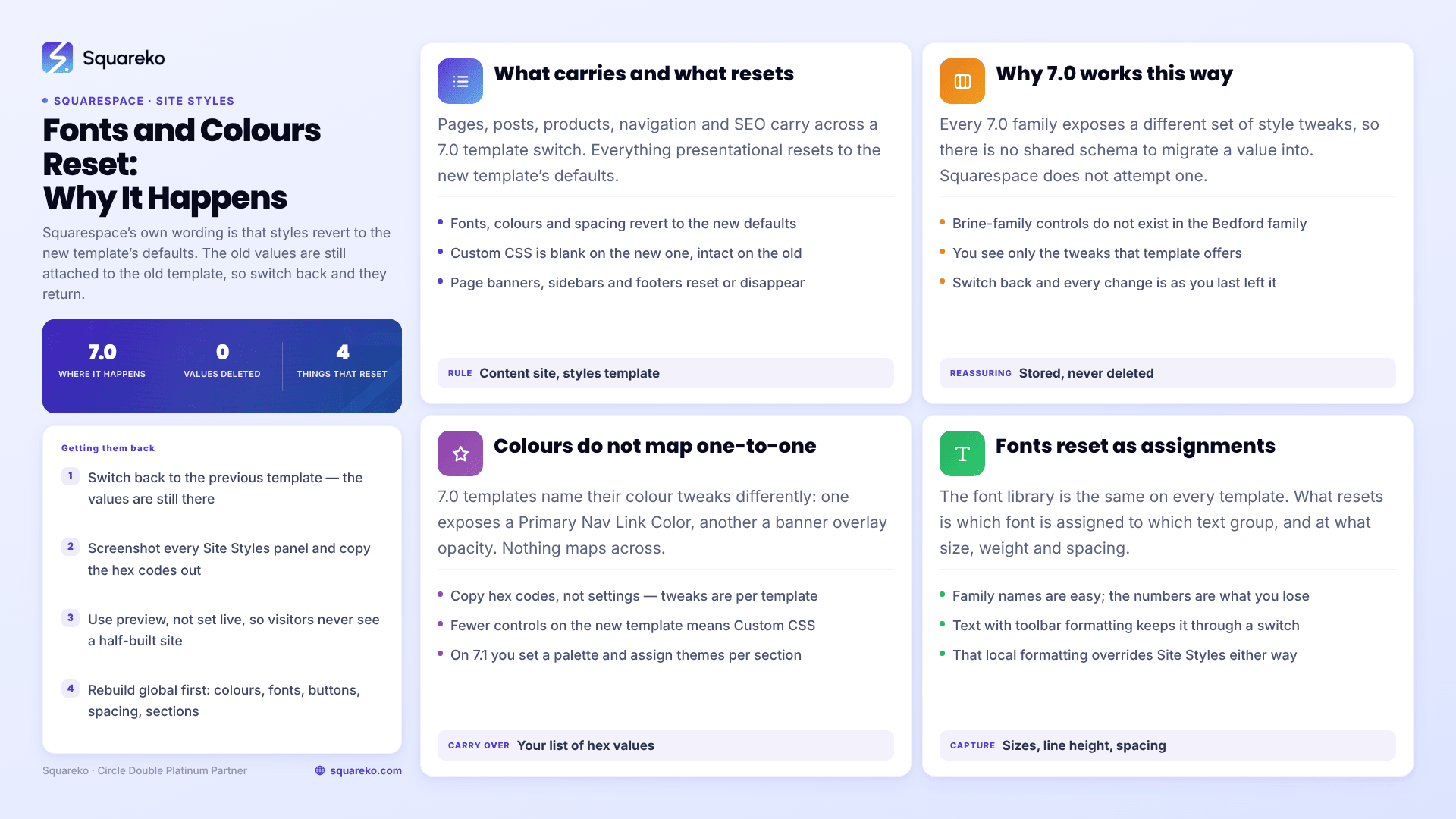
What carries and what resets
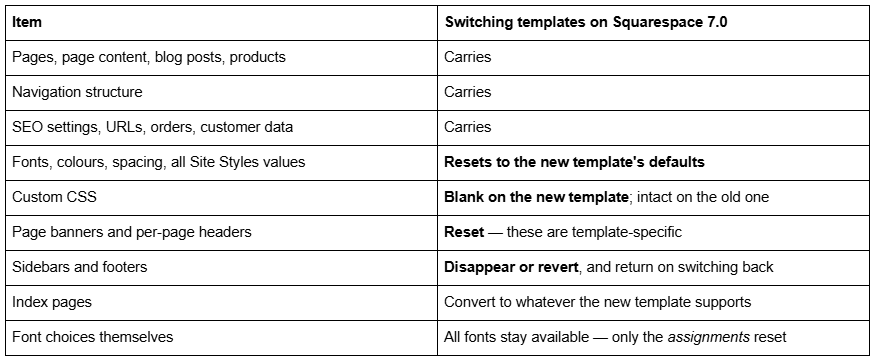
The pattern is simple once you see it: content is site-level, presentation is template-level. Everything on the reset side of that table is presentation.
Why Squarespace 7.0 does this
Every 7.0 template family exposes a different set of style tweaks. Brine-family templates expose controls that Bedford-family templates do not have, and vice versa. There is no shared schema to migrate a value into, so Squarespace does not attempt one — when you preview or set a new template you see only the tweaks that template offers, at that template's defaults.
That also explains the behaviour people find reassuring once they know it: switch back to a template you have used before and every style change is as you last left it. The values were never deleted. They are stored against a template you are not currently using.
Colours do not map one-to-one between templates
Colour is where the mismatch is most visible, because 7.0 templates name their colour tweaks differently. One template might expose a "Site Background" and a "Primary Nav Link Color"; another exposes neither and instead has a banner overlay opacity. There is no correspondence to migrate.
Two practical consequences:
Copy hex codes, not settings. Your brand palette is a list of hex values. Which tweak each value belongs in is a per-template question you answer once, in the new template, by eye.
Expect fewer or more controls. If the new template exposes fewer colour tweaks than the old one, some distinctions you had are simply not available, and the answer is Custom CSS rather than Site Styles.
On Squarespace 7.1 the model is different again: you set a palette, and Squarespace generates around ten colour themes from it, which you then assign per section. There is nothing to migrate into that from a 7.0 template, which is why a 7.0-to-7.1 move is a rebuild of the colour system rather than a transfer. The mechanics are covered in how to change colours in a Squarespace template.
Fonts reset as assignments, not as availability
The font library is the same on every template. What resets is which font is assigned to which text group, and at what size, weight, line height and letter spacing.
So the recovery is mechanical rather than creative: you know the family names, you just have to reapply them. What you often do not have written down is the numbers — the base size, the heading sizes, the letter spacing on the navigation. Those are the values worth capturing before a switch, not the font names.
One thing does not reset, and it is the reason a switched site frequently looks worse than either template on its own: text carrying local formatting keeps it. Squarespace states that changing text format in the text toolbar overrides the styles set in Site Styles. Any heading where someone once clicked a size or colour button in the toolbar holds that formatting through the switch, while everything around it moves to the new template's defaults. The result is a site with two typographic systems in it.
Find those elements by comparing headings of the same level across pages. Where one differs, select it and clear the toolbar formatting so it rejoins the global style. There is more on the global controls in how to change fonts in Squarespace.
Getting your old styles back
On Squarespace 7.0, this is genuinely recoverable.
Switch back to the previous template. Your Site Styles values, and its Custom CSS, are still attached to it.
Screenshot every Site Styles panel, and copy the hex codes and font values into a plain text file.
Switch forward to the new template again and rebuild from your notes.
Use preview rather than setting a template live while you do this. Squarespace's documentation confirms that a preview template is only visible to you while logged in and that visitors will not see it — so you can build the new template's styles up properly before anyone else sees a half-finished site.
On Squarespace 7.1, there is no equivalent. Site Styles has no version history, and Squarespace's Style changes FAQ states that after saving, "it's not possible to revert to a previous version unless you reset to defaults." If a style pack has overwritten your values, they are gone and the only route is rebuilding from a record you made earlier — or from a screenshot, or from the rendered CSS in a browser tab you have not yet closed.
Record your styles before you switch
Ten minutes here saves an afternoon later. Capture all of this into a text file outside Squarespace.
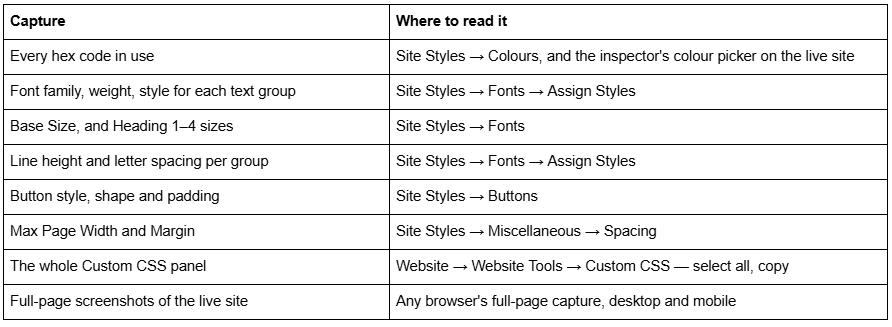
A faster way to catch the values you would otherwise miss: on the live site, right-click a heading, choose Inspect, and read the Computed tab. Font family, size, weight, line height and letter spacing are all there as resolved values, which is more reliable than reading sliders.
Do the same for the Custom CSS panel even if you are not switching. Squarespace's 7.0-to-7.1 update tool commonly leaves the stylesheet commented out afterwards, which is covered in what happens to Custom CSS during a template change.
Rebuilding in the right order
Rebuild global before local: colours first, then fonts, then buttons, then spacing, then per-section overrides. Working the other way round means re-doing section-level decisions every time a global value moves. That order is the same one described in the guide to customising a Squarespace template, and it is the reason a rebuild that looks like a day's work is usually two hours.
Where it stops being straightforward is a 7.0 site with a heavily customised template and several hundred lines of Custom CSS, where the styles and the code have to be rebuilt together against different markup. That is the situation our Squarespace website support plans are built for. If your site is mostly Site Styles and a short stylesheet, the checklist above is all you need.
FAQ
-
No. Squarespace states that when you set a new template, your fonts, colours, spacing and other styles revert to the new template's defaults. Site Styles are stored per template on version 7.0, not per site. Content, pages, navigation, SEO settings and products all carry over unaffected.
-
On version 7.0, switch back to the previous template — every style change is still attached to it, exactly as you left it. Screenshot the Site Styles panels and copy the values into a text file, then switch forward again and reapply them to the new template.
-
On version 7.0, effectively yes: switching back restores that template's styles and its Custom CSS. Site Styles itself has no version history, though, so any edits made after the switch cannot be reverted except by resetting to defaults.
-
No. Squarespace 7.1 has one template family and template switching is not possible. To change the look, edit colours and fonts in Site Styles or apply a style pack — but a style pack overwrites your existing values and there is no undo, so record them first.
-
Because it carries local formatting applied through the text toolbar, which Squarespace states overrides Site Styles. That text does not follow the new template's defaults, so the site ends up with two typographic systems. Select the text and clear the toolbar formatting.
-
Hex codes, font families, base size, Heading 1–4 sizes, line height and letter spacing per text group, button style and shape, Max Page Width and Margin, the entire Custom CSS panel, and full-page screenshots on desktop and mobile. The inspector's Computed tab is more reliable than reading sliders.

Author Bio
I'm Walid Hasan, a Certified Squarespace Expert and Squarespace Circle Platinum Partner with over 12 years of hands-on experience designing and optimizing high-performing websites. Over the years, I've had the privilege of building more than 2,000 Squarespace websites for clients around the world, always focusing on clean design, strong user experience, and conversion-driven results.
