
Squarespace Custom CSS Disappeared After a Template Change? Recovery
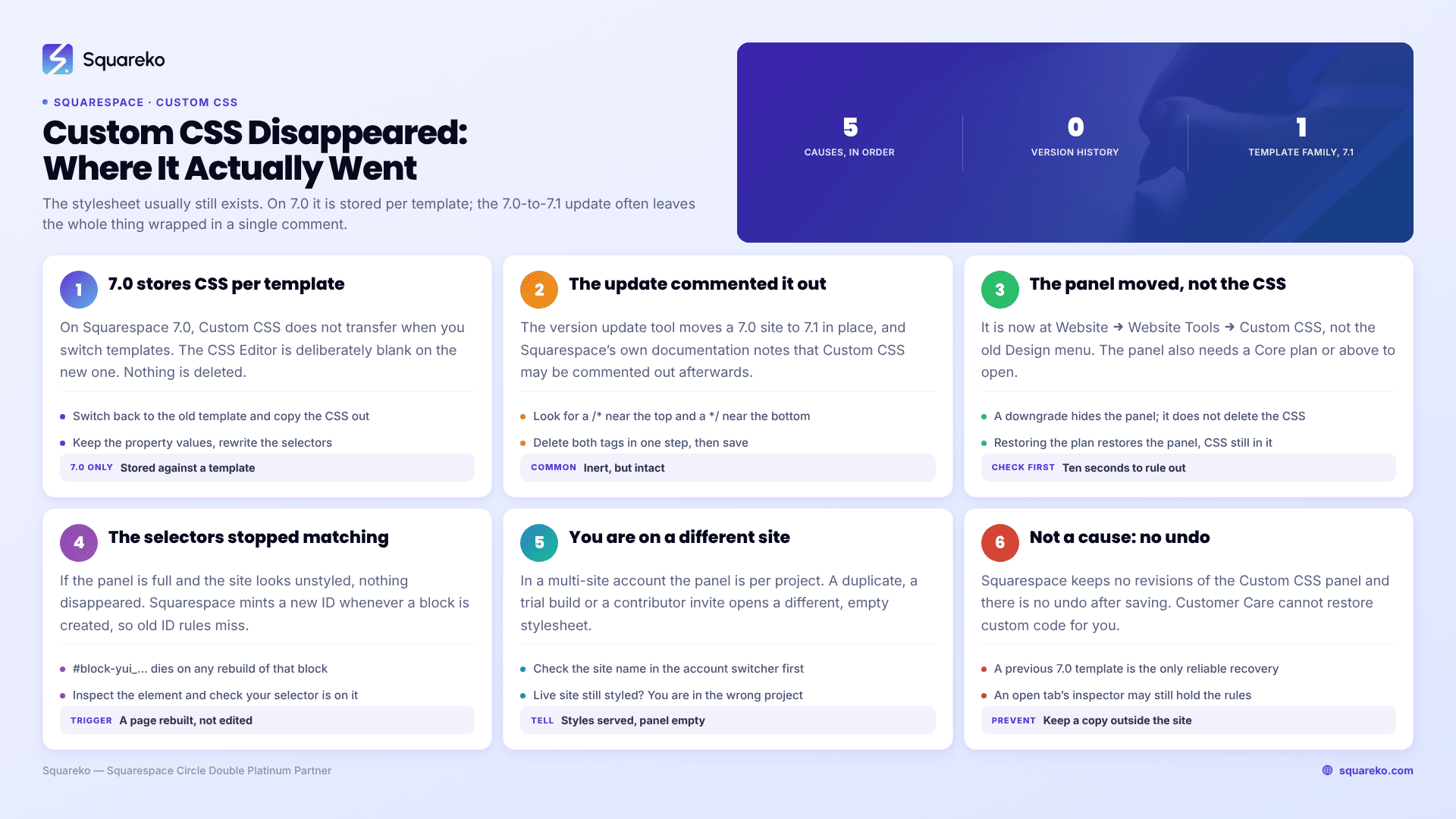
The short answer: In most cases the CSS still exists and you are looking in the wrong place, or Squarespace has commented it out rather than deleted it. Squarespace 7.1 has one template family, so there is no template change that can wipe a 7.1 stylesheet. The two events that genuinely remove CSS from the panel are a template switch on Squarespace 7.0, where Custom CSS is stored per template, and the 7.0-to-7.1 version update, which frequently leaves the whole stylesheet wrapped in comment tags.
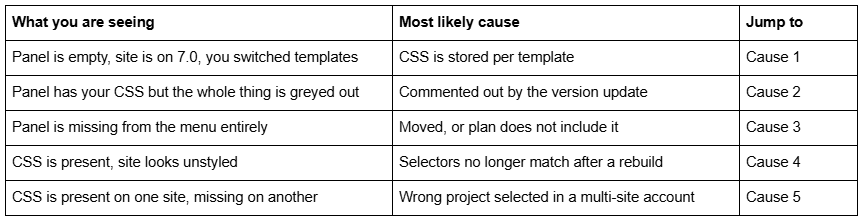
Quick diagnostic table
The panel is at Website → Website Tools → Custom CSS. Check there first — it moved from the old Design menu, and a surprising share of "it's gone" reports end at that sentence.
Cause 1 — On Squarespace 7.0, Custom CSS is stored per template
Squarespace's documentation is unambiguous: "In version 7.0, Custom CSS doesn't transfer when you switch templates. If you switch back to a previous template, the CSS you added to it will still be there." The CSS Editor is deliberately blank on the new template. Nothing has been deleted.
Recovery, in order:
Go back to the template you were using before, using the same template picker.
Open Website → Website Tools → Custom CSS. Your stylesheet is there, exactly as you left it.
Select all, copy, and paste it into a plain text file outside Squarespace.
Switch to the new template again and paste the CSS in.
Expect a large share of it not to work once pasted. Every 7.0 template family generates different class names and different DOM nesting, so a rule written for one template's navigation will not match another's. Keep the property values, rewrite the selectors against what the inspector actually shows.
Site Styles behave the same way — fonts, colours and spacing revert to the new template's defaults on switching. That side of it is covered in why fonts and colours change after switching templates.
Cause 2 — The 7.0-to-7.1 update commented your CSS out
This is the most common cause in 2026 and almost nobody documents it.
Squarespace's version update tool moves a 7.0 site to 7.1 in place, keeping content, orders, SEO settings, members, domains and URL mappings. Its own documentation notes that Custom CSS may be commented out after the update, and that removing the comment tags in the CSS editor is a manual job.
Open the panel and look for a /* near the top and a */ near the bottom. Everything between them is inert but intact.
/* Everything from here down is disabled — the update tool wrapped the whole stylesheet in a single comment.
.header-nav-item a { letter-spacing: 0.08em; }
.sqs-block-button { border-radius: 0; }
*/
Delete the opening /* and the closing */, then save. Do it in one step rather than uncommenting section by section, so you can see the full extent of the damage at once.
Then expect breakage, and treat it as expected rather than as a fault. Squarespace 7.0 and 7.1 use different class names for most of the chrome, so 7.0 selectors targeting headers, navigation, banners and index pages will match nothing in 7.1. The Developer Platform is not supported on 7.1 at all, so any customisation made there is gone rather than dormant. Work through the surviving rules with the inspector open and rewrite the selectors. The diagnostic order in why Squarespace custom CSS stops working applies directly.
Cause 3 — The panel moved, or the plan no longer includes it
Two separate things get reported as "Custom CSS disappeared" when the CSS is untouched.
The panel moved. It is now at Website → Website Tools → Custom CSS. Older tutorials, and a lot of muscle memory, still point at a Design menu that no longer exists.
The plan changed. The Custom CSS panel requires a Core plan or above, or a legacy Business or Commerce plan. If a subscription lapsed or was downgraded — common when a site is transferred between owners, or when a trial ends — the panel becomes absent or read-only. The stored CSS is not deleted by a downgrade, but you cannot reach it, and it stops applying to the live site. Restoring the plan restores the panel with the CSS still in it.
This is worth ruling out first on any site you have inherited, because it takes ten seconds and it looks identical to data loss.
Cause 4 — The CSS survived but the selectors did not
If the panel is full and the site looks unstyled, nothing disappeared. The selectors stopped matching.
The usual trigger is a rebuild: pages recreated, sections deleted and re-added, or a site duplicated as a staging copy. Squarespace mints a new ID whenever a block is created, so every rule written as #block-yui_3_17_2_1_1699887432_12345 now points at a block that does not exist. The same applies to #collection-… selectors when a page is rebuilt rather than edited.
Confirm it in twenty seconds: right-click the element that should be styled, choose Inspect, and check whether your selector appears in the class or ID list. If it does not, the rule was never going to apply.
Rewrite towards durable selectors. Page-type body classes do not regenerate:
/* Fragile — dies on any rebuild of that block */
#block-yui_3_17_2_1_1699887432_12345 { padding: 0; }
/* Durable — survives rebuilds */
body.collection-type-blog .blog-item-title { letter-spacing: -0.02em; }
/* Durable — section IDs persist through block edits */
section[data-section-id="65f1a2b3c4d5e6f7a8b9c0d1"] .content-wrapper {
  max-width: 100% !important;
}
Cause 5 — You are looking at a different site
In a multi-site Squarespace account, the Custom CSS panel is per project. Duplicating a site, building a client site in a trial, or being invited as a contributor to a second site all produce accounts where the same menu path opens a different, empty stylesheet.
Check the site name in the account switcher before concluding anything. If the live site still looks styled while the panel looks empty, this is almost certainly what happened — the styles are being served from a project you are not currently in.
There is no version history, so recovery is limited
Squarespace does not keep revisions of the Custom CSS panel, and there is no undo after saving. If none of the five causes above apply and the stylesheet is genuinely gone, the realistic routes are:
A previous template on 7.0. Switch back and copy it out. This is the only reliable recovery Squarespace itself provides.
A duplicate or trial copy of the site made before the change, if one exists.
A browser still holding the old page. An open tab, or a page in the back/forward cache, will still have the rendered styles; read them out of the inspector's Styles panel and reconstruct.
The Internet Archive. Occasionally its crawler captured the stylesheet alongside the HTML. It is worth ten minutes and it is not dependable.
Squarespace Customer Care cannot restore it. Custom code sits outside their support scope, as their own CSS Editor documentation states.
Prevent the next one. Keep the canonical copy of your Custom CSS in a plain text file under version control, and treat the Squarespace panel as a deployment target rather than the source of truth. Comment every block with what it targets and why, and prefer page-type classes and data-section-id over block IDs, so a rebuild costs you nothing.
What to do next
Check the panel location and the plan, then the comment tags, then whether you are on the right project, then the selectors. Only after all four should you treat the CSS as lost.
If the site has been through a 7.0-to-7.1 update and several hundred lines need selector-by-selector rewriting against the new markup, that is a day's careful work rather than an afternoon, and it is exactly what our Squarespace website support plans cover. Most disappearances, though, are a comment tag or a menu that moved — check those first.
FAQ
-
Not on version 7.0. Squarespace states that Custom CSS does not transfer between 7.0 templates, and that the CSS Editor will be blank on the new one. Switching back to the previous template brings it back untouched. Version 7.1 has one template family, so there is nothing to switch.
-
The 7.0-to-7.1 version update tool does this. Squarespace's own documentation says Custom CSS may be commented out after the update and that the comment tags must be removed manually. Look for a /* near the top of the panel and a */ near the bottom, delete both, and save.
-
Website → Website Tools → Custom CSS. It moved from the old Design menu, which is why older tutorials give a path that no longer exists. The panel requires a Core plan or above, or a legacy Business or Commerce plan.
-
No. There is no version history for the Custom CSS panel and no undo after saving, and Squarespace Customer Care treats custom code as outside its support scope. On 7.0 you can recover by switching back to the template the CSS was written on.
-
The stylesheet copies across, but block IDs and collection IDs are regenerated in the duplicate. Every rule written as #block-… or #collection-… therefore matches nothing, which looks identical to the CSS having vanished. Rewrite those rules against page-type classes or data-section-id.
-
Keep the master copy of your Custom CSS in a version-controlled text file and paste into Squarespace rather than editing only in the panel. Comment each block with what it targets, and avoid block IDs wherever a section ID or a page-type body class will do the same job.

Author Bio
I'm Walid Hasan, a Certified Squarespace Expert and Squarespace Circle Platinum Partner with over 12 years of hands-on experience designing and optimizing high-performing websites. Over the years, I've had the privilege of building more than 2,000 Squarespace websites for clients around the world, always focusing on clean design, strong user experience, and conversion-driven results.
