
Squarespace Custom CSS Not Working? 9 Causes and Fixes
In most cases your CSS is fine and the selector is wrong. Squarespace 7.1 renames and restructures classes between sections, and Fluid Engine writes inline styles that beat anything in your stylesheet. Check the selector first with your browser inspector, then check specificity, then check for a syntax error higher up in the panel — a single missing brace silently kills every rule below it.
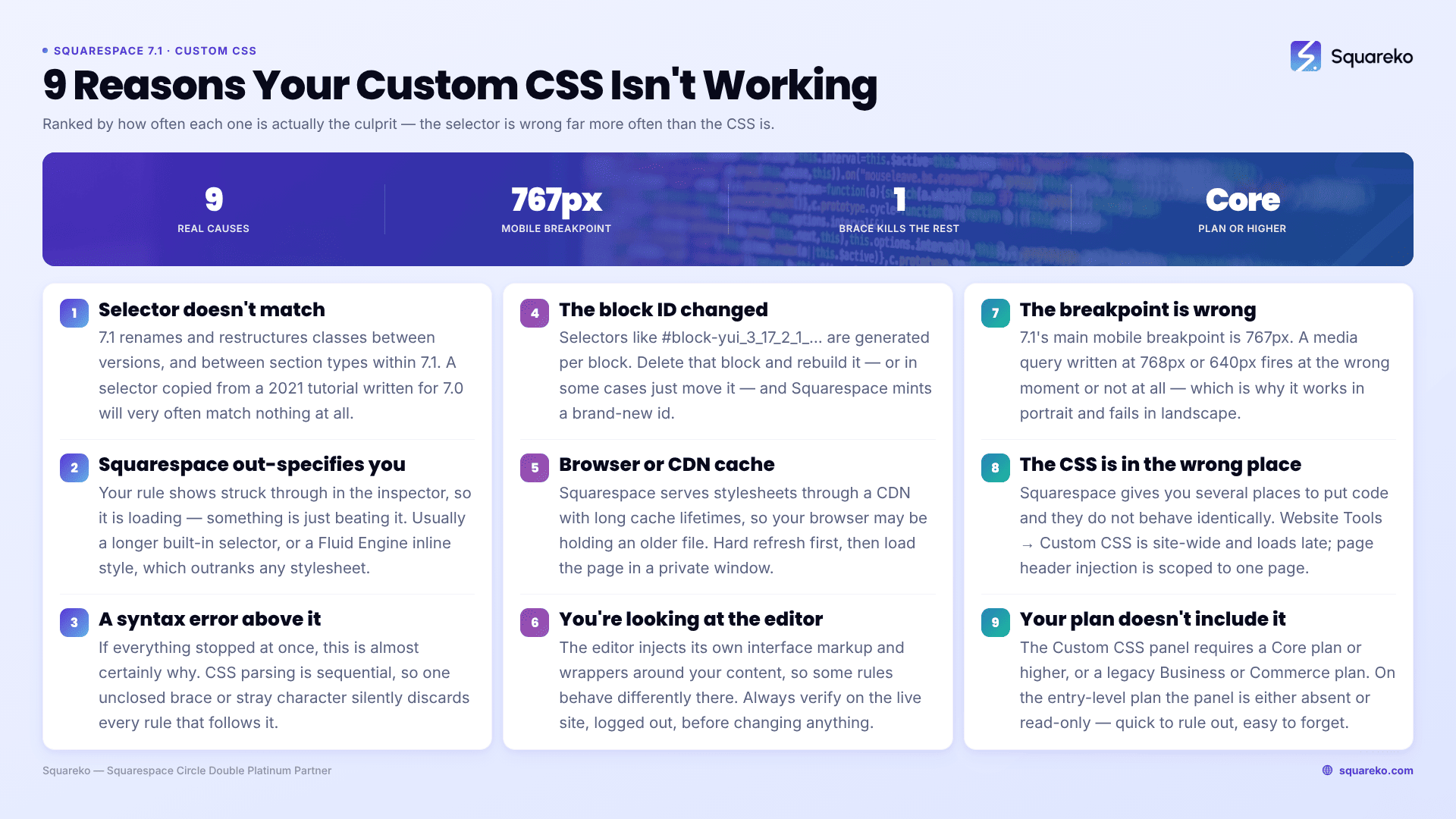
Here are the nine causes, ordered by how often they turn out to be the problem.
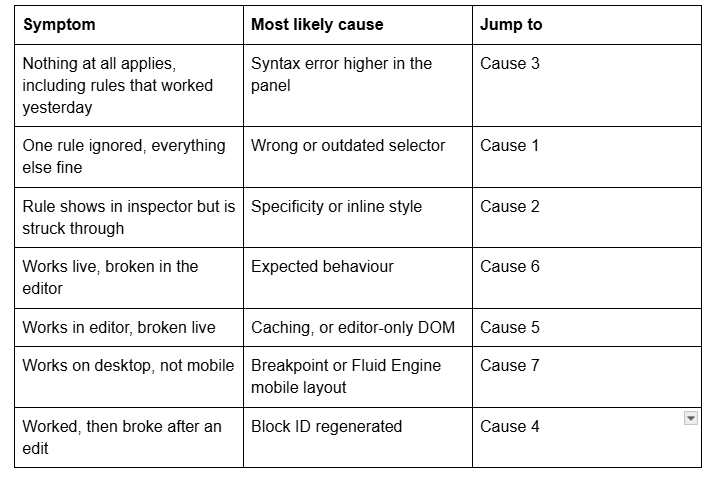
Quick diagnostic table
Cause 1 — The selector doesn't match anything
This is the single most common cause, and most guides skip it.
Squarespace changes its class names between versions and sometimes between section types within 7.1. A selector copied from a 2021 tutorial written for 7.0 will often match nothing at all in 7.1.
How to confirm it in 20 seconds: right-click the element → Inspect → look at the classes Squarespace actually assigned. If your selector isn't in that list, the CSS was never going to apply.
The reliable targeting pattern:
/* Target one page by its collection ID — find it in the page's URL when editing,
or in the <body> class list in the inspector */
#collection-6421a9f0c1e8b2001d7a4c33 h1 {
  font-size: 3rem;
}
/* Target by page type instead of a specific page */
body.collection-type-blog .blog-item-title {
  letter-spacing: -0.02em;
}
Page-type body classes (collection-type-blog, collection-type-page, collection-type-products) are far more durable than block IDs, because Squarespace does not regenerate them.
Cause 2 — Squarespace's own styles are more specific than yours
If you can see your rule in the inspector but it has a line struck through it, the CSS is loading. Something is simply beating it.
Two things usually beat it:
A more specific Squarespace selector. Their built-in styles frequently chain three or four classes.
An inline style. Fluid Engine writes layout values directly onto the element as style="...". Inline styles beat every stylesheet rule regardless of specificity — the only thing that overrides them is !important.
/* Losing to an inline style from Fluid Engine */
.sqs-block-image { margin-top: 0 !important; }
Use !important deliberately and sparingly. If you find yourself adding it to every rule, the real problem is Cause 1 — you're fighting the wrong selector.
Cause 3 — A syntax error is killing everything below it
If your CSS stopped working all at once, this is almost certainly why.
CSS parsing is sequential. One unclosed brace, one missing semicolon, one stray character, and the browser discards every rule after that point. Your first 200 lines keep working; lines 201 onward vanish.
The Custom CSS panel (Website → Website Tools → Custom CSS) flags errors with a red marker in the left gutter. It's easy to miss, and it does not always catch unclosed braces.
Fastest way to find it: comment out the bottom half of your CSS with /* */. If the top half starts working, the error is in the half you commented out. Repeat on the remaining half. Four or five rounds narrows a 500-line file to the exact line.
/* Broken — missing closing brace on the first rule.
Everything after this point is silently discarded. */
.header-title {
  color: #1b2a4a;
.footer-block {
  padding: 40px;
}
Cause 4 — The block ID changed
Selectors like #block-yui_3_17_2_1_1699887432_12345 are generated per block. Delete that block and rebuild it — or in some cases just move it — and Squarespace mints a new ID. Your CSS now points at a block that no longer exists.
Block IDs are a legitimate tool for one-off targeting, but they are the most fragile selector on the platform. Where you can, target a wrapping section or a page-type class instead. If you must use a block ID, leave a comment saying which block it refers to, so a broken rule is diagnosable six months later.
Cause 5 — Browser or CDN cache
Squarespace serves assets through a CDN with long cache lifetimes. Your browser may be holding an older stylesheet.
Hard refresh first: Cmd + Shift + R on Mac, Ctrl + Shift + R on Windows. If that doesn't do it, load the page in a private window, which bypasses the cache entirely. If it works in a private window and not your normal one, it was cache — clear it and move on.
Check a second device too. Cache problems are per-browser; a genuinely broken rule fails everywhere.
Cause 6 — You're looking at the editor, not the site
The Squarespace editor injects its own interface markup and wrapper elements around your content. Some of your CSS will behave differently there, and some will appear not to work at all.
Always verify on the live site, logged out. This matters more than it sounds: if your CSS is inside a Code Block rather than the Custom CSS panel, Squarespace disables it entirely while you're logged in and editing, showing the message "This block contains embedded scripts. Embedded scripts are disabled while you're logged in and editing your site."
That message is not an error. Log out, or use Preview in Safe Mode, and check again before you debug anything.
Cause 7 — Your breakpoint is wrong
Squarespace 7.1's main mobile breakpoint is 767px. A media query written at 768px or 640px will fire at the wrong moment or not at all.
@media screen and (max-width: 767px) {

  .header-title { font-size: 1.75rem; }

}
Fluid Engine adds a second complication: it maintains separate desktop and mobile layouts for the same section, with different inline positioning values on each. CSS that repositions an element on desktop may be overwritten entirely on mobile by Fluid Engine's own mobile layout. In that case the fix is usually to adjust the mobile layout in the editor rather than to fight it with CSS.
Cause 8 — The CSS is in the wrong place
Squarespace gives you several places to put code, and they don't behave identically:
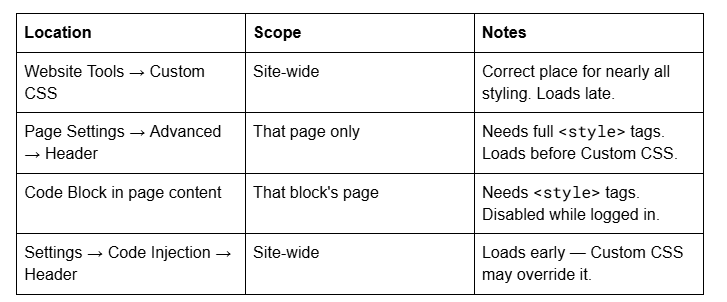
If you pasted raw CSS into a code injection field without wrapping it in <style></style>, it will render as visible text on your page rather than styling anything.
Cause 9 — Your plan doesn't include it
The Custom CSS panel requires a Core plan or higher (or a legacy Business or Commerce plan). On the entry-level plan the panel is either absent or read-only.
This is a quick thing to rule out and an easy one to forget when you've inherited a site or are working in a client's account.
Still not working?
Work the list in order — selector, specificity, syntax, block ID, cache, editor, breakpoint, location, plan. Nine times out of ten the answer is in the first three.
If you've been through all nine and something is still overriding your styles, it's usually a genuine conflict between custom CSS and a template's built-in rules, and untangling it means reading the cascade rather than guessing at it.
That's the kind of thing our Squarespace website support plans exist for — most CSS conflicts we're sent get diagnosed and fixed inside a single support block. No obligation either way; the nine causes above resolve the overwhelming majority of cases on their own.
FAQ
-
Most often the selector doesn't match the element. Squarespace 7.1 uses different class names than 7.0, so CSS copied from older tutorials frequently targets classes that no longer exist. Inspect the element and confirm your selector appears in its actual class list before debugging anything else.
-
A syntax error. CSS parses sequentially, so one unclosed brace or missing semicolon discards every rule below it. Comment out the bottom half of your stylesheet to find which half contains the error, then repeat until you've isolated the line.
-
Only when you're overriding an inline style, which Fluid Engine writes directly onto elements for layout. Inline styles beat every stylesheet rule regardless of specificity, and !important is the only override. If you need it on most of your rules, your selectors are probably wrong.
-
Usually browser cache — hard refresh with Cmd/Ctrl + Shift + R, or check in a private window. If your CSS sits in a Code Block rather than the Custom CSS panel, note that Squarespace disables embedded scripts while you're logged in, so always verify logged out.
-
767px. Media queries written at 768px or other common breakpoints will fire at the wrong point. Fluid Engine also keeps separate desktop and mobile layouts per section, so mobile positioning is often better fixed in the editor than in CSS.
-
Website → Website Tools → Custom CSS. It requires a Core plan or higher, or a legacy Business or Commerce plan.

I'm Walid Hasan, a Certified Squarespace Expert and Squarespace Circle Platinum Partner with over 12 years of hands-on experience designing and optimizing high-performing websites. Over the years, I've had the privilege of building more than 2,000 Squarespace websites for clients around the world, always focusing on clean design, strong user experience, and conversion-driven results.
