
Squarespace Form Not Submitting? Fix It in 6 Steps
In most cases the form has no storage destination. Squarespace requires at least one — a mailing list, an email address, Google Drive, Mailchimp, Zapier or the Contacts panel — and without one, visitors physically cannot submit. Open the form block, click the Storage tab, and confirm something is connected. That single check resolves the majority of "form not submitting" reports.
The other five causes are below, ordered by how often they turn out to be the problem. Work them in order.
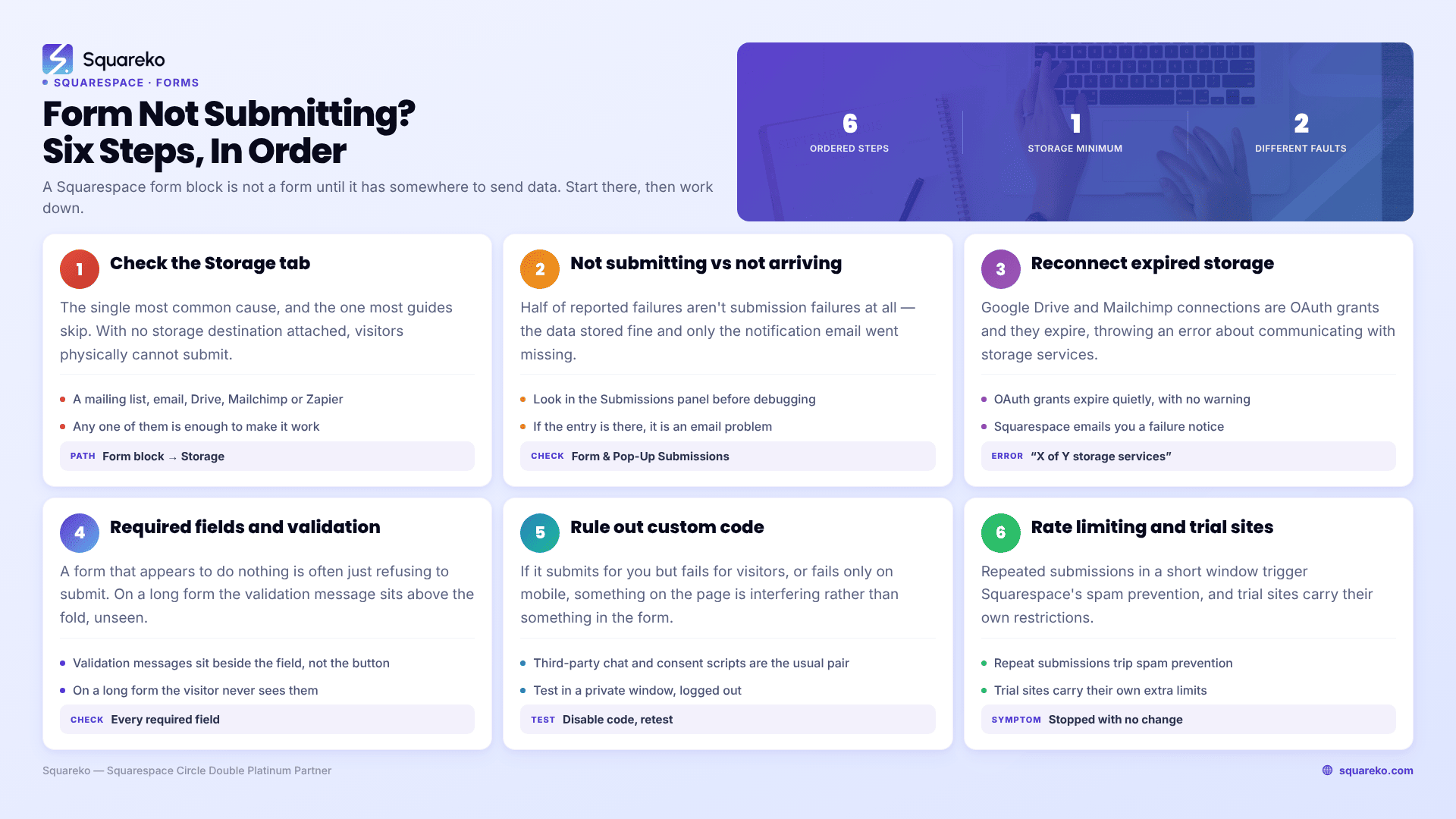
Quick diagnostic table
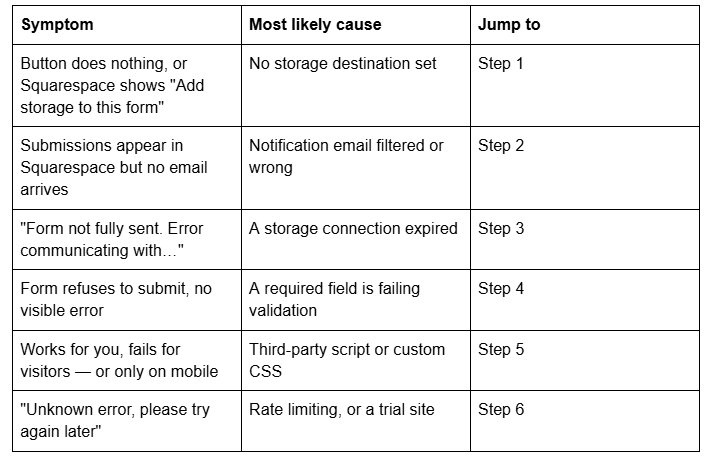
Step 1 — Check the Squarespace form's Storage tab
This is the single most common cause and it's the one almost every other guide skips.
A Squarespace form block is not a form until it has somewhere to send data. Squarespace's own documentation is explicit: at least one storage option is required per form, and "if you don't select a storage option, the form won't have a place to send submissions, and visitors won't be able to submit the form." Squarespace flags this in the editor with the message "Add storage to this form."
How to confirm it in seconds: click the form block → Storage tab. If nothing is listed, that's your answer.
The fix: connect at least one of these six destinations.
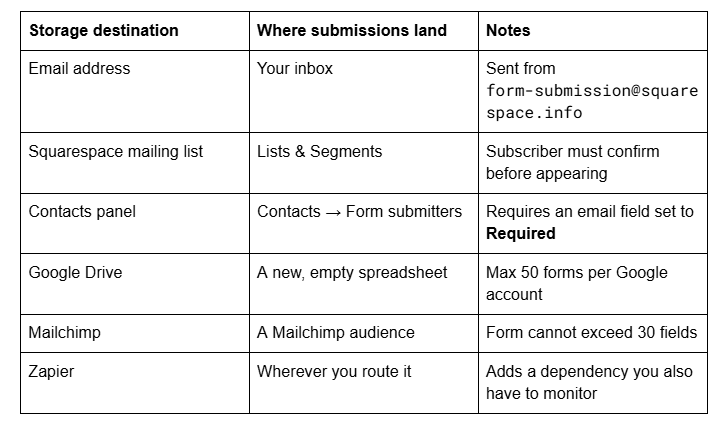
Two things people get wrong here. First, the Contacts panel only receives submissions if the form has an email field with the Required toggle on. Second, adding a storage destination fixes new submissions only — anything a visitor tried to send while storage was missing was never captured and cannot be recovered.
Step 2 — Separate "not submitting" from "not arriving"
Half of all reported Squarespace form failures aren't submission failures. The form worked, the data is stored, and only the notification email went missing. These are different problems with different fixes, and diagnosing the wrong one wastes a day.
How to confirm it in seconds: submit a test entry, then check Contacts → Form submitters, or whichever storage destination the form uses. If the entry is there, the form is fine and this is an email delivery problem.
The fix for delivery:
Whitelist form-submission@squarespace.info in your mail filters. On Google Workspace this is Admin console → Apps → Google Workspace → Gmail → Spam, phishing and malware; on Microsoft 365 it's the Safe Senders list.
Check junk, spam, Promotions and any rules that auto-file mail.
Verify the address in the Storage tab has no typo. A single wrong character sends every enquiry into a black hole with no bounce.
Test with an address on a different mail provider than the one in the form. Deliverability problems are usually specific to one provider, and testing only against your own inbox hides that.
Step 3 — Reconnect an expired storage service
Google Drive and Mailchimp connections are OAuth grants, and they expire. When one does, Squarespace shows the visitor "Form not fully sent. Error communicating with X of Y storage services" and emails you a "Form submission error" notice. If the Google authorisation has been revoked entirely, the notice reads "Unknown authorization header."
The fix: in the form block's Storage tab, disconnect the failing service and reconnect it. For Google Drive, do it on both ends — disconnect in Squarespace, then in your Google account under Settings → Manage Apps → Squarespace → Disconnect from Drive, then reconnect. Reconnecting on only one side frequently reinstates the same broken grant.
Two Google Drive quirks worth knowing: the target spreadsheet must be new and empty when you connect it, and form field titles must use Latin characters. Field labels in Chinese, Korean, Japanese, Cyrillic, Farsi or Arabic silently break the Drive sync. Renaming a column header in the spreadsheet so it no longer matches the form field breaks it too
This is the strongest argument for keeping a native Squarespace destination — the Contacts panel or a mailing list — connected alongside any third-party service. Third-party connections fail; native storage doesn't expire.
Step 4 — Check required fields and field validation
A Squarespace form that appears to do nothing when the button is pressed is often just refusing to submit. The validation message can sit above the fold on a long form while the button sits below it, so the visitor never sees why.
The two validation rules that catch people:
Email format. Squarespace rejects malformed addresses with "Email address not valid. Email addresses should follow the format user@domain.com", and also rejects any address over 256 characters.
File upload fields require Google reCAPTCHA. If a form has a file upload field, reCAPTCHA must be enabled or uploads won't go through.
How to confirm it in seconds: open the live page logged out, scroll to the top of the form after pressing submit, and look for a red message on any field.
The fix: turn off Required on fields that don't genuinely need it, and move the submit button close to the last field so validation messages stay in view. A ten-field required form on a phone is a wall, and every extra required field is another place a submission can silently fail.
Step 5 — Rule out custom code and third-party scripts
If the Squarespace form submits for you but fails for visitors, or fails only on mobile, something on the page is interfering rather than something in the form.
The recurring culprits, in the order we find them:
Third-party cookie-consent scripts. A well-documented Squarespace Forum case traced "Unable to submit form. Please try again later." to a Termly cookie-policy script in Code Injection — forms failed for any visitor who declined or ignored the banner, and worked again once the script was removed in favour of Squarespace's native cookie banner.
Custom CSS hiding or covering the submit button. A position or z-index rule can leave the button visible but unclickable. Test by disabling Custom CSS at Website → Website Tools → Custom CSS and reloading logged out.
In-app browsers. Forms opened inside the Instagram, Facebook or TikTok browsers fail more often than in Chrome, Safari or Firefox. If your traffic is mostly from a bio link, test there specifically.
Ad blockers and privacy extensions. These block reCAPTCHA, which blocks submission.
How to confirm it in seconds: open the page in a private window with extensions off. If the form works there and not in your normal browser, it's an extension or a cached script, not the form.
Step 6 — Rule out rate limiting and trial-site restrictions
Two Squarespace platform behaviours produce a form that "just stopped working" with no change on your side.
Rate limiting. Submitting the same form repeatedly in a short window triggers Squarespace's spam prevention and returns "Unknown error, please try again later." If you've been testing a form fifteen times in ten minutes, you caused this. Wait, then test once from a different network.
Trial sites. Email storage is disabled on trial sites for anyone who isn't a Circle member — the form saves nothing to email until the site is on a paid plan. If you're building on a trial and testing enquiry delivery, this is why nothing arrives.
One last distinction worth naming, because it causes real confusion: a form block collects arbitrary fields and supports all six storage destinations. A newsletter block collects an email address for a mailing list and nothing else. If you added a newsletter block expecting an enquiry form, there's nothing broken to fix — you need a form block.
Still not submitting?
Run it in order: storage first, then whether submissions are actually arriving somewhere, then expired connections, then validation, then custom code, then rate limiting. Steps 1 and 2 account for most of what we see.
The cases that genuinely need a second pair of eyes are the intermittent ones — a form that works for you and silently fails for a fraction of visitors, usually because of a script conflict that only fires under certain consent states. That's slow to reproduce and easy to misdiagnose. If a form has been dropping enquiries you can't account for, that's what our Squarespace website support plans are for. Most forms, though, are fixed by the Storage tab in under a minute.
FAQ
-
Most often the form has no storage destination. Squarespace requires at least one per form — a mailing list, email address, Contacts panel, Google Drive, Mailchimp or Zapier — and without one, visitors cannot submit at all. Open the form block, click the Storage tab, and confirm a destination is connected.
-
Wherever you set in the form block's Storage tab. Forms with a required email field also appear under Contacts → Form submitters. There is no universal inbox that captures everything: if no storage destination was connected, submissions were never recorded and cannot be recovered retroactively.
-
Usually spam filtering rather than a form fault. Whitelist form-submission@squarespace.info and check junk folders and mail rules. Confirm the address in the Storage tab has no typo — a wrong character produces no bounce. Email storage is also disabled on trial sites for non-Circle members.
-
A connected storage service — usually Google Drive or Mailchimp — has lost its authorisation. Disconnect and reconnect it in the form block's Storage tab. For Google Drive, also revoke Squarespace under your Google account's Manage Apps settings before reconnecting, or the same broken grant is reinstated.
-
Yes. Squarespace enables invisible reCAPTCHA v3 on form blocks, newsletter blocks and product waitlists by default, with no Google account needed. It is required for file upload fields. Ad blockers and privacy extensions can block reCAPTCHA from loading, which prevents the form submitting.
-
A form block collects any set of fields and supports all six storage destinations. A newsletter block collects an email address for a mailing list only. If you added a newsletter block expecting to receive full enquiries, nothing is broken — you need a form block instead.

Author Bio
I'm Walid Hasan, a Certified Squarespace Expert and Squarespace Circle Platinum Partner with over 12 years of hands-on experience designing and optimizing high-performing websites. Over the years, I've had the privilege of building more than 2,000 Squarespace websites for clients around the world, always focusing on clean design, strong user experience, and conversion-driven results.
