
Squarespace Domain Not Connecting? DNS Fixes That Work
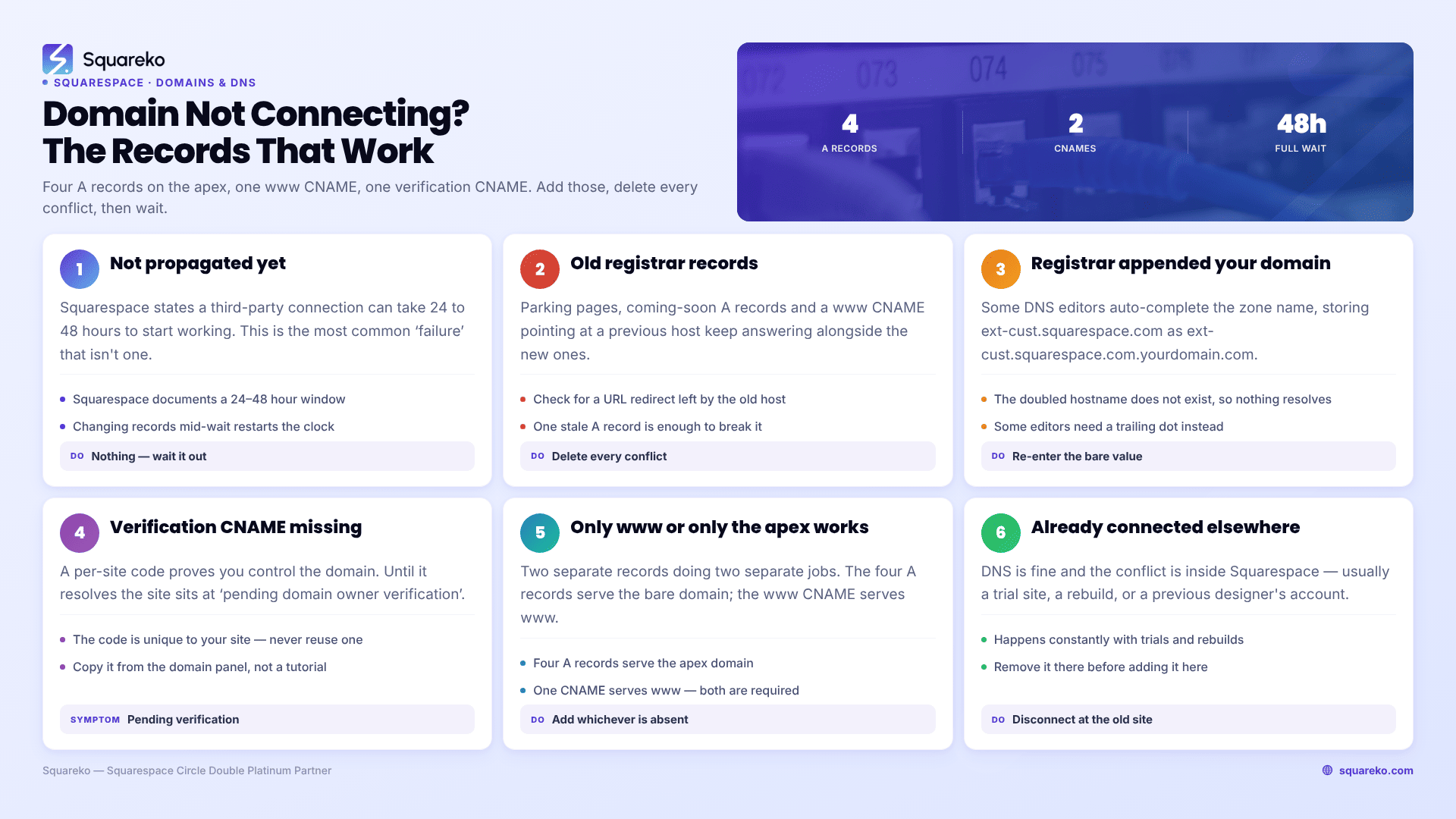
Most "domain not connecting" cases are one of two things — the records haven't finished propagating yet, or an old record left behind at your registrar is still answering for the domain. Squarespace needs four A records on the apex, one www CNAME and one verification CNAME. Add those, delete everything that conflicts, then wait the full 48 hours before changing anything else.
The records Squarespace actually requires
If you are connecting a third-party domain to Squarespace with DNS connect, these are the six records. Nothing else is needed for the website itself.
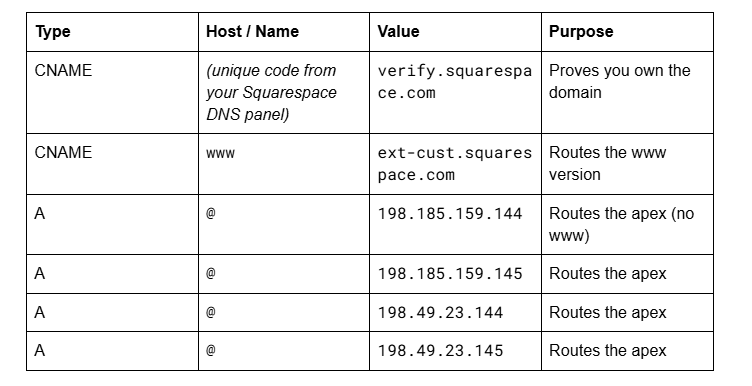
The verification CNAME host is unique to your site — copy it from Settings → Domains → your domain → DNS settings rather than typing it. If your registrar only allows one A record on the apex, use 198.185.159.144.
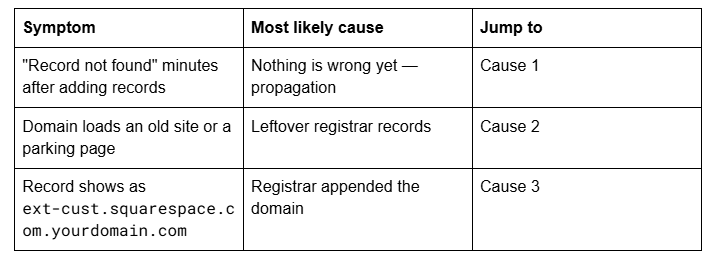
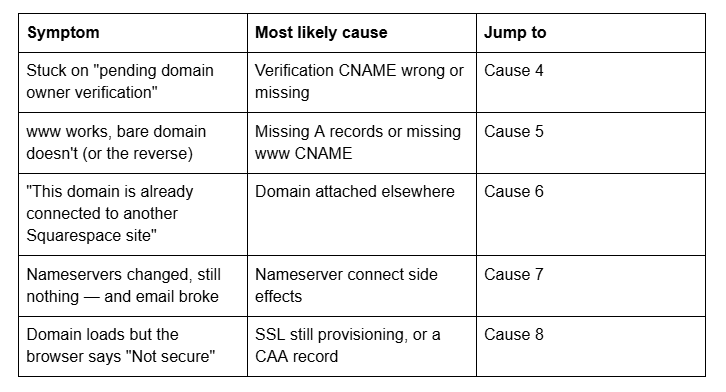
Quick diagnostic table
Cause 1 — The Squarespace domain connection hasn't propagated yet
This is the most common reason people think a Squarespace domain connection has failed, and it isn't a failure at all.
Squarespace states that a third-party domain connection can take 24 to 48 hours to start working properly, and that seeing "Record not found" immediately after adding your DNS records is normal. The DNS checker in the Squarespace Domains panel queries public resolvers, and those resolvers are still holding your registrar's previous answers.
How to confirm it in seconds: note the exact time you saved the records at your registrar. If it's under 24 hours ago, stop troubleshooting.
One caution: Squarespace notes that refreshing the record check repeatedly makes the DNS checker try different servers, producing inconsistent results. Click Refresh Records once, then leave it. Deleting and re-adding records because a check came back red resets the clock, and is the most common way a connection that was already working gets broken.
Cause 2 — Old records at your registrar are still answering
Almost every domain arrives with records already on it — a parking page, a "coming soon" A record, a URL redirect from a previous host, or a www CNAME pointing at Wix or WordPress. Adding the Squarespace records without deleting those leaves two answers for the same host, and the resolver is free to pick either.
How to confirm it in seconds: in Settings → Domains → your domain → DNS settings, Squarespace shows a Current Data column. Conflicting records are highlighted red.
The fix: log into your registrar's DNS editor and delete every A record on @ that isn't one of the four Squarespace IPs, and any www record that isn't the ext-cust.squarespace.com CNAME.
Two exceptions — do not delete these:
MX records, and any TXT record containing v=spf1, DKIM or DMARC. These run your email. Removing them stops mail delivery.
Records your registrar labels as mail or email service.
On GoDaddy, DNS records live under DNS Management; the parking record is usually an A record on @ pointing to a GoDaddy IP. On Namecheap, look under Advanced DNS and remove the default URL Redirect Record and the CNAME Record for www that Namecheap adds to every new domain.
Cause 3 — Your registrar appended your domain to the record value
A very common and very confusing failure. Some DNS editors auto-complete the zone name onto anything you paste, so ext-cust.squarespace.com is stored as ext-cust.squarespace.com.yourdomain.com. That hostname doesn't exist, so the record resolves to nothing.
How to confirm it in seconds: look at the saved record in your registrar, not the field you typed into. If your own domain appears at the end of a Squarespace value, this is the problem.
The fix: add a trailing dot to the value — ext-cust.squarespace.com. — which tells the DNS editor the name is already fully qualified. The same trick fixes the mirror-image version of this bug, where the Name field becomes www.yourdomain.com.yourdomain.com.
Some registrars display the full domain at the end of a record purely as a UI convenience and store it correctly. If the connection works, that display is nothing to worry about.
Cause 4 — The verification CNAME is wrong or missing
The first CNAME in the table above is a per-site code that proves to Squarespace you control the domain. Until it resolves, the domain sits at "This website is pending domain owner verification" and will not serve your site no matter how correct the A records are.
The fix: copy the code from the Squarespace DNS settings panel and paste it. Do not retype it — these strings are long and a single wrong character fails silently.
If the verification CNAME still hasn't verified after 48 hours, or your registrar won't accept a CNAME in that position, Squarespace supports a TXT record alternative for verification instead. If the verification CNAME isn't listed in your DNS panel at all, the domain is already verified and there's nothing to add.
Cause 5 — Only www works, or only the bare domain works
These are two separate records doing two separate jobs, and half-configured domains are extremely common.
yourdomain.com (the apex, or root) is served by the four A records.
www.yourdomain.com is served by the www CNAME.
If www.yourdomain.com loads and yourdomain.com doesn't, your A records are missing or wrong. If the reverse is true, the www CNAME is missing. You need both — visitors type it both ways.
The DNS spec doesn't allow a CNAME on the apex alongside other records, which is why Squarespace uses A records there. Even if your registrar offers an ALIAS or ANAME record, the four A records are the supported path.
Once both resolve, set which one shows in the address bar at Settings → Domains → your domain → Set as primary domain. Every non-primary domain then 301-redirects to the primary's root.
Cause 6 — The domain is already connected to another Squarespace site
If you see "This domain is already connected to another Squarespace site", the DNS is fine and the conflict is inside Squarespace. This happens constantly with trial sites, rebuilds, and handovers from a previous designer.
The fix: open the site grid from your account dashboard, find the site currently holding the domain, and disconnect it there first. Then connect it to the site you want. A domain can only be attached to one Squarespace site at a time.
Cause 7 — Nameserver connect was started but never finished
Squarespace offers two connection methods. DNS connect leaves your records at your registrar and is what the table above describes. Nameserver connect moves DNS hosting to Squarespace and is supported for GoDaddy, Namecheap and Network Solutions, using nameservers connect1.squarespacedns.com and connect2.squarespacedns.com.
Two things break nameserver connect:
You changed the nameservers before starting the connection in Squarespace. Squarespace requires the registrar's default nameservers to still be in place when you begin, and returns an error otherwise. Reset to the registrar defaults and start again.
It wiped records you needed. Squarespace documents that the nameserver connection process removes all CNAME records and some A records — which breaks custom email, verification records and third-party tools. If your email died the day the domain connected, this is why.
If your domain carries any custom email or third-party verification, use DNS connect instead. Nameserver connect is also unavailable for .ca, .au and .com.au domains.
Cause 8 — The domain resolves but the browser says "Not secure"
The connection worked; the certificate hasn't been issued yet. Squarespace provisions SSL automatically, but new and recently connected domains can take up to 48 hours, and until then browsers show "Your connection is not private".
If it persists beyond 48 hours, or you see "SSL Certificates Unavailable" in the Domains panel, check two things: that SSL is set to Secure in the Squarespace SSL panel, and that your registrar hasn't applied a CAA record restricting which certificate authorities may issue for your domain. Squarespace cannot issue a certificate through a CAA restriction it isn't listed in — ask your registrar whether one is in place.
Still not connecting?
Work it in order: wait out propagation, delete conflicting records, check for appended values, verify the CNAME, then confirm both apex and www resolve. That sequence resolves the large majority of Squarespace domain connections we're sent.
Where it gets genuinely hard is a domain that also runs live email, or one moving between registrars mid-connection — there the risk isn't the website, it's silently breaking mail for a business that won't notice for two days. If that describes your situation and you'd rather not be the one holding the DNS editor, our Squarespace website support plans cover domain and DNS migrations end to end. Most people won't need that; the eight causes above cover it.
FAQ
-
Squarespace documents 24 to 48 hours for a third-party domain connection to start working properly. Seeing "Record not found" in the DNS panel immediately after adding your records is normal and expected. Avoid deleting and re-adding records during that window, as it restarts propagation from zero.
-
Six: four A records on the apex host @ pointing to 198.185.159.144, 198.185.159.145, 198.49.23.144 and 198.49.23.145; one CNAME with host www pointing to ext-cust.squarespace.com; and one verification CNAME whose host is a unique code from your Squarespace DNS settings panel, pointing to verify.squarespace.com.
-
They're served by different records. The bare domain, or apex, is served by the four A records; www is served by the CNAME. If only www loads, your A records are missing, incomplete, or conflicting with leftover records from a previous host. Both need to resolve.
-
Some registrar DNS editors auto-complete the zone name onto values you paste, storing ext-cust.squarespace.com as ext-cust.squarespace.com.yourdomain.com. Add a trailing dot to the value — ext-cust.squarespace.com. — to mark it as fully qualified. Some registrars display it that way but store it correctly.
-
Use DNS connect if the domain runs custom email or third-party verification records. Squarespace's nameserver connect process removes all CNAME records and some A records, which breaks those services. Nameserver connect is simpler for a domain with nothing else on it, and supports GoDaddy, Namecheap and Network Solutions.
-
A domain can only be attached to one Squarespace site at a time, and trial sites count. Open the site grid from your account dashboard, find the site currently holding the domain, disconnect it there, then connect it to the site you want. The DNS records themselves don't need changing.

Author Bio
I'm Walid Hasan, a Certified Squarespace Expert and Squarespace Circle Platinum Partner with over 12 years of hands-on experience designing and optimizing high-performing websites. Over the years, I've had the privilege of building more than 2,000 Squarespace websites for clients around the world, always focusing on clean design, strong user experience, and conversion-driven results.
