
Squarespace Website Not Working? Start Here
A genuine Squarespace platform outage is rare. In almost every case the problem is one of four things — your domain or DNS, your billing or visibility settings, custom code you or someone else added, or your own browser. The fastest way to tell them apart is to load your site's built-in yoursite.squarespace.com address. If that works and your real domain doesn't, the problem is the domain, not Squarespace.
This page is the triage. Work through the 60-second check, find your symptom in the table, and follow the link to the specific fix.
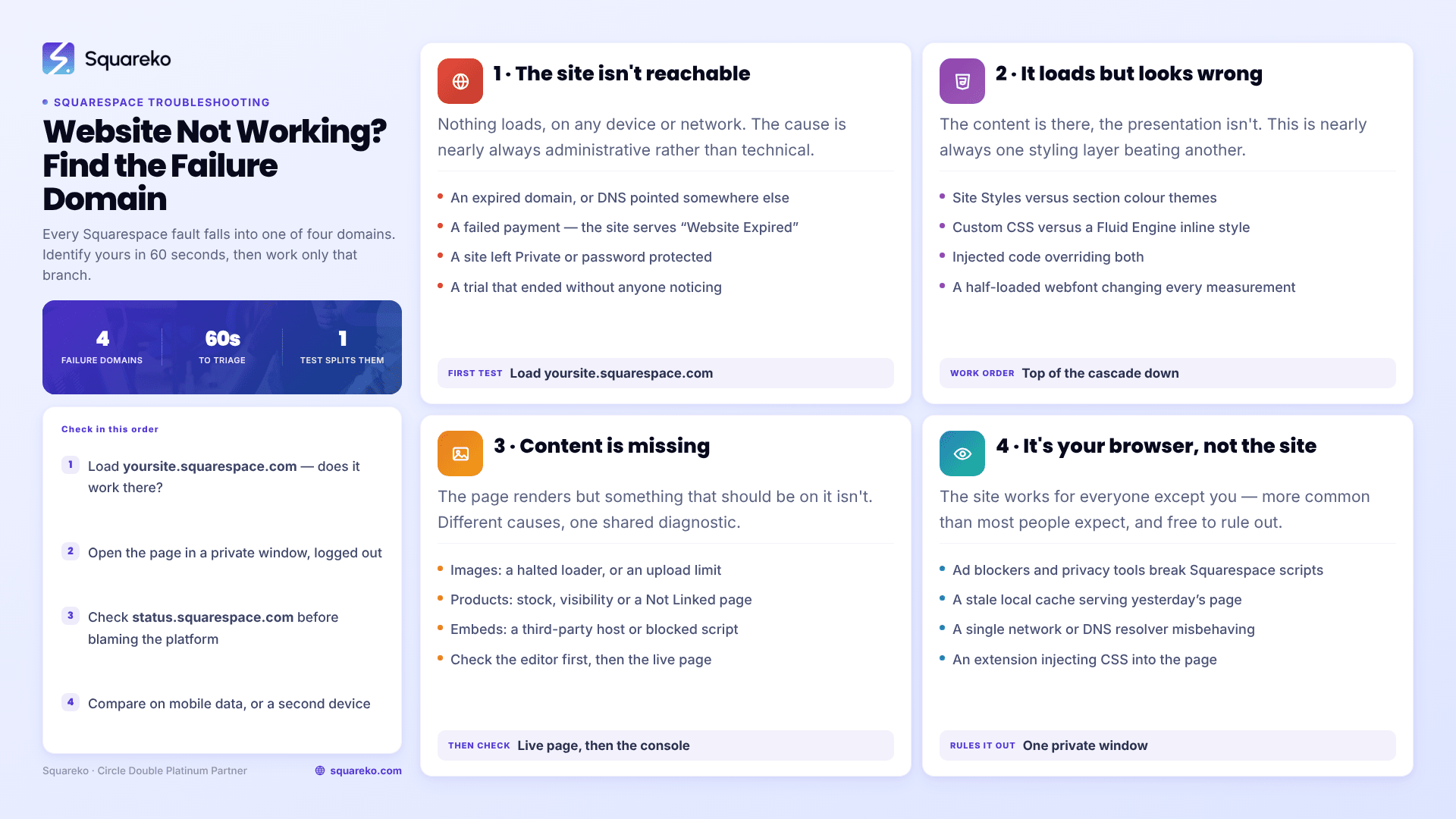
The 60-second triage
Do these three things in order before changing a single setting.
1. Load your built-in Squarespace URL. Every site keeps its original yoursite.squarespace.com address permanently, even after you connect a custom domain. Open it in a private window.
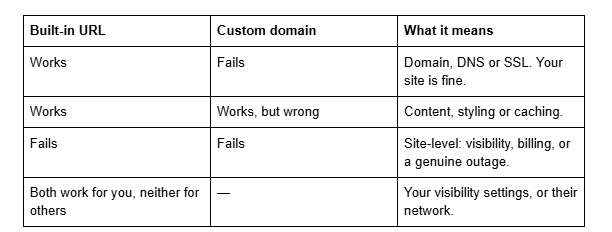
2. Check the platform.status.squarespace.com reports live incidents. It is worth ten seconds, but resist treating it as the first suspect — most reported "outages" turn out to be a single site's domain or billing.
3. Try a private window on another device and network. If the site loads on your phone over mobile data but not on your laptop, you have a local caching or browser problem, not a website problem. That single test eliminates a surprising share of reports.
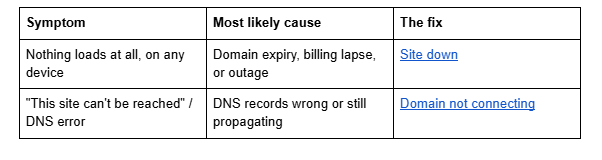
Find your symptom
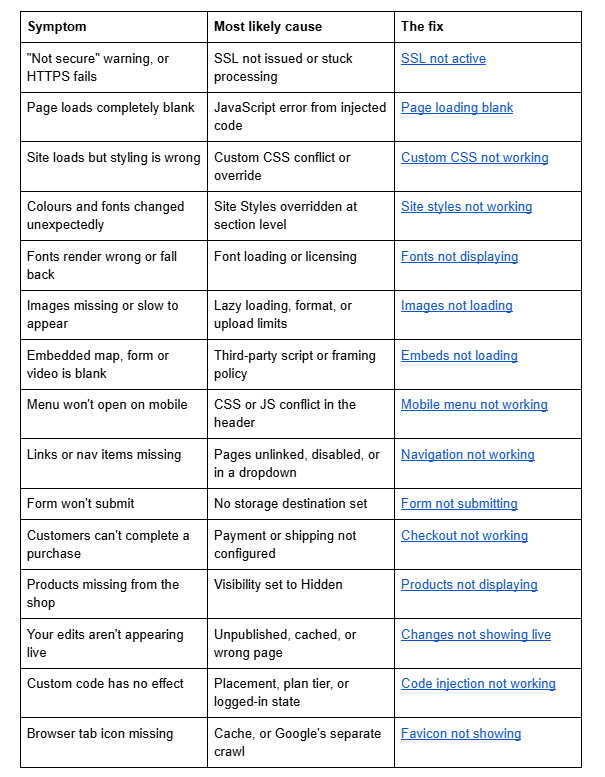

The four failure domains
Everything above falls into one of four categories. Knowing which one you're in stops you changing settings that were never the problem.
1. The site isn't reachable
Nothing loads, on any device, on any network.
The instinct is to assume Squarespace is down. It rarely is. Far more often the cause is administrative rather than technical: a domain that quietly expired, a card that failed, or a site left in a private state after a redesign.
Check in this order — expired domain, then billing status, then visibility settings, then the status page. Three of those four are things you can fix yourself in under five minutes, and the fourth you can only wait out.
One detail worth knowing before you panic: a site whose subscription has lapsed doesn't vanish. Squarespace serves a "Website Expired" notice, your content stays intact, and reactivating restores it. The site down guide covers the full sequence.
2. The site loads but looks wrong
The content is there. The presentation isn't.
This is nearly always the cascade — some layer of styling is beating another. Squarespace 7.1 has four places styling can come from: Site Styles, section-level colour themes, the Custom CSS panel, and inline styles written by Fluid Engine. They don't have equal power. Fluid Engine's inline styles beat everything in a stylesheet regardless of specificity, which is why so many CSS rules that look correct simply don't apply.
Start by identifying which layer is winning. Right-click the element, inspect it, and look at which rule is applied and which are struck through. That single step resolves most styling reports faster than any amount of trial and error.
Then work through Custom CSS not working if you wrote the rule yourself, or Site styles not working if you changed a global setting and it didn't take.
3. Content is missing
The page renders, but something that should be on it isn't.
Missing images, missing products and missing embeds have different causes but a shared diagnostic: check whether the item exists and is visible in the editor, then check whether it appears in the live page's HTML source. If it's in the source but invisible, it's a CSS problem. If it's absent from the source, it was never rendered — which points at a visibility setting, a plan limitation, or a failed upload.
Two specifics that catch people out repeatedly. Squarespace products have no draft state — they're Public, Hidden or Scheduled, and Hidden is the default that silently removes them from your shop. And Squarespace does not accept SVG uploads through the image block, so an SVG logo that "won't upload" isn't broken, it's unsupported through that route.
4. It's your browser, not your site
The site works for everyone except you.
This is more common than most people expect, and it's why the private-window test sits in the 60-second triage. Browser extensions — particularly ad blockers and privacy tools — interfere with the Squarespace editor more than they interfere with live sites. Hardware acceleration, an aggressively cached stylesheet, and a Chrome profile carrying years of accumulated state all produce symptoms that look like site faults.
There's one non-obvious cause worth naming: Squarespace's editor requires a minimum window of 1280 × 768. A 1440px-wide laptop at 150% browser zoom gives you 960 CSS pixels, which is below that threshold. The editor degrades rather than telling you why.
Errors people misread
Some symptoms consistently get diagnosed as the wrong thing. These are the ones I see most often.

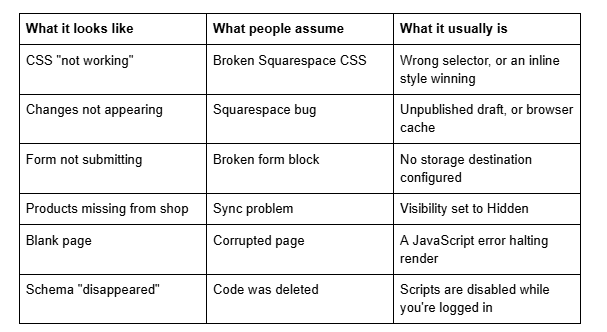
That last one deserves expanding, because it wastes more time than any other. Squarespace disables embedded scripts in code blocks whenever you're logged in and editing, and displays the message "This block contains embedded scripts. Embedded scripts are disabled while you're logged in and editing your site." It is not an error. Log out, or use Safe Mode, and check again before debugging anything.
What you can't fix from the front end
A few problems are genuinely outside your control, and recognising them saves hours.
Platform outages. If status.squarespace.com shows an active incident affecting your region or feature, waiting is the fix. Nothing you change will help, and changes made during an outage are harder to unpick afterwards.
DNS propagation. After changing DNS records, resolvers around the world update on their own schedule. Squarespace documents up to 72 hours, though most changes settle far sooner. Repeatedly re-editing records during propagation extends the wait rather than shortening it.
SSL issuance. Certificates are provisioned automatically once DNS resolves correctly, but the process can't start until it does. A certificate stuck "processing" is almost always waiting on a DNS problem upstream, or on a CAA record blocking issuance.
robots.txt. It cannot be edited on Squarespace. If you need a URL kept out of search, use the page-level search-visibility setting rather than looking for a file you can't reach.
Reading the error message
Squarespace surfaces a small set of recurring messages, and each one narrows the problem considerably. These are the ones worth recognising on sight.
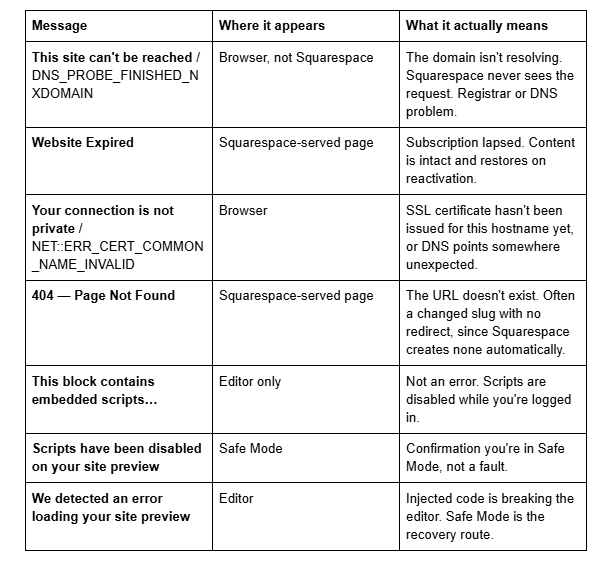
The distinction that matters most is who is serving the message. A browser-generated error means the request never reached Squarespace, which points at DNS, the registrar, or the local network. A Squarespace-branded page means the platform received the request and chose to respond that way — billing, visibility, or a genuine missing page. That single question splits the diagnostic tree in half.
What Squarespace Customer Care can and can't do
Knowing the boundary saves a round trip.
They can confirm platform incidents, check whether your subscription and domain registration are active, verify DNS from their side, re-trigger SSL provisioning, restore recently deleted pages in some cases, and see server-side errors you have no visibility into.
They can't debug your custom CSS, fix third-party code you injected, rewrite a broken embed, or advise on plugins from outside Squarespace. Support explicitly excludes custom code, and asking about it produces a polite redirect rather than a fix.
There's also a practical constraint: Squarespace offers no phone support. Email and live chat only, with live chat availability varying by plan and time of day. For a broken checkout at 9am on a Monday, that response window is the thing that hurts — which is precisely why anything revenue-affecting is worth escalating in parallel rather than sequentially.
Before you contact them, have three things ready: your built-in .squarespace.com URL, the exact error text, and whether the problem reproduces in a private window on a different network. Those three answers eliminate most of the back-and-forth.
Stopping it happening again
Most of what breaks a Squarespace site is self-inflicted, and most of it is preventable with three habits.
Keep a change log. A dated note of every code injection, CSS addition and plugin install. When something breaks three weeks later, the log turns an open-ended hunt into a short list. This is the single highest-return habit on the list and almost nobody does it.
Test injected code logged out before you trust it. Because scripts are disabled while you're logged in, code that looks fine in the editor can be breaking the live site for everyone else. Every code change needs a logged-out check, in a private window, before you move on.
Back up before structural changes. Squarespace has no native full-site backup, which surprises people at the worst possible moment. Before a template change, a bulk edit, or anything touching URLs, duplicate the site — duplication is available in Settings and takes seconds. A duplicate isn't a true backup, but it's the closest thing the platform offers and it has rescued more projects than any other precaution.
One structural warning worth internalising now rather than later: changing a page's URL slug creates no automatic redirect, ever. Squarespace states this plainly, and the consequence is that a tidy-up of your URL structure quietly 404s every existing link and every ranking you had. If you change slugs, write the URL mappings in the same sitting.
A note on speed versus downtime
"The site isn't working" sometimes turns out to mean "the site is slow", which is a different problem with a different fix.
For context on what normal looks like: across 54 Squareko-built Squarespace sites measured in August 2026, median server response time was 514 milliseconds, with 85% responding in under 800ms, and median mobile Largest Contentful Paint was 2.01 seconds. Those are lab measurements — single-run Playwright tests from a cloud datacentre with no network throttling — so real-world mobile figures will be higher. But they establish the shape of a healthy Squarespace site.
If your site responds in that range and simply feels slow, you have an optimisation question rather than a fault. If it takes ten seconds to return anything at all, something upstream is wrong and the triage above applies.
When to stop and get help
Work the triage, then the specific guide for your symptom. That resolves the overwhelming majority of cases, and most people reading this will fix it themselves in the next twenty minutes.
There are three situations where continuing alone tends to cost more than it saves. The first is anything revenue-affecting — a broken checkout is worth escalating immediately rather than working through methodically. The second is when the site was built by someone you no longer work with and you're changing settings without knowing what depends on them. The third is when you've already tried several fixes and the symptoms have changed, because at that point you're debugging your own changes as well as the original fault.
Those are the cases our Squarespace website support plans are built for — diagnosis first, so you're not paying for guesswork. No obligation either way; the guides linked above resolve most of what people arrive here with.
FAQ BLOCK
-
Load your built-in yoursite.squarespace.com address in a private window. If that works but your custom domain doesn't, the problem is your domain or DNS, not Squarespace. Then check status.squarespace.com for confirmed platform incidents. Genuine outages are rare compared with domain and billing issues.
-
The most common causes are an expired domain registration, a lapsed Squarespace subscription, or the site being set to Private after a redesign. Check those three before assuming a platform fault — all are fixable within minutes, and Squarespace serves a distinct "Website Expired" page for billing lapses.
-
Usually a visibility setting. If the site is set to Private or Password Protected, you'll see it while logged in but visitors won't. Less often it's DNS propagation, where your resolver has updated and theirs hasn't. Test in a private window while logged out.
-
Almost always a JavaScript error from injected code halting the render, or an unclosed HTML tag in a code block breaking the DOM. Load the page in Safe Mode at yoursite.squarespace.com/config/safe to disable scripts — if the page appears, injected code is the cause.
-
Squarespace documents up to 72 hours, though most changes resolve within a few hours. Re-editing records during propagation restarts the wait rather than speeding it up. If a domain still fails after 72 hours, the records themselves are wrong rather than slow.
-
Check the page is published rather than draft, then hard refresh with Cmd/Ctrl + Shift + R to clear browser cache. If it still doesn't appear, confirm you edited the page your navigation actually points to — editing a duplicated page is a common and easily missed cause.

Author Bio
I'm Walid Hasan, a Certified Squarespace Expert and Squarespace Circle Platinum Partner with over 12 years of hands-on experience designing and optimizing high-performing websites. Over the years, I've had the privilege of building more than 2,000 Squarespace websites for clients around the world, always focusing on clean design, strong user experience, and conversion-driven results.
