
How to Change Colours in a Squarespace Template (Colour Themes)
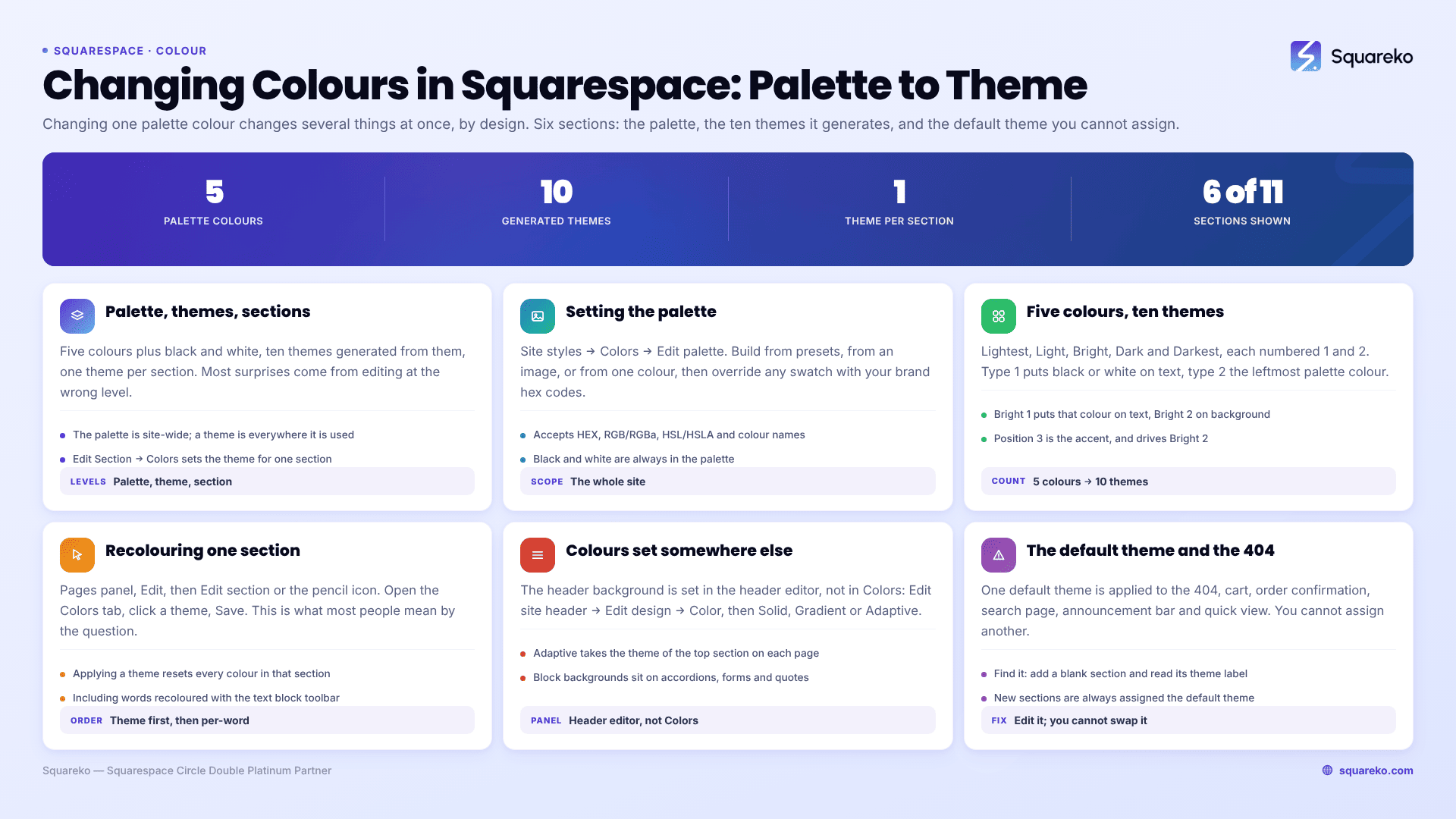
The short answer: Squarespace 7.1 does not let you set colours element by element. You set a five-colour palette in Site Styles → Colors, Squarespace generates ten colour themes from it, and every section on your site is assigned one of those themes. Changing one palette colour therefore changes several things at once, by design. To change one section only, assign it a different theme rather than hunting for a colour picker.
Everything below is version 7.1. Version 7.0 uses per-template style tweaks instead, and none of this applies there. Colour is layer one of the three-layer model in how to customize a Squarespace template, and it should be settled before fonts or sections.
Palette, themes, sections — the three things you are actually setting
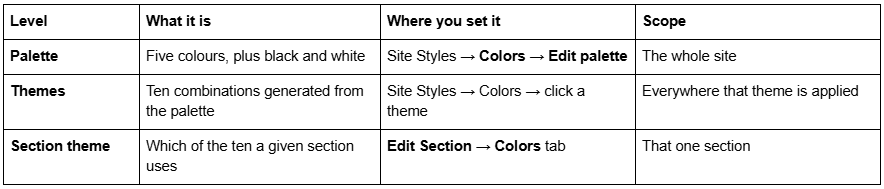
Read that table twice before you touch anything. Nearly every "why did that change" moment on this platform comes from editing at the wrong level — usually editing a theme when you meant to edit a section, or editing the palette when you meant to edit a theme.
Setting the palette
Open site styles with the paintbrush icon while editing any page, click > next to Colors, then click Edit palette. Squarespace offers three ways to build one:
Presets — curated palettes, useful as a starting point.
From image — upload an image and Squarespace pulls a palette from its three most dominant colours.
From color — pick one colour and Squarespace generates complementary palettes around it.
Once you have a palette, you can override any of the five swatches individually in the Palette editor, which is where your actual brand hex codes go. The colour value field accepts HEX (#FFFFFF), RGB/RGBa, HSL/HSLA, and lowercase HTML colour names.
Two things are always in a palette, whether you like it or not: black and white. They are generally used for text, and they are why some themes produce black type no matter what you do to the five swatches.
The order of your five swatches is not decorative. Squarespace reads the palette from lightest on the left to darkest on the right, and maps positions to theme roles.
How five colours become ten themes
The ten themes are Lightest 1 and 2, Light 1 and 2, Bright 1 and 2, Dark 1 and 2, Darkest 1 and 2.
The number tells you how text behaves:
Type 1 themes (Lightest 1, Light 1, Dark 1, Darkest 1) — headings and body text are black or white, and your palette colours go to backgrounds and smaller elements.
Type 2 themes (Lightest 2, Light 2, Dark 2, Darkest 2) — the colour at the left of your palette is applied to all text and headings.
Bright themes put the leftmost palette colour on the text (Bright 1) or on the background (Bright 2).
Roughly, the swatch positions map like this:
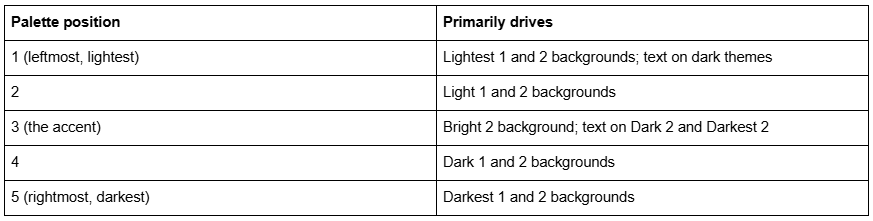
This is why moving one swatch appears to change unrelated parts of the site. It has not changed unrelated parts; it has changed one role that several themes share.
Squarespace also notes that text and button colours sometimes default to white or black regardless of your palette, to preserve contrast against the background. That is a feature, and it is usually right.
Editing a single theme
If a theme is nearly right, edit the theme rather than the palette.
Open site styles → Colors, click the theme you want, then click the individual tweak — Section Background, Heading (Large), Button, Inset border and so on — and pick a new colour from the Palette tab or via Custom. There is an opacity slider on each; on 7.1 you can only change the transparency of palette colours.
Two things to expect:
Every change applies everywhere that theme is used. That is what a theme is for. If you find yourself editing a theme to fix one section, you want a different theme on that section instead.
The Edit Theme menu shows every possible tweak on the platform, including blog options while you are editing a layout page. Ignore the ones that do not apply to what you are looking at.
If a section shows a blank box where its theme label should be, Squarespace's own explanation is that your Heading (Large) colour matches your Section Background colour in that theme. Change one of them and the label reappears.
Changing the colour of one section
This is what most people mean when they search for how to change colours in a Squarespace template.
Open the Pages panel, select the page, click Edit.
Click Edit section or the pencil icon on the section.
In the Colors tab, click a theme.
Save.
One warning that costs people real work: applying a theme resets every colour in that section, including individual words you recoloured with the text block toolbar. Choose the section's theme first, then do any per-word colouring. Those per-word colours are stored as classes like sqsrte-text-color--darkAccent, and a theme change clears them.
A page that alternates themes down its length — light, dark, light, bright — reads as designed. A page where every section is Lightest 1 reads as a template nobody touched. This is the cheapest visual upgrade available in Squarespace 7.1.
Colours that are not set in the Colors panel
Several parts of a Squarespace 7.1 site take their colour from somewhere other than the theme you would expect. These are worth knowing before you go looking for a setting that does not exist.
The header. Its background style is set in the header editor, not the Colors panel: Edit site header → Edit design → Color tab (see how to edit your Squarespace header), then choose Solid, Gradient or Adaptive from the dropdown. Adaptive is the transparent option — the first section on each page shows through it. Which of those you choose also decides where the header button gets its colour: Solid with a theme uses that theme, Solid with a custom colour and Gradient both fall back to the site's default colour theme, and Adaptive takes the colour theme of the top section on each page. That last one means a site with mixed section themes needs the header button styled in every theme it lands on.
The announcement bar always matches the colour theme of your header. There is no separate control.
The mobile overlay menu takes its colours from the header too, not from the section behind it.
Sections with a background image use Background Overlay rather than Section Background. Section Background is for colour and video backgrounds; if a section has an image and the colour tweak appears to do nothing, you are editing the wrong tweak.
Inset images get their own border colour, found under Sitewide → Inset border inside each theme.
Block background colours
Squarespace 7.1 added background colours on individual blocks, which is the finest-grained colour control on the platform that does not need CSS. It is supported on Accordion blocks, Form blocks, Newsletter blocks, Quote blocks and Summary blocks — switch the Background toggle on in the block's Design tab — and on text blocks via the block background icon.
Two uses justify it. The first is making a form or a quote read as a card without building a nested section. The second is Fluid Engine layouts where blocks overlap: a background colour is often the only thing that makes the stacking order legible.
Once the toggle is on, click Color and pick from the palette or a custom value. Because these are per-block, they do not move when you change a section's theme — which cuts both ways, and is worth remembering when a section suddenly has one block in the old palette.
The default colour theme, and why your 404 page looks wrong
Every Squarespace 7.1 site has a default colour theme, and it is applied automatically to a list of places you cannot assign a theme to:
the default 404 page
the shopping cart page
the order confirmation page
the built-in search page
the announcement bar
the product quick view page
the access denied screen
a dynamic header sitting over a background image or video
page gaps caused by scrolling horizontally past the edge of the page
This is the single most-searched problem in the 7.1 colour system, and three separate forum threads rank for it. The complaint is always some version of the same thing: the site is dark, the cart page is white, and there is no setting anywhere to fix it.
To find your default theme: add a blank section to any page, open Site Styles → Colors, and read the theme label the new section picked up. New sections are assigned the default theme. (Alternatively, open a system page, press /, search for Site Styles, and read the theme indicator there.)
To fix it: you cannot reassign those pages to a different theme, so you edit the default theme itself until it matches the rest of your site. That is the supported route, and it is the one that survives updates.
If colours changed on their own rather than because you changed them, fonts and colours changed after switching templates covers the recovery.
The same theme causes the gap that sometimes appears between the last section of a short page and the footer. The gap inherits the default theme's section background colour. Set that colour to match either your last section or your footer and the gap stops being visible.
Scoping colour with CSS, when a theme is not enough
Themes cover almost everything. Where they do not, Squarespace 7.1 gives you two stable hooks in the markup.
Every section carries a data-section-theme attribute with the theme's internal name — white, white-bold, light, light-bold, bright, bright-inverse, dark, dark-bold, black, black-bold. Inspect a section to confirm which one you are looking at, then target it.
/* Restyle every section using the Darkest 1 theme without touching the theme */
[data-section-theme="black"] .sqs-block-button-element {
  border-radius: 0;
  letter-spacing: 0.08em;
}
/* Colour change on one page only, scoped by its collection ID (the id on the  element) */
#collection-6421a9f0c1e8b2001d7a4c33 h1 {
  color: #b8442a;
}
/* One specific section, by the section ID shown on the live page */
section[data-section-id="69f0990c1ce0435a0a61a550"] .section-background {
  background-color: #101418 !important;
}
The Custom CSS panel is at Website → Website Tools → Custom CSS and is available on every Squarespace plan, including Basic. !important appears in the third snippet because section background is one of the things Fluid Engine writes as an inline style, and inline styles beat stylesheets regardless of specificity.
More template-scoped snippets are in Squarespace template CSS: 30 snippets.
A working order for colour
Set the palette — your five brand colours, ordered light to dark, then set the type scale in how to change fonts in Squarespace.
Check contrast on Lightest 1, Bright 2 and Darkest 1 before going further; those three carry most sites.
Edit the two or three themes you will actually use. Most sites use four themes well rather than ten badly.
Fix the default theme, because nothing else will.
Assign themes down each page so the rhythm alternates.
CSS last, only for what themes cannot reach.
Where this stops
The palette-and-theme system is genuinely well designed once you stop fighting it. Five colours, ten themes, one theme per section, and a default theme that needs editing rather than assigning. Most colour work on a Squarespace 7.1 site is twenty minutes in the Colors panel.
Where it gets harder is accessibility. Brand palettes are frequently built for print and fail contrast ratios on screen, and the fix is rarely "pick a darker blue" — it is rebuilding the theme roles so text never lands on the swatch that fails. That is fiddly, and it is easy to get wrong in a way nobody notices until an audit.
That is the kind of work our Squarespace website support plans exist for. For most sites, though, the six steps above are the whole job — do those first.
FAQ
-
Ten: Lightest 1 and 2, Light 1 and 2, Bright 1 and 2, Dark 1 and 2, Darkest 1 and 2. All ten are generated automatically from your five-colour palette plus black and white. You cannot add an eleventh, but you can edit any of the ten.
-
Because you changed a palette swatch, not an element. Each of the five swatches fills a role — background, text, accent — across multiple themes at once. To change one thing only, edit a single theme, or assign a different theme to that section.
-
Click Edit, then Edit section or the pencil icon on that section, open the Colors tab and choose a theme. Note that applying a theme resets all colours in that section, including individual words you recoloured with the text toolbar, so set the theme first.
-
You cannot reassign it, so edit it instead. Find it by adding a blank section to any page and reading the theme label it picks up — new sections use the default theme. Then edit that theme's colours in Site Styles → Colors.
-
The default 404 page, cart page, order confirmation page, built-in search page, announcement bar and product quick view all use your site's default colour theme, and no theme can be assigned to them. Edit the default theme until those pages match the rest of your site.
-
Yes. In Site Styles → Colors → Edit palette, open the Palette editor and set each of the five swatches. The colour value field accepts HEX, RGB and RGBa, HSL and HSLA, and lowercase HTML colour names such as white.

Author Bio
I'm Walid Hasan, a Certified Squarespace Expert and Squarespace Circle Platinum Partner with over 12 years of hands-on experience designing and optimizing high-performing websites. Over the years, I've had the privilege of building more than 2,000 Squarespace websites for clients around the world, always focusing on clean design, strong user experience, and conversion-driven results.
