
How to Add and Reorder Sections in a Squarespace Template
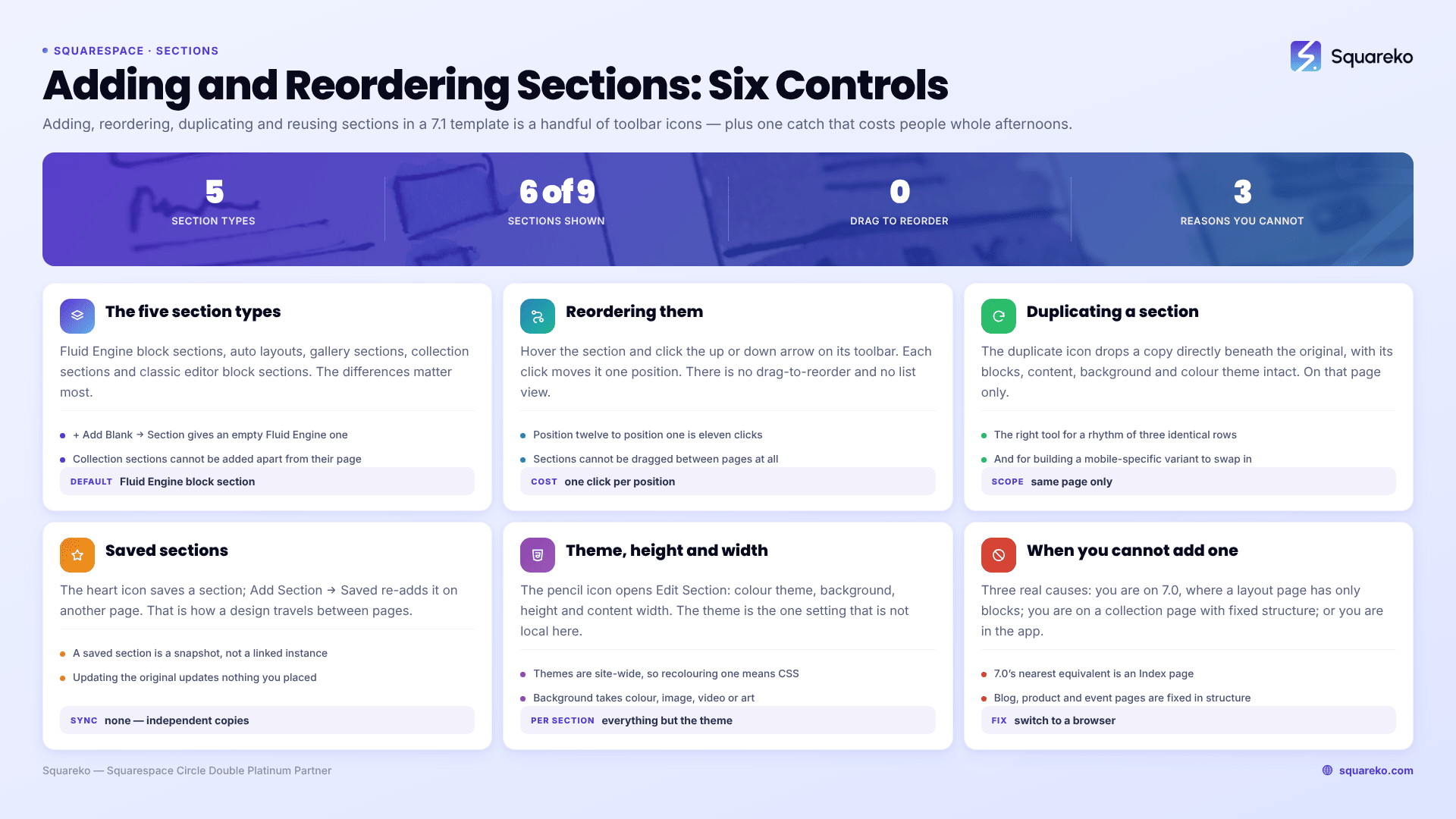
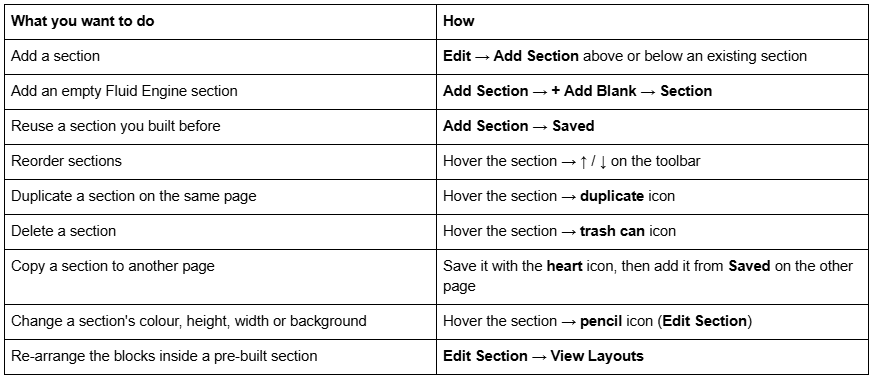
The short answer: Click Edit on the page, then Add Section above or below an existing section. Pick a pre-built layout from the category list, click + Add Blank for an empty Fluid Engine section, or open Saved to reuse one you have saved before. To reorder, hover a section and use the ↑ and ↓ arrows on its toolbar — Squarespace 7.1 has no drag-to-reorder for sections.
The one thing worth knowing before you build anything on top of it: saved sections are independent copies, not linked instances. Squarespace states it directly — "After saving a section, updating the original section won't update the saved version or anywhere else you've added it." Plan your reuse around that, not around the assumption that editing one updates the rest.
Every section task and its control
One limitation that explains a lot of confusion: it is not possible to add sections in the Squarespace mobile app. Section work is a browser job.
The Add Section panel and the five section types
Click Add Section and the panel opens with categories down the left. Squarespace 7.1 offers five kinds of section, and the differences matter more than the categories do.
1. Fluid Engine block sections. The default. Blocks placed on a drag-and-drop grid — 24 columns on desktop, 8 on mobile. Use + Add Blank → Section for an empty one.
2. Auto layouts. Sets of images, text and buttons that Squarespace arranges automatically into a preset pattern — lists, people, testimonials. Marked with an i icon in the panel. They cannot be added to your footer.
3. Gallery sections. Automatically arranged sets of images with little text. Also cannot be added to the footer.
4. Collection sections. Blog, product, event and portfolio listings. These cannot be added independently of their page — a blog section belongs to a blog page. This is the answer to "why can't I add a blog section to my home page": you add a summary or list of that collection's items instead.
5. Classic editor block sections. The older block-and-drop-zone system. You can keep adding and editing them, or upgrade one to Fluid Engine from Edit Section — but Squarespace is explicit that an upgraded section cannot be reverted after the page is saved, and the layout may shift during conversion.
If a purchased template ships mostly auto layouts, that is a design decision you inherit: auto layouts are fast to populate and impossible to arrange freely. Swapping one for a Fluid Engine section means rebuilding it.
A pre-built section from the library is a starting point, not a commitment. Once it is on the page it is an ordinary section — you can delete its blocks, add new ones, and change its layout entirely. Edit Section → View Layouts re-arranges the blocks already inside a pre-built section into a different preset, which is the fastest way to try three arrangements of the same content before committing to one. The categories in the Add Section panel are organised by purpose (about, services, testimonials, contact) rather than by structure, so it is worth scrolling past the category you think you want; the layout you need is often filed under a different heading.
Reordering sections in a Squarespace 7.1 template
Hover the section, then click ↑ or ↓ on the toolbar. Each click moves it one position.
There is no drag-to-reorder and no list view of sections, which makes reordering a long page tedious — a section at position twelve takes eleven clicks to reach position one. Two things make it less painful:
Decide the section order before you fill sections with content. Reordering empty sections is the same number of clicks but you can see what you are doing.
On very long pages, rebuild rather than shuffle. Where a section needs to move more than about six positions, saving it, deleting it and re-adding it in place is usually faster and less error-prone.
Sections cannot be dragged between pages. Moving a section to a different page is a save-and-re-add job, covered below.
Order matters more than most people give it credit for on a template site, because a template's demo page order is written for the shop's fictional business rather than yours. The section a visitor needs second is rarely the one the demo puts second. Before you start moving anything, write the page's sections down as a list of one-line purposes and reorder the list. Ten minutes on paper saves an hour of arrow-clicking, and it surfaces the sections you should delete rather than reposition.
Duplicating a section
Hover the section and click the duplicate icon. The copy appears directly beneath the original, with all its blocks, content, background and colour theme intact.
This is the right tool for three jobs in particular:
Building a rhythm. Three service blocks with identical structure and different content start as one section duplicated twice.
Trying a variant. Duplicate, change the copy, compare, delete the loser.
Making a mobile-specific version. Duplicate the section, rebuild the copy for the mobile grid, and show one per breakpoint — the technique in how to hide a section on mobile in Squarespace.
Duplicating is per page. It does not help you get a section onto a different page.
Saved sections, and the thing everyone gets wrong
Saved sections are how you move a design between pages, and how template shops make a template feel like a system.
To save one: click Edit, hover the section, and click the heart icon. Circle members get an extra step — choose This Site to save it to the site, or save it to the account catalog to use it across every 7.1 site they have editing permission on.
To reuse one: on the destination page, click Add Section, open the Saved tab, and choose it.
To rename one: Add Section → Saved → hover the title → pencil icon. To delete one: Add Section → Saved → tick the checkbox → trash icon. Deletion is irreversible.
Now the important part, stated plainly because it is the most common misunderstanding on this topic. A saved section is a snapshot, not a link. Squarespace's documentation puts it as "After saving a section, updating the original section won't update the saved version or anywhere else you've added it." Add the same saved section to five pages and you have five independent sections. Change your phone number in the saved copy and the five pages keep the old one. There is no sync, no global update, and no way to make one.
The practical consequences:
Do not use saved sections for content that changes. Prices, opening hours, contact details, current offers. Anything you will need to update in one place belongs in the footer, which genuinely is shared across every page — see how to customise a Squarespace footer.
Do use them for structure. A hero pattern, a testimonial layout, a two-column about block. Structure is what you want repeated; content is not.
Re-check forms after adding one. Storage connections in form and newsletter blocks do not survive the copy and must be reconnected, or submissions go nowhere.
Limits, which differ by account type: a standard site holds up to 250 saved sections. Squarespace Circle members get an account-level catalog of 50 sections usable across every 7.1 site they can edit, rising to 250 at Circle Gold and Platinum. Enterprise accounts get a 250-section team library shared across the organisation.
What can be saved: auto layouts, block sections in both Fluid Engine and the classic editor, and gallery sections. Collection sections cannot be saved.
Section colour themes, height and width
Hover a section and click the pencil icon to open Edit Section. Four settings do the bulk of the design work.
Colour theme. Each section takes one of the themes defined in Site Styles → Colors. Themes are site-wide: change a theme's palette and every section using it changes, on every page. That is a feature, not a limitation — it is how you keep fifty sections consistent — but it does mean you cannot recolour one section without either editing its theme or overriding it in CSS. The theme system is covered in how to change colours in a Squarespace template.
Background. Colour, image, video or art, with a focal point, image effects and an Overlay Opacity slider for legibility. Detail is in how to change a Squarespace banner image.
Background width — Full Bleed or Inset. Full Bleed runs the background edge to edge; Inset holds it inside the site margin. Mixing the two down a page without meaning to is one of the commonest reasons a template stops looking coherent once you have edited it.
Section height. A preset, or click … for a custom value. On a Fluid Engine section you can also add and remove grid rows directly, which is the more precise way to control height on a section you are laying out by hand.
Alternating themes and widths deliberately — rather than accepting whatever each added section defaulted to — is most of what separates a template that looks edited from one that looks designed. That is the broader argument in how to customise a Squarespace template.
Linking to a specific section
Squarespace 7.1 has no field for naming a section, so anchor links use the section's generated ID. Right-click the section, choose Inspect, and read the id on the <section> element — the same value also appears as data-section-id. Link to it as /your-page#that-id.
It works, and it is stable as long as the section is not deleted and rebuilt. It is not readable, so leave a comment in your Custom CSS or notes recording which section each ID belongs to.
Why you might not be able to add a section at all
Three real causes, in order of likelihood.
You are on Squarespace 7.0. Sections in this sense are a 7.1 feature. On 7.0 the equivalent is an Index page in the Brine, Bedford, Pacific or Montauk families, and an ordinary 7.0 layout page has no sections at all — only blocks. Templates outside those families have no index either.
You are on a collection page. Blog, product and event pages have a fixed structure, and you cannot add arbitrary sections above or below the collection's own section on all page types.
You are in the Squarespace app. Sections cannot be added there. Switch to a browser.
Where this stops
Adding, reordering, duplicating and reusing sections in Squarespace 7.1 is a handful of toolbar icons, and the whole system is learnable in twenty minutes. The two facts worth carrying away are that saved sections are independent copies with no sync, and that colour themes are site-wide while everything else on Edit Section is per section.
Where it gets awkward is at scale — a forty-page site where a design decision has to be applied to eighty sections, and the only mechanism is a snapshot that does not update. That is a planning problem before it is a Squarespace problem, and it is the sort of thing our Squarespace website support plans get called in for. On an eight-page template site, though, the panel does everything, so start with Add Section.
FAQ
-
Click Edit on the page, then click Add Section above or below an existing section. Choose a pre-built layout from the categories in the panel, click + Add Blank then Section for an empty Fluid Engine section, or open the Saved tab to reuse a section you saved earlier.
-
Hover the section and click the up or down arrow on its toolbar. Each click moves it one position. Squarespace 7.1 has no drag-to-reorder and no section list view, so on long pages it is often faster to save the section, delete it, and re-add it where you want it.
-
There is no direct copy between pages. Save the section with the heart icon, open the destination page, click Add Section, and pick it from the Saved tab. The result is an independent copy, so later edits to the original will not appear on it.
-
No. Squarespace states that updating the original section won't update the saved version or anywhere else you've added it. Every saved section you add is an independent copy. Use them for repeated structure, never for content that changes, such as prices or contact details.
-
A standard site holds up to 250. Squarespace Circle members also get an account-level catalog of 50 sections usable across every 7.1 site they can edit, rising to 250 at Circle Gold and Platinum. Enterprise accounts get a 250-section team library.
-
Usually because the site is on Squarespace 7.0, where ordinary layout pages have blocks rather than sections. The other two causes are collection pages such as blog and product pages, which have a fixed structure, and the Squarespace mobile app, which cannot add sections at all.

Author Bio
I'm Walid Hasan, a Certified Squarespace Expert and Squarespace Circle Platinum Partner with over 12 years of hands-on experience designing and optimizing high-performing websites. Over the years, I've had the privilege of building more than 2,000 Squarespace websites for clients around the world, always focusing on clean design, strong user experience, and conversion-driven results.
