
The Squarespace Wexley Template: Its Grid Is a Gallery Page, Not an Index
Wexley is a Squarespace version 7.0 template that is its own single-template family, and it has no index pages. Its demo reports "templateVersion":"7" and template ID 4fbff70b84aeca67fb3a3c56, and Squarespace's version and template guide lists Wexley as a family containing exactly one template. The mosaic grid Wexley is known for is a gallery page, not an index page — which is the single most consequential thing to know about it, because the 7.0 → 7.1 update tool treats those two page types in completely different ways.
Here is what that means in practice.
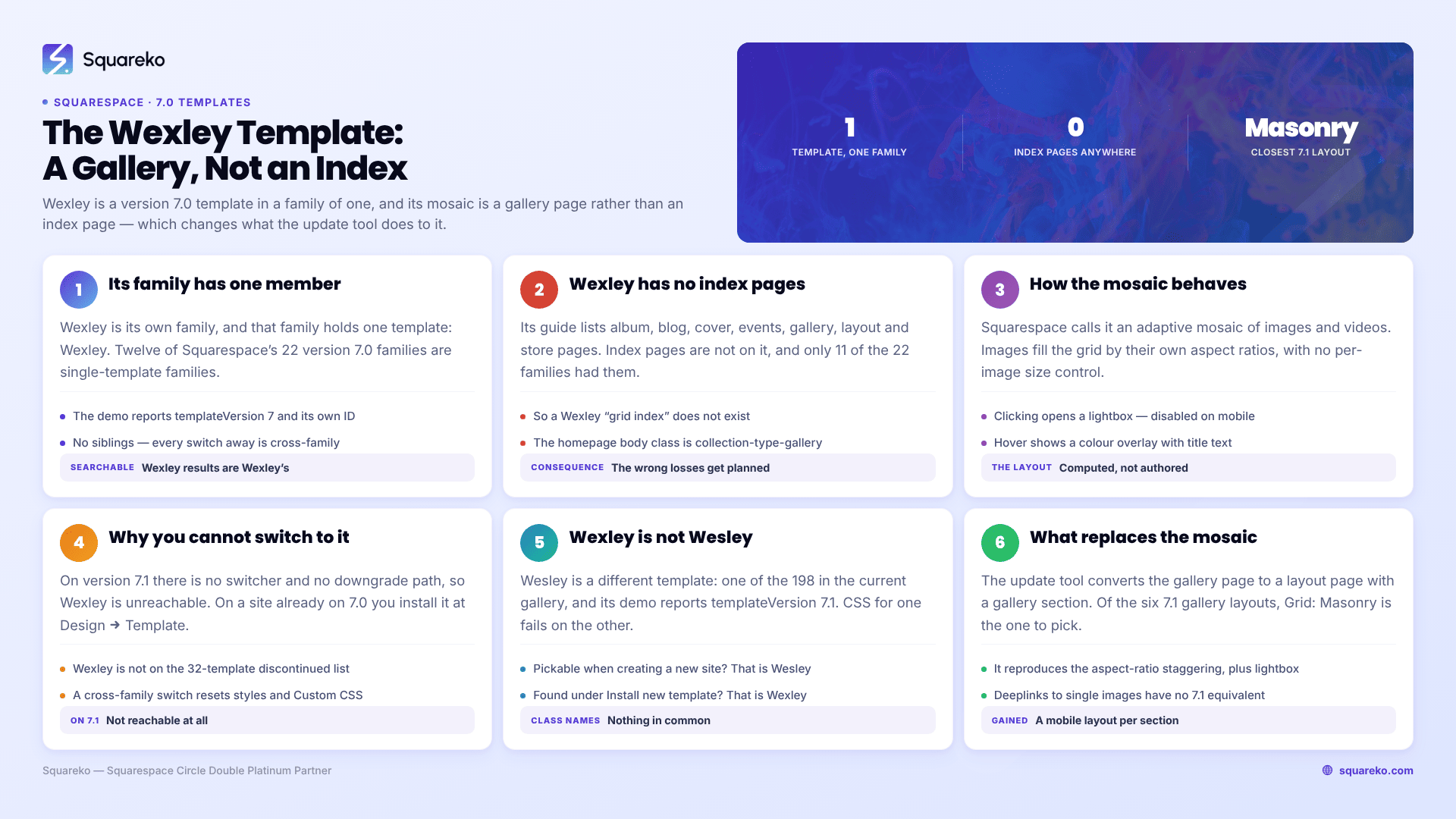
Wexley at a glance
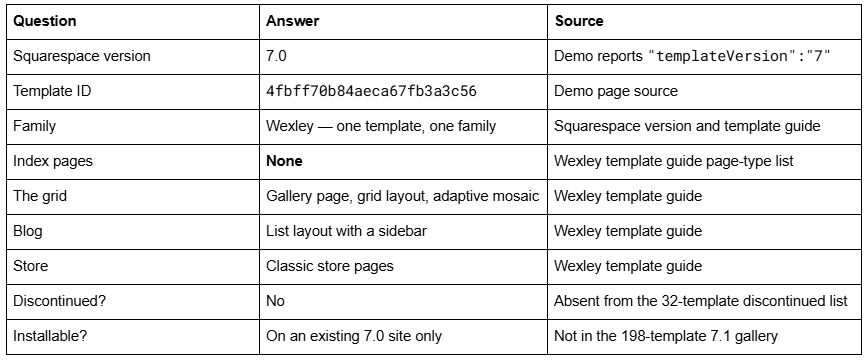
Which family the Squarespace Wexley template belongs to — verified
Wexley is in the Wexley family, and that family contains one template: Wexley.
Fetching wexley-demo.squarespace.com and reading the page source returns:
"templateVersion":"7"
"templateId":"4fbff70b84aeca67fb3a3c56"
Two notes on reading that. A version 7.0 site reports "templateVersion":"7" — a bare 7, never "7.0" — so that string alone confirms Wexley is legacy. And in version 7.0, the template ID identifies the family, never the individual template. For a family of one, the two happen to coincide, which is why Wexley's ID is unique to Wexley.
Twelve of Squarespace's 22 version 7.0 families are single-template families like this: Adirondack, Avenue, Five, Flatiron, Forte, Galapagos, Ishimoto, Momentum, Native, Supply, Wells and Wexley. It has one useful consequence and one annoying one. The useful one is that "Wexley" as a search term returns Wexley-specific results, unlike "Mercer", which is a Brine template with no documentation of its own. The annoying one is that there are no sibling templates to switch to — every switch away from Wexley is a cross-family switch that changes which features exist. The complete family map is in the full list of Squarespace 7.0 templates.
Wexley has no index pages, and this matters
Squarespace's Wexley template guide lists the page types Wexley supports:
Album pages
Blog pages (list layout, with a sidebar)
Cover pages
Events pages
Gallery pages (grid layout)
Layout pages
Store pages (classic layout)
Index pages are not on that list. In Squarespace 7.0, index pages were a container page whose sub-pages stacked into bands or tiled into a thumbnail grid, and only 11 of the 22 families had them: Avenue, Bedford, Brine, Flatiron, Forte, Marquee, Momentum, Montauk, Pacific, Supply and York. Wexley is not one of them.
So when a page describes Wexley as having a "grid index", it is describing something that does not exist. What Wexley has is a gallery page set as the homepage, displaying its images as a mosaic. The demo makes this obvious: its homepage body class includes collection-type-gallery, and its navigation is portfolio, blog, about, contact — four separate pages, not index sub-pages.
Why this is worth two paragraphs rather than a footnote: the 7.0 → 7.1 update tool converts index pages and gallery pages along completely different routes. Index pages break their sub-page links and lose sub-page SEO settings. Gallery pages become layout pages with gallery sections and lose their videos. If you plan a Wexley migration on the assumption that you are migrating index pages, you will prepare for the wrong losses. The family-by-family feature map, including which families have which page types, is in the Squarespace 7.0 template comparison chart.
How the Wexley gallery mosaic actually works
Squarespace describes Wexley as "perfect for artists, creative professionals, and photographers who need a dynamic way to showcase their work" through a gallery layout that "creates an adaptive mosaic of images and videos."
The behaviour has four parts, and each one is a thing people try to override with CSS:
The mosaic is aspect-ratio driven. Images adjust automatically to fill the grid based on their own aspect ratios, and images that are too wide stack vertically rather than sitting alongside their neighbours. There is no per-image size control. This is the source of the most common Wexley request on the Squarespace Forum — people wanting alternating or randomised thumbnail sizes, or wanting images to stay in place rather than reflow. The layout is computed, not authored.
Clicking opens a lightbox slideshow overlay — and that overlay is disabled on mobile, where images simply stack vertically instead. If your Wexley site depends on the lightbox for captions or titles, mobile visitors do not get them without custom work.
Hover shows a colour overlay with title text. The colour, the text and the weight are Site Styles tweaks, not per-image settings.
Deeplink URLs work. You can send a visitor directly to a specific image inside the gallery, which is genuinely useful for sharing a single piece of work and is not something 7.1 gallery sections reproduce.
Clickthrough URLs — sending a gallery image to another page instead of the lightbox — are the other perennial Wexley question, and the honest answer is that Wexley's grid intercepts the click for the lightbox, so a clickthrough needs code.
Why you cannot switch to the Squarespace Wexley template
If you have tried to install Wexley and failed, the reason depends on which version your site is on, and only one of the two situations is fixable.
If your site is on version 7.1: you cannot get Wexley, at all. One Squarespace Forum poster described exactly this: "Whenever I click on the button that says 'Create a site like this', it lands on a page full of templates where Wexley is not." The answer given was the correct one — "It isn't possible to migrate from 7.1 to 7.0, so you won't be able to 'replace' your template with Wexley." Version 7.1 has no template switcher, and there is no downgrade path. The old per-template demo URL under squarespace.com/templates/ now serves the generic 198-template gallery, all 7.1, which is why that button lands somewhere unhelpful.
If your site is on version 7.0: you can install Wexley today. It is not among Squarespace's 32 discontinued templates, and it is not one of the four templates excluded from the switcher — those are Encore, Lincoln, Bryler and Taylor. Go to Design → Template → Install new template, preview Wexley, then click Set as live template. Be aware that any cross-family switch resets site styles, Custom CSS, sidebar and footer content, background images, navigation link order and the homepage setting, while pages, blocks, blog posts, gallery images, products and events are untouched. That trade-off is broken down in how to change a Squarespace template.
Wexley versus Wesley — two different Squarespace templates
This trips people up often enough to name. Wexley is the version 7.0 template described on this page. Wesley is a different template entirely: it is one of the 198 templates in the current Squarespace gallery, and wesley-fluid-demo.squarespace.com reports "templateVersion":"7.1" — so Wesley is 7.1 and belongs to no family, because 7.1 has none.
The practical test: if you found the template in Squarespace's current template gallery and could pick it while creating a new site, it is Wesley and it is 7.1. If you found it in Design → Template → Install new template on an existing site, it is Wexley and it is 7.0. Any CSS, tutorial or forum answer written for one is useless on the other — the class names have nothing in common.
What happens to a Wexley site under the 7.0 → 7.1 update tool
The tool lives at Design → Update to Version 7.1 → Get Started, and it will run on Wexley, because Wexley is not discontinued. It is permanent, capped at 150 pages and 200 products, and there is no undo.
Wexley-specific outcomes, in the order they will bite:
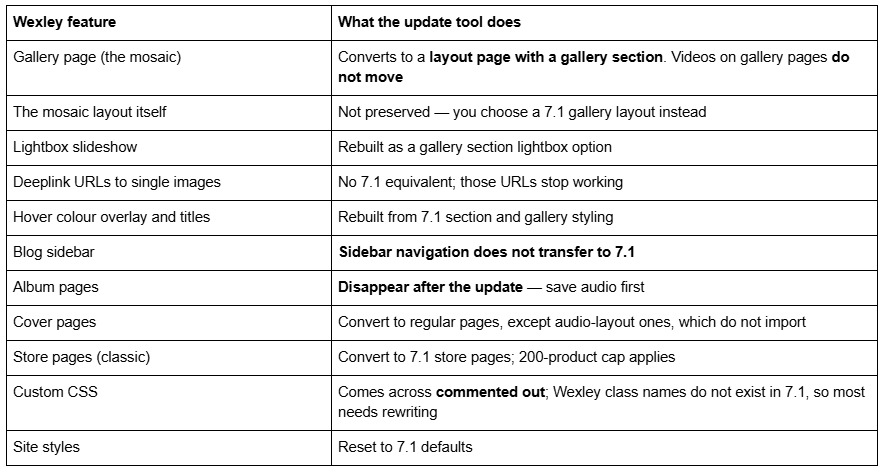
What survives untouched: pages, blocks, blog posts, gallery images themselves, products, events, page settings, code injection, domains, URL mappings, orders and customer data.
The two items to handle before you press the button are gallery videos and album audio. Both are silently lost, and neither is recoverable from the 7.1 site afterwards.
Rebuilding the Wexley mosaic in Squarespace 7.1
The good news for a Wexley owner is that 7.1 has a closer equivalent to the mosaic than it has to most 7.0 features. Gallery sections in Squarespace 7.1 offer six layouts:
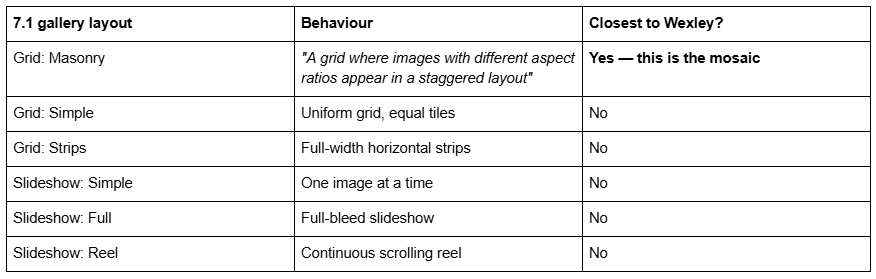
Grid: Masonry is the one to choose. It reproduces Wexley's aspect-ratio-driven staggering, and lightboxes can be enabled in the section's styling options, which covers the click-to-enlarge behaviour.
What you do not get back: deeplink URLs to individual images, and Wexley's specific hover colour-overlay treatment, which has to be approximated with section styles or custom CSS. What you gain: gallery sections can sit on any page alongside other sections, rather than requiring a dedicated gallery page, and Fluid Engine gives every section a separate mobile layout — which addresses the biggest weakness of Wexley's mosaic, its mobile behaviour.
If you want a like-for-like feel rather than a rebuild, the same reasoning that applies to Brine sites applies here: pick the 7.1 layout that matches the behaviour you relied on, not the one that looks closest in a screenshot. That approach is worked through in rebuilding a legacy layout in 7.1.
Where this leaves you
Wexley is not discontinued, has no announced end-of-life, and still does the one thing it was built for. If your mosaic works and your traffic is fine, there is no deadline forcing you off it.
The reason to move is mobile and editing, not survival. Wexley's lightbox is disabled on mobile, its grid is computed rather than controlled, and its blog sidebar does not survive an update — so the migration is a rebuild of the gallery experience, not a copy of it.
That gallery rebuild, and the Custom CSS that has usually accumulated around a Wexley mosaic over the years, is where this stops being a weekend job. It is the situation our premium Squarespace templates and migration work are designed for. If your Wexley site is a straightforward gallery, a blog and two pages, the steps above will get you there on your own — and The Squarespace Brine template guide covers the wider legacy picture if you want the context first.
FAQ
-
Wexley is its own family, containing only Wexley. Its demo reports template ID 4fbff70b84aeca67fb3a3c56 and "templateVersion":"7". Twelve of Squarespace's 22 version 7.0 families are single-template families like this, which means there is no sibling template to switch to within the family.
-
No. Squarespace's Wexley guide lists album, blog, cover, events, gallery, layout and store pages — index is absent. Wexley's grid is a gallery page mosaic. Only 11 of the 22 version 7.0 families had index pages, and Wexley was never one of them.
-
Images arrange into an adaptive mosaic based on their own aspect ratios, and images that are too wide stack vertically. Clicking opens a lightbox slideshow, which is disabled on mobile. Hovering shows a colour overlay with title text. Individual images can be deeplinked by URL.
-
If your site is on version 7.1, you cannot — there is no template switcher in 7.1 and no downgrade path to 7.0. If your site is on version 7.0, you can: Wexley is not discontinued and not one of the four excluded templates, so it installs via Design → Template → Install new template.
-
No. Wexley is a version 7.0 template with its own family. Wesley is a version 7.1 template in the current 198-template gallery; its demo reports "templateVersion":"7.1". They share no code and no class names, so CSS written for one will not work on the other.
-
Each gallery page converts to a layout page with a gallery section, but videos on gallery pages do not move and must be saved first. The mosaic layout is not preserved; the closest 7.1 equivalent is the Grid: Masonry gallery section layout, which staggers images by aspect ratio.

Author Bio
I'm Walid Hasan, a Certified Squarespace Expert and Squarespace Circle Platinum Partner with over 12 years of hands-on experience designing and optimizing high-performing websites. Over the years, I've had the privilege of building more than 2,000 Squarespace websites for clients around the world, always focusing on clean design, strong user experience, and conversion-driven results.
