
Fixing Text That's Too Small on Mobile in Squarespace
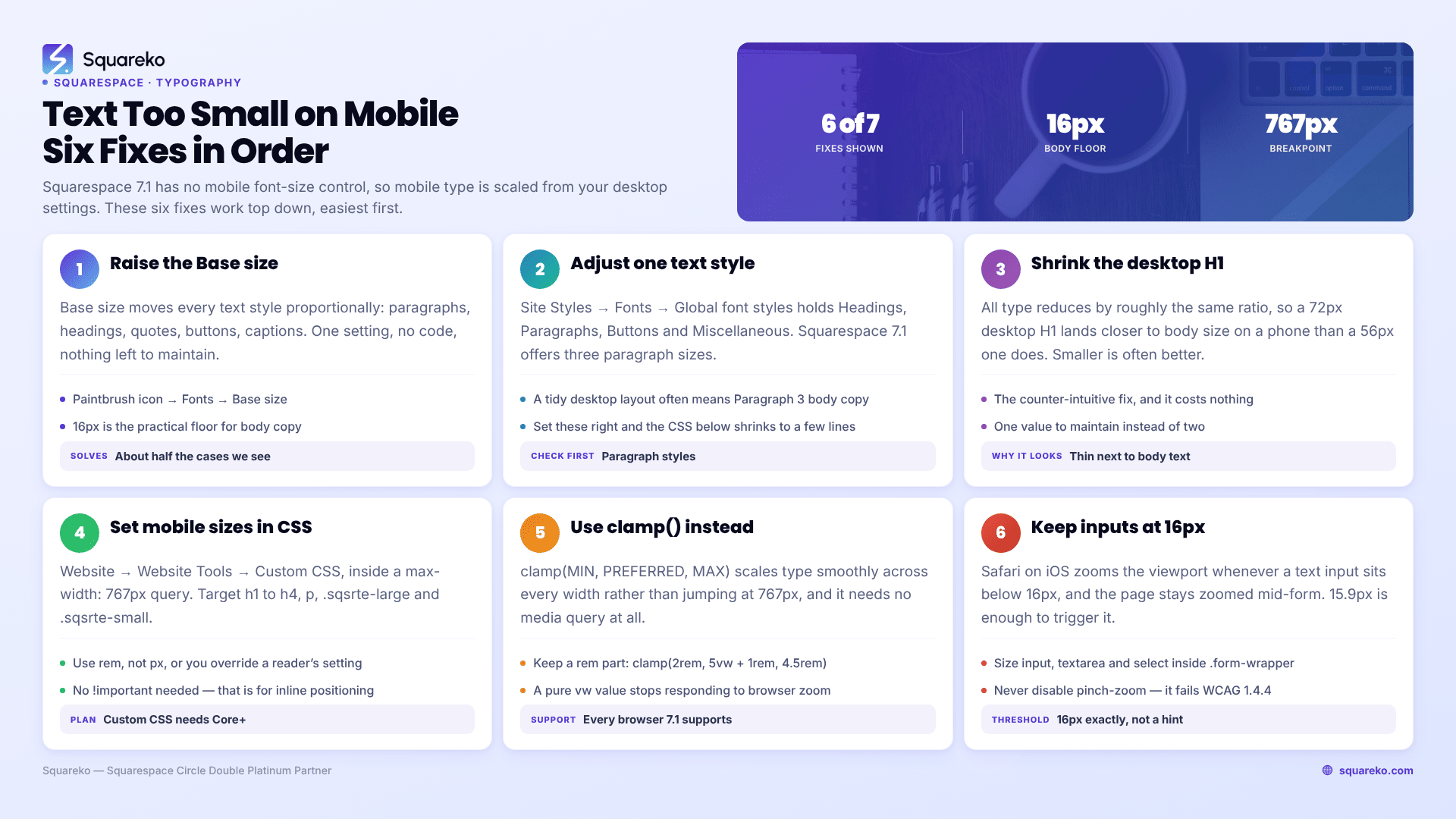
Squarespace 7.1 scales all type down proportionally on small screens, and there is no mobile font-size control in Site Styles — that existed on version 7.0 templates, not 7.1. Fix the desktop Base size first, because mobile is scaled from it. If that is not enough, set mobile sizes explicitly in Custom CSS at the 767px breakpoint, keep body copy at 16px or above, and never let a form input drop below 16px or iOS Safari will zoom the page every time someone taps it.
Which fix do you need?
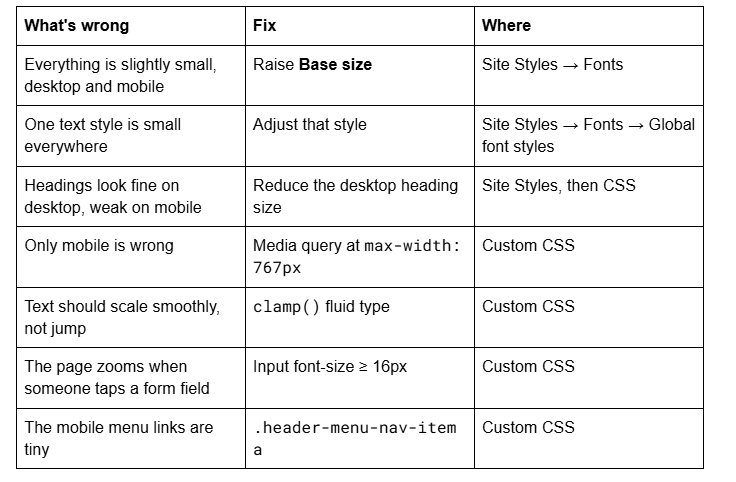
Work top to bottom. Every row below the second is harder to maintain than the row above it.
Where mobile text size actually comes from in Squarespace 7.1
Squarespace 7.1 builds type from two things: a site-wide Base size, and per-style sizes for headings, paragraphs, buttons and miscellaneous text that are expressed relative to it.
To reach them: while editing a page, click the paintbrush icon, then Fonts. Click a font pack to apply it, then choose a Base size. Under Global font styles, click the text type you want to edit — Headings, Paragraphs, Buttons, or Miscellaneous.
Squarespace then handles small screens for you. As their documentation puts it, all Squarespace sites have "built-in responsive design that optimizes your site's text sizes for every screen" and "text resizes automatically to fit the screen."
The consequence people miss: because the scaling is proportional and applied on top of your settings, mobile size is a function of desktop size. If mobile text is too small, the desktop value it is derived from is usually too small too — or, for headings, too large. Changing Base size fixes the whole system at once. Overriding with CSS fixes one screen width and leaves the rest of the system untouched.
Version 7.0 templates exposed explicit font-scaling controls with minimum and maximum sizes per screen size. Squarespace 7.1 does not. If you have been hunting Site Styles for a mobile font-size slider, that is why you cannot find it.
Fix 1 — Raise the Base size before you write any CSS
Base size is the single lever that moves every text style on the site proportionally: paragraphs, headings, quotes, buttons, captions.
A sensible starting point for body copy on the web is 16px, which is what browsers use as their default and what most readers' operating systems are calibrated around. Below that, mobile reading gets measurably harder, and 14px body copy — common on Squarespace sites built to a desktop-first design — is genuinely small on a 390px screen held at arm's length.
Raise Base size a step, then check a real phone before touching anything else. Roughly half the "text too small on mobile" cases we see are solved here, in one setting, with no code and nothing to maintain.
If Base size looks right on desktop but the site still reads small on mobile, move to Fix 2 rather than reaching for CSS.
Fix 2 — Adjust the individual text style, not the whole site
Under Site Styles → Fonts → Global font styles, each of Headings, Paragraphs, Buttons and Miscellaneous has its own size settings. Paragraph styles are the ones to check first: Squarespace 7.1 offers three paragraph sizes, and a designer who set body copy to the smallest one for a tidy desktop layout has effectively set your mobile body copy too.
Squarespace's rich text classes map to those styles, which matters later when you write CSS:
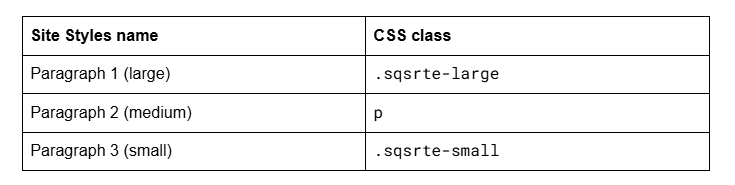
Set the styles correctly here and your CSS in the next step becomes three or four lines instead of fifteen.
Fix 3 — Why headings shrink more than paragraphs on mobile
This is the complaint behind most searches for small mobile text, and it is the opposite of a bug.
Squarespace 7.1 reduces type proportionally. A 72px desktop H1 and a 16px paragraph both come down by roughly the same ratio, so the gap between them narrows in absolute terms while the ratio stays constant. On a 1440px screen a 72px headline is dramatic. On a 390px screen the proportionally reduced version can look thin and small next to body text that barely moved.
The counter-intuitive fix is to make the desktop heading smaller. A 72px desktop H1 scaled down often lands worse than a 56px H1 scaled down, because a smaller starting value means less aggressive reduction. Try that before writing a mobile override — it costs nothing and leaves you with one value to maintain instead of two.
Where the desktop design genuinely requires a very large headline, set the mobile size explicitly. That is Fix 4.
Fix 4 — The CSS that sets mobile text sizes explicitly
Paste into Website → Website Tools → Custom CSS. The Custom CSS panel requires a Core plan or above.
/* Squarespace 7.1 mobile type — breakpoint is 767px */
@media screen and (max-width: 767px) {
  h1 { font-size: 2.25rem; }   /* ~36px */
  h2 { font-size: 1.75rem; }   /* ~28px */
  h3 { font-size: 1.375rem; }  /* ~22px */
  h4 { font-size: 1.125rem; }  /* ~18px */
  .sqsrte-large { font-size: 1.25rem; }   /* Paragraph 1 — ~20px */
  p             { font-size: 1rem; }      /* Paragraph 2 — 16px */
  .sqsrte-small { font-size: 0.9375rem; } /* Paragraph 3 — ~15px */
  .sqs-block-button-element { font-size: 1rem; }
}
Three things about this snippet are deliberate.
The breakpoint is 767px. Squarespace 7.1 switches between its mobile and desktop layouts at 767px. Snippets published at 640px leave every phone between 641px and 767px unstyled; snippets at 749px leave a dead band from 750px to 767px; snippets at 768px fire one pixel into the desktop layout. Only max-width: 767px matches the platform.
The units are rem, not px. A value in rem scales with the user's browser and OS text-size preference. A value in px does not, which means a hard-coded pixel size silently overrides the accessibility setting of anyone who has enlarged their default text. This is the single most common flaw in the mobile-font snippets circulating for Squarespace.
There is no !important. You usually do not need it for type. !important is required when you are overriding an inline style, which Fluid Engine writes for block positioning — not for font size. Add it only if a rule genuinely fails, and see Squarespace custom CSS not working before you sprinkle it everywhere.
Fix 5 — Use clamp() and stop writing breakpoints for type
A media query makes text jump between two sizes at 767px. clamp() makes it scale smoothly across every width in between, which is almost always what you actually wanted.
/* Fluid headings — no media query needed */
h1 { font-size: clamp(2rem, 5vw + 1rem, 4.5rem); }
h2 { font-size: clamp(1.5rem, 3vw + 0.75rem, 3rem); }
h3 { font-size: clamp(1.25rem, 2vw + 0.5rem, 2rem); }
p  { font-size: clamp(1rem, 0.5vw + 0.9rem, 1.125rem); }
clamp(MIN, PREFERRED, MAX) never goes below the minimum, never exceeds the maximum, and scales fluidly between the two. Read the middle value as "grow with the viewport, but anchored by a fixed part."
That fixed part matters. Writing the preferred value as a pure viewport unit — clamp(2rem, 5vw, 4.5rem) — means the text stops responding to browser zoom in the middle of its range, because vw is a fraction of the viewport and zooming does not change the viewport width in the way you would hope. Always include a rem component, as every example above does. That keeps zoom working and satisfies WCAG 1.4.4, which requires text to remain readable at 200% zoom.
clamp() is supported in every browser Squarespace supports.
Fix 6 — Keep form inputs at 16px or iOS will zoom your page
This one causes a support ticket that never mentions font size at all: "the site jumps and zooms in when someone taps the contact form on an iPhone."
Safari on iOS automatically zooms the viewport when a user focuses a text input whose font size is below 16px, so the text is legible while typing. The page then stays zoomed, the layout looks broken, and the visitor has to pinch back out — often mid-form.
Hello, World!
/* Mobile menu link size, Squarespace 7.1 */
.header-menu-nav-item a {
  font-size: 1.5rem;
}
Menu links are tap targets as well as text, so size them generously — a comfortable target is around 44px tall including padding. If the menu itself is not opening or closing correctly, that is a different problem: see Squarespace mobile menu not working.
The accessibility floor, and what not to do
Some numbers worth holding on to:
16px for body copy is the practical minimum on mobile. 14px is readable for young eyes in good light and nowhere else.
Text must remain usable at 200% zoom (WCAG 2.2 Success Criterion 1.4.4). Test it: zoom your browser to 200% and read the page.
Content must reflow into a 320px-wide viewport without horizontal scrolling (SC 1.4.10). Larger mobile type makes this harder, so check both together.
Line length of roughly 45–75 characters reads best. On a phone that usually means 16–18px body text and no extra horizontal padding.
Three things to avoid:
Viewport units alone for body text. font-size: 4vw looks clever and breaks zoom, breaks on very wide and very narrow screens, and cannot be overridden by user preference.
!important on every rule. Font size rarely needs it. Reaching for it usually means the selector is wrong.
Fixed heights on text blocks to "tidy" mobile spacing. Larger text needs more room; a fixed height clips it. Let Fluid Engine's rows expand — that is what they are for. More on that in why your mobile layout looks different from desktop.
Verify on a real device, not in Device view
Squarespace states plainly that Device view "is not 100% accurate for every phone or tablet." For type in particular it does not reproduce a phone's rendering, its default text-size setting, or reading distance.
Check the live page, logged out, on a real handset. Then set your phone's system text size one notch larger and check again — a meaningful share of visitors browse that way permanently, and a layout that only works at default text size is a layout that only works for some people.
When type is a design problem rather than a CSS problem
Most small-text complaints on Squarespace 7.1 resolve in Site Styles, and the rest in ten lines of CSS at 767px. Base size first, individual styles second, mobile CSS third, clamp() if you want it to feel considered rather than switched.
Where it stops being a CSS job is when the type system itself is the problem — a font at a weight that disappears at small sizes, headings and body copy set too close together to establish hierarchy, or a site where every page has accumulated its own overrides. Rebuilding a type scale so it works at 390px and 1440px from one set of values is the kind of work our Squarespace website support plans cover, and it is usually a single block rather than a redesign. For everything else, the settings above are the whole fix.
FAQ
-
No. Version 7.0 templates offered font scaling controls with minimum and maximum sizes per screen size, but Squarespace 7.1's Site Styles has no per-breakpoint font control. Mobile type is scaled proportionally from your desktop settings, so adjust Base size first and use Custom CSS second.
-
Add a media query at the 767px breakpoint in Website → Website Tools → Custom CSS, targeting h1 through h4, p, .sqsrte-large and .sqsrte-small. Use rem units rather than pixels so the sizes still respond to a visitor's browser text-size preference.
-
Squarespace 7.1 reduces all type proportionally, so a very large desktop heading is reduced aggressively and can land close to body-text size on a phone. Reducing the desktop heading size often produces a better mobile result than adding a mobile override, and leaves one value to maintain.
-
Treat 16px as the practical floor for body copy. WCAG does not specify a pixel minimum, but it does require text to stay readable at 200% zoom and to reflow into a 320px viewport, both of which are far easier to satisfy when body text starts at 16px in relative units.
-
Safari on iOS automatically zooms the viewport when a text input has a font size below 16px. Set every input, textarea and select in your Squarespace form to font-size: 16px and the zoom stops. Never disable pinch-zoom to work around it.
-
Yes, if you want type to scale smoothly instead of jumping at 767px. Write it as clamp(2rem, 5vw + 1rem, 4.5rem) — always including a rem component in the middle value, because a pure viewport unit stops responding to browser zoom.

Author Bio
I'm Walid Hasan, a Certified Squarespace Expert and Squarespace Circle Platinum Partner with over 12 years of hands-on experience designing and optimizing high-performing websites. Over the years, I've had the privilege of building more than 2,000 Squarespace websites for clients around the world, always focusing on clean design, strong user experience, and conversion-driven results.
