
How to Back Up a Squarespace Website
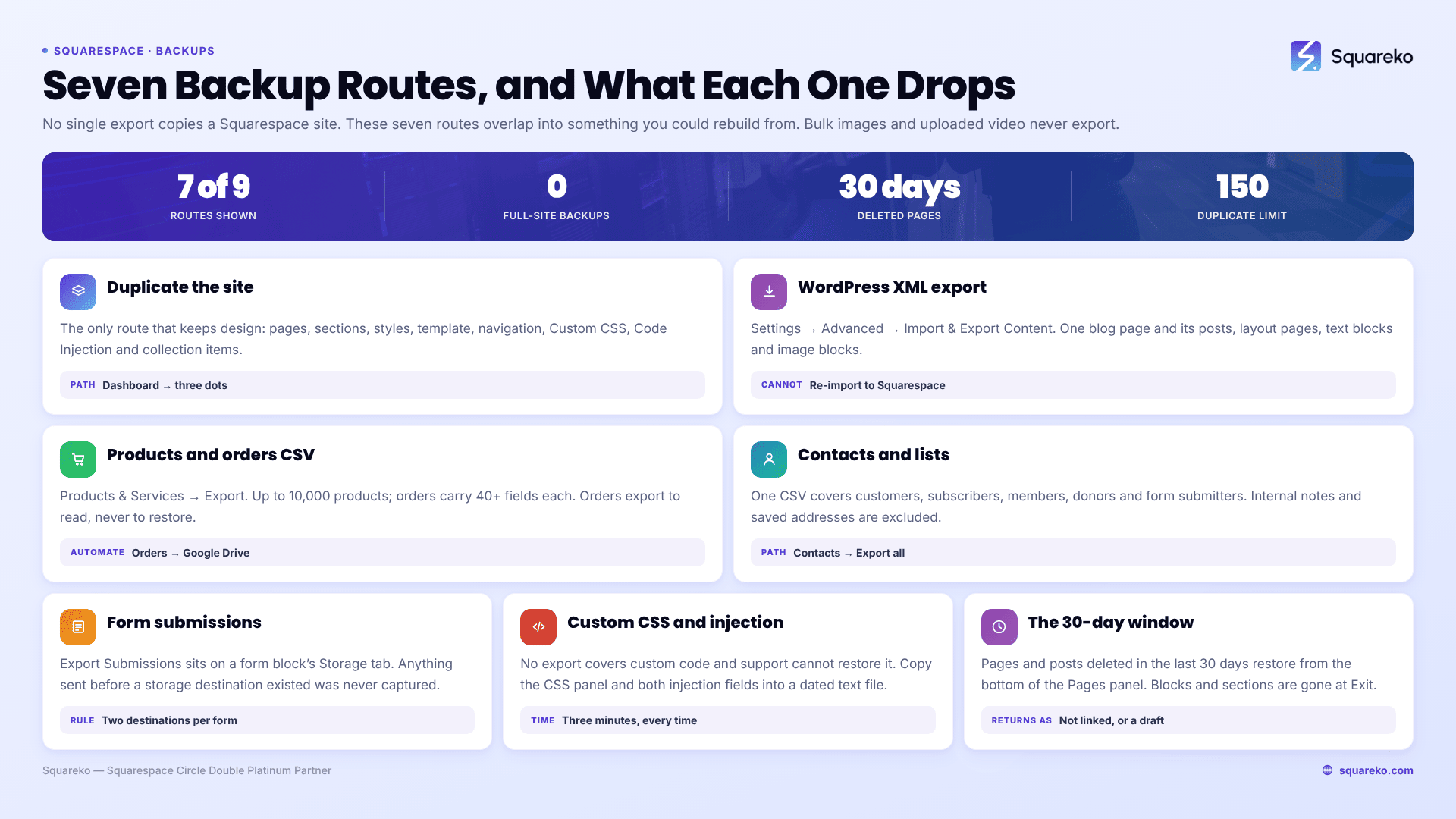
There is no full-site backup on Squarespace and no restore point. No button produces a file you could use to rebuild the site, and Squarespace support cannot roll your site back to how it looked last Tuesday. What exists instead is a set of partial exports — a site duplicate, a WordPress-format XML file, several CSVs, and a manual copy of your code. Used together they cover most of a site. They never cover all of it.
That is the honest starting position, and it changes what a Squarespace backup routine should look like. You are not taking a snapshot. You are keeping a set of pieces from which a competent person could rebuild, and accepting that some things — uploaded video, image alt text, blog comments, most style settings — will not come back at all.
If you want the narrower version of this question answered first, see does Squarespace back up your site — the short version is that Squarespace's redundancy protects Squarespace's infrastructure, not your editing mistakes.
What each backup route actually preserves
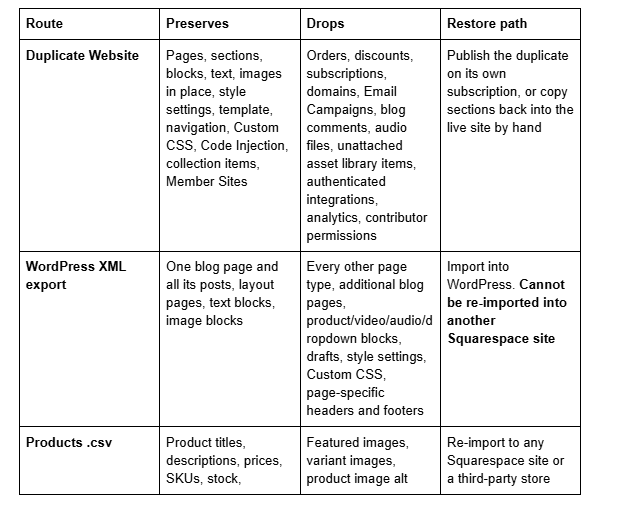
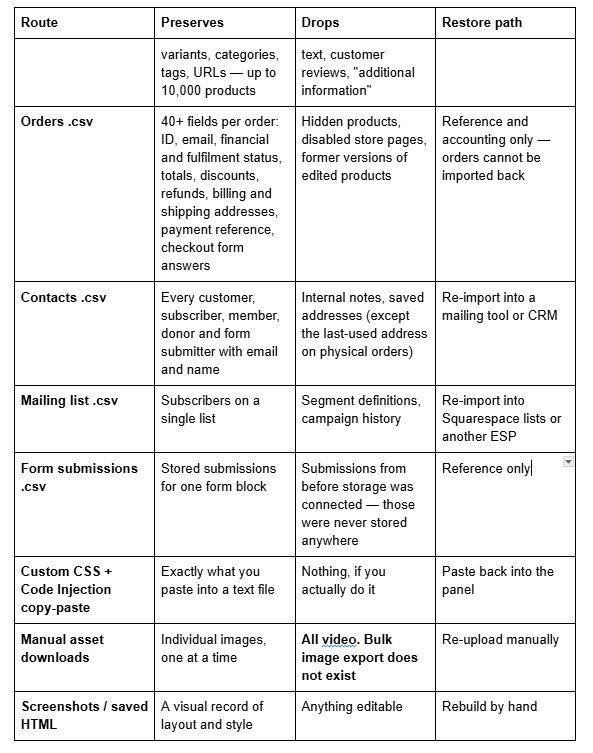
Read that table as a checklist, not a menu. Any single route on its own leaves a large hole.
Route 1 — Duplicate the site: the closest thing to a real backup
Duplicating a Squarespace site is the only route that preserves design. It copies pages, sections, blocks, text, the images placed inside them, style settings, the template, navigation, Custom CSS, Code Injection and collection items. Nothing else on this list does that.
Menu path: account dashboard → the three-dot menu next to the site thumbnail → Duplicate Website. The copy appears at the top of your dashboard with (Copy) appended to the title.
You need owner or administrator permission on the site to duplicate it, and whoever runs the duplication becomes the owner of the copy — worth knowing if a contractor does it for you.
Three limits that catch people out:
The duplicate is a trial site. It has no billing plan of its own. You can open and edit it indefinitely in trial state, but publishing it — or connecting a domain to it — requires its own subscription. You cannot move the original site's plan across.
Sites over 150 pages cannot be duplicated at all. Neither can sites built on the Developer Platform, or sites containing Acuity Scheduling pages.
Commerce data does not come with it. Selling settings, orders, discounts and subscriptions are all excluded.
What duplication does not carry: domains, Email Campaigns and their subscriber history, audio files, blog comments, items sitting in the asset library that aren't placed on a page, any third-party integration that required you to authenticate (Instagram, Mailchimp, Zapier, Google Drive form storage), analytics history, billing, and contributor permissions. Basic authors do carry across, but they will not be attached as the author of any blog post or other collection item.
Practically: duplicate before any structural change — a template-wide style overhaul, a navigation rebuild, deleting a section you might want back. Name the copy with the date. Delete old copies when you make a new one, because trial sites accumulate quietly and get confusing later.
Route 2 — The WordPress XML export, and exactly what it carries
Squarespace's only content export is a WordPress-format .xml file. It exists so you can leave for WordPress, not so you can restore a Squarespace site, and its scope reflects that.
Menu path:Settings → Advanced → Import & Export Content → Export → the WordPress icon. If your site has more than one blog page, you will be asked to pick a primary blog from a dropdown. Then click Download to save the .xml file.
What exports:
Layout pages
One blog page, including all of its posts and up to 1,000 comments per post
Text blocks and image blocks
Text from other blocks — embed blocks, Instagram blocks — with minimal structure
Gallery pages (Squarespace 7.0 only)
What does not export:
Every other page type: album, cover, index, info, calendar, portfolio and store pages
Content inside page-specific headers, footers and sidebars
More than one blog page — if you run two, the second one is not in the file
Dropdowns, audio blocks, product blocks, video blocks
Drafts
Style settings and Custom CSS
Two further constraints matter more than the list above. First, the file cannot be imported into another Squarespace site. Squarespace states this plainly: content exported from one Squarespace site cannot be imported into another. So the XML is not a Squarespace restore file under any circumstances.
Second, images are referenced rather than embedded. The XML points at image URLs on Squarespace's CDN, which is why WordPress.com's importer has to copy those files onto its own servers, and why self-hosted WordPress imports so often end up with broken images. If the Squarespace site is cancelled and those URLs stop resolving, an XML file on its own is text with dead image links.
Take the export anyway. It is the only machine-readable copy of your written content, and it takes under a minute.
Route 3 — Commerce and contact data: the CSV exports
These are the exports most likely to matter financially, and they are all separate panels.
Products. Open the Products & Services panel → Products → Export all, or select specific products and click Export. The file uses the same column format as the product import CSV plus a column for pages, and covers up to 10,000 products. It excludes featured images, variant images, product image alt text, customer reviews and the "additional information" field. Nothing syncs afterwards — the CSV is a static snapshot, and edits to it do not flow back into Squarespace.
Orders.Products & Services → Orders → Export data. Choose order statuses, a date range and specific products, then download a CSV with 40+ fields per order — order ID, customer email, financial and fulfilment status, subtotal, shipping, tax, discounts, refunds, total, full billing and shipping addresses, payment reference, and any custom checkout or add-to-cart form answers. On Business, Commerce, Core, Plus and Advanced plans you can also set an automatic export to Google Drive, which writes new orders within about an hour. Zapier export is available on all plans. Note that order status updates do not sync to Drive or Zapier after the initial write.
Contacts. Open the Contacts panel → the … icon top right → Export all contacts → Confirm. One CSV covering customers, subscribers, members, donors and form submitters. Internal notes and saved addresses are excluded, though a customer's last-used address is included if they ordered a physical product.
Mailing lists. Individual lists export as CSV from the Lists & Segments panel.
For a shop of any size, the orders and products CSVs are the highest-value five minutes in this entire article. Set the Google Drive auto-export once and the orders half stops being a manual task.
Route 4 — Form submissions, and the ones that were never saved
Squarespace form data lives wherever you told the form to send it, and nowhere else.
To export what is stored: open the form block, go to the Storage tab, and use Export Submissions for a CSV of that form's submissions. Submissions also appear in the Contacts panel under Form submitters, which is where you would go to review them one by one.
The failure mode worth naming: a Squarespace form with no storage destination configured does not work at all. Squarespace requires at least one storage option per form — Squarespace mailing lists, the Contacts panel, an email address, Google Drive, Mailchimp or Zapier. Without one, the form has nowhere to send submissions and visitors cannot submit it. There is no archive to recover afterwards, because nothing was ever captured. If you suspect a form has been quietly failing, that is a different problem with its own fix — see Squarespace form not submitting.
Two storage destinations per form is the sensible default: the Contacts panel for the durable record, plus an email address so a human notices. If your inbox is the only destination and it fills with junk, stopping spam form submissions on Squarespace is the prerequisite to any of this being useful.
Route 5 — Custom CSS and Code Injection: the easiest thing to lose
Custom code is not covered by any export, is not covered by undo once the editing session ends, and cannot be restored by Squarespace support. It is also the single most common thing we are asked to reconstruct.
Copy all four of these into a dated text file:
Website → Website Tools → Custom CSS — the whole panel, comments included
Website → Website Tools → Code Injection — header and footer fields separately
Page Settings → Advanced on any page carrying page-level injection, and Post Blog Item Code Injection where used
The contents of any Code Block doing real work in page content
Code Injection is available on Core, Plus, Advanced and some legacy plans; the Custom CSS panel needs Core or above. If you have inherited a site and the panels are empty, check the plan before concluding there is no custom code.
Keep the file in a dated folder rather than overwriting one document, so you can see what changed and when. On client sites this is the difference between a ten-minute rollback and an afternoon of guesswork.
Route 6 — Images and video: the gap you cannot close
This is the one route with no workaround. Squarespace states it directly: it is not possible to export all images from your site in bulk, and it is not possible to export uploaded videos at all.
Individual images can be downloaded one at a time from the asset library. That is fine for a twelve-image portfolio and unworkable for a 400-image site.
The only real answer is upstream: keep the originals. Whatever you upload to Squarespace should already exist in a folder or a DAM you control, at full resolution, with the filenames you want — Squarespace filenames cannot be changed after upload, and blog featured images have no alt-text field at all, so that metadata only exists where you keep it.
For video, treat Squarespace as a display surface rather than storage. Video hosted on Vimeo or YouTube and embedded is recoverable; video uploaded natively is not.
Route 7 — Style settings and layout: what a screenshot is actually for
Style settings do not export. They do copy in a site duplicate, which is the main argument for duplicating rather than exporting when the design is what you care about.
Where a duplicate is not practical, a visual record is still worth having. Full-page screenshots of every template page — home, a service page, a blog post, a product page, the checkout — will tell you what the type scale, spacing and colour assignments were. Enough for a designer to rebuild from; not enough to restore from.
One lightly technical extra: appending ?format=json-pretty to any page URL on a Squarespace site returns that page's underlying JSON — collection metadata, items, tags and categories. Squarespace's developer documentation is explicit that this is not static and should not be treated as an API substitute, so do not build a process on it. As an occasional dump of content structure before a big change, it costs nothing.
Route 8 — Third-party backup tools, honestly assessed
There is no genuine third-party full-site backup product for Squarespace, and the reason is structural rather than commercial.
Squarespace's public APIs cover Orders, Products, Inventory, Transactions and Webhooks. There is no read or write API for pages, sections, blocks or blog posts — and no blog write API on any plan. Without one, no external service can enumerate your site's content, let alone write it back. Anything marketed as a Squarespace backup is either a migration service that runs the same XML and CSV exports you can run yourself, a browser extension that copies your Custom CSS and Code Injection fields, or a crawler saving rendered HTML.
Those tools are not useless — a code-backup extension automates Route 5, and a crawler gives you a browsable archive of a site about to be switched off. Just do not buy one expecting a restore button, because the platform does not expose one to build against.
Route 9 — If you have already deleted something: the 30-day window
Before assuming the worst, check what Squarespace does let you undo.
Pages and blog posts deleted in the last 30 days can be restored. In the Pages panel, scroll to the bottom to Deleted Pages, hover the item and click Restore — it comes back in the Not linked section. For blog posts, open the blog page in the Pages panel and look for Deleted Posts at the bottom of that panel; restored posts come back as drafts and need republishing.
Everything else is gone immediately. Blocks and sections cannot be recovered once the editor closes. Neither can text deleted inside an editor, code removed from a code block or the Custom CSS panel, products, events, portfolio items, gallery images, album tracks, or a deleted Member Site. And undo/redo (⌘/Ctrl + Z) only works within the current editing session — click Exit and the history is discarded, saved or not.
After 30 days, deleted pages and posts are permanently gone too. There is no support escalation that recovers them.
A backup cadence that is actually maintainable
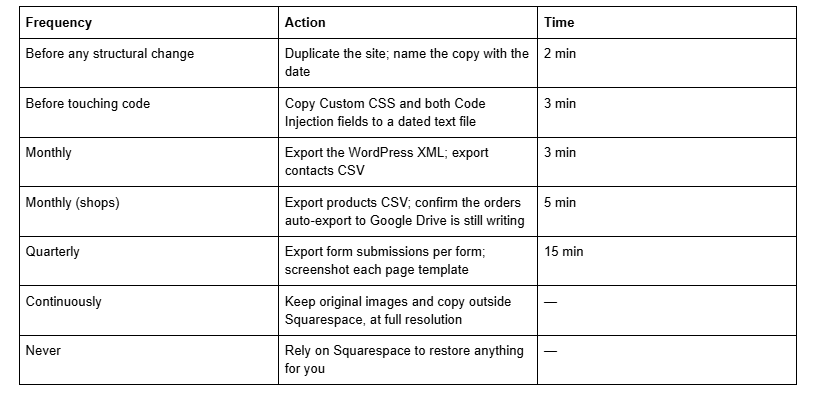
The whole routine is under half an hour a quarter once the auto-exports are configured. The failure mode we see is not people doing it badly, it is people not doing it at all because they assumed the platform had it covered.
What is genuinely unrecoverable
Say this part out loud before you plan around it:
Uploaded video. No export exists. If it was not uploaded from a file you still have, it is gone.
Bulk images. No bulk export exists, at any plan level.
Blog comments. Not carried by duplication. Included in the XML export only for the single exported blog page, up to 1,000 per post.
Style settings, outside a site duplicate.
Analytics history. It does not duplicate and it does not export as a site record.
Blocks and sections deleted more than one editing session ago.
Anything deleted more than 30 days ago, including pages and blog posts.
Email Campaigns history and Member Site subscriber relationships.
Order records as re-importable data. You can export them to read; you cannot put them back.
Everything else on this page is a matter of remembering to click export. The list above is not, which is why the sensible strategy is to hold originals outside Squarespace rather than to plan on getting them out later
Where this leaves you
Duplicate before structural changes. Copy your code to a text file before you touch it. Run the XML and contacts exports monthly. Keep your images and copy in a folder you own. That combination covers most of a Squarespace site, and it is the most any Squarespace site can be covered.
Backup is also only half of resilience — the other half is not needing it, which mostly comes down to who has access to the site and what they can do once they are in. That is covered in Squarespace security: what's handled for you and what's on you.
If you have inherited a site with undocumented custom code, an unclear contributor list and no export history, that first audit is genuinely awkward to do from the inside, and it is a common reason people bring us in — our Squarespace website support plans include setting up the export routine and documenting the code so the next person is not starting from zero. Most site owners will get everything above done in an afternoon on their own; the routine matters far more than who runs it.
FAQ
-
No. Squarespace has no one-click full-site backup and no restore point you can roll back to. The closest equivalent is duplicating the site from your account dashboard, which copies design and content but not commerce data, domains, blog comments or authenticated integrations. Everything else is a partial export.
-
Combine four routes: duplicate the site from the dashboard's three-dot menu, export the WordPress XML from Settings → Advanced → Import & Export Content, export products, orders and contacts as CSVs, and copy your Custom CSS and Code Injection into a dated text file. Keep original images outside Squarespace.
-
No. Squarespace states that bulk image export is not possible and uploaded video cannot be exported at all. Individual images can be downloaded one at a time from the asset library. The practical answer is to keep full-resolution originals in your own storage before uploading them.
-
No. The export is WordPress-format and Squarespace confirms content exported from one Squarespace site cannot be imported into another. It also carries only one blog page, layout pages, text blocks and image blocks — no style settings, no Custom CSS, no store pages.
-
Yes, within 30 days. Scroll to Deleted Pages at the bottom of the Pages panel and click Restore; the page returns in the Not linked section. Deleted blog posts restore the same way from the blog page's panel and come back as drafts. Blocks and sections cannot be restored.
-
Not a real one. Squarespace's public APIs cover Orders, Products, Inventory, Transactions and Webhooks only — there is no API for pages, sections or blog posts, so no external service can copy or restore site content. Tools sold as backups run the same exports you can run yourself.

Author Bio
I'm Walid Hasan, a Certified Squarespace Expert and Squarespace Circle Platinum Partner with over 12 years of hands-on experience designing and optimizing high-performing websites. Over the years, I've had the privilege of building more than 2,000 Squarespace websites for clients around the world, always focusing on clean design, strong user experience, and conversion-driven results.
