Does Everyone See the Same Squarespace Template?
Two different questions hide inside that one. If you mean do my visitors see the same template I see — yes, always. There is one published version of your site and everyone gets it; differences come from screen size, browser cache or unpublished edits, not from different templates. If you mean will my site look like everyone else's who bought this template — yes, if you keep the demo content, and no once you have changed four specific things. Those four are the whole answer.
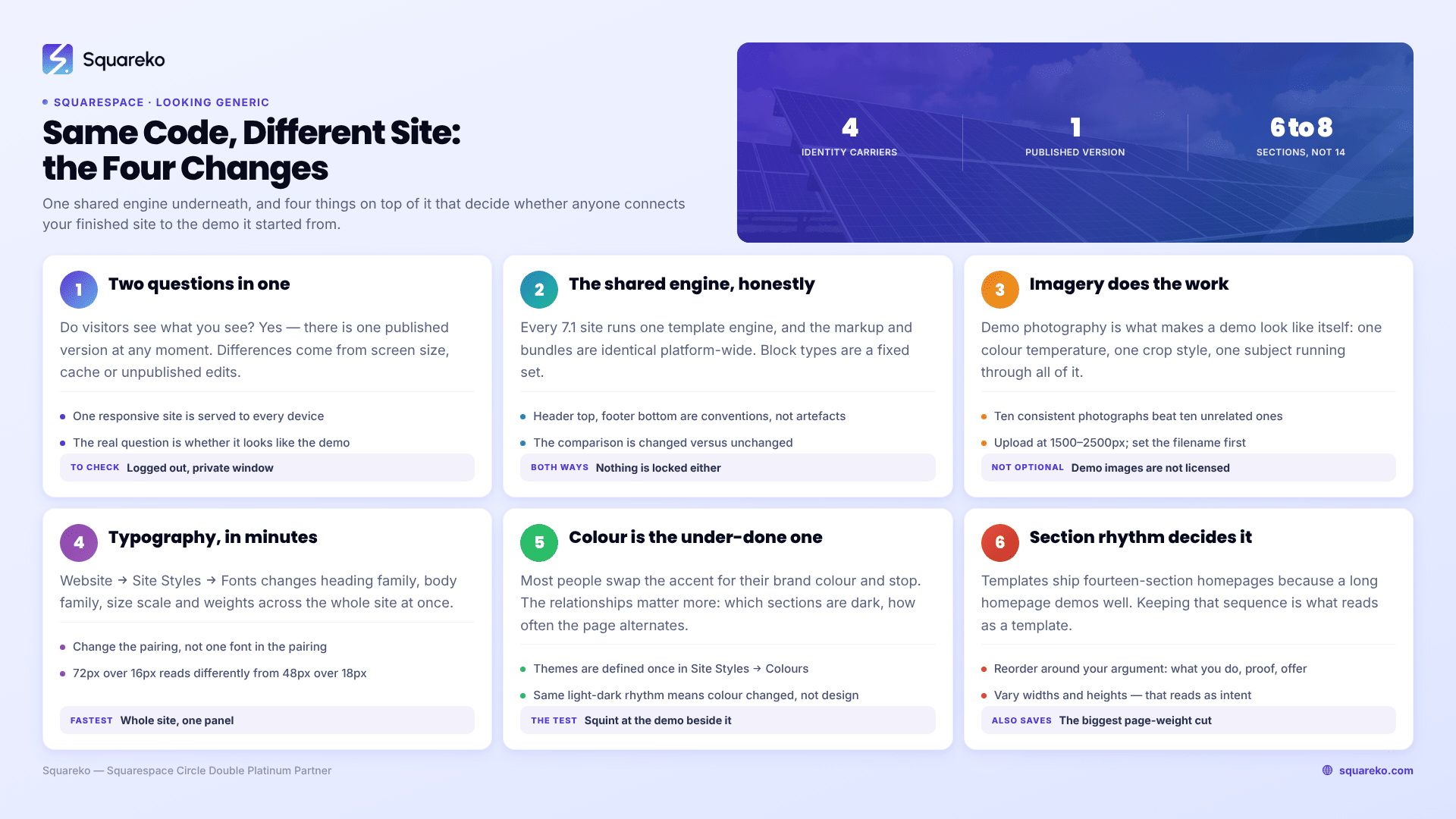
The four things that carry visual identity
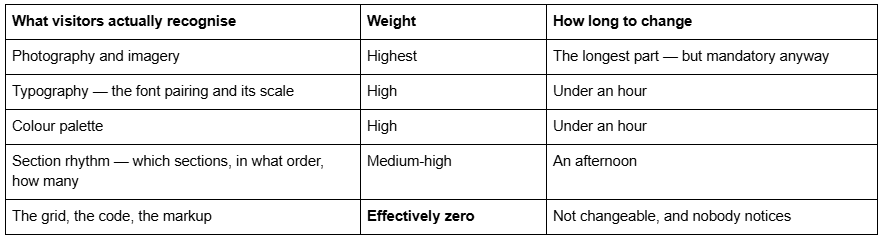
The last row is the one that surprises people. In Squarespace 7.1 the underlying code is identical across every site on the platform, and it is not what makes a site recognisable. Nobody has ever looked at a website and thought that's the same DOM structure as my accountant's site. They recognise photographs, typefaces and colours.
Why every Squarespace 7.1 site really is the same underneath
Worth getting this out of the way, because it sounds worse than it is.
Every Squarespace 7.1 site — free template, premium template, custom agency build — runs a single shared template engine. The templateId in the page source is 5c5a519771c10ba3470d8101 on all of them. There is no per-template codebase, no per-template stylesheet. A 7.1 "template" is a starting configuration: a set of pages, a font pairing, a colour palette, a set of section layouts and some demo content.
That fact cuts both ways, and mostly in your favour. It means yes, the raw materials are the same everywhere. It also means nothing about your starting template is locked. Every font, colour, section, image and layout in a template is a setting you can change without code, and none of it is tied to the template you began with. Two 7.1 sites that look nothing alike are running identical code. (The mechanics of making pages differ are covered in can you use two Squarespace templates on one site.)
The comparison people should be making is not "template versus custom", it is "changed versus unchanged".
Imagery is what visitors actually recognise
If you change one thing, change the pictures.
A template demo is styled around a specific set of stock photographs — a particular colour temperature, a particular crop style, a consistent subject. Those images do more work than any other element in making the demo look like the demo. Two sites on the same template with genuinely different photography rarely read as related at all.
This is also not optional. Demo images on premium templates are licensed for the demo, not for your live site — a buyer is expected to replace every one of them. So the change that most transforms a template into your site is a change you have to make anyway.
Practical version: use your own photography where you can, and where you cannot, pick stock with a consistent treatment rather than picking each image on its own merits. One colour temperature, one depth of field, one approach to people-versus-product. Consistency across ten mediocre photographs looks more like a brand than ten excellent photographs that do not agree with each other. Upload at 1500–2500px, and set the filename before uploading — Squarespace cannot rename an image file afterwards.
Typography is the fastest change with the biggest return
Fonts are the second thing people recognise, and changing them takes minutes.
In Website → Site Styles → Fonts you can change the heading family, the body family, the size scale and the weights across the entire site at once. A template that shipped with a geometric sans in its headings looks like a different design with a serif in the same slot — same layout, same code, completely different impression.
Two things matter more than which fonts you pick:
Change the pairing, not just one font. Swapping headings only tends to leave a template still looking like itself.
Adjust the scale, not only the family. The relationship between heading and body size is a large part of a design's character. A template with 72px headings and 16px body has a different personality at 48px and 18px, even with identical typefaces.
Set your mobile sizes while you are there. Squarespace 7.1 lets you define them separately, and a display heading that works on desktop routinely runs to five lines on a phone.
Colour is the change most people under-do
Squarespace 7.1 applies colour through section themes, set in Website → Site Styles → Colours. You define a palette once, and each section on each page is assigned a theme — Lightest, Light, Bright, Dark, Darkest — that determines its background, heading, text, button and link colours.
Most people change the accent colour to their brand colour and stop. That is the smallest possible version of this change. The larger one is the relationships: which sections are dark, how often the page alternates between light and dark, whether buttons are filled or outlined, whether headings and body share a colour. Those relationships are far more visible than the accent hue itself, and they are all editable in the same panel.
A useful test: put your homepage next to the template demo and squint. If the light-dark rhythm down the page is identical, you have changed the colours but not the design.
Section rhythm — the one that separates good template sites from obvious ones
Templates ship with long homepages because a long homepage demos well. Fourteen sections, one of everything, in a sequence chosen to show the template off rather than to sell anything in particular.
Keeping that sequence is what makes a site recognisable as a template. Changing it is the single most effective structural edit available:
Delete the sections your business does not need. Most homepages work at six to eight. This is also the biggest page-weight saving you can make.
Reorder what remains around your actual argument — what you do, proof, offer, action — not around what looked good in the demo.
Vary the section widths and heights. Full-bleed against inset, tall against compact. That rhythm reads as design intent.
Do this and the layout stops matching any demo, while every section still behaves exactly as the template built it.
What honestly stays the same
Being straight about it: some things do not change, and none of them are what visitors notice.
The markup and CSS bundles are identical across all 7.1 sites. Squarespace's block types are a fixed set — banner, gallery, quote, form, people, menu, video — so section categories recur across the platform. Buttons, form fields and lightboxes share default behaviours. And the site's basic structural conventions — header at the top with a logo left or centred, footer at the bottom — are conventions, not template artefacts; a custom-built site has them too.
There is also a limit worth naming. If the design in your head requires layouts Squarespace sections cannot produce — genuinely unusual grids, bespoke interactions, non-standard navigation — no amount of restyling gets you there, and that is a real constraint of the platform rather than of the template. The honest list of those is in Squarespace template limitations.
What to actually do
In order, over about a day: replace every demo image with your own photography; change the font pairing and the type scale; rebuild the colour palette including the light-dark rhythm; delete and reorder homepage sections down to what you need. Then load your site next to the template demo and see whether anyone would connect them.
If they still feel related after all four, the usual cause is that the imagery was replaced but not re-directed — new photos in the same style as the demo photos. That is a brief problem, not a template problem.
If you want a starting point that is less recognisable to begin with, the practical filter is page structure rather than styling — pick on how many real pages a template has and whether it includes the shop, portfolio or blog you need, since structure is the tedious part to change and styling is not. Our premium Squarespace templates list their real page counts for that reason. But nothing above needs a purchase: the four changes work identically on a free Squarespace template, and doing them properly matters far more than which template you started from.
FAQ
-
Your visitors all see the same published version of your site. Apparent differences come from screen size, browser cache, or unpublished edits you can see while logged in, not from different templates. There is only one live version of a Squarespace site at any moment.
-
No, not inherently. Free and premium Squarespace 7.1 templates run identical code. A premium template can start you in a better place if it uses fewer, better-structured sections, but the finished speed of your site is decided by the images you upload and the third-party scripts you add.
-
They can. Across 54 Squareko-built sites measured in August 2026 — lab data, single run, unthrottled — median mobile LCP was 2.01s with 74% under Google's 2.5s threshold, and median mobile CLS was 0.000. Field data on throttled mobile connections will be slower.
-
Not from the code, which visitors never see. They notice unchanged demo photography and an unchanged homepage section sequence. Replace the images and cut the homepage to the sections your business actually needs, and the recognisable signals are gone.
-
Responsive design, browser cache, or unpublished changes. Squarespace serves one responsive site that adapts below the 767px mobile breakpoint, and a visitor may be holding an older cached version. Check your own site logged out in a private window before assuming anything is wrong.
-
In order of frequency: oversized images, too many sections on one page, background video, and third-party scripts added through Code Injection. Squarespace recommends no more than 20 sections and 60 blocks per page. Demo images left in place from a template are a common cause on new sites.

Author Bio
I'm Walid Hasan, a Certified Squarespace Expert and Squarespace Circle Platinum Partner with over 12 years of hands-on experience designing and optimizing high-performing websites. Over the years, I've had the privilege of building more than 2,000 Squarespace websites for clients around the world, always focusing on clean design, strong user experience, and conversion-driven results.