
Squarespace Navigation Not Working: Menu and Link Fixes
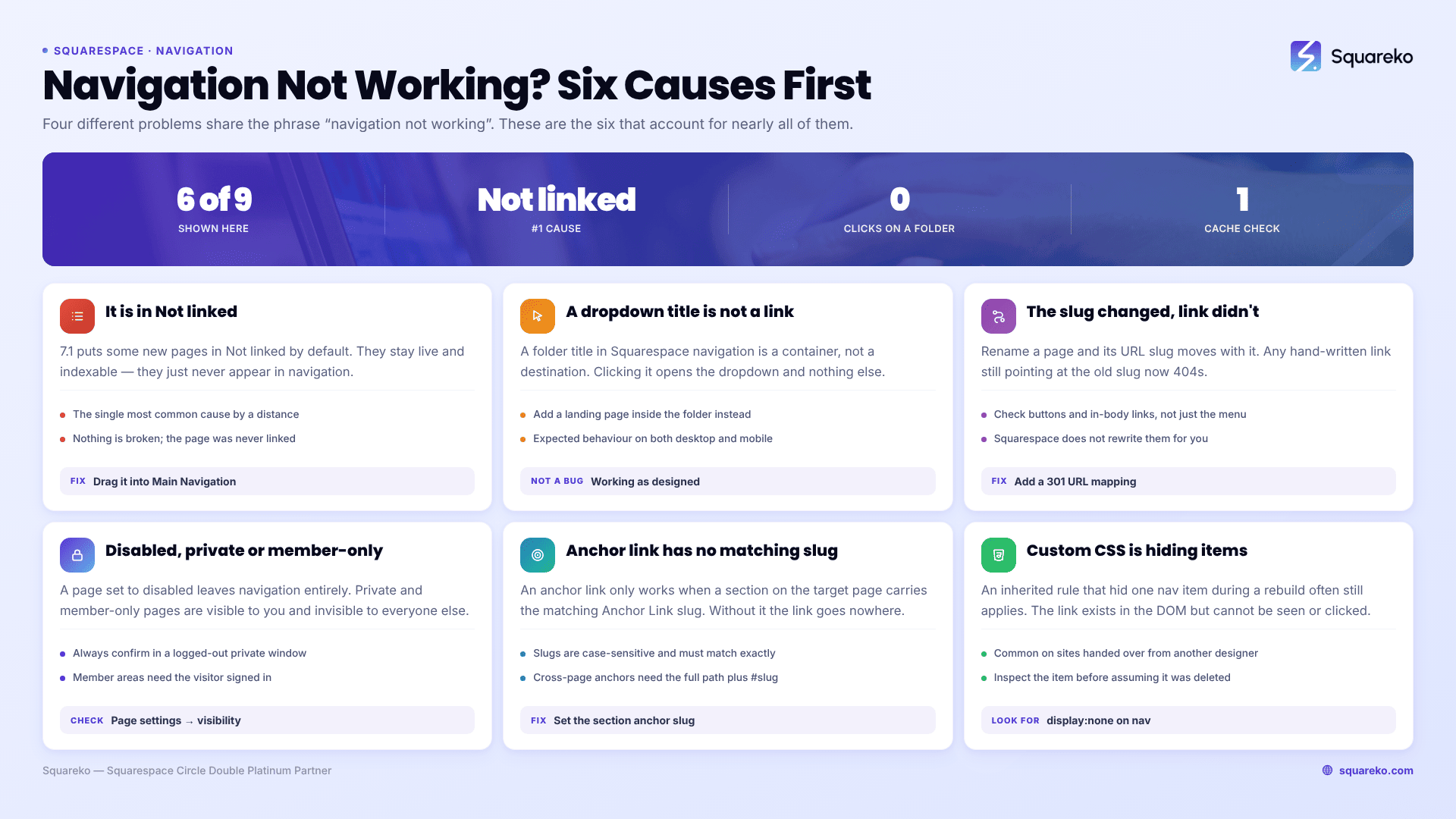
If a page is missing from your menu, it's almost certainly sitting in the Not linked section of the Pages panel. Squarespace 7.1 puts some new pages there by default, and pages in Not linked stay live and indexable — they just don't appear in navigation. Drag it up into Main Navigation and it returns. If the problem is a dropdown that won't click rather than a page that won't appear, that's expected behaviour, not a fault.
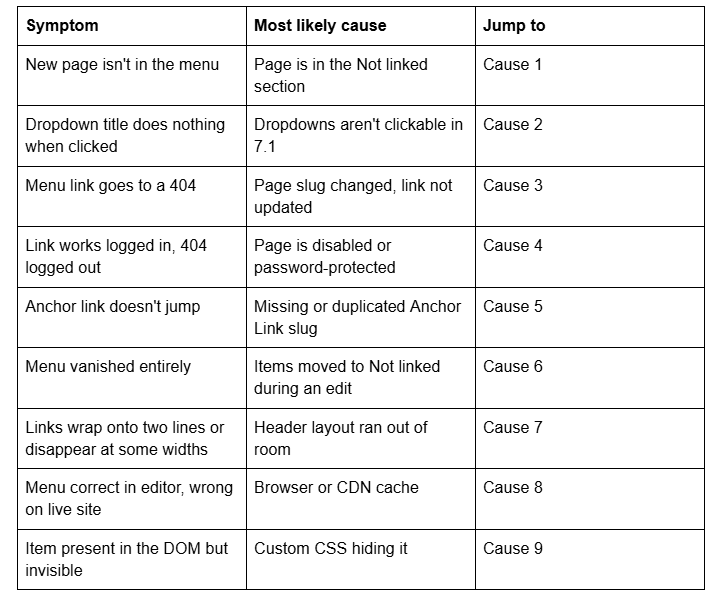
Four different problems share the phrase "navigation not working". Find yours in the table.
Quick diagnostic table
Cause 1 — The page is in the Not linked section
The Pages panel in Squarespace 7.1 has a Not linked section beneath Main Navigation. Pages there are fully live: Squarespace's documentation is explicit that Not linked pages "are public by default", reachable by direct URL and indexable by search engines. They are simply excluded from navigation menus.
Confirm it in five seconds: open the Pages panel and scroll to the bottom. If your page is listed under Not linked, that's the whole story.
The fix: drag the page from Not linked up into Main Navigation. Position it where you want it in the same drag — the order in the panel is the order in the menu.
This also runs the other way. If you want a page off the menu but still reachable — a thank-you page, a hidden pricing sheet — Not linked is the correct place for it. Just remember it is not private. Hiding a page from navigation is not the same as hiding it from Google.
Cause 2 — A dropdown title is not a clickable link
Squarespace renamed folders to dropdowns, and their behaviour catches out nearly everyone building a Squarespace 7.1 site for the first time. Squarespace's own documentation states it plainly: "Clicking the dropdown title doesn't open the first page." On desktop the child pages appear on hover; on mobile they appear on tap. The title itself never navigates anywhere.
That is by design, not a bug, and there is no toggle for it.
If you need a clickable parent, you have two honest options:
Add a landing page as the first item inside the dropdown, named something like "Services overview". Clear, no code, works everywhere.
Add a Link item to the navigation instead of a dropdown, pointing at the parent page — you lose the child menu, but the parent is clickable.
Third-party JavaScript workarounds exist that make the title navigate to its first child on desktop. They deliberately exclude mobile, because on a touch device a tappable title fires before the menu can open. Test on a phone before trusting one.
Two further dropdown rules in Squarespace 7.1: dropdowns cannot be nested inside other dropdowns, and index pages cannot be added to a dropdown directly. To send visitors to an index page from a dropdown, add a Link item and point it at the index page's URL.
Cause 3 — The page slug changed and the link didn't
Menu items built from pages update automatically when you rename a page. Menu items built as Link items are static text — change the destination page's slug and the link 404s silently.
Confirm it: compare the URL in the navigation Link item against the slug in the destination page's settings.
The fix: update the Link item. Then create a redirect from the old path in Settings → Developer Tools → URL Mappings, because Squarespace never creates a 301 automatically when a slug changes. Any external link or bookmark to the old URL is dead until you map it:
/old-page-slug -> /new-page-slug 301
Cause 4 — The page is disabled, private, or member-only
A disabled page is off. It stays in the Pages panel, it stays in the menu if it was in the menu, and it returns a 404 to anyone who isn't logged into the Squarespace account. Password-protected pages behave similarly from the visitor's side — they hit a lock screen, not the page. Pages inside a member site require a customer account and an active membership.
Confirm it: always test navigation in a private window, logged out. Every broken link that works while you are logged in is one of these three.
The fix: enable the page, remove the password, or accept that the link is gated and label it in the menu so visitors know before they click.
Cause 5 — The anchor link has no matching Anchor Link slug
Anchor links in Squarespace 7.1 are set per section. Open the section's settings, find the Anchor Link field, and enter a slug — Squarespace converts spaces to dashes and prepends a # that cannot be removed.
The link then takes this form:
/page-slug#anchor-slug
The same syntax works for both same-page and cross-page jumps; the page slug just changes.
Three things break it:
No Anchor Link slug set on the target section. The link has nothing to find.
The same slug used twice on one page. Squarespace states slugs "can only be used once per page" — duplicates don't work correctly.
The target section type doesn't support anchors. Anchor links work on blank sections, auto layouts, course, gallery and video sections. Blog, events, portfolio and store sections do not support them.
If you renamed the page slug or the anchor slug after building the links, every link pointing at the old value needs updating by hand.
Cause 6 — The menu emptied itself during an edit
This one is real and documented in the Squarespace Forum. Users editing navigation have reported items moving from Main Navigation into Not linked without being dragged — "I was making some edits to my nav (adding a folder) and the header navigation disappeared" is the typical phrasing, and one moderator confirmed an issue "that can cause navigation items to move from the 'Main Navigation' section to the 'Not Linked' section."
The fix: open the Pages panel and drag the items back. Nothing is deleted — check the Not linked section before assuming anything is lost. If pages are genuinely gone, Deleted Pages in the Pages panel restores anything removed in the last 30 days. Screenshot the Pages panel before restructuring navigation on a client site; it turns a recovery into a copy job.
Cause 7 — The header layout has run out of room
Squarespace 7.1 header layouts allocate a fixed region to navigation. Add enough items, or a long enough site title, and links wrap to a second line or get pushed out of view — most visibly on centred layouts and at tablet widths, well before the 767px mobile breakpoint where the hamburger takes over.
Confirm it: drag your browser window narrower and watch where the menu breaks. If it fails at a specific width and recovers when you widen, it's layout, not a broken link.
The fixes, in order of preference: shorten the link labels, move secondary items into a dropdown, or switch header layout in Edit → Edit Site Header → Layout. Forcing the nav onto one line with CSS is possible but treats the symptom — you end up with links too small to tap.
Cause 8 — You are looking at a cached version
Squarespace serves through a CDN with long cache lifetimes, so a navigation change can be live for you and stale for a visitor.
Hard refresh first — Cmd + Shift + R on Mac, Ctrl + Shift + R on Windows — then check in a private window. If the menu is correct in a private window and wrong in your normal one, it was cache. A genuinely broken menu is broken in both.
Cause 9 — Custom CSS is hiding navigation items
Inherited Squarespace 7.1 sites frequently carry rules that hide a specific nav item, usually written when a page was temporarily retired. The element renders, so nothing errors — it just isn't visible.
Confirm it: inspect the header on the live site. If the item exists in the markup with display: none applied, open Website → Website Tools → Custom CSS and search for nav, header-nav, and display: none. The same pattern is covered in more depth in Squarespace custom CSS not working.
Still broken?
Work it in order: Not linked, dropdown behaviour, slug mismatch, page state, anchor slugs, then layout and cache. The first two explain most of what gets reported as broken navigation, and neither is a fault.
If your menu is correct in the Pages panel and still renders wrong on the live site across browsers, that's usually a conflict between custom code and the header layout, and it means reading the markup rather than guessing at it.
That's what our Squarespace website support plans are for — navigation conflicts are typically a single support block. Most readers won't need that; the nine causes above cover almost everything. If navigation is only one of several things misbehaving, start from the complete Squarespace diagnostic guide.
FAQ
-
It's in the Not linked section at the bottom of the Pages panel. Squarespace 7.1 puts some new pages there by default. Those pages stay live and indexable — they're just excluded from menus. Drag the page up into Main Navigation and position it in the same drag.
-
Because dropdown titles aren't links in Squarespace 7.1. Squarespace documents this directly: clicking the dropdown title doesn't open the first page. Child pages appear on hover on desktop and on tap on mobile. Add a landing page as the first item inside the dropdown instead.
-
Usually no Anchor Link slug is set on the target section, or the same slug is used twice on one page — Squarespace only allows each slug once per page. Also check the section type: blog, events, portfolio and store sections don't support anchor links at all.
-
Check the Not linked section first. Editing navigation has been known to move items from Main Navigation into Not linked, and forum reports confirm it. Nothing is deleted, so drag them back. If pages are genuinely missing, Deleted Pages restores anything removed within 30 days.
-
Yes. Not linked pages are public by default — hidden from navigation, but reachable by direct URL and indexable. To actually hide one, disable it, password-protect it, or exclude it from search engines in the page's SEO settings. Removing it from the menu isn't enough.
-
The header layout has run out of horizontal room, usually from long link labels or a long site title. It shows up at tablet widths before the 767px mobile breakpoint. Shorten labels, group items into a dropdown, or change the layout under Edit Site Header rather than forcing it with CSS.

Author Bio
I'm Walid Hasan, a Certified Squarespace Expert and Squarespace Circle Platinum Partner with over 12 years of hands-on experience designing and optimizing high-performing websites. Over the years, I've had the privilege of building more than 2,000 Squarespace websites for clients around the world, always focusing on clean design, strong user experience, and conversion-driven results.
