
Squarespace Checkout Not Working? An Emergency Fix Guide
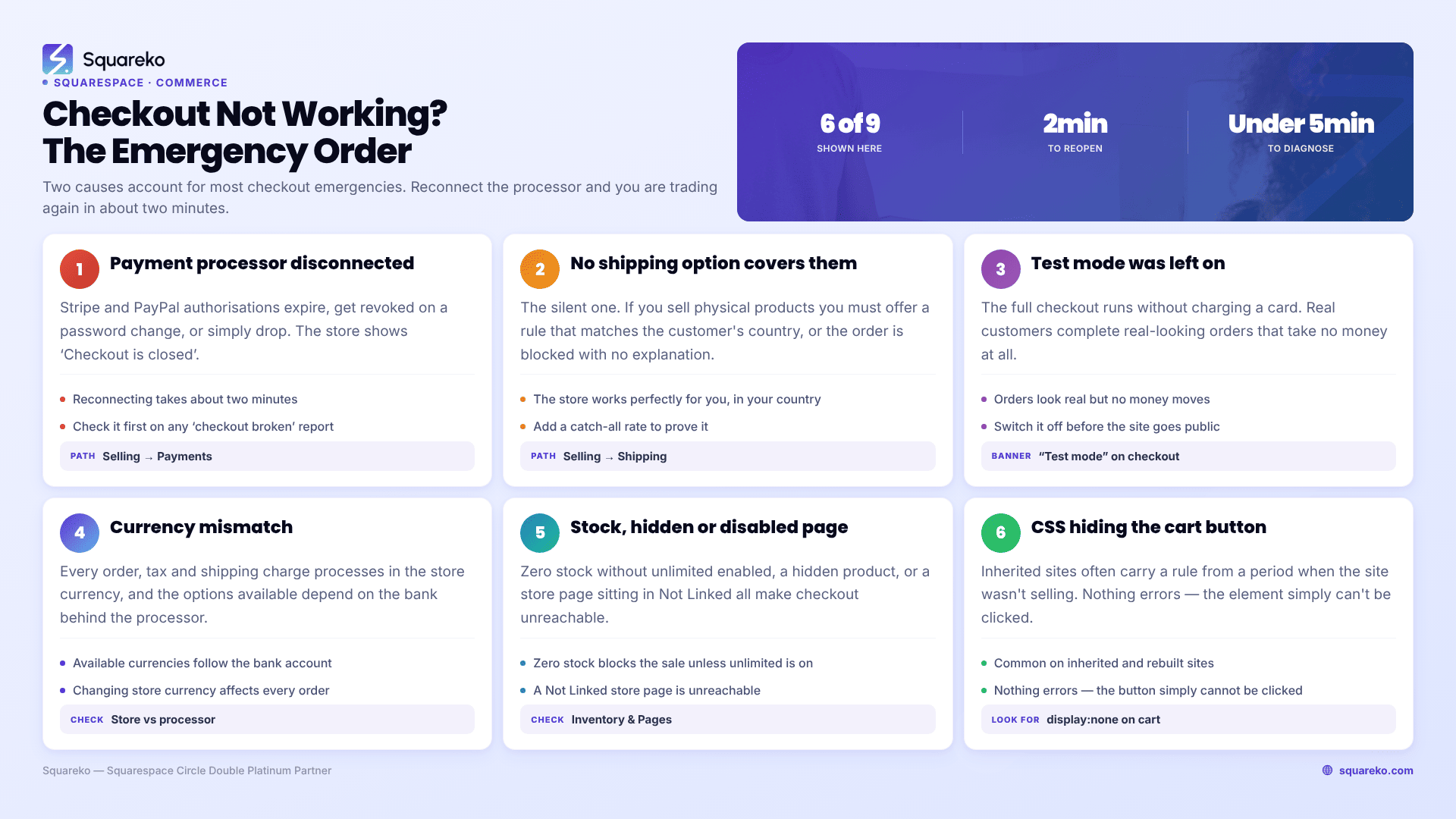
Start with the banner. If your Squarespace 7.1 store shows "Checkout is closed. This store isn't set up to take orders", your payment processor is disconnected — reconnect it in Settings → Selling → Payments and you're trading again in two minutes. If checkout loads but orders won't complete, the usual culprit is that no shipping option covers the customer's country, and Squarespace blocks the order without explaining why.
Those two causes account for most checkout emergencies. Work the rest of the list in order.
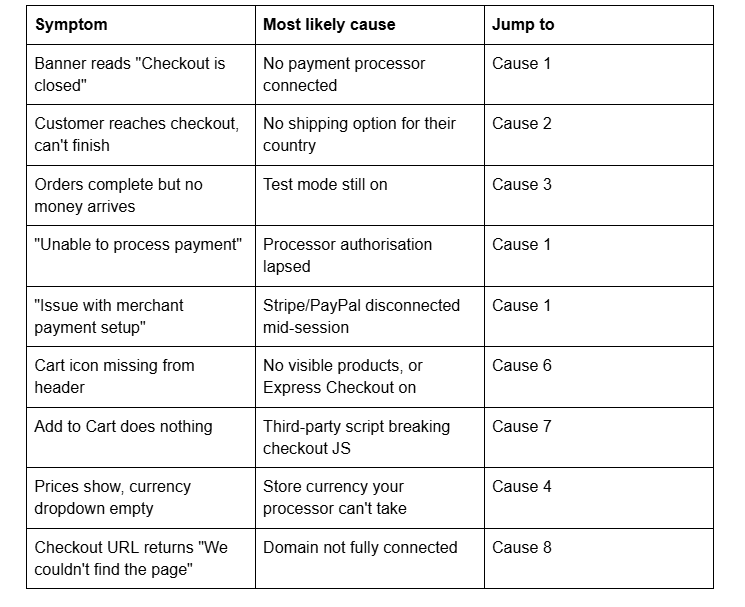
Quick diagnostic table
Cause 1 — The payment processor is disconnected
This is the single most common cause of a Squarespace 7.1 store refusing orders, and it usually happens without anyone touching the site. Stripe and PayPal authorisations expire, get revoked when a password changes, or drop when the connected account's owner leaves the business.
Confirm it in ten seconds: open Settings → Selling → Payments. Squarespace Payments, Stripe and PayPal each show a connection state. If none reads as connected, that is your answer.
The fix: for Stripe or PayPal, click Disconnect, then Connect again and re-authorise through the processor's own login. Reconnecting is what re-issues the token — toggling anything else will not. For Squarespace Payments, check the account is fully verified; an unverified account accepts nothing.
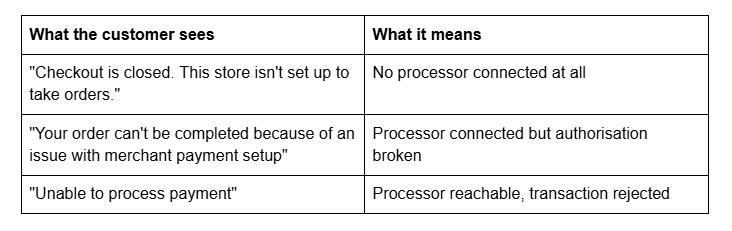
Three customer-facing strings all point here:
Cause 2 — No shipping option covers the customer
This is the silent one, and it is why so many Squarespace Forum threads end with a store owner insisting checkout is broken when the store works perfectly for them.
Squarespace is explicit: if you sell physical products you must offer at least one shipping, local pickup or local delivery option, "otherwise, customers can't place orders." A customer in a country your rates don't cover gets no shipping method, and with no method selected the order cannot be submitted.
Confirm it in a minute: open Settings → Selling → Shipping, then run a test order with an address in the country the complaint came from. If no shipping method appears, that is the blocker.
The fix: add a Rest of the world flat-rate option as a backstop. Note what that setting actually means — it covers every country not already covered by another rule. If your customer's country falls inside an existing zone that has no rate attached, "Rest of the world" will not rescue them. Fix the zone instead.
Local pickup counts as a shipping option, so a pickup-only shop still needs it configured explicitly.
Cause 3 — Test mode was left on
Test mode lets you run the full checkout without charging a card. If your site is public while it is on, real customers can complete real-looking orders that take no money.
Confirm it: the checkout page displays "Test mode: Test all the features of your store without charging a real credit card." If you see that on the live site, you found it.
The fix: open Settings → Selling → Payments, scroll to the bottom, switch Test mode off. Then delete the test orders from the Orders panel and restore any stock they consumed — test orders decrement inventory exactly like real ones.
Cause 4 — Store currency and processor currency don't match
Your Squarespace store has one currency, set in the Payments panel, and every order, tax and shipping charge is processed in it. The currencies available to you depend entirely on the bank account behind Squarespace Payments or Stripe, or the primary currency on your PayPal Business account. Squarespace Payments in Canada, India, Mexico and New Zealand is single-currency only.
If your store currency isn't one your processor accepts, checkout closes for everyone.
The fix: set Store Currency in the Payments panel to a currency your processor supports. If the dropdown is short or empty, disconnect and reconnect the processor — that refreshes the supported list. One warning: you cannot change store currency after a gift card has been sold, even if it was sold in a test order.
Cause 5 — Products are out of stock, hidden, or the store page is disabled
Squarespace won't sell a product with zero stock unless you've enabled unlimited stock on that variant, and a product set to hidden is unreachable from the store page. If the store page itself sits in the Not linked section that's fine — those pages stay live — but a disabled page is off, and everything on it goes with it.
Confirm it: open the store page logged out. If products are missing or greyed out, it's inventory or visibility, not checkout.
Cause 6 — Custom CSS is hiding the cart or checkout button
Inherited sites frequently carry a rule that hides the cart icon from a period when the site wasn't selling. The element is present in the DOM, so nothing errors — it simply cannot be clicked.
Confirm it: open Website → Website Tools → Custom CSS and search for cart, checkout and display: none. Then inspect the header on the live site and check whether the cart element exists but is hidden.
If the cart icon is genuinely absent from the markup rather than hidden, the causes are different: you need at least one visible product, and Express Checkout — which sends buyers straight past the cart — must be off.
Cause 7 — A third-party script is breaking the checkout JavaScript
Squarespace checkout is JavaScript-driven. A script that throws an uncaught error before checkout initialises will leave Add to Cart doing nothing at all.
Confirm it: open the browser console on the product page, click Add to Cart, and look for a red error naming a file that isn't Squarespace's. Squarespace's own guidance for products that won't add to cart is to remove custom code from the product's Additional Information field and from header code injection, then retest.
The fix: remove scripts one at a time from Settings → Developer Tools → Code Injection until the cart responds, then reinstate the safe ones. Across 54 Squareko-built sites measured in August 2026 (Playwright/Chromium lab test, unthrottled, single run per site), the median page made 93 requests — the stores where checkout JavaScript breaks are almost always well above that, carrying four or five overlapping tracking pixels.
Cause 8 — The domain isn't fully connected
If checkout returns "We couldn't find the page you were looking for", the checkout URL is resolving to nothing — a domain-connection problem, not a commerce one. Newly connected domains can take up to 48 hours to finish. Check the Orders panel first: if the payment actually went through, the order exists and only the confirmation page failed. A missing or expired certificate produces the same class of failure, covered in Squarespace SSL certificate not active.
Cause 9 — A legacy plan that predates commerce
All four current Squarespace plans — Basic, Core, Plus and Advanced — allow selling unlimited products; the differences are transaction and processing fees. But a site still on a legacy Personal plan cannot take orders at all. Check the plan before you spend an hour in the Payments panel.
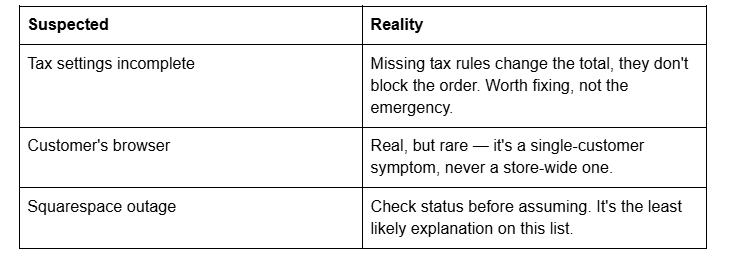
Things people blame that usually aren't it
Still not taking orders?
Work it in order: processor, shipping, test mode, currency, stock, CSS, scripts, domain, plan. The first two resolve most cases inside five minutes.
If you've been through all nine and checkout still fails intermittently — some customers through, some not — that's usually a processor-side rule such as postal-code or address verification rejecting specific cards, and it needs reading the declines in Stripe or PayPal rather than changing anything in Squarespace.
That's the kind of thing our Squarespace website support plans exist for, and a broken checkout is the one issue we treat as same-day. Most stores never need us — the nine causes above cover the overwhelming majority. For everything else that's stopped working, start at the complete Squarespace diagnostic guide.
FAQ
-
Because no payment processor is connected, or the connected one no longer authorises. Open Settings → Selling → Payments and check Squarespace Payments, Stripe and PayPal. For Stripe or PayPal, disconnect and reconnect to reissue the authorisation token — reconnecting is what fixes it, not toggling other settings.
-
Usually no shipping option covers their country. Squarespace requires at least one shipping, local pickup or local delivery option for physical products, or orders can't be placed. Add a Rest of the world flat rate, and check the customer's country isn't inside an existing zone with no rate attached.
-
Open Settings → Selling → Payments, scroll to the bottom, and switch the Test mode toggle off. Then delete any test orders from the Orders panel and restore the stock they consumed — test orders reduce inventory the same way real orders do.
-
Three usual reasons: no product is visible and in stock, Express Checkout is enabled so buyers skip the cart entirely, or custom CSS is hiding it. Search your Custom CSS panel for cart and display: none before assuming the header is broken.
-
Yes. All four current plans — Basic, Core, Plus and Advanced — allow unlimited products; they differ on transaction and processing fees. Legacy Personal plans cannot take orders at all, so check which plan an inherited site is actually on.
-
The checkout URL isn't resolving, which is a domain connection problem rather than a commerce one. Newly connected domains take up to 48 hours. Check the Orders panel first — if payment went through, only the confirmation page failed and the order is real.

Author Bio
I'm Walid Hasan, a Certified Squarespace Expert and Squarespace Circle Platinum Partner with over 12 years of hands-on experience designing and optimizing high-performing websites. Over the years, I've had the privilege of building more than 2,000 Squarespace websites for clients around the world, always focusing on clean design, strong user experience, and conversion-driven results.
