
Squarespace Favicon Not Showing? Cache and Format Fixes
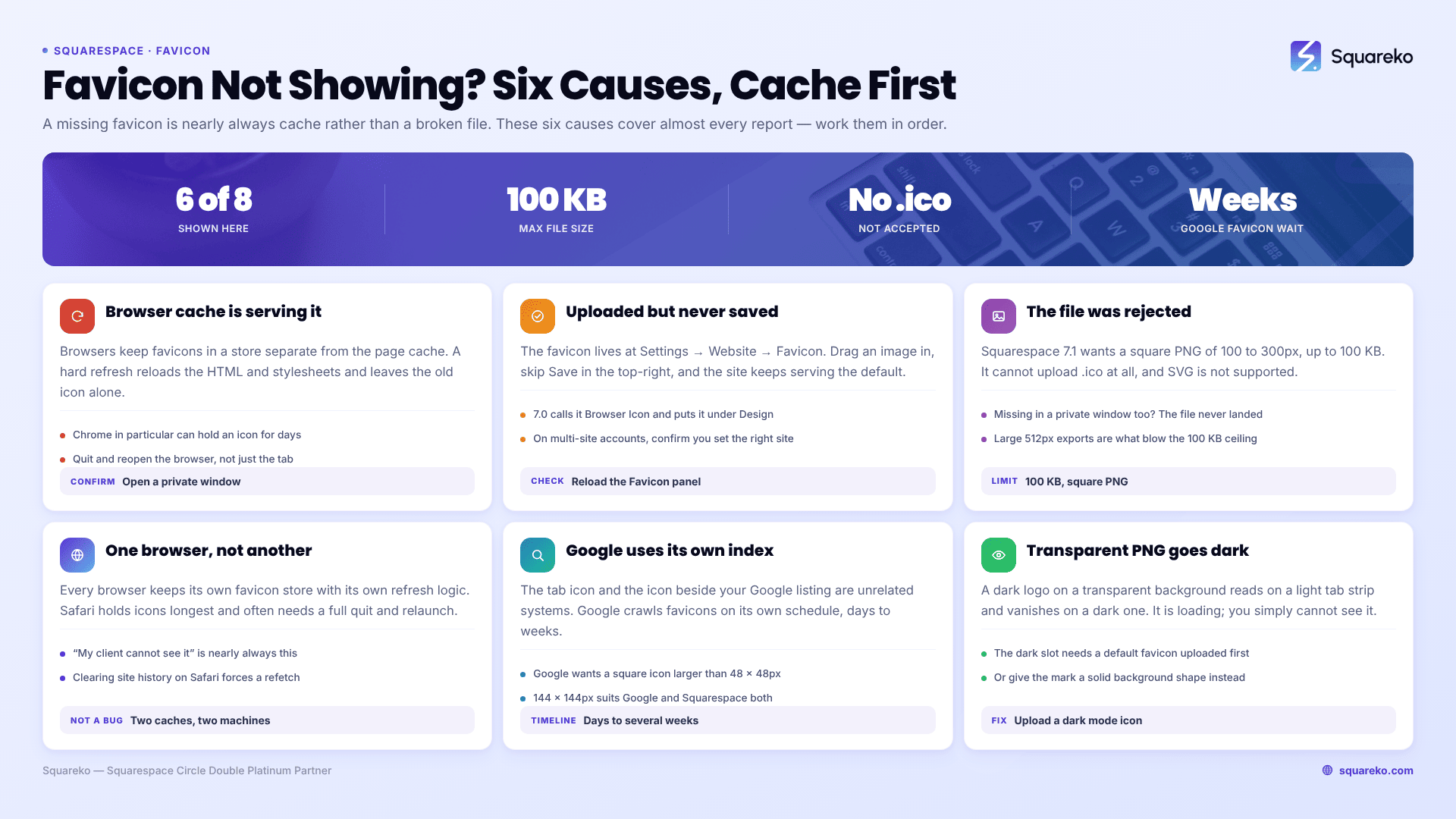
your browser is almost certainly serving a cached icon. Browsers cache favicons far more aggressively than they cache pages, and a normal refresh will not touch them. Load your site in a private window first. If the favicon appears there, the file uploaded correctly and you are looking at cache. If it is missing there too, the problem is the file itself — usually format or file size.
The causes below are ordered by how often they actually turn out to be the problem.
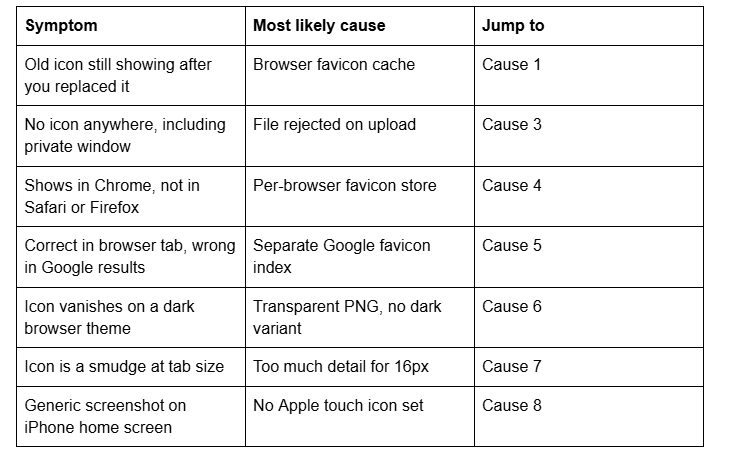
Quick diagnostic table
Cause 1 — The browser is serving a cached favicon
This is the dominant cause and it accounts for most Squarespace favicon reports that turn out not to be bugs at all.
Browsers keep favicons in a separate store from the normal page cache. Cmd + Shift + R reloads the HTML and stylesheets and frequently leaves the old icon untouched. Chrome in particular can hold an icon for days.
How to confirm it in 15 seconds: open your site in a private or incognito window. A private window has an empty favicon store, so it fetches fresh. If the new icon appears there, everything on the Squarespace side is fine.
The fix, in order of effort:
Close and reopen the browser entirely — not just the tab. Favicon stores are often only re-read at launch.
Load the favicon URL directly. In Squarespace 7.1 the served path looks like https://images.squarespace-cdn.com/content/v1/<site-id>/favicon.ico?format=100w. Find yours by right-clicking the page → Inspect → search the <head> for rel="shortcut icon". If that URL shows your new icon, the file is live and the tab is lying to you.
Clear browsing data for the site, or in Chrome delete the Favicons file from your profile directory.
Cache is per browser and per device. Check on your phone as well — a genuinely broken favicon fails everywhere.
Cause 2 — Nothing was uploaded, or the upload was never saved
Worth ruling out before anything else, particularly on an inherited site.
In Squarespace 7.1 the favicon lives at Settings → Website → Favicon. The quickest route is to press / anywhere in the editor and type "Favicon". On older builds and in Squarespace 7.0 the same setting is labelled Browser Icon and sits under Design.
Two things go wrong here. The image gets dragged into the uploader but Save in the top-right is never clicked, so the panel looks correct while the site still serves the default. And on multi-site accounts, the favicon is set on the wrong site — the Squarespace account switcher makes this easier to do than it sounds.
Reload the Favicon panel after saving. If your image is showing there, it uploaded.
Cause 3 — The file format or size was rejected
If the favicon is missing in a private window too, the file never made it in.
Squarespace 7.1 has hard limits on what it accepts:
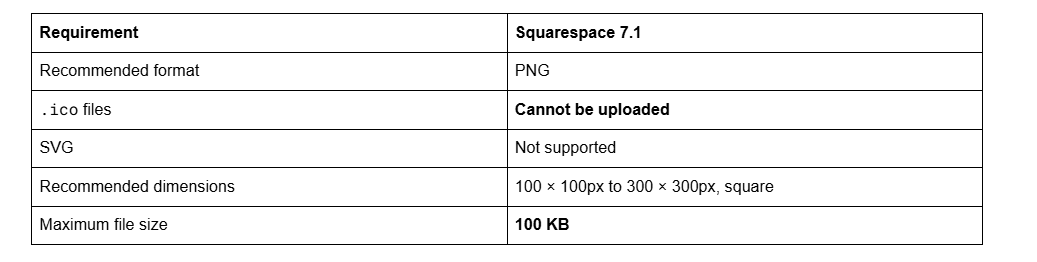
You do not need an .ico file and cannot use one. This trips up people coming from WordPress or from a favicon generator that outputs .ico by default. Export a square PNG instead. Squarespace serves it at a URL ending favicon.ico regardless of the source format — that filename is cosmetic and does not mean the platform wants an actual ICO file
The 100 KB ceiling catches large PNGs exported at 512px with an embedded colour profile. Re-export smaller, or run it through any PNG optimiser.
Cause 4 — It shows in one browser and not another
Every browser maintains its own favicon store with its own refresh logic. Safari is the usual offender: it holds icons longer than Chrome and sometimes only picks up a change after the browser is fully quit and relaunched, not just closed.
This is also why "my client can't see it but I can" is such a common report on the Squarespace Forum. It is not a Squarespace propagation issue — it is two browsers on two machines with two different caches.
Fix: have the person who can't see it quit the browser completely, reopen, and load the site. On Safari, clearing history for the site forces a refetch. If it still fails in a private window on their machine, then look at the file.
Cause 5 — Google search results use a different favicon index
The icon in your browser tab and the icon beside your listing in Google are two unrelated systems, and conflating them wastes a lot of debugging time.
Google crawls favicons on its own schedule. Its documentation states that crawling "can take anywhere from several days to several weeks", and that a favicon is never guaranteed to appear even when every guideline is met. A brand-new site or a freshly changed icon will show the old one — or a generic globe — for a while regardless of what you do.
Two things are within your control:
Dimensions. Google requires a square icon and recommends larger than 48 × 48px. Squarespace's own guidance is to use a multiple of 48 — 48, 96, 144 or 192px — so an image uploaded at 144 × 144px satisfies both that guidance and Squarespace's 100–300px range.
Crawlability. Googlebot-Image must be able to fetch the favicon file and Googlebot must be able to fetch your home page. On a standard Squarespace 7.1 site both are open by default, but a site still set to private under Settings → Site Availability blocks everything.
Requesting indexing of your home page in Google Search Console can prompt a recrawl. It does not force a favicon refresh on a schedule you choose.
Cause 6 — A transparent PNG disappears on dark browser themes
A dark logo on a transparent background renders perfectly against Chrome's light tab strip and vanishes against a dark one. The file is loading correctly; you just can't see it.
Squarespace 7.1 solves this natively. The Settings → Website → Favicon panel accepts a second image under the dark mode slot, shown when a visitor's browser is in dark mode. You have to upload a default favicon first — the panel won't take a dark variant on its own.
If you would rather not maintain two files, give the icon a solid or near-solid background shape so it reads on both. That is also more reliable across browsers that ignore the dark variant entirely.
Cause 7 — The icon is too detailed to read at tab size
Favicons display at 16 × 16px in a browser tab. That is roughly the area of a lowercase letter. A full wordmark, a thin monogram or a logo with fine strokes turns into a grey smudge, and people report this as "not showing" because it is illegible rather than absent.
Upload at 100–300px so the browser has resolution to downscale from, but design for 16px: one letter, one mark, or one shape, with heavy strokes and high contrast. Zoom your artboard out to 16px before you export and see whether it still reads.
Cause 8 — The iPhone home screen icon is a separate file
Add a Squarespace site to an iOS home screen and you may get a screenshot of the page instead of your icon. The favicon panel does not set the Apple touch icon.
Add one via Settings → Advanced → Code Injection → Header, pointing at a 180 × 180px non-transparent PNG you've uploaded to your site:
<link rel="apple-touch-icon" sizes="180x180"
href="https://images.squarespace-cdn.com/content/v1/YOUR-SITE-ID/your-touch-icon.png">
Transparency is the thing to avoid here — iOS renders transparent areas black rather than white.
Still not showing?
Work the list in order: private window, panel and save state, file format and size, per-browser cache, then Google's separate timeline. In practice the first two settle the overwhelming majority of cases, and the Google one settles itself given a few weeks.
If the favicon is loading correctly at its CDN URL but still not rendering, you're usually looking at a conflicting rel="icon" tag injected by custom code or a third-party script rather than a Squarespace problem.
That's the sort of thing our Squarespace website support plans cover — though honestly, most favicon tickets we receive are cache, and you can settle that yourself in the time it takes to open a private window.
FAQ
-
Settings → Website → Favicon. The fastest route is pressing the / key anywhere in the editor and typing "Favicon". On Squarespace 7.0 and older builds the same setting is labelled Browser Icon and sits under the Design panel. Remember to click Save in the top-right after uploading.
-
Each browser keeps its own favicon cache with its own refresh logic, and Safari holds icons longer than Chrome. Quit Safari completely rather than just closing the tab, reopen, and load the site. If it is still missing in a Safari private window, the file itself is the problem.
-
No. Squarespace 7.1 does not accept .ico uploads and does not need one — upload a square PNG instead. Squarespace serves the icon at a URL ending in favicon.ico regardless of what you uploaded, which is purely cosmetic naming, not a format requirement.
-
Upload a square PNG between 100 × 100px and 300 × 300px, under 100 KB. For Google search results, use a multiple of 48px — 144 × 144px is a good choice, sitting inside Squarespace's accepted range while meeting Google's recommendation of larger than 48 × 48px.
-
Google indexes favicons separately from browsers and on its own schedule — its documentation says crawling can take several days to several weeks. Check that the icon is square, larger than 48 × 48px, and that your site is set to Public under Settings → Site Availability, then wait.
-
A dark icon on a transparent background is invisible against a dark browser tab. Squarespace 7.1 lets you upload an alternate dark mode favicon in the same Settings → Website → Favicon panel, below the default. You must upload a default favicon before the dark mode slot becomes available.

Author Bio
I'm Walid Hasan, a Certified Squarespace Expert and Squarespace Circle Platinum Partner with over 12 years of hands-on experience designing and optimizing high-performing websites. Over the years, I've had the privilege of building more than 2,000 Squarespace websites for clients around the world, always focusing on clean design, strong user experience, and conversion-driven results.
