
Squarespace Changes Not Showing Live? Publishing and Cache Fixes
In Squarespace 7.1 there is no separate publish step — saving an edit makes it live immediately on a public site. So if the live page hasn't changed, either the edit was never saved, or your browser is showing you a cached copy. Check in a private window first. That single test separates "the change isn't there" from "the change is there and you can't see it", and everything below follows from which side you land on.
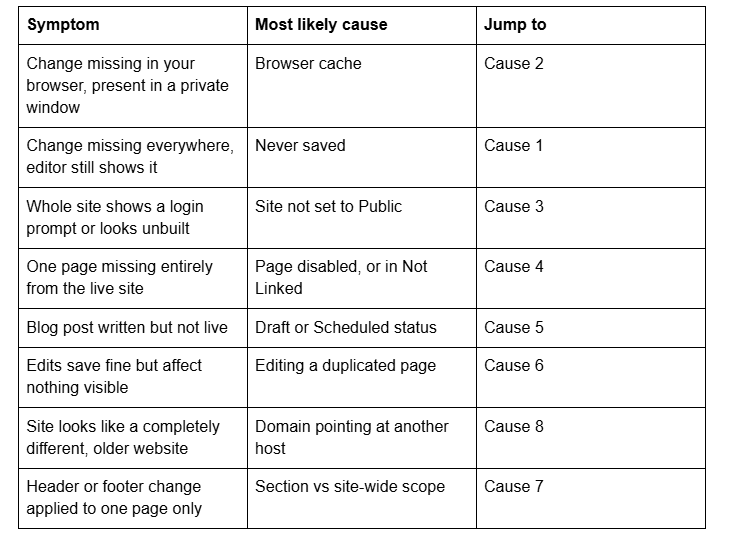
Here are the causes, ordered by how often they turn out to be the problem.
Quick diagnostic table
Cause 1 — The edit was never saved
Squarespace 7.1 holds edits in an unsaved state until you click Save in the top-left of the editor. Navigating away, closing the tab, or letting a session time out discards them, and the editor does not always warn you.
How to confirm it in seconds: open the page in the editor. If the top-left button reads Save rather than Edit or Done, you have unsaved changes sitting in front of you right now.
A related trap: Squarespace's own documentation notes that layout changes, blog edits, product updates and design modifications need saving, while gallery images, videos and navigation menu changes appear immediately. That inconsistency is why people are certain they saved when they did not — the last thing they changed updated instantly.
There is no "publish" button for saved edits in Squarespace 7.1. Saved and public means live.
Cause 2 — Your browser is serving a cached page
The most common cause once saving is ruled out, and the reason "my client can't see the update" reports are almost never real.
Confirm it in 15 seconds: load the live URL in a private or incognito window, logged out. If the change is there, your normal browser is holding an old copy and nothing is broken.
The fix, in order:
Hard refresh — Cmd + Shift + R on Mac, Ctrl + Shift + R on Windows.
If that fails, clear cached files for the site specifically.
Check a second device on a different network — cache is per browser, per device.
Squarespace serves pages and assets through a CDN with long cache lifetimes, and there is no manual cache purge for site owners. Edge caches normally refresh within minutes, not hours. If a change is missing at the same URL in a private window on a phone with mobile data an hour after saving, stop blaming cache and work down this list.
Cause 3 — The site isn't set to Public
Every Squarespace site starts private. Trial sites are private and hidden from search engines by default, and upgrading to a paid plan does not automatically flip that.
Check Settings → Site Availability. Your site is live only if it is set to Public. If it is set to Private, only site owners and contributors can load it — which is exactly why it looks correct to you while logged in and shows a login screen or nothing at all to anyone else. If it is password-protected, visitors get the password gate rather than your updated page.
This most often explains "the site looks completely different to my client".
Cause 4 — The page is disabled or sitting in Not Linked
Two different states, both of which make a single page look like it never updated.
Disabled. A disabled page in Squarespace 7.1 is hidden from visitors and from search engines entirely. It stays visible in your Pages panel while you're logged in, which is what makes it confusing — you can open it, edit it, save it, and see nothing on the live site because the page isn't being served. Disabling a collection page such as a blog or a products page disables every item inside it too.
Not Linked. A page in the Not Linked section is live and reachable at its URL, it simply does not appear in navigation. If your complaint is "my new page isn't in the menu", this is the answer — drag it out of Not Linked into a navigation section in the Pages panel.
Cause 5 — The blog post is a draft or scheduled
Squarespace blog posts carry a status of Draft, Scheduled or Published, set in the post editor under the gear icon → Content → Status, or via the status dropdown in the post's toolbar.
A Draft post is invisible on the live blog. A Scheduled post is invisible until its scheduled moment arrives, and Squarespace displays the scheduled date as the post's publication date regardless of when it was actually written — so a post can appear correctly dated in your dashboard while not existing publicly at all.
If you are editing an already-published post and the change isn't showing, that's Cause 2. Post edits go live on save like any other content.
Cause 6 — You're editing a duplicate of the page
Badly underrated, and it strands people for hours because every step of the workflow appears to work.
Duplicating a page is the standard way to try a redesign safely. The duplicate lands with a slug like /about-1 or /home-copy, often in Not Linked. Weeks later somebody opens the duplicate from the Pages panel, edits it, saves it, and checks /about — where nothing has changed, because the edits went to /about-1.
Confirm it in 10 seconds: while editing, look at your browser's address bar. It contains the page's real slug. Compare it against the URL you are checking. If they differ by a trailing number or the word "copy", you have found it.
The same failure mode applies at site level. If your Squarespace account holds several sites — a live site and an old trial, or a client site and a template you copied — the account switcher will happily let you edit the wrong one. Confirm the domain shown in the browser bar while editing, not just the site name in the dashboard.
Cause 7 — The change wasn't site-wide in the first place
Squarespace 7.1 applies changes at different scopes and it isn't always obvious which one you are working in.
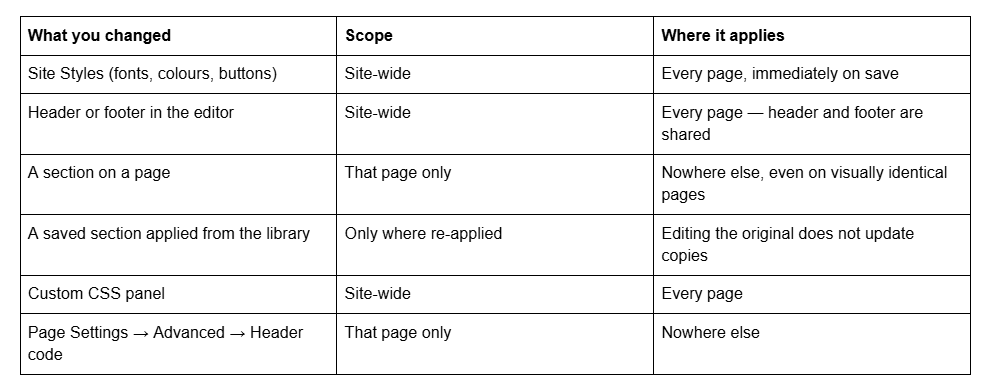
The recurring mistake is rebuilding a section on one page and expecting other pages that "look the same" to follow. In Squarespace 7.1 sections are per-page content, not shared components. Header and footer are the exceptions.
Cause 8 — The domain is still pointing at a different host
The one nobody checks, and the only one on this list where your Squarespace site is completely fine.
If the domain was previously on WordPress, Wix, Shopify or a hosting account, and the DNS records or nameservers were never fully repointed, visitors are being served the old site from the old host. You edit Squarespace, Squarespace saves correctly, and the public domain never changes because it is not serving Squarespace at all.
Confirm it in 30 seconds: load your Squarespace built-in URL — the yoursite.squarespace.com address in Settings → Domains. If your changes are live there but not on your custom domain, the problem is DNS, not Squarespace.
Fix: in Settings → Domains, open the connected domain and check its connection status. A third-party domain must either use Squarespace's nameservers or carry the exact A and CNAME records Squarespace shows in that panel. Records left over from a previous host — a stale A record, an old www CNAME, a forwarding rule at the registrar — will keep serving the old site. DNS changes typically resolve within a few hours and can take up to 48.
Partial repointing gives the strangest version of this: the root domain serves the new site and www serves the old one. Test both.
Still not showing?
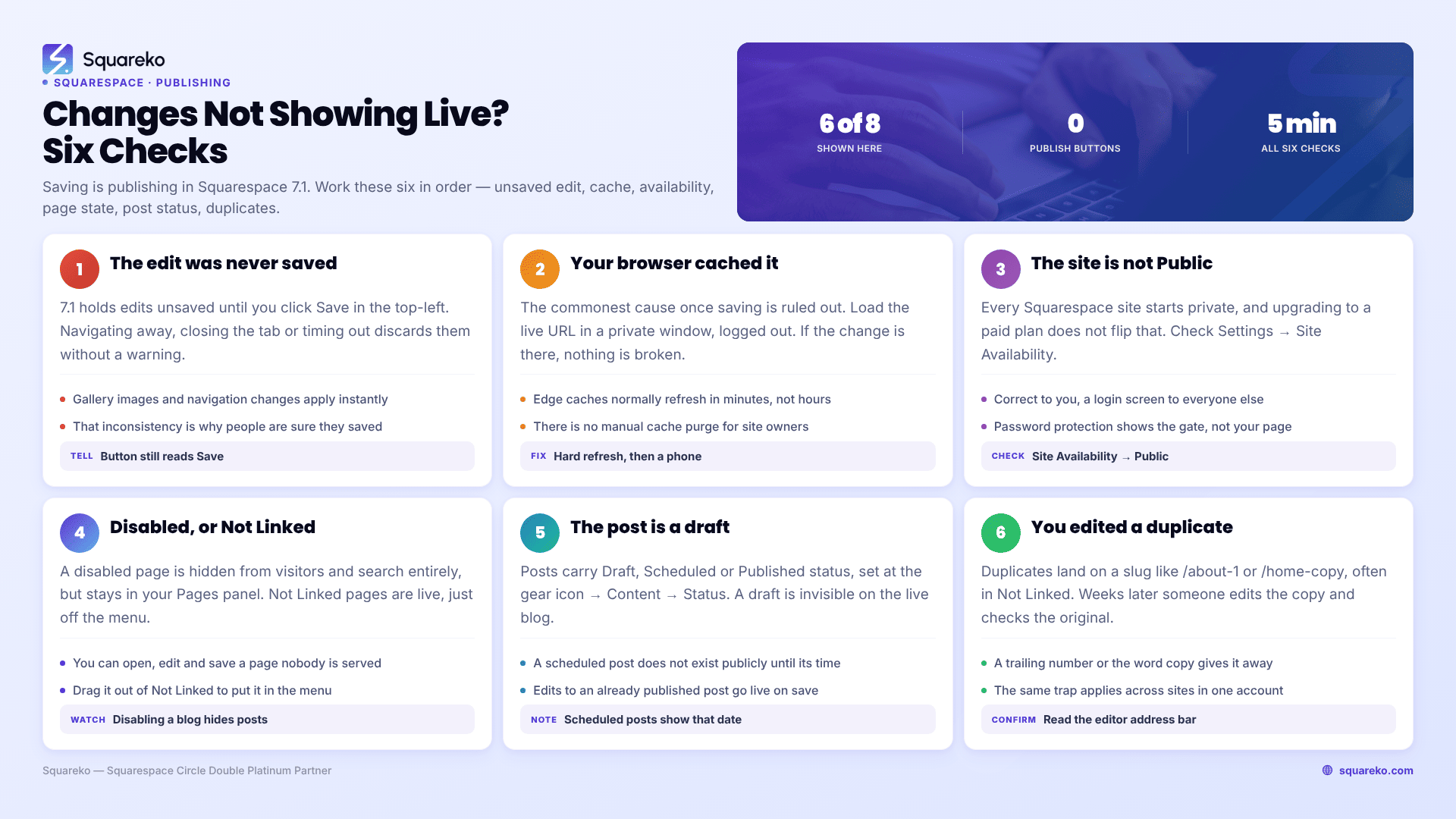
Run it in this order: check for unsaved edits, check a private window, check Site Availability, check the page isn't disabled, check the slug you're editing matches the URL you're testing, then check the built-in squarespace.com URL to rule DNS in or out. Six checks, under five minutes, and they resolve almost everything.
If your built-in Squarespace URL shows the correct site and your custom domain has been showing something else for more than 48 hours, that's a DNS problem rather than a Squarespace one, and it usually needs someone reading the actual records at the registrar rather than guessing.
That's the kind of thing our Squarespace website support plans handle — but work the six checks above first. Most of the time the answer is in the first two.
FAQ
-
Yes. Squarespace 7.1 has no separate publish step for page edits — saving makes a change live immediately, provided the site is set to Public under Settings → Site Availability. If a saved change isn't visible on the live site, you're almost always looking at a cached copy in your browser.
-
Effectively instantly. Squarespace serves through a CDN, so an edge cache may hold an old copy for a few minutes, but there is no publishing queue and no build step. Anything still missing an hour after saving is a different problem — check saving, site availability and the page's status.
-
You can't — Squarespace gives site owners no manual cache purge. What you can clear is your own browser cache. Hard refresh with Cmd/Ctrl + Shift + R, or load the page in a private window to bypass caching entirely and see what visitors actually get.
-
Logged-in editing shows content that visitors never see: disabled pages, draft blog posts, and unsaved edits still in the editor. Squarespace also disables embedded scripts in Code Blocks while you're logged in. Always verify changes on the live URL in a private window.
-
Either the page is disabled — hidden from visitors and search engines while still visible in your Pages panel — or it sits in the Not Linked section, which keeps it live at its URL but out of navigation. Check the Pages panel to see which section the page is in.
-
No. Load your built-in yoursite.squarespace.com URL from Settings → Domains. If your changes are live there, the custom domain's DNS is still pointing at the previous host. Check the A and CNAME records against what Squarespace shows in Settings → Domains.

Author Bio
I'm Walid Hasan, a Certified Squarespace Expert and Squarespace Circle Platinum Partner with over 12 years of hands-on experience designing and optimizing high-performing websites. Over the years, I've had the privilege of building more than 2,000 Squarespace websites for clients around the world, always focusing on clean design, strong user experience, and conversion-driven results.
