
Squarespace Fonts Not Displaying Correctly? Font Loading Fixes
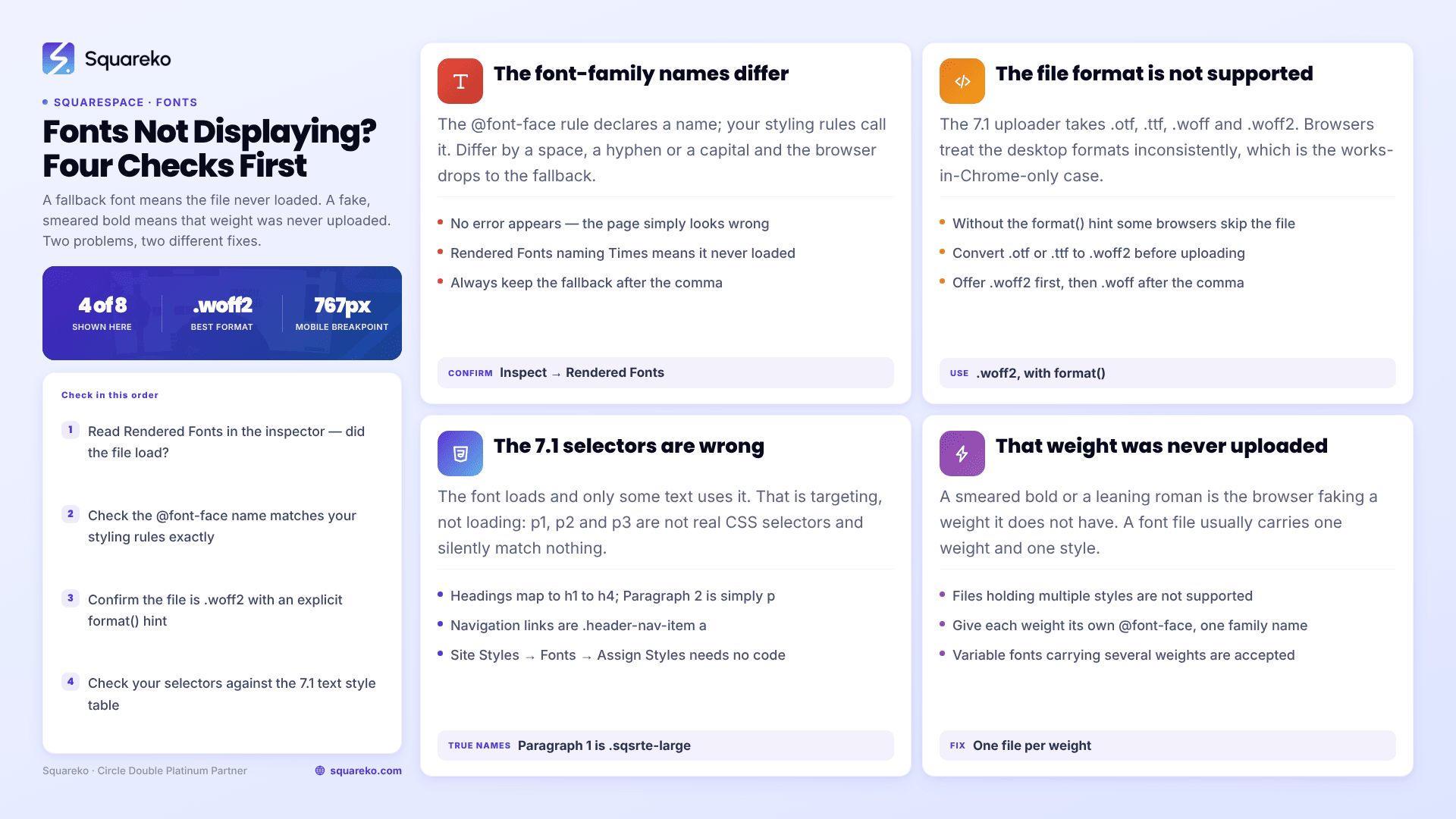
If you're seeing Times New Roman or a generic sans-serif where your font should be, the font file never loaded and the browser fell back. On Squarespace 7.1 that is nearly always a broken @font-face rule — usually a mismatched font-family name or a mangled src: url() path. If the font is right but the weight is wrong, the file for that weight simply doesn't exist. Two different problems, two different fixes.
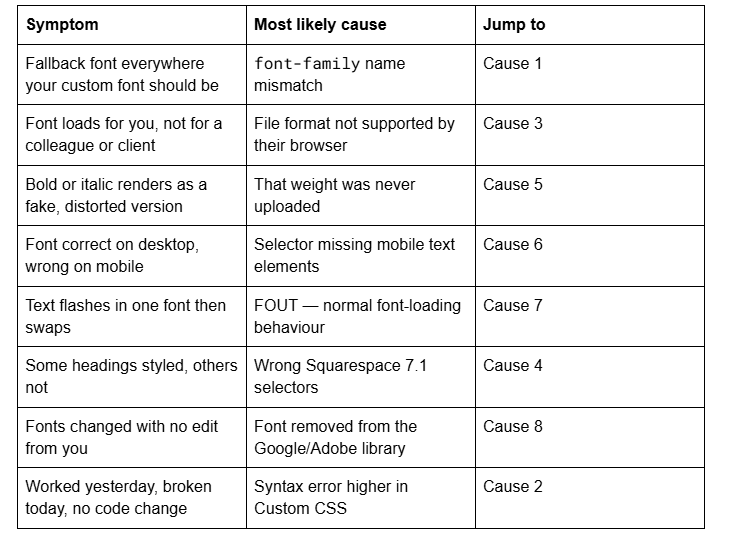
Here are the causes, ordered by how often they turn out to be the problem.
Quick diagnostic table
Cause 1 — The font-family name doesn't match
The single most common cause of a custom font not rendering on Squarespace 7.1.
An @font-face rule declares a name. Your styling rules then call that name. If the two strings differ by a space, a hyphen, a capital letter or a stray quote mark, the browser finds no matching font and falls straight through to the fallback. There is no error message; the page just looks wrong.
@font-face {
  font-family: 'Sohne-Buch';                    /* declared here */
  src: url('YOUR-FILE-URL.woff2') format('woff2');
  font-weight: normal;
  font-style: normal;
}
h1, h2, h3 {
  font-family: 'Sohne-Buch', sans-serif;        /* must match exactly */
}
Confirm it in 20 seconds: right-click the text → Inspect → Computed → scroll to font-family, then check the "Rendered Fonts" line at the bottom of the Computed panel. It names the font the browser actually used. If that says Times or Arial, the file didn't load.
Always include the fallback after the comma — it is what visitors see before your font arrives, and on any device where it fails.
Cause 2 — A syntax error is killing the rule
If fonts broke all at once with no change from you, or a font stopped working after you edited something unrelated, look here.
CSS parses sequentially. One unclosed brace, one missing semicolon, one truncated URL and the browser discards everything after that point — including your @font-face block. This is why forum threads about fonts breaking overnight so often end with a missing bracket several rules higher up.
The src: url() path is the usual casualty. Squarespace file URLs are long, and a copy-paste that clips the last characters — or leaves the word "URL" inside the quotes — produces a rule that parses as valid CSS and points at nothing.
Fastest way to find it: in Website → Website Tools → Custom CSS, comment out the bottom half of your CSS with /* */. If the top half starts working, the error is below. Repeat until you've isolated the line. The panel flags some errors with a red gutter marker, but it does not reliably catch unclosed braces.
Cause 3 — The font file format isn't supported
This is the cause behind "works in Chrome, not in Safari" and "loads on my phone, not on my laptop".
Squarespace 7.1's native font uploader accepts .otf, .ttf, .woff and .woff2. For web use .woff2 is the right answer — smallest, and supported by every current browser. .otf and .ttf are desktop formats, and browsers vary in how tolerantly they handle them, which is how you end up with a font that renders on one machine and not another.
If you are writing your own @font-face, always declare the format explicitly, and offer .woff2 first:
@font-face {
  font-family: 'Sohne-Buch';
  src: url('YOUR-WOFF2-URL.woff2') format('woff2'),
       url('YOUR-WOFF-URL.woff') format('woff');
  font-weight: normal;
  font-style: normal;
  font-display: swap;
}
Without the format() hint some browsers will not attempt the file at all. Convert .otf or .ttf to .woff2 with any web font converter before uploading.
Cause 4 — The Squarespace 7.1 selectors are wrong
Your font loads correctly and some text uses it while other text doesn't. That is a targeting problem, not a loading problem.
Squarespace 7.1 exposes six text styles in the editor — Heading 1 to 4, plus paragraph sizes — but they do not all map to the HTML tags people assume. p1, p2 and p3 are not real CSS selectors and will silently match nothing.
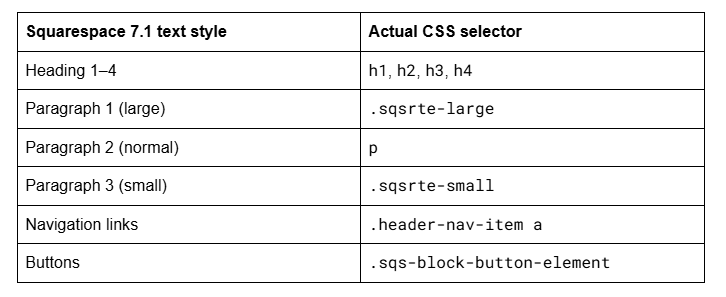
Before any of this, check whether you need CSS at all. Squarespace 7.1 assigns fonts natively at Site Styles → Fonts → Assign Styles, targeting every text group correctly without a line of code.
Cause 5 — The weight or style you want was never uploaded
Bold looks smeared, or italic looks like the roman leaning over. That's synthetic styling — the browser faking a weight it doesn't have.
A font file usually contains one weight and one style. Squarespace 7.1 states that font files containing multiple styles aren't supported — upload a separate file per style, though variable fonts carrying multiple weights in one file are accepted. So if you uploaded only Regular.woff2 and your CSS asks for font-weight: 700, the browser synthesises a bold rather than loading one.
The fix: upload each weight as its own file and give each its own @font-face block, sharing one font-family name and differing only in font-weight:
@font-face {
  font-family: 'Sohne';
  src: url('SOHNE-REGULAR.woff2') format('woff2');
  font-weight: 400;
  font-style: normal;
}
@font-face {
  font-family: 'Sohne';
  src: url('SOHNE-BOLD.woff2') format('woff2');
  font-weight: 700;
  font-style: normal;
}
The same applies to fonts from the built-in library: a family that only ships two weights won't produce a third just because the Site Styles weight slider offers it.
Cause 6 — The font is wrong on mobile only
Almost always a coverage gap rather than a mobile-specific bug. Mobile layouts surface elements desktop doesn't — the mobile navigation drawer, mobile-only buttons, smaller heading styles — and a selector list written on a desktop screen misses them.
Confirm it: open your browser's device toolbar, switch to a mobile viewport, inspect the offending text and read its Rendered Font. If the file is loading elsewhere on the page, this is targeting, not loading.
Squarespace 7.1's mobile breakpoint is 767px. If you've written a media query at 768px to restyle mobile text, it fires one pixel late and your rules land on the wrong side of the boundary.
@media screen and (max-width: 767px) {
  h1 { font-family: 'Sohne', sans-serif; font-size: 1.9rem; }
}
Cause 7 — The font flashes before it loads
Text renders in a fallback for a moment, then snaps to your font. That's FOUT — flash of unstyled text — and it is normal browser behaviour, not a Squarespace fault. The opposite case, FOIT, hides the text entirely until the font arrives.
It matters because a font swapping in after layout has settled can shift the page and hurt Cumulative Layout Shift. Across 54 Squareko-built sites measured in August 2026 (lab test, Playwright/Chromium, unthrottled, load-only CLS), median desktop CLS was 0.029 with only 80% in the "good" band — and late-loading webfonts are one of the standard contributors.
Two things reduce it. Set font-display: swap in your @font-face so text stays readable in the fallback. And choose a fallback with similar metrics — a geometric sans falling back to Times will visibly reflow; falling back to a sans-serif stack will barely move.
Cause 8 — The font changed on its own
Occasionally a font disappears from a site nobody has touched. Two real causes.
The font was withdrawn. Google and Adobe periodically remove fonts from their libraries. Squarespace substitutes the closest available match — and warns that if you switch away from a removed font, you can't switch back to it. Nothing on your side is broken; the family no longer exists to serve.
A licence or web project changed. If you added Adobe Fonts through a web project rather than the built-in library, they load from a <link> embed in Settings → Advanced → Code Injection → Header, and stop rendering if the web project is deleted, your domain isn't listed in it, or the Adobe subscription lapses.
Note that Squarespace 7.1's font library already includes roughly 600 Google fonts and 1,000 Adobe Fonts — click Additional Fonts at the bottom of the font list in Site Styles. Many Adobe web projects exist for fonts that were available natively all along. And whatever route you take, confirm your licence permits web embedding; a desktop-only licence does not cover uploading the file to a website.
Still not displaying correctly?
Work it in this order: read the Rendered Font in your inspector to establish whether the file loaded at all, check the font-family names match exactly, check the file format is .woff2, then check your selectors against the table above. Four checks settle nearly everything.
If the font loads on some pages and not others with identical markup, that's usually a specificity conflict between your CSS and Site Styles, not a font problem.
That's the kind of thing our Squarespace website support plans exist for — though most font faults are a name mismatch or a clipped URL, and the inspector will show you which within a minute.
FAQ
-
Open Site Styles, click the arrow next to Fonts, choose a font group such as Headings or Paragraph, open the font dropdown and click the upload icon. Drag your file in. This native route handles targeting for you and avoids writing @font-face rules by hand.
-
Squarespace 7.1 accepts .otf, .ttf, .woff and .woff2. Use .woff2 for web — it is the smallest and is supported by every current browser. Font files containing multiple styles aren't supported, so upload a separate file for each weight and style you need.
-
Usually the file format. Browsers differ in how they handle .otf and .ttf, which are desktop formats. Convert to .woff2 and declare format('woff2') explicitly in your @font-face rule — without the format hint some browsers won't attempt to load the file at all.
-
Because that weight was never uploaded. A font file normally contains one weight, and Squarespace does not support multi-style files. Upload a separate file for each weight and give each its own @font-face block, sharing the same font-family name and differing only in font-weight.
-
Check the built-in library first — Squarespace includes around 1,000 Adobe Fonts under Additional Fonts in Site Styles. For anything outside it, create an Adobe web project, paste its embed code into Settings → Advanced → Code Injection → Header, then reference the font name in Custom CSS.
-
That's FOUT, flash of unstyled text — normal browser behaviour while a webfont downloads. Add font-display: swap to your @font-face rule so text stays readable in the fallback, and choose a fallback with similar metrics so the swap doesn't visibly reflow the page.

Author Bio
I'm Walid Hasan, a Certified Squarespace Expert and Squarespace Circle Platinum Partner with over 12 years of hands-on experience designing and optimizing high-performing websites. Over the years, I've had the privilege of building more than 2,000 Squarespace websites for clients around the world, always focusing on clean design, strong user experience, and conversion-driven results.
