
The Squarespace Clarkson Template Is a 7.1 Design, Not a 7.0 Template
Clarkson is a Squarespace version 7.1 template. Its demo reports "templateVersion":"7.1" and the universal 7.1 template ID 5c5a519771c10ba3470d8101, and Clarkson is one of the 198 templates in the current gallery — every one of which is 7.1. It belongs to no version 7.0 family and appears on no discontinued list. That single fact explains the complaint that brings most people here: Clarkson is missing from the template switcher because version 7.1 does not have one.
Everything below follows from that. Here is the practical shape of it.
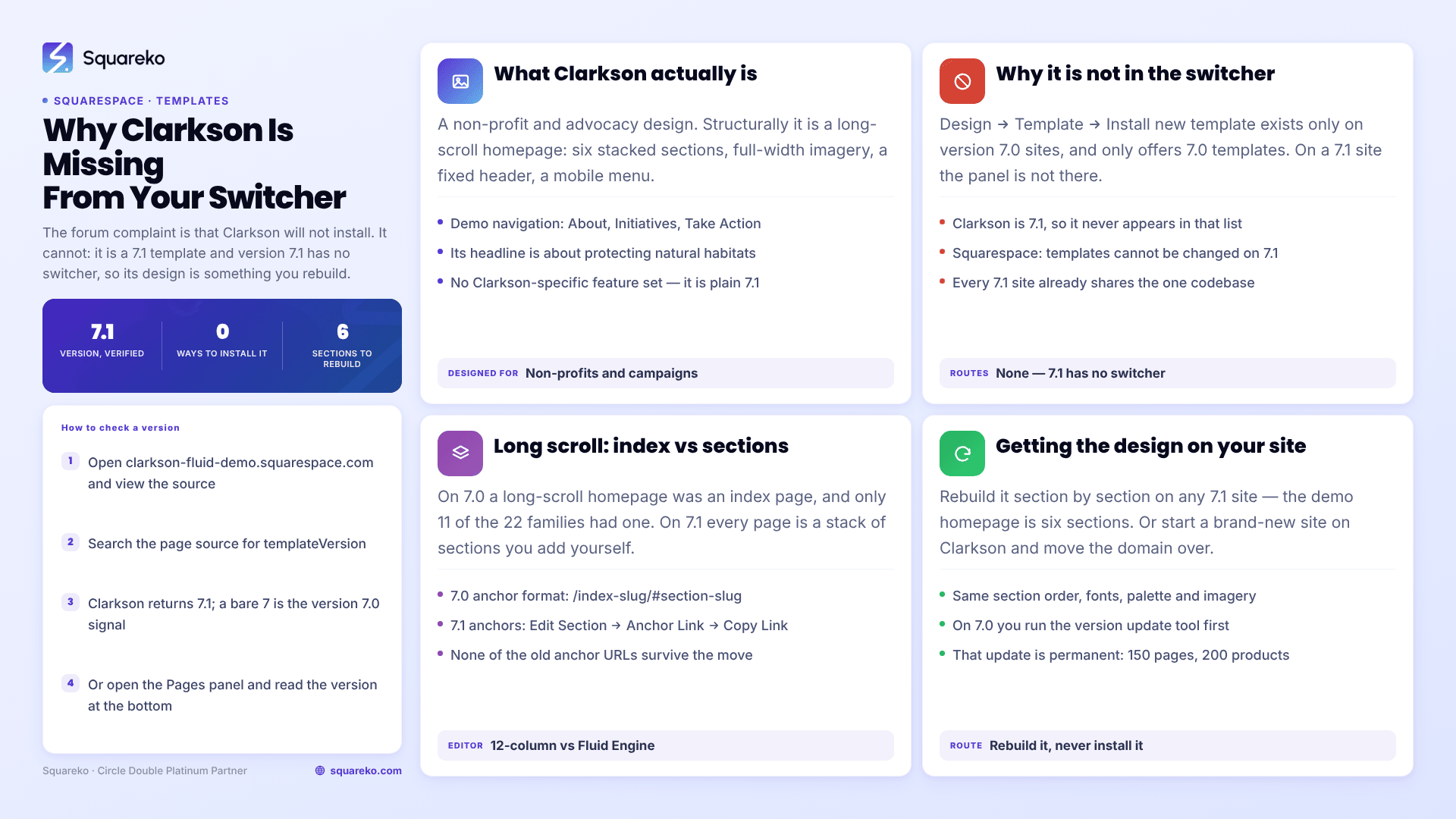
Clarkson at a glance
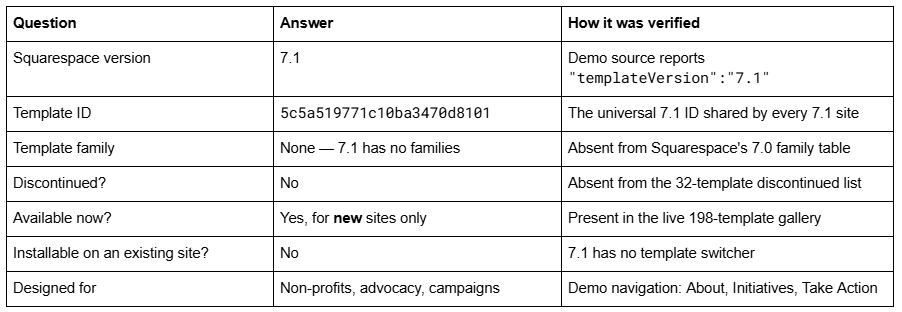
How to verify the Squarespace Clarkson template's version yourself
You do not have to take this on trust. Every Squarespace site publishes its own version in the page source, and the check takes about twenty seconds.
Open clarkson-fluid-demo.squarespace.com, view source, and search for templateVersion. Clarkson returns:
"templateVersion":"7.1"
"templateId":"5c5a519771c10ba3470d8101"
Two things are worth knowing about that output. First, a version 7.0 site reports "templateVersion":"7" — not "7.0" — so seeing a bare 7 is the 7.0 signal, and seeing 7.1 is conclusive. Second, 5c5a519771c10ba3470d8101 is the universal 7.1 template ID. Every 7.1 site on the platform reports it, whether it started life as Clarkson, Paloma or Bogart. In version 7.0 the template ID identified the family; in version 7.1 it identifies nothing but the version itself, because there is only one codebase.
The same method works on your own site, and the more reliable route is simply to open the Pages panel and scroll to the bottom, where Squarespace prints the version. On a 7.0 site it also prints the template name; on a 7.1 site it prints the version alone. That difference is covered in more depth in the full list of Squarespace 7.0 templates, which is where to look if the name you find there is a genuine 7.0 template.
Why you cannot install the Clarkson template on an existing Squarespace site
This is the actual question behind most Clarkson searches. One Squarespace Forum poster put it plainly: "When I go to install new template, Clarkson is not an option of all the templates to choose from. Why is it not in the list of options to choose?"
The answer is that the Design → Template → Install new template panel only exists on version 7.0 sites, and it only offers version 7.0 templates. Clarkson is 7.1, so it will never appear there. And on a 7.1 site the panel does not exist at all — Squarespace's own position is that it is not possible to change templates on a version 7.1 site, because every 7.1 site shares one codebase.
What a 7.1 "template" actually is, then, is a starting point: a set of pages, sections, demo content, fonts and colour presets applied to the same engine every other 7.1 site runs. There is nothing underneath Clarkson that your existing 7.1 site does not already have. As one experienced contributor answered in that forum thread, "7.1 templates aren't like version 7 templates. They are showing different designs rather than templates. That's why you can't switch."
That has a liberating consequence, which the next section covers: you can reproduce Clarkson on a site you already own.
What the Squarespace Clarkson template actually is
Clarkson is a non-profit and advocacy design. The demo's navigation is About, Initiatives, Take Action and Contact Us, and its homepage headline is "Protecting natural habitats from extinction." Structurally it is a long-scroll homepage — six stacked content sections, full-width imagery, a fixed header and a mobile overlay menu — followed by a small set of conventional interior pages.
There is no Clarkson-specific feature set. Because it is 7.1, Clarkson has exactly the features every 7.1 site has: page sections, portfolio pages, gallery sections, blog pages, store pages, Fluid Engine on newly added sections, and site-wide styles. The demo was built in 2019, so its homepage sections use the classic editor rather than Fluid Engine; any section you add today will be a Fluid Engine section, and the two coexist happily on the same page.
This is the part that changes how you should shop for a Squarespace template at all. In version 7.0, picking a template was a feature decision — 22 families with genuinely different capabilities, where choosing Montauk over Brine meant giving up index pages and parallax, permanently, unless you switched again. In version 7.1, picking a template is a starting-point decision. All 198 templates in the gallery run the same engine, expose the same section types and support the same features. Nothing is foreclosed by picking Clarkson rather than any of the other 197.
If you are comparing Clarkson against a 7.0 template you already run, then, the honest comparison is not Clarkson-versus-your-template. It is 7.1-versus-7.0, and that comparison is set out in full here.
Building Clarkson's long-scroll homepage: 7.0 index pages versus 7.1 page sections
The reason people want Clarkson is usually the homepage: one long scroll, several distinct full-width bands, navigation that jumps down the page. Both Squarespace versions can do this. They do it in completely different ways, and knowing which mechanism you are on saves a lot of wasted effort.
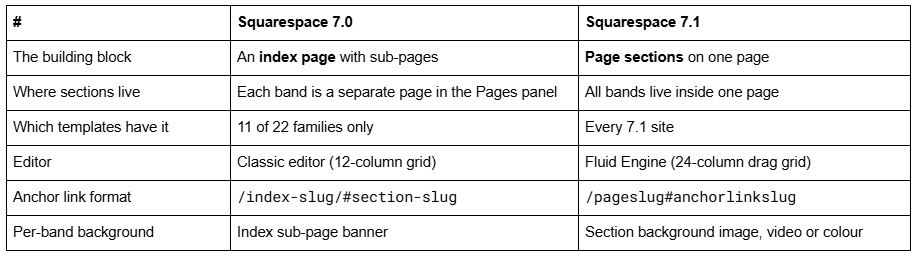
On version 7.0, a long-scroll homepage was an index page: a container page whose enabled sub-pages stacked into bands. Only 11 of the 22 families supported them at all — Avenue, Bedford, Brine, Flatiron, Forte, Marquee, Momentum, Montauk, Pacific, Supply and York — and the behaviour differed between them, with Bedford, Brine, Marquee and Pacific stacking sections vertically while Avenue, Flatiron, Montauk, Supply and York produced a thumbnail grid instead. If your 7.0 template was not in that list, you could not build a one-pager without code.
On version 7.1 there are no index pages. Every page is a stack of sections, and you add one at Edit → Add Section. There is no compatibility question, because there are no families.
Anchor links in Squarespace 7.1 versus Squarespace 7.0
Anchor links — "page jumps" — are what turn a long-scroll page into a navigable one, and this is where the two versions diverge most sharply.
In Squarespace 7.1, anchor links are a built-in section setting. Edit the page, hover the section, click Edit Section, and under Anchor Link type a slug. Squarespace gives you a Copy Link button that puts the finished URL on your clipboard. The format is:
/pageslug#anchorlinkslug
Paste that into a navigation link or a button and it jumps to the section. Squarespace states directly that "page sections and their anchor links aren't supported on version 7.0."
In Squarespace 7.0, there was no such field. Stacked index templates exposed anchors through the URL structure instead — you took the sub-page's slug from its page settings and linked to /index-slug/#section-slug. Grid index families used a different format again, /index-page-slug/#/page-slug. Pacific required a -section suffix, so a section slugged hours-and-location needed #hours-and-location-section. And on Brine, Squarespace warns that Ajax loading can conflict with anchor link behaviour — which is why so many Brine one-pagers scroll to the wrong place on a second click.
If you are moving a 7.0 one-pager to 7.1, none of your old anchor URLs survive. Rebuild them from the section settings and add URL Mappings (/old -> /new 301) for any anchor URL you published or advertised, because Squarespace creates no automatic redirect for a changed slug, ever.
How to get the Clarkson design onto a site you already own
There are two honest routes, and one that does not exist.
If your site is already on Squarespace 7.1: rebuild it. Because Clarkson is a content-and-style preset on the same engine your site runs, you can reproduce it section by section — same section order, same font pairing, same colour palette, same image treatment. This is faster than it sounds; the demo homepage is six sections. This is also the only route Squarespace itself offers, and the one the forum thread's expert recommended: replicate the design by adjusting layouts and typography on your current site.
If you want the demo content as well: create a brand-new site, choose Clarkson at signup, build there, then move your domain across. You will be rebuilding pages either way, so this only makes sense if you want the demo's structure as a scaffold and your existing site is small.
If your site is on Squarespace 7.0: you must run the version update tool first. That is a permanent one-way change, capped at 150 pages and 200 products, and it leaves your Custom CSS commented out for manual restoration. It also refuses to run on a discontinued template, so if you are on one of the 32 retired 7.0 templates you have to switch to a supported sibling first. None of that gets you Clarkson specifically — it gets you 7.1, after which Clarkson's design is something you build.
The route that does not exist is installing Clarkson onto an existing site. There is no switcher, no import, and no "apply template" action in version 7.1.
Templates people confuse with the Squarespace Clarkson template
Three separate confusions send people to this keyword, and it is worth naming them.
Clarkson versus a 7.0 template with a similar name. No version 7.0 template is called Clarkson. The 7.0 roster is 121 templates across 22 families, and Clarkson is in none of them. If a page tells you Clarkson is 7.0, check it against Squarespace's own version and template guide before you act on anything else that page says.
Clarkson versus third-party templates sold under the same name. Several independent shops sell products called "Clarkson" that have nothing to do with Squarespace's template. Those are typically 7.1 template kits — pre-built section libraries you install into an existing 7.1 site — which is a legitimate product but a different thing entirely.
Clarkson versus the old demo URL. The URL squarespace.com/templates/clarkson-fluid-demo no longer serves a Clarkson-specific page; like every per-template demo URL, it now returns the generic gallery. The working demo is the subdomain, clarkson-fluid-demo.squarespace.com. Several competitor pages still link the dead form.
If you are on a genuine legacy template and want to know whether staying put is defensible, that question is answered separately in are old Squarespace templates still supported? — the short version is that there is no announced end-of-life for version 7.0.
Where this leaves you
Clarkson is 7.1. You cannot install it, because 7.1 has no switcher. What you can do is rebuild its long-scroll homepage on any 7.1 site using page sections and anchor links, which takes an afternoon and gives you something you actually control.
The job that is genuinely harder is the one underneath it: getting a 7.0 site onto 7.1 without losing index page structure, sub-page SEO settings and Custom CSS in the process. That is the part of this we get called in for, and it is what our premium Squarespace templates and migration work are built around. If your site is already on 7.1, though, the rebuild above is well within reach on your own — the sections are the same sections we would use. And if the template name in your Pages panel turns out to be a genuine legacy one, start with The Squarespace Brine template guide, which covers the family most 7.0 sites still trading belong to.
FAQ
-
Clarkson is version 7.1. Its demo at clarkson-fluid-demo.squarespace.com reports "templateVersion":"7.1" and the universal 7.1 template ID 5c5a519771c10ba3470d8101. It appears in no version 7.0 family table and on no discontinued template list, and it is one of the 198 templates in the current gallery.
-
Because version 7.1 has no template switcher. The Design → Template → Install new template panel only exists on version 7.0 sites and only offers 7.0 templates. Clarkson is 7.1, so it never appears there. You can only choose Clarkson when creating a brand-new site.
-
No. Squarespace states that it is not possible to change templates on a version 7.1 site. Every 7.1 site runs one shared codebase, and templates are starting content and style presets rather than separate designs. You change the look by editing sections, fonts and colours.
-
Build one page with several sections, then give each section an anchor slug at Edit Section → Anchor Link. Link to them as /pageslug#anchorlinkslug from your navigation. Version 7.1 needs no index page for this; index pages were the 7.0 mechanism and no longer exist.
-
Page sections. In version 7.0 an index page stacked separate sub-pages into bands, and only 11 of 22 families supported it. In 7.1 every page is a stack of sections on the same engine, with per-section backgrounds, anchor links and Fluid Engine layout.
-
Yes, by rebuilding it. Clarkson is a content-and-style preset on the standard 7.1 engine, so its homepage — six stacked sections, full-width imagery, fixed header — can be reproduced on any 7.1 site with the same section types, font pairing and colour palette.

Author Bio
I'm Walid Hasan, a Certified Squarespace Expert and Squarespace Circle Platinum Partner with over 12 years of hands-on experience designing and optimizing high-performing websites. Over the years, I've had the privilege of building more than 2,000 Squarespace websites for clients around the world, always focusing on clean design, strong user experience, and conversion-driven results.
