
Fluid Engine Not Working in Squarespace? 6 Fixes
The short answer: your browser window is almost certainly too small. Squarespace documents a minimum of "a browser window at least 1280 pixels wide and 768 pixels tall" for editing, and Fluid Engine's grid controls are the first thing to disappear below it — the toolbar vanishes, the grid won't render, and blocks stop responding to drags. Maximise the window, set browser zoom to 100%, and reload the editor before investigating anything else.
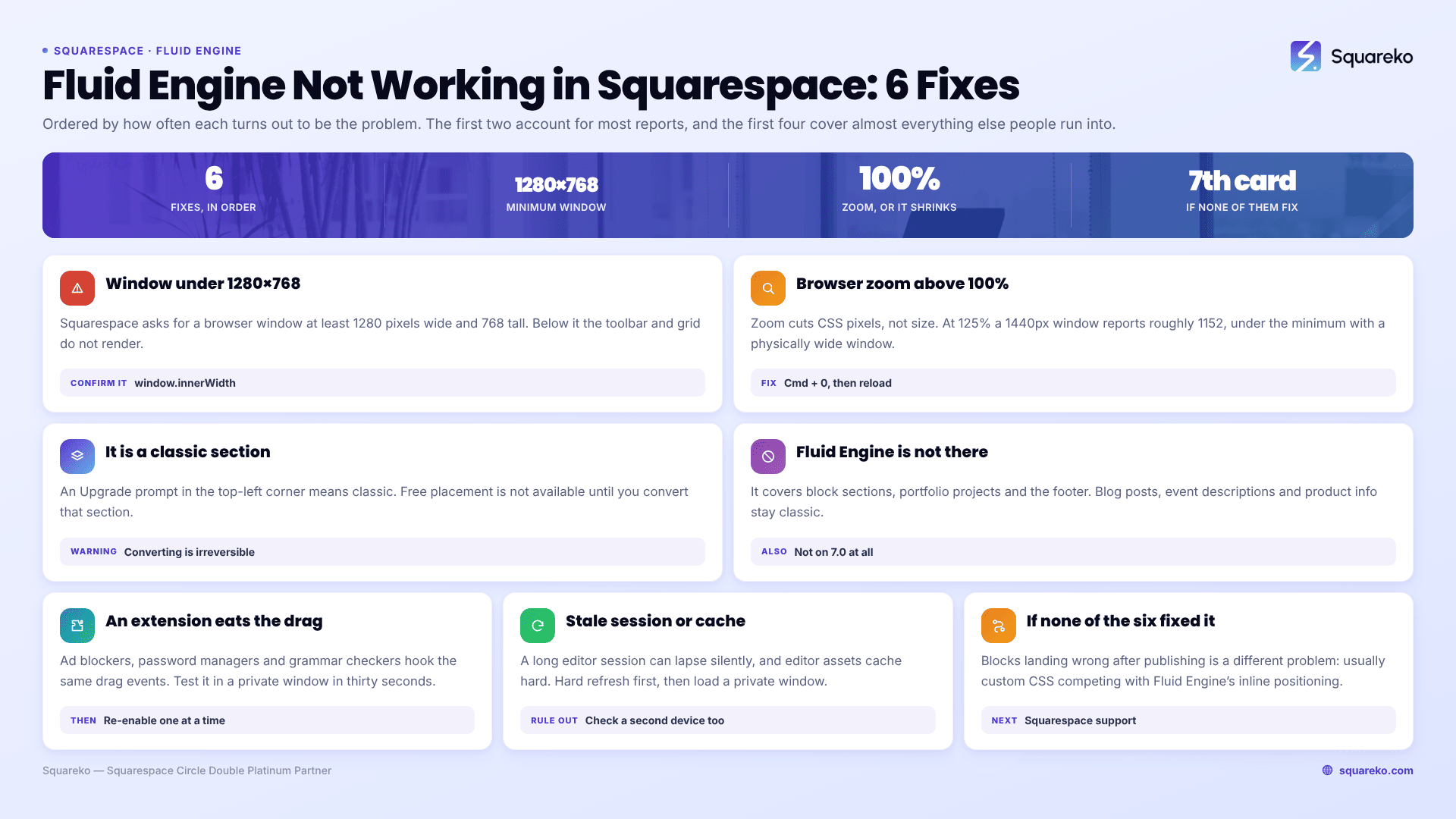
Here are the six causes, ordered by how often they turn out to be the problem.
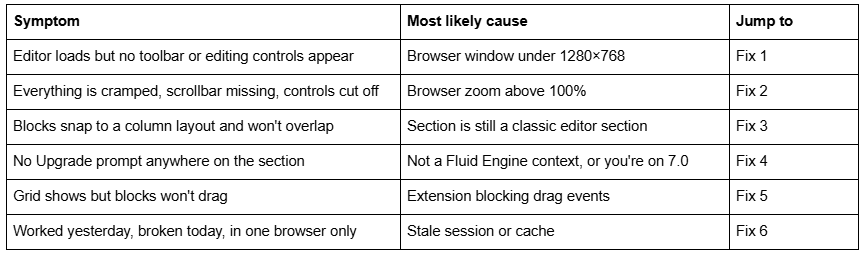
Quick diagnostic table
Fix 1 — Your browser window is below Squarespace's 1280×768 minimum
This is the single most common cause of "Fluid Engine not working" in Squarespace, and it is almost never the one people check.
Squarespace's supported browsers documentation states plainly: "For the best experience editing your site, use a browser window at least 1280 pixels wide and 768 pixels tall." Fluid Engine has more chrome than the classic editor — a grid overlay, per-block handles, section row controls, the mobile/desktop toggle — and it is the first part of the editor to degrade when there isn't room. Below the minimum you typically get the page rendering normally with no editing tools at all, which reads like a broken editor rather than a cramped one.
Confirm it in ten seconds. Open the browser console and type window.innerWidth and window.innerHeight. Those are the numbers that matter, not your monitor's resolution. A 1440×900 laptop with the dock, browser chrome and a bookmarks bar can easily land under 768px of usable height.
The fix: maximise or full-screen the browser window, hide the bookmarks bar, and close any devtools panel docked to the side or bottom — a docked inspector eats directly into window.innerWidth. On a 13-inch laptop, editing Fluid Engine sections with devtools open at the bottom of the window is frequently enough on its own to break it.
Fix 2 — Browser zoom is reducing your effective viewport
Zoom compounds the problem above and is even easier to miss, because the page looks fine — just larger.
Browser zoom does not scale the interface at a fixed layout size. It reduces the number of CSS pixels available. At 125% zoom, a 1440px-wide window reports roughly 1152 CSS pixels to Squarespace, which is below the 1280 minimum even though your window is physically wide enough. At 150% it drops to about 960.
Confirm it: the same window.innerWidth check from Fix 1 returns the zoom-adjusted number, so if the value is well below your monitor width, zoom is why.
The fix: reset zoom to 100% with Cmd + 0 on Mac or Ctrl + 0 on Windows, then reload the editor. If you zoom because the interface is too small to read comfortably, increase your operating system's display scaling instead — that changes physical size without reducing the CSS pixel count Squarespace sees.
Fix 3 — The section is a classic editor section, not a Fluid Engine one
Fluid Engine and the Squarespace 7.1 classic editor look similar enough at a glance that people spend real time trying to drag a block freely in a section that was never going to allow it.
Confirm it: click into the section and look at the top-left corner. A classic editor section shows an Upgrade prompt there. A Fluid Engine section does not, and shows a grid when you start dragging a block — press G to toggle grid visibility. If you see the Upgrade prompt, you are in a classic section and free placement is not available.
The fix: click Upgrade to convert the section. Before you do, note two things. Converting a classic editor section to Fluid Engine is irreversible — Squarespace states it is "not possible to revert an upgraded section after saving the page", though you can undo before saving. And the conversion generates a default mobile layout by stacking blocks in the order they were added, so every converted section needs its mobile layout checked afterwards. The reasoning behind that is covered in Fluid Engine mobile editing.
Fix 4 — You're somewhere Fluid Engine doesn't exist
If there is no Upgrade prompt and no grid, you may be editing a surface Fluid Engine does not cover.
Fluid Engine works in block sections on pages, portfolio projects, and the site footer. It is not available in blog posts, event descriptions, or the product Additional Information area — those remain on the classic editor in Squarespace 7.1, and no amount of looking will surface a Fluid Engine control in them.
The other version of this: Fluid Engine is not available on Squarespace 7.0 at all. Squarespace's documentation states "Fluid Engine isn't available on version 7.0 sites." Check by opening the Pages panel and scrolling to the bottom, where the version is printed. If it says 7.0, nothing is broken — the feature isn't there. See is Fluid Engine available on Squarespace 7.0 for the options.
Fix 5 — A browser extension is intercepting drag events
If the grid renders and the toolbar is present but blocks refuse to move, an extension is the usual culprit. Fluid Engine's drag-and-drop relies on pointer and drag events that ad blockers, privacy extensions, password managers, screenshot tools and grammar checkers all hook into.
Confirm it in thirty seconds: open the editor in a private or incognito window, where extensions are disabled by default. If dragging works there, an extension is responsible.
The fix: disable extensions in bulk, confirm the editor works, then re-enable them one at a time until dragging breaks again. Add an exception for squarespace.com in whichever one it turns out to be. Squarespace officially supports Chrome, Firefox, Microsoft Edge and Safari on Mac — if you're on something else, try one of those before going further. Our guide to Squarespace not working in Chrome covers the wider set of browser-side causes.
Fix 6 — Stale editor session or cache
Least common of the six, and the easiest to rule out, which is why it belongs last rather than first.
A long-running editor tab can lose its session and stop saving or responding without showing an error. Squarespace also serves editor assets through a CDN with long cache lifetimes, so an outdated bundle can persist in one browser.
The fix, in order: hard refresh with Cmd + Shift + R or Ctrl + Shift + R; if that fails, load the editor in a private window; if that works, clear the cache in your normal browser. Check a second device too — cache problems are per-browser, and a genuine platform fault fails everywhere.
If none of the six fixed it
Work the list in order — window size, zoom, section type, editing context, extensions, cache. The first two account for most reports that reach us, and the first four cover almost everything else.
If Fluid Engine loads correctly but a specific section behaves oddly after publishing — blocks landing in the wrong place on the live site, or positions that ignore what you set in the editor — that is a different problem to this one. It is usually custom CSS competing with the inline positioning Fluid Engine writes, and it is worth reading custom CSS not working in Squarespace before assuming the editor is at fault.
For a genuine editor fault that survives all six checks and reproduces in a clean browser profile on a second machine, the next step is Squarespace support rather than more local troubleshooting — that pattern points at something account-side. If untangling it isn't a good use of your afternoon, it's the kind of thing our Squarespace website support plans handle routinely; most cases, though, are resolved by the first two fixes above.
FAQ
-
Most often the browser window is below Squarespace's documented minimum of 1280 pixels wide by 768 pixels tall. Below that, the editing toolbar and grid controls fail to render while the page itself looks normal. Maximise the window, set zoom to 100%, and reload.
-
Squarespace specifies a browser window at least 1280 pixels wide and 768 pixels tall. That is window size, not monitor size — browser chrome, a bookmarks bar and docked developer tools all reduce it, as does any browser zoom level above 100%.
-
If the grid is visible and the toolbar is present, a browser extension is usually intercepting drag events. Test in a private window where extensions are disabled. If dragging works there, re-enable extensions one at a time to find the one responsible.
-
Either the section is already a Fluid Engine section, or you are editing somewhere Fluid Engine doesn't apply. Blog posts, event descriptions and product Additional Information stay on the classic editor. Squarespace 7.0 sites have no Fluid Engine at all.
-
Yes. Zoom reduces available CSS pixels rather than scaling the interface, so 125% zoom on a 1440px window leaves roughly 1152 CSS pixels — under the 1280 minimum. Reset with Cmd/Ctrl + 0 and raise your operating system's display scaling instead.
-
Only before saving the page. Squarespace states it is not possible to revert an upgraded section after the page is saved. Convert one section at a time and check the result, including its separate mobile layout, before saving.

Author Bio
I'm Walid Hasan, a Certified Squarespace Expert and Squarespace Circle Platinum Partner with over 12 years of hands-on experience designing and optimizing high-performing websites. Over the years, I've had the privilege of building more than 2,000 Squarespace websites for clients around the world, always focusing on clean design, strong user experience, and conversion-driven results.
