
Squarespace Not Working in Chrome? Browser-Specific Fixes
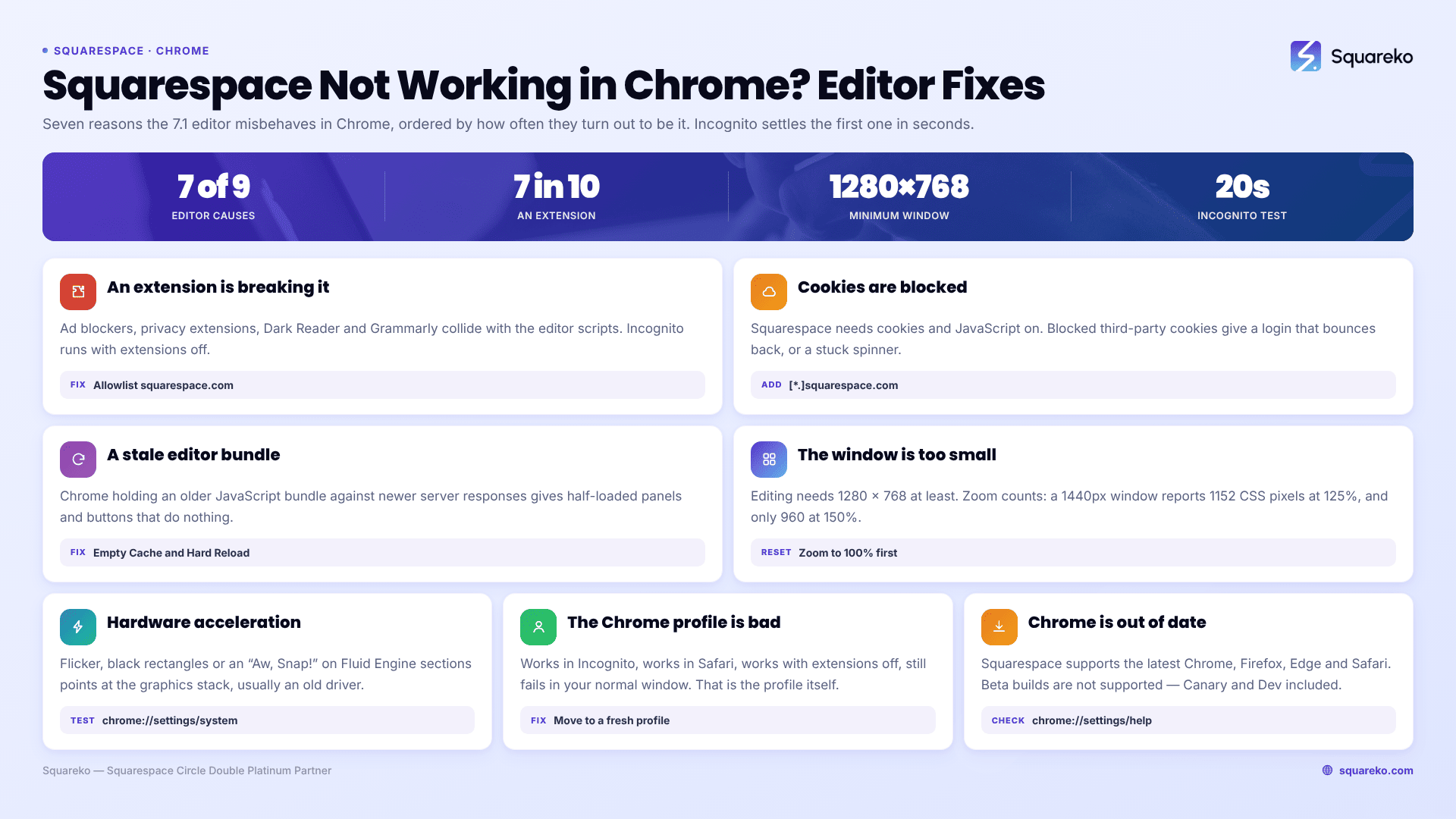
If the Squarespace editor is the thing misbehaving, a Chrome extension is the cause about half the time — ad blockers and privacy extensions strip the scripts the editor needs. Open the same page in an Incognito window, where Chrome disables extensions by default. If it works there, an extension is the culprit and you have your answer in twenty seconds.
Two different problems get typed into Google as the same phrase, so this post takes the Squarespace editor first, then the live site.
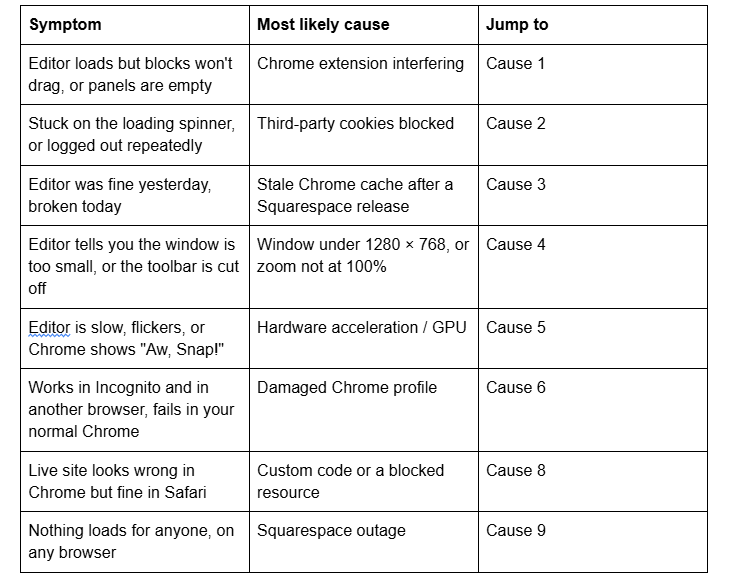
Quick diagnostic table
Cause 1 — A Chrome extension is breaking the Squarespace editor
This is the most common cause by a wide margin, and Squarespace names it directly: "Some browser add-ons and extensions, such as ad blockers and SEO plug-ins, might interfere with editing your Squarespace site."
The Squarespace 7.1 editor is a large JavaScript application that loads assets from several Squarespace domains. Extensions that block trackers, rewrite the DOM, or inject their own UI collide with it. The repeat offenders are ad blockers (uBlock Origin, AdBlock Plus), privacy extensions (Ghostery, Privacy Badger), Dark Reader, Grammarly, and aggressive password managers.
How to confirm it in 20 seconds: open an Incognito window (Cmd + Shift + N on Mac, Ctrl + Shift + N on Windows) and log in to Squarespace there. Chrome runs Incognito with extensions disabled unless you have explicitly allowed each one.
The fix: go to chrome://extensions and switch extensions off in blocks of three or four, reloading the editor each time, until it works. Then narrow to the single one. Most ad blockers let you whitelist a domain rather than disable the extension entirely — add squarespace.com and your own site's domain to the allowlist and leave everything else on.
Cause 2 — Chrome is blocking cookies Squarespace needs
Squarespace is explicit that "Cookies must be enabled in your browser" and "JavaScript must be enabled to edit your site." Blocking either prevents editing.
Chrome still allows third-party cookies by default in normal browsing — Google abandoned its deprecation plan in April 2025 — but it blocks them by default in Incognito, and plenty of people have turned them off manually or inherited a managed-device policy that does it for them. The symptom is a login that appears to succeed and then bounces you back, or an editor that hangs on the spinner.
Check it at chrome://settings/cookies. If "Block third-party cookies" is selected, add an exception for [*.]squarespace.com.
This is also the one case where Incognito is a misleading test: if the editor fails only in Incognito, you have found a cookie problem rather than ruled out an extension problem.
Cause 3 — Chrome is serving a stale copy of the Squarespace editor
Squarespace ships changes to the 7.1 editor continuously. When Chrome holds an older JavaScript bundle alongside newly updated server responses, you get half-loaded panels, buttons that do nothing, and settings that fail to save.
A plain reload is not enough. Hard reload with Cmd + Shift + R (Mac) or Ctrl + Shift + R (Windows). If that fails, open DevTools with F12, right-click the reload button and choose Empty Cache and Hard Reload — that option only appears while DevTools is open. To clear Squarespace alone without logging out of every other site, go to chrome://settings/content/all, search squarespace, and delete those entries.
Cause 4 — Your Chrome window is smaller than Squarespace's minimum
Squarespace requires a browser window of at least 1280 pixels wide by 768 pixels tall to edit a site. Below that, panels overlap, the section toolbar gets clipped, and drag-and-drop in Fluid Engine stops behaving.
The trap is Chrome's zoom level. Zoom changes the effective viewport in CSS pixels: a 1440-pixel window at 125% zoom reports 1152 CSS pixels, and at 150% it reports 960 — both under Squarespace's minimum, on a screen that looks plenty large. Reset zoom with Cmd + 0 (Mac) or Ctrl + 0 (Windows) before concluding anything else is wrong; Squarespace's own browser troubleshooting doc lists the zoom reset for this reason. Half-screen windows on a laptop fail the same test.
Cause 5 — Chrome's hardware acceleration is fighting the editor
If the Squarespace editor flickers, shows black rectangles, or tears as you scroll — or Chrome hits the "Aw, Snap!" crash page whenever you open a Fluid Engine section — the graphics stack is a fair suspect, usually an out-of-date Intel or AMD driver.
Turn it off at chrome://settings/system → Use hardware acceleration when available, relaunch Chrome and retest. If that fixes it, the real repair is a driver update rather than leaving acceleration off — the Squarespace 7.1 editor is noticeably slower without it. chrome://gpu shows which features Chrome has already blocked on your machine.
Cause 6 — Your Chrome profile is damaged
If the Squarespace editor works in Incognito, works in Firefox or Safari, and works after you disable every extension — but still fails in your normal Chrome window — the profile itself is damaged. Test it from the Chrome profile menu → Add → a temporary profile with no extensions and no sync. If Squarespace works there, migrate to the fresh profile rather than trying to repair the old one.
Cause 7 — Chrome is out of date or unsupported
Squarespace supports Chrome, Firefox, Microsoft Edge and Safari on desktop, on the latest version available for your operating system. Beta builds are not supported, which catches people running Chrome Canary or Dev as their daily browser. Check chrome://settings/help — opening it forces an update check. On genuinely old Chrome builds, Squarespace may not serve the HTTPS version of a site at all.
If the problem is your live site rather than the Squarespace editor
Cause 8 — Your live Squarespace site renders differently in Chrome
Squarespace 7.1 renders essentially identically across Chrome, Safari, Firefox and Edge. When a live site looks broken in Chrome specifically, the cause is nearly always something you added, in this order:
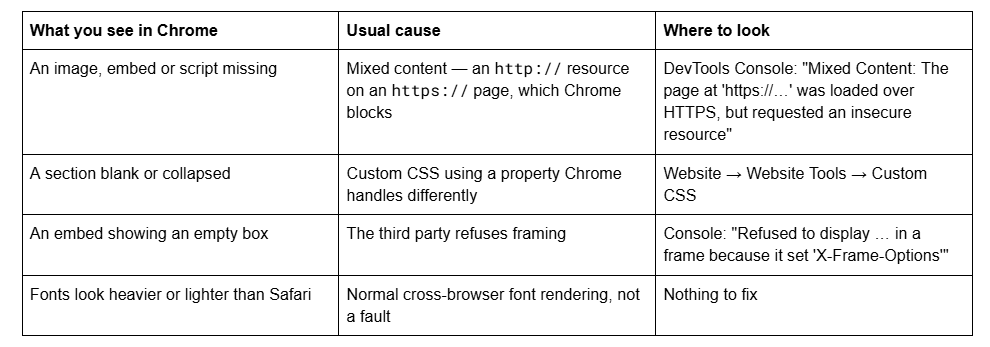
Open DevTools with F12, go to the Console tab, and reload. The first red error names the file. If the Console is clean and the page still looks wrong, the difference is almost certainly your own CSS.
One useful calibration: across 54 Squareko-built sites measured in August 2026 (Playwright/Chromium lab test, cloud datacenter, unthrottled, single run per site), median mobile LCP was 2.01s and median load CLS 0.000. Those measurements are taken in Chromium — the same engine as Chrome. A Squarespace 7.1 site that measures cleanly there but looks broken in your Chrome is pointing at your Chrome, not at the site.
Cause 9 — It isn't Chrome at all
Before spending an hour on Chrome settings, load status.squarespace.com. Platform incidents produce exactly the symptoms people blame on Chrome: a progress bar that stalls near the end, an editor that will not open, a site that half-loads. During a Squarespace 7.1 back-end incident, forum threads fill with identical reports from Chrome and Firefox users within minutes — that overlap is the tell. Ask one person on a different network to load the site; if it fails for them too, it is not your browser.
Still not working?
Work the list in order — extensions, cookies, cache, window size, hardware acceleration, profile, Chrome version — and only then look at the live site. Seven times out of ten the answer is an extension.
If the Squarespace editor works everywhere except your machine and a clean Chrome profile does not fix it, the cause is usually network-level: a corporate proxy, a DNS filter, or antivirus software intercepting HTTPS and breaking script loading.
That's the kind of thing our Squarespace website support plans exist for. No obligation either way — the nine causes above resolve the overwhelming majority of Chrome-specific Squarespace problems without any help from us.
FAQ
-
Most often a browser extension. Squarespace names ad blockers and SEO plug-ins specifically, and privacy extensions, Dark Reader and Grammarly behave the same way. Open Squarespace in an Incognito window, where Chrome disables extensions by default. If the editor loads there, disable extensions in chrome://extensions until you find the one responsible.
-
es, and it's the fastest diagnostic available because extensions are off by default. One caveat: Chrome also blocks third-party cookies in Incognito, and Squarespace requires cookies to edit a site. So if Squarespace fails only in Incognito, you've found a cookie issue rather than ruled out an extension.
-
Chrome, Firefox, Microsoft Edge and Safari on desktop, on the latest version available for your operating system. Beta builds such as Chrome Canary are not supported. Squarespace also requires a browser window of at least 1280 pixels wide by 768 pixels tall to edit a site.
-
Squarespace 7.1 renders near-identically across modern browsers, so a genuine Chrome-only difference is nearly always custom code or a blocked resource. Check the DevTools Console for mixed-content warnings, then check your Custom CSS panel. Small differences in font weight are normal cross-browser rendering and not a fault.
-
Hard reload with Cmd/Ctrl + Shift + R first. If that isn't enough, open DevTools with F12, right-click the reload button and choose Empty Cache and Hard Reload. To clear only Squarespace, go to chrome://settings/content/all, search for squarespace, and delete those entries.
-
Usually hardware acceleration with an outdated graphics driver. Turn it off at chrome://settings/system under "Use hardware acceleration when available", relaunch Chrome, and test. If that resolves it, update your graphics driver and switch acceleration back on — the Squarespace 7.1 editor is much slower without it.

Author Bio
I'm Walid Hasan, a Certified Squarespace Expert and Squarespace Circle Platinum Partner with over 12 years of hands-on experience designing and optimizing high-performing websites. Over the years, I've had the privilege of building more than 2,000 Squarespace websites for clients around the world, always focusing on clean design, strong user experience, and conversion-driven results.
