
Squarespace Page Loading Blank? Recovery Steps
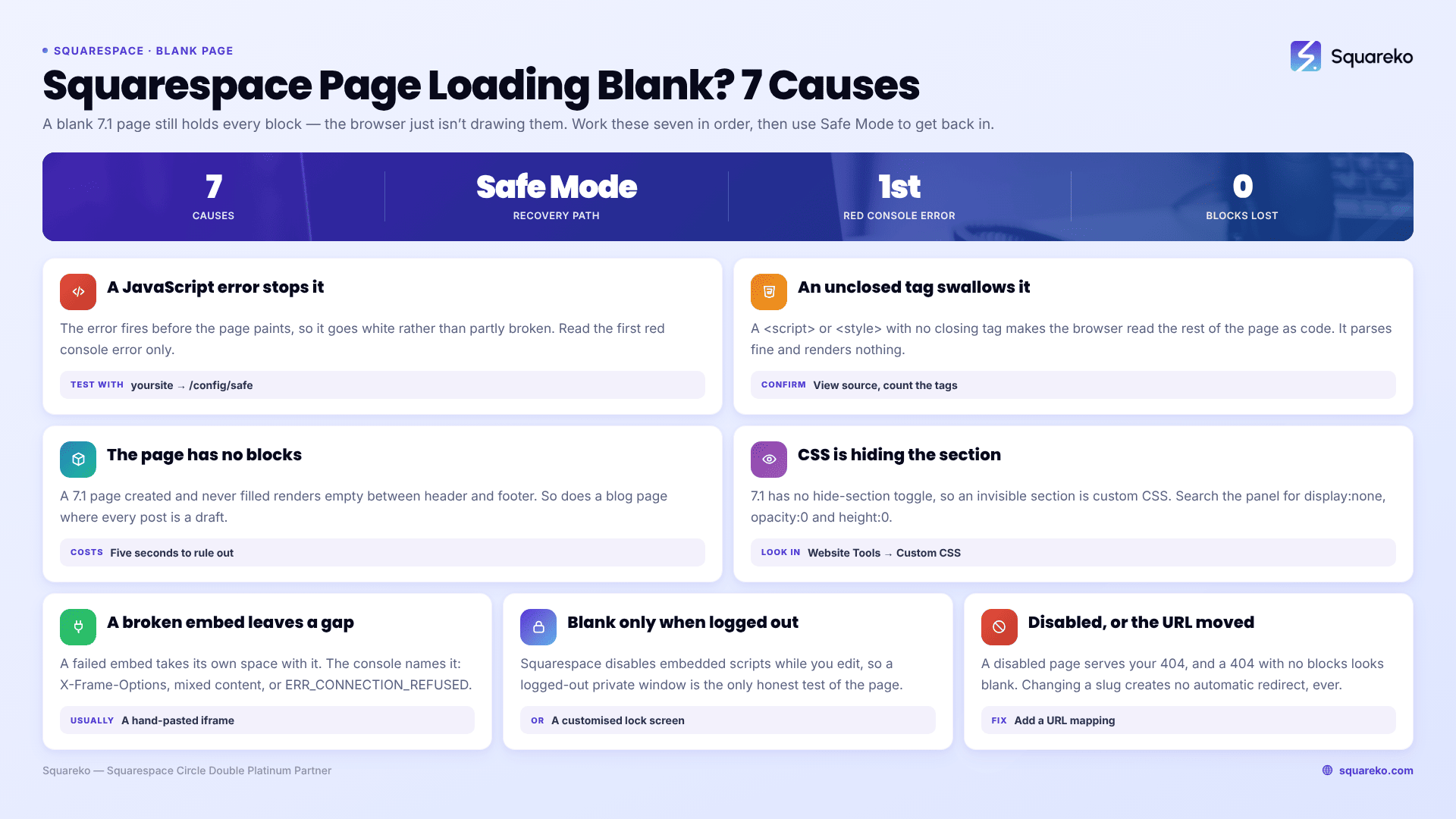
A blank Squarespace page is almost always custom code you added, not a Squarespace fault, and almost always fully recoverable. Two mechanisms cause it: a JavaScript error thrown before the page finishes rendering, and an unclosed <script> or <style> tag in a Code Block that swallows the rest of the document. Test it in thirty seconds by loading yoursite.squarespace.com/config/safe, which disables custom scripts. If the page comes back, your code is the cause.
Nothing here deletes content. A Squarespace 7.1 page that renders blank still holds all its blocks — the browser just isn't drawing them.
Quick diagnostic table
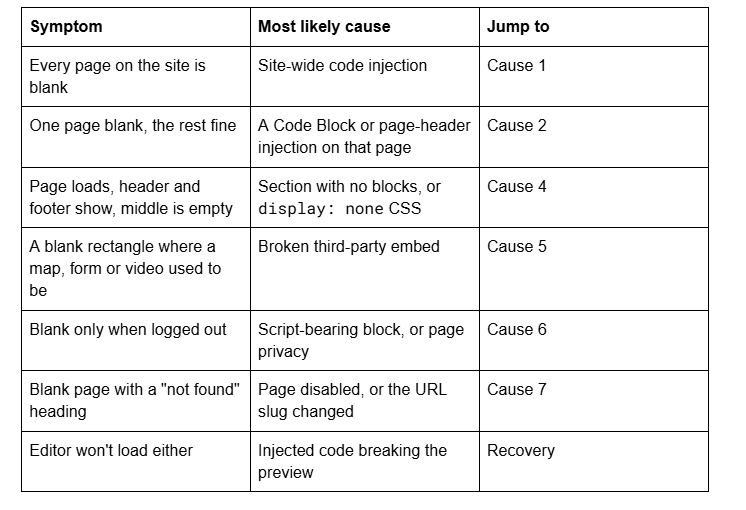
Cause 1 — A JavaScript error from injected code stops the page rendering
This is the leading cause of a blank Squarespace page. It produces a white page rather than a partly broken one because the error fires before the page finishes painting.
Confirm it in the browser console. Open the page in Chrome, press F12, click the Console tab, and reload. Read the first red error, not the last — everything below it is usually a knock-on effect. The three most common:
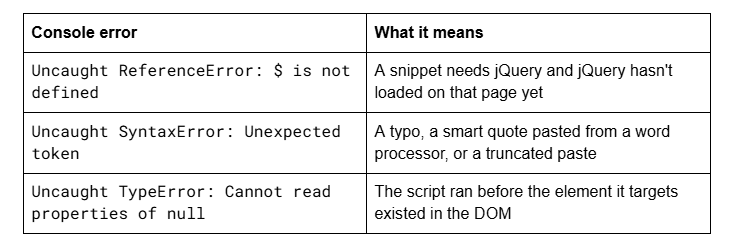
There is also a silent killer: document.write() called after the page has loaded. The browser wipes the entire document and replaces it with whatever was written. Old ad, chat and analytics snippets still do this, and nothing appears in the console — the page just goes white.
Test with Safe Mode. Add /safe to the end of your config URL: yoursite.squarespace.com/config/safe. Squarespace disables custom scripts in the preview and shows "Scripts have been disabled on your site preview." If the page renders there, injected code is confirmed as the cause.
Cause 2 — An unclosed tag in a Code Block swallows the rest of the page
This produces the cleanest blank page of all, and it needs no JavaScript error to do it. An unclosed <script> or <style> tag means the browser treats everything after it — your page content, the footer, the closing markup — as script or CSS text. It parses fine. It renders nothing. Squarespace does not validate what you put in a Code Block, so nothing warns you.
The common variants, in rough order of frequency:
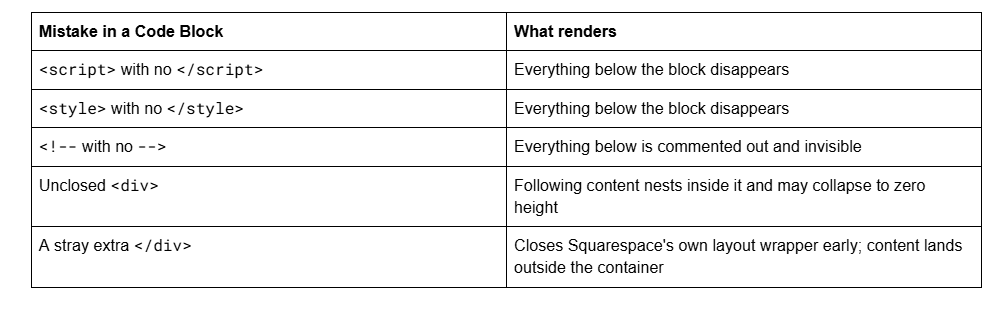
How to confirm: view the page source (Cmd + Option + U on Mac, Ctrl + U on Windows) and search for <script. If the opening and closing tag counts don't match, that's it. In the editor, switch the Code Block's Display Source toggle on temporarily — the code renders as visible text instead of executing, which is a safe way to read it. Fix the tag, save, and check the live page logged out.
Cause 3 — The page has no content blocks
Worth ruling out first, because it costs five seconds. A Squarespace 7.1 page created and never filled renders as a blank content area between header and footer — correct behaviour, not a fault.
The version that catches experienced users: a blog page where every post is in Draft or scheduled for a future date renders empty with no error, as does a section whose only block was deleted rather than the section itself. Open the page in the editor — if the section outlines are there but empty, that's your answer.
Cause 4 — CSS is hiding the section
Squarespace 7.1 has no native toggle to hide a section, so a section that exists in the editor but is invisible on the live site is being hidden by custom CSS — usually a rule someone added deliberately months ago and forgot. Open Website → Website Tools → Custom CSS and search the panel for these four:
display: none;
visibility: hidden;
opacity: 0;
height: 0;
Any of them applied to a section, a #collection- ID or a #block- ID hides content that is genuinely still there. Comment the rule out with /* */ rather than deleting it, in case it turns out to be load-bearing.
A related trap that isn't CSS: text set to the same colour as the section background. Drag-select across the "blank" area — if text highlights, that's it.
Cause 5 — A broken embed leaves a blank area
A failed embed takes its own space with it, so a page built around a booking widget, map or video can look almost entirely blank. The browser console names the cause:
Refused to display '…' in a frame because it set 'X-Frame-Options' to 'sameorigin' — the third party won't allow embedding.
Mixed Content: The page at 'https://…' was loaded over HTTPS, but requested an insecure resource 'http://…' — change the embed URL to https://.
Failed to load resource: net::ERR_CONNECTION_REFUSED — the service is down; nothing to fix on your side.
Squarespace's Embed Block handles most services correctly; these errors nearly always come from a hand-pasted iframe.
Cause 6 — The page is only blank when you're logged out
If the page looks right in the editor and blank to visitors, it's usually one of two things.
Script-bearing blocks behave differently. Squarespace disables embedded scripts while you are logged in and editing, with the message "This block contains embedded scripts. Embedded scripts are disabled while you're logged in and editing your site." If the page is built around such a block, the logged-out version in a private window is the only honest test.
Or it isn't blank, it's locked. Squarespace page passwords and site-wide privacy show a lock screen — but a lock screen customised down to nothing looks identical to a blank page. Check Settings → Site Availability, and the Pages panel for the individual page.
Cause 7 — The page is disabled, or the URL changed
A disabled page in Squarespace 7.1 doesn't render blank — it serves your 404 page. Squarespace's documentation is precise: "Disabled pages appear in your pages panel when logged in, but they won't appear on your site's navigation or be accessible by public visitors or search engines."
If your site uses a custom 404 page with no content blocks on it, a disabled page and a changed URL both look exactly like a blank page. In the Pages panel, hover the page → gear icon → confirm Enable Page is on. Note too that changing a page or blog post slug in Squarespace creates no automatic 301 redirect, ever.
Recovery: getting back into a page whose editor won't load either
This is the situation that makes a blank page frightening, and it has a defined path.
1. Open Safe Mode. Go to yoursite.squarespace.com/config/safe. Squarespace runs the editor with custom scripts disabled, and you can edit normally from there. If the preview was failing with "We detected an error loading your site preview. This is usually caused by injected code.", this is exactly the tool for it.
2. Empty the code injection fields one at a time. In Safe Mode, go to Website → Website Tools → Code Injection. Cut the Header contents into a text file, save, reload. If the page returns, the fault is in what you cut. Repeat for Footer, then per-page injection at Pages panel → gear icon → Advanced.
3. Clear the Custom CSS panel. Safe Mode disables scripts, not CSS. If the page is still blank, cut all of Website → Website Tools → Custom CSS into a text file, save, then paste it back in halves to find the rule.
4. Delete the offending Code Block last, once the editor works again.
Squarespace 7.1 keeps no version history for pages, so save your removed code into a text file before deleting anything. That five-second habit is what makes this fully reversible.
Still not working?
Work the list in order — console error, unclosed tag, empty section, hidden CSS, broken embed, logged-out state, disabled page — then Safe Mode. Nearly every blank Squarespace page is one bad line of injected code, and the page returns the moment it's removed.
If Safe Mode renders the page but you cannot find which snippet is responsible — usually on a site that has accumulated code from several people over several years — that's the kind of thing our Squarespace website support plans exist for. No obligation either way; the seven causes above account for nearly every blank page we're sent.
FAQ
-
Almost always injected code. Either a JavaScript error stops the page rendering before it paints, or an unclosed <script> or <style> tag in a Code Block causes the browser to treat the rest of the page as code. Open the browser console with F12 and read the first red error.
-
Add /safe to the end of your config URL: yoursite.squarespace.com/config/safe. Squarespace disables custom scripts in the preview and confirms with "Scripts have been disabled on your site preview." If a blank page renders normally in Safe Mode, injected code is the cause. Re-enable scripts when you're done.
-
Yes. Safe Mode is the route in — it loads the editor with custom scripts disabled. From there, empty the Header and Footer fields in Website → Website Tools → Code Injection one at a time, saving your removed code to a text file first. Squarespace 7.1 keeps no page version history.
-
Squarespace 7.1 has no native hide-section toggle, so an invisible section is nearly always custom CSS. Search your Custom CSS panel for display: none, visibility: hidden, opacity: 0 and height: 0. Also check whether the text colour matches the section background — the content may simply be unreadable.
-
No. Password-protected pages and private sites show a lock screen, and a disabled page serves your 404 page. However, a heavily customised lock screen or a 404 page with no content blocks both look identical to a blank page, so check Settings → Site Availability and the page's Enable Page toggle.
-
No. A blank Squarespace 7.1 page still contains every block — the browser is failing to render them, not deleting them. Content is only lost if a page or section is actually deleted, and Squarespace has no page-level undo, which is why removed code should be saved to a text file first.

Author Bio
I'm Walid Hasan, a Certified Squarespace Expert and Squarespace Circle Platinum Partner with over 12 years of hands-on experience designing and optimizing high-performing websites. Over the years, I've had the privilege of building more than 2,000 Squarespace websites for clients around the world, always focusing on clean design, strong user experience, and conversion-driven results.
