
Squarespace Site Styles Not Working? Where the Override Is Hiding
Something further down the cascade is beating Site Styles, and in most cases it is Custom CSS you or a previous designer added. Squarespace 7.1 loads the Custom CSS panel after the generated Site Styles stylesheet, so an equally specific rule there always wins. The second most common cause is a section-level colour theme, which overrides the global palette for that one section only.
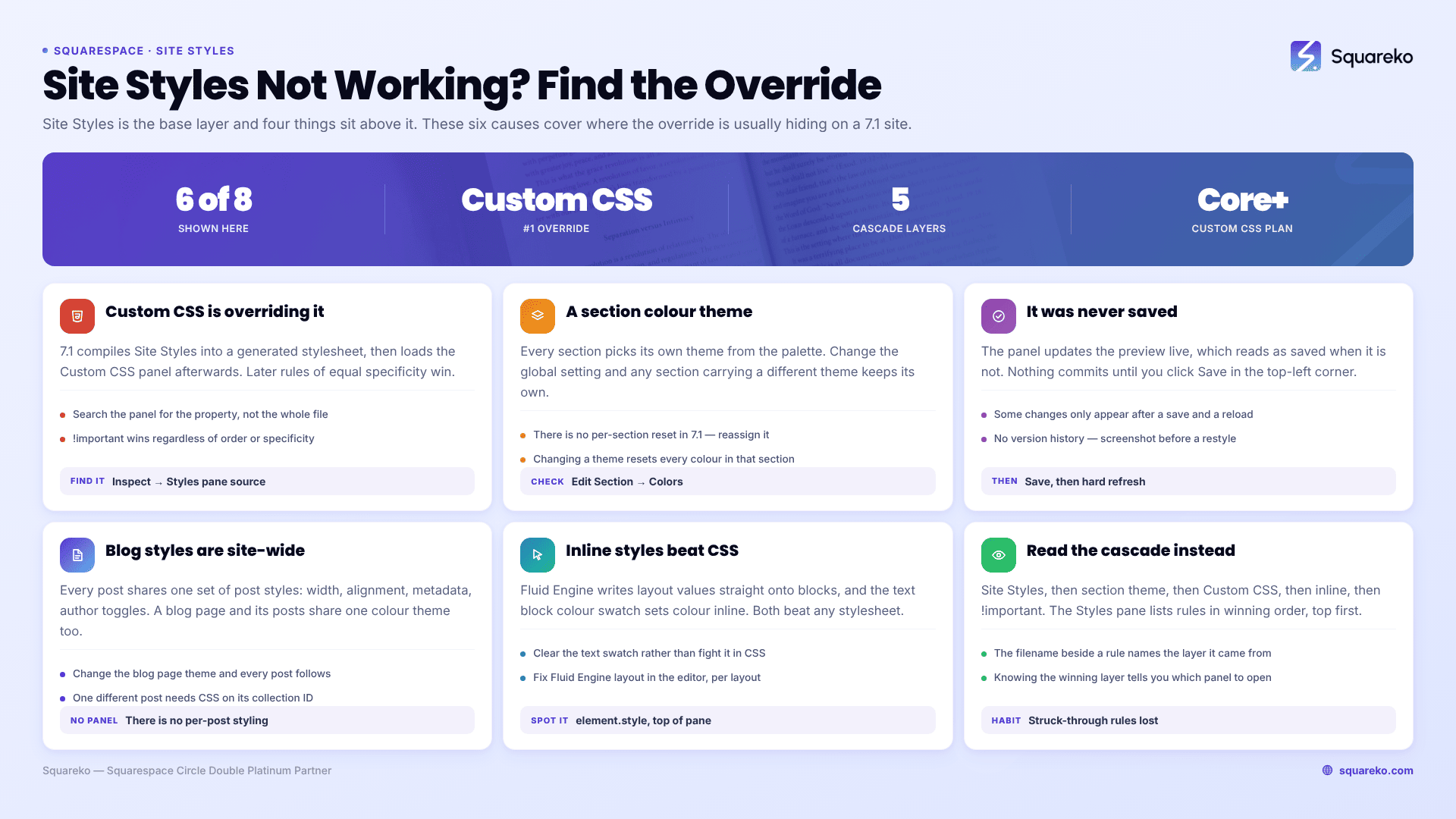
Here are the eight causes, ordered by how often they turn out to be the problem.
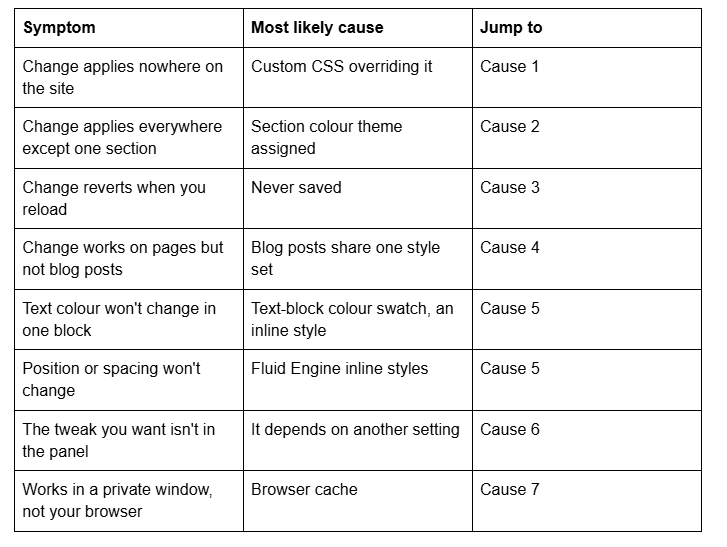
Quick diagnostic table
Cause 1 — Custom CSS is overriding Site Styles
This is the single most common cause. Squarespace 7.1 compiles your Site Styles selections into a generated stylesheet, then loads the Custom CSS panel afterwards. Later rules of equal specificity win, so a one-line CSS rule quietly overrides a setting you keep changing in the Site Styles panel and keep watching not take effect.
Anything with !important in it makes this worse, because it wins regardless of source order or specificity.
How to confirm it in 20 seconds: right-click the element → Inspect → look at the Styles pane. If the winning rule's source is your Custom CSS rather than a Squarespace-generated stylesheet, that is your override.
The fix: open Website → Website Tools → Custom CSS and remove or narrow the offending rule. On an inherited site, search the panel for the property name — font-family, background-color, color — rather than reading the whole file.
Note the plan requirement: the Custom CSS panel needs Core plan or above. If a site is on Basic and Site Styles still isn't applying, Custom CSS is not your cause and you can skip straight to Cause 2.
Cause 2 — A section-level colour theme is overriding the global palette
Squarespace 7.1 assigns a colour theme to every section independently. Site Styles sets the palette and the default theme; each section then picks one theme from that palette. Change the global setting and any section carrying a different theme keeps its own.
How to confirm it: open the page → hover the section → click Edit Section or the pencil icon → open the Colors tab. Whatever is selected there is what that section is using.
Two things about section themes that catch people out:
You cannot reset an individual section to default in Squarespace 7.1. You reassign it to the theme you want; there is no per-section reset.
Changing a section's colour theme resets every colour in that section, including text colours set with the colour swatch in the text block toolbar.
This is also why "my font colour changed everywhere except the hero" is nearly always a theme assignment rather than a CSS problem.
Cause 3 — The style change was never saved
Squarespace 7.1's Site Styles panel updates the preview live, which reads as saved when it isn't. Nothing is committed until you click Save in the top-left corner of the editor.
There is a second trap: the Help Center notes that although most style changes update the preview immediately, in some instances you need to save and refresh before the change appears. So a change that looks like it failed may simply be waiting on a reload.
How to confirm it: save, hard refresh the live page in a private window, and look again before you diagnose anything else.
Saving in Squarespace 7.1 is one-way. There is no version history for Site Styles — you can revert to default styles, but you cannot roll back to yesterday's settings. On a client site, screenshot the panel before a large restyle.
Cause 4 — Blog post styles are shared, not per-post
Blog post styling in Squarespace 7.1 is site-wide. Every post on the site shares one set of post styles: content width, text alignment, metadata position, and the toggles for categories, date, author name and author profile. There is no per-post styling panel.
Colour works differently again. A blog page and all of its posts share the same colour theme — change the blog page's theme and every post's theme changes with it, and vice versa. That coupling is the answer to most "I changed my blog page and my posts went dark" reports.
How to confirm it: open any post → Edit → click the pencil icon on the post section. What you see there applies to every post on the site.
If you need one post to look different, that is a Custom CSS job targeting the post's collection ID or a page-type body class — not something Site Styles can do.
Cause 5 — Inline styles are beating your stylesheet
Inline styles beat every stylesheet rule regardless of specificity. In Squarespace 7.1 two features write them:
Fluid Engine writes layout and positioning values directly onto blocks as style="...". That is why a section's spacing or a block's position resists both Site Styles and Custom CSS.
The text block colour swatch applies a colour inline on that specific text, which is why one paragraph keeps its old colour after a palette change.
How to confirm it: in the inspector, an inline style appears at the very top of the Styles pane under element.style.
The fix for text colour is to clear the swatch in the text block toolbar rather than fight it. The fix for Fluid Engine layout is normally the editor — adjust the block in the layout it belongs to. Where CSS is genuinely the right tool, !important is the only thing that overrides an inline style:
/* Overriding a Fluid Engine inline value — use sparingly */
.sqs-block-image { margin-top: 0 !important; }
Remember that Fluid Engine keeps separate desktop and mobile layouts per section, so a fix applied to one does not carry to the other.
Cause 6 — The tweak only appears once a prerequisite is set
Several Site Styles options in Squarespace 7.1 are conditional. They do not exist in the panel until the setting they depend on is chosen — Aspect Ratio for galleries, for example, only appears once the gallery design is set to Grid.
Site Styles is also page-aware. The panel shows options relevant to the page currently open in the preview, so a blog-specific or gallery-specific tweak simply will not be listed while you have the homepage open.
The fix: open the page whose styles you want to edit first, then open Site Styles — via the paintbrush icon in the top-right while editing, or Website → Design → Site styles. If a tweak still isn't there, it is gated behind another selection rather than missing.
Cause 7 — Browser cache
Squarespace 7.1 serves stylesheets through a CDN with long cache lifetimes, and the editor itself caches aggressively. Both a stale live page and a Site Styles panel that has partly stopped responding are common symptoms.
Hard refresh first: Cmd + Shift + R on Mac, Ctrl + Shift + R on Windows. If the panel itself is misbehaving — missing controls, fonts that won't change — clear the browser cache and log back in. That specific fix resolves a large share of "Site Styles is broken" forum reports.
Check a second device before concluding anything. Cache problems are per-browser; a genuine style problem fails everywhere.
Cause 8 — Trace the layers instead of guessing
When you can't tell which layer is winning, stop changing settings and read the cascade. In Squarespace 7.1 the order runs like this, lowest priority first:
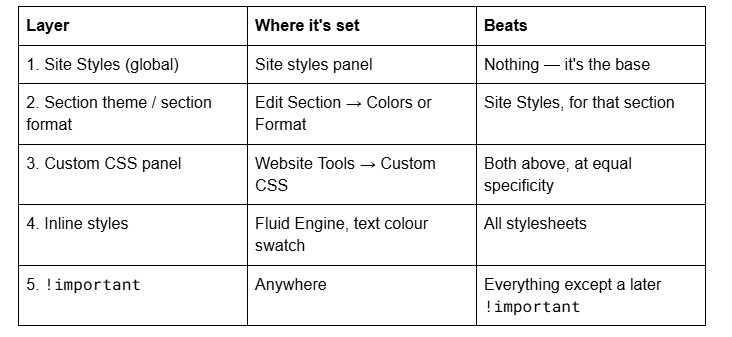
How to read it: right-click the element → Inspect → Styles pane. Rules are listed in winning order, top first. Anything struck through has lost. The filename beside each rule tells you which layer it came from — a Squarespace-generated stylesheet, your Custom CSS, or element.style for inline.
That one habit replaces most of this list. If you know which layer is winning, you know which panel to open.
Still not working?
Work the list in order — Custom CSS, section theme, save state, blog sharing, inline styles, conditional tweaks, cache. Seven times out of ten the answer is in the first two, and the inspector tells you which within seconds.
If Site Styles is still being overridden after all eight, it is usually a genuine conflict between accumulated Custom CSS and the 7.1 generated stylesheet on a site that has passed through several designers. Untangling that means reading the cascade properly rather than adding another !important.
That's the kind of thing our Squarespace website support plans exist for — most style-conflict jobs we're sent get diagnosed and fixed inside a single support block. No obligation either way; the eight causes above resolve the overwhelming majority of cases on their own.
FAQ
-
Most often Custom CSS is overriding them. Squarespace 7.1 loads the Custom CSS panel after the generated Site Styles stylesheet, so an equally specific rule there wins. Inspect the element and check whether the winning rule comes from your Custom CSS or from a Squarespace-generated stylesheet.
-
That section has a different colour theme assigned. In Squarespace 7.1 every section carries its own theme from the site palette. Open the page, hover the section, click Edit Section, and check the Colors tab. There is no per-section reset — you reassign the theme you want.
-
Click the paintbrush icon in the top-right corner while editing any page, or go to Website → Design → Site styles. Open the page you want to style before opening the panel, because Site Styles shows options relevant to the page currently in the preview.
-
Blog post styles in Squarespace 7.1 are site-wide — every post shares one set of format settings, and there is no per-post panel. A blog page and its posts also share a colour theme, so changing one changes the other. Per-post styling needs Custom CSS.
-
The text block colour swatch applies an inline style, which beats every stylesheet rule regardless of specificity. Clear the swatch in the text block toolbar rather than fighting it with CSS. Changing the section's colour theme also resets swatch-applied text colours.
-
Right-click the element and choose Inspect. The Styles pane lists rules in winning order with the losing ones struck through, and names the source file for each — a Squarespace-generated stylesheet, your Custom CSS, or element.style for inline styles from Fluid Engine.

Author Bio
I'm Walid Hasan, a Certified Squarespace Expert and Squarespace Circle Platinum Partner with over 12 years of hands-on experience designing and optimizing high-performing websites. Over the years, I've had the privilege of building more than 2,000 Squarespace websites for clients around the world, always focusing on clean design, strong user experience, and conversion-driven results.
