
Will That Plugin Work with Squarespace? A Compatibility Checklist
Squarespace has no plugin architecture. What the market calls a "Squarespace plugin" is CSS and JavaScript you paste into your own site, written against Squarespace's markup by someone with no contract with Squarespace. That means compatibility is never guaranteed by anyone, and the only useful question is how much risk a particular plugin carries. These ten checks answer that in about fifteen minutes.
Run them as gates. Checks 1 to 4 disqualify outright. Checks 5 to 10 are judgement, and they are where the long-term cost actually sits.
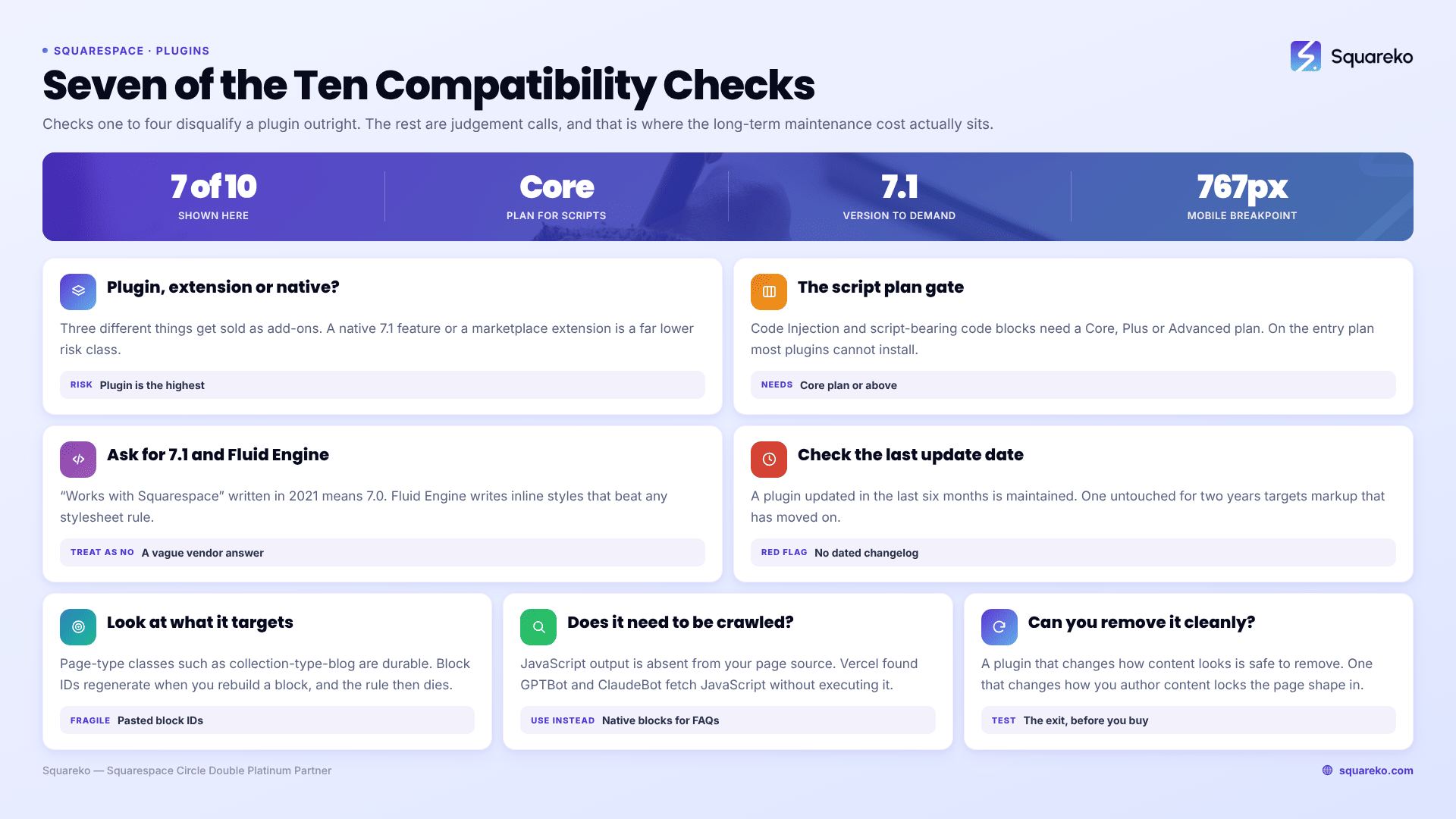
The checklist in one screen
Is it a plugin, an extension, or a native feature? — a native feature or marketplace extension is a different risk class entirely.
Does it need a <script>? — if yes, you need a Core plan or above.
Does the vendor explicitly support Squarespace 7.1 and Fluid Engine? — "works with Squarespace" written in 2021 means 7.0.
When was it last updated? — a plugin untouched for two years is written against markup that has moved.
What does it target — stable classes or block IDs? — block IDs regenerate; page-type classes don't.
Is the content it renders visible in your page source? — client-side rendering means most AI crawlers never see it.
What does it cost in page weight and requests? — measure, don't assume.
Where does it install, and what is the blast radius? — site-wide injection breaks every page at once.
Who supports it, on what terms, and for how many sites? — Squarespace supports none of it.
Can you remove it cleanly? — some plugins leave markup and settings behind.
1. Establish what you are actually buying
Three different things get sold as Squarespace add-ons, and they carry completely different risk.
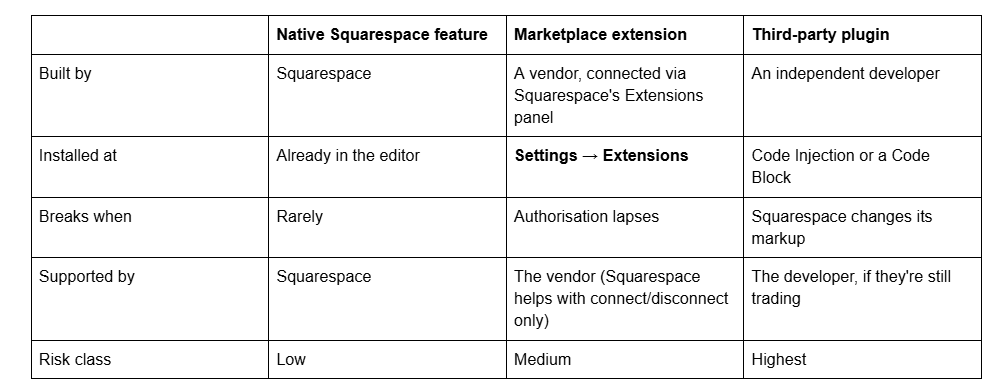
Always check whether Squarespace 7.1 now does the thing natively before buying. Accordions, lightbox galleries, product variants, member areas and video backgrounds have all arrived natively in recent years, and plenty of people still pay for plugins that duplicate them. Where a marketplace extension exists for the job — inventory sync, tax, shipping, accounting — take the extension over a plugin every time. Extensions fail in one predictable way, documented in Squarespace extension not working.
2. Check the script plan gate before anything else
Almost every Squarespace plugin is JavaScript, and JavaScript needs one of two homes: Settings → Advanced → Code Injection, or a Code Block in the page. Both are gated.
Code Injection requires a Core, Plus or Advanced plan, or a legacy plan of equivalent tier. Code blocks containing a <script> need the same. On the entry-level Squarespace plan, most plugins simply cannot be installed, and no vendor workaround changes that.
A second consequence surfaces only after buying: script-bearing code blocks are disabled while you are logged in and editing your site, with the message "This block contains embedded scripts. Embedded scripts are disabled while you're logged in and editing your site." Your plugin will look broken in the editor and work fine live. Budget for that confusion rather than treating it as a fault. The Custom CSS panel — Website → Website Tools → Custom CSS — carries the same Core-plan requirement if you plan to style the output.
3. Demand an explicit 7.1 and Fluid Engine statement
"Compatible with Squarespace" is not a compatibility claim. Squarespace 7.0 and 7.1 have different markup, different class names and different section structure, and a plugin written for 7.0 template families frequently matches nothing at all in 7.1.
Look on the vendor's product page for the version stated in words: 7.0, 7.1, or both. Reputable Squarespace plugin shops list this per product, and some list Fluid Engine separately because it is a genuinely distinct case — Fluid Engine writes inline positioning styles directly onto elements, and inline styles beat any stylesheet rule regardless of specificity. A plugin that repositions or resizes anything inside a Fluid Engine section is fighting inline styles it did not expect.
If the product page does not say, ask before buying and treat a vague answer as a no. A maintained plugin's developer answers this in one sentence.
4. Check the last update date
Squarespace ships changes to its front-end markup continuously and does not publish a changelog for class names. Every plugin is therefore in a slow race against the platform, and the only visible proxy for whether the developer is still running is a recent update.
A plugin updated in the last six months is being maintained. One untouched for two years is not a bargain, it is a liability with a purchase price. Check the vendor's changelog, their blog, or the date on their documentation — and if a plugin shop has no dated changelog at all, that is itself the answer. Squarespace's plugin market is made of very small businesses, and a shop that has stopped publishing has usually stopped supporting.
5. Look at what the plugin targets
If the vendor publishes their code, or you can read it after purchase, spend two minutes on the selectors. This is the single best predictor of how long a plugin will keep working.
Durable targets — page-type body classes like collection-type-blog, collection-type-page and collection-type-products, and collection IDs. Squarespace does not regenerate these.
Fragile targets — block IDs of the form #block-yui_3_17_2_1_1699887432_12345. These are generated per block, and Squarespace mints a new one if you delete and rebuild the block. A plugin that asks you to paste block IDs into a settings object works fine until the day you rebuild a section, then fails silently.
Very fragile targets — deep descendant chains through Squarespace's own utility classes, which change without notice and take the plugin with them.
A plugin that asks for block IDs is not disqualified — sometimes that is the only way to target one element — but it tells you maintenance will be your job. Leave a comment saying which block each ID refers to, so a broken rule is diagnosable six months later.
6. Decide whether the content needs to be crawlable
This is the check almost nobody runs, and the one with lasting SEO consequences.
Anything a JavaScript plugin renders is injected after the HTML is delivered, so it does not exist in your page source. Googlebot renders JavaScript and will usually see it, on a delay. Most AI crawlers do not: Vercel's crawler-traffic analysis found GPTBot fetched JavaScript files without executing them, and ClaudeBot downloaded JavaScript and never executed it. Client-side rendered content is invisible to whatever share of your discovery now happens through AI answers.
Apply the test by purpose:
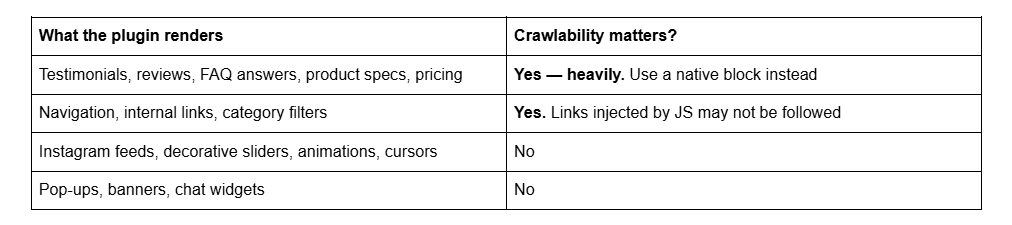
Squarespace's native Accordion block renders server-side, so question and answer text inside it is crawlable. That makes it the right tool for an FAQ regardless of how good a plugin's accordion looks.
How to check any plugin in ten seconds: load the live page logged out, view source (Ctrl/Cmd + U), and search for a phrase the plugin renders. If it is not in the source, no crawler that skips JavaScript execution will ever see it.
7. Measure the performance cost rather than guessing
Every plugin adds requests, and requests are where Squarespace sites get slow. For context, across 54 Squareko-built client sites measured in August 2026 (Playwright/Chromium lab test, cloud datacenter, unthrottled, single run per site, load-only CLS), the median page weight was 3.0 MB across 93 requests. A plugin that pulls in jQuery plus two font files plus a stylesheet plus its own bundle is a meaningful percentage of that on a page that was previously fine.
Three costs to look for specifically:
Extra libraries. A plugin loading its own copy of jQuery or GSAP when another plugin already loaded one is paying twice.
Render-blocking scripts in the header. A script injected site-wide runs on every page, whether or not the plugin is used there.
Layout shift. Content injected after paint pushes the page around. In the same measurement set, median mobile CLS was 0.000 with 94% under 0.1, but desktop was weaker at 0.029 with only 80% good — and injected content moves that number the wrong way.
Take a Lighthouse reading before installing and after. That before-and-after, on your own site, beats any vendor claim.
8. Understand the blast radius of where it installs
Where a plugin's code lives determines what happens on the day it breaks.
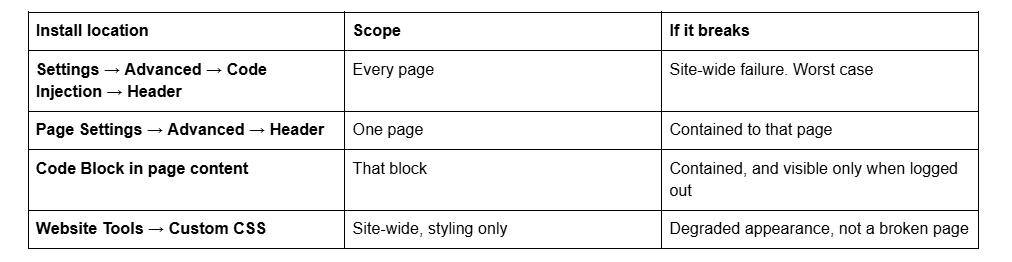
Prefer the narrowest scope the plugin will tolerate. A plugin used on one landing page belongs in that page's advanced header injection, not the site-wide one, even if the vendor's instructions say otherwise — vendors default to site-wide because it produces fewer support tickets, not because it is safer for you.
Keep a plain-text record of every plugin, its version, where its code lives and what it does. On a site with six plugins across three injection points, that document is the difference between a ten-minute diagnosis and an afternoon.
9. Read the support and licence terms properly
Start from the fact that Squarespace supports none of this. Their position is stated plainly: code-based customisations fall outside the scope of their support, they cannot guarantee functionality or full compatibility with Squarespace, and they cannot help with setup or troubleshooting. That is policy, not attitude. Your only support channel is the developer.
So the terms matter more than they would elsewhere:
Licence scope. One site or unlimited? Most Squarespace plugins are per-site, and agencies routinely discover this on the third client.
One-time or subscription. One-time purchases dominate at the $15–$60 end. Neither model is wrong, but a one-time purchase with no ongoing revenue is a weaker guarantee of future maintenance.
Support window and refunds. Some shops offer lifetime support, some six or twelve months. Digital code is often non-refundable — check before, not after.
What happens if the shop closes. You keep the code, because it is already in your site. You lose updates, and an unmaintained plugin is a future outage.
10. Confirm you can remove it cleanly
Test the exit before you need it. A well-built Squarespace plugin removes by deleting the code you pasted, and the page returns to how it was. A badly built one has asked you to restructure your content — headings in a specific order, wrapper text, renamed blocks — and removing the code leaves a page that no longer makes sense.
The rule of thumb: a plugin that changes how existing Squarespace content looks is safe to remove. One that changes how you author content is not, because the content is now shaped around it. Price that lock-in in.
Test it properly before it goes near your live site
Four steps, in order, on every plugin:
Duplicate the site first. Squarespace lets you duplicate a site from the Settings panel; a duplicate on trial costs nothing and is the only genuinely safe place to test.
Install exactly one plugin at a time. Two at once and you cannot attribute a break.
Check logged out, in a private window. Script-bearing code blocks are disabled while you are logged in, so the editor tells you nothing.
Check mobile. Squarespace 7.1's mobile breakpoint is 767px, and Fluid Engine keeps separate desktop and mobile layouts per section. A plugin that positions elements can behave completely differently below that breakpoint.
Then leave it a week before rolling it out everywhere. The failures that are not immediately visible tend to surface on a page type you did not test, which is why the seven-day gap is worth more than another hour of testing on day one.
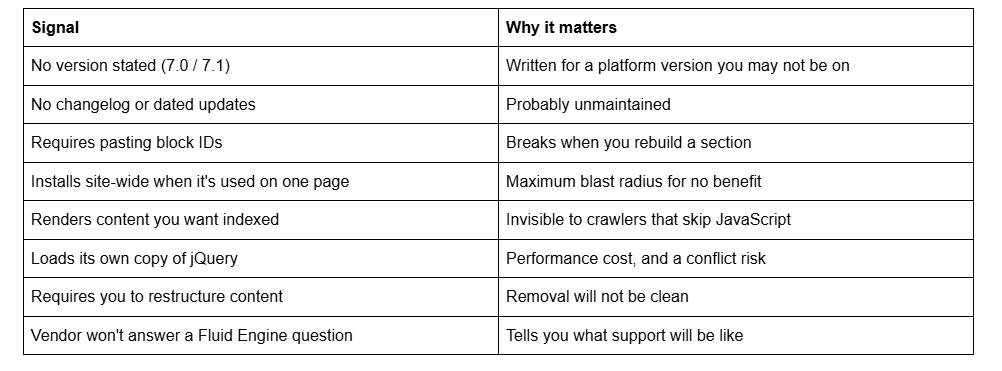
The red flags, in one list
Making the call
Once the gates are clear, most plugin decisions come down to two questions: is there a native Squarespace 7.1 feature or a marketplace extension that does 80% of this, and does the content it produces need to be readable by a crawler. If the first is yes, take it. If the second is yes, use native blocks and accept a less impressive design.
Where a plugin genuinely is the right answer — and it often is, for filtering, mega menus, advanced galleries and commerce UX — buy the maintained one from a shop that publishes dates, install it in the narrowest scope that works, and write down what you did.
If you've inherited a Squarespace site with an undocumented pile of injected code and want to know what is safe to remove, that's the kind of audit our Squarespace website support plans cover. The ten checks above will get most decisions right on their own, though — they are the same ones we run.
FAQ
-
No. Squarespace states that code-based customisations fall outside the scope of their support, that they cannot guarantee functionality or full compatibility, and that they cannot help with setup or troubleshooting. Your only support channel is the plugin's developer, which is why their support terms matter more than usual.
-
Core or above. Code Injection requires a Core, Plus or Advanced plan or a legacy equivalent, and code blocks containing a script need the same. The Custom CSS panel carries the same requirement. On the entry-level plan most plugins cannot be installed at all.
-
Some do. Squarespace changes its front-end markup continuously without publishing a class-name changelog, so any plugin targeting Squarespace's own classes is in a slow race with the platform. Plugins targeting page-type body classes survive longest; those relying on block IDs are the most fragile.
-
Only when they render content you want indexed. Anything injected by JavaScript is absent from your page source, and while Googlebot renders JavaScript, most AI crawlers do not execute it. Use native blocks for testimonials, FAQs, reviews and pricing; plugins are fine for decorative and interactive elements.
-
Not automatically. Fluid Engine writes inline positioning styles directly onto elements, and inline styles beat every stylesheet rule regardless of specificity. A plugin that moves or resizes anything inside a Fluid Engine section needs to have been written for it. Ask the vendor explicitly before buying.
-
An extension is a third-party service connected through Settings → Extensions that syncs data such as orders, inventory or tax, and it fails in one predictable way. A plugin is code you paste into Code Injection or a Code Block yourself, and it fails when Squarespace's markup changes. Prefer an extension where one exists.

Author Bio
I'm Walid Hasan, a Certified Squarespace Expert and Squarespace Circle Platinum Partner with over 12 years of hands-on experience designing and optimizing high-performing websites. Over the years, I've had the privilege of building more than 2,000 Squarespace websites for clients around the world, always focusing on clean design, strong user experience, and conversion-driven results.
