
Squarespace Extension Not Working? Permissions and Reinstall
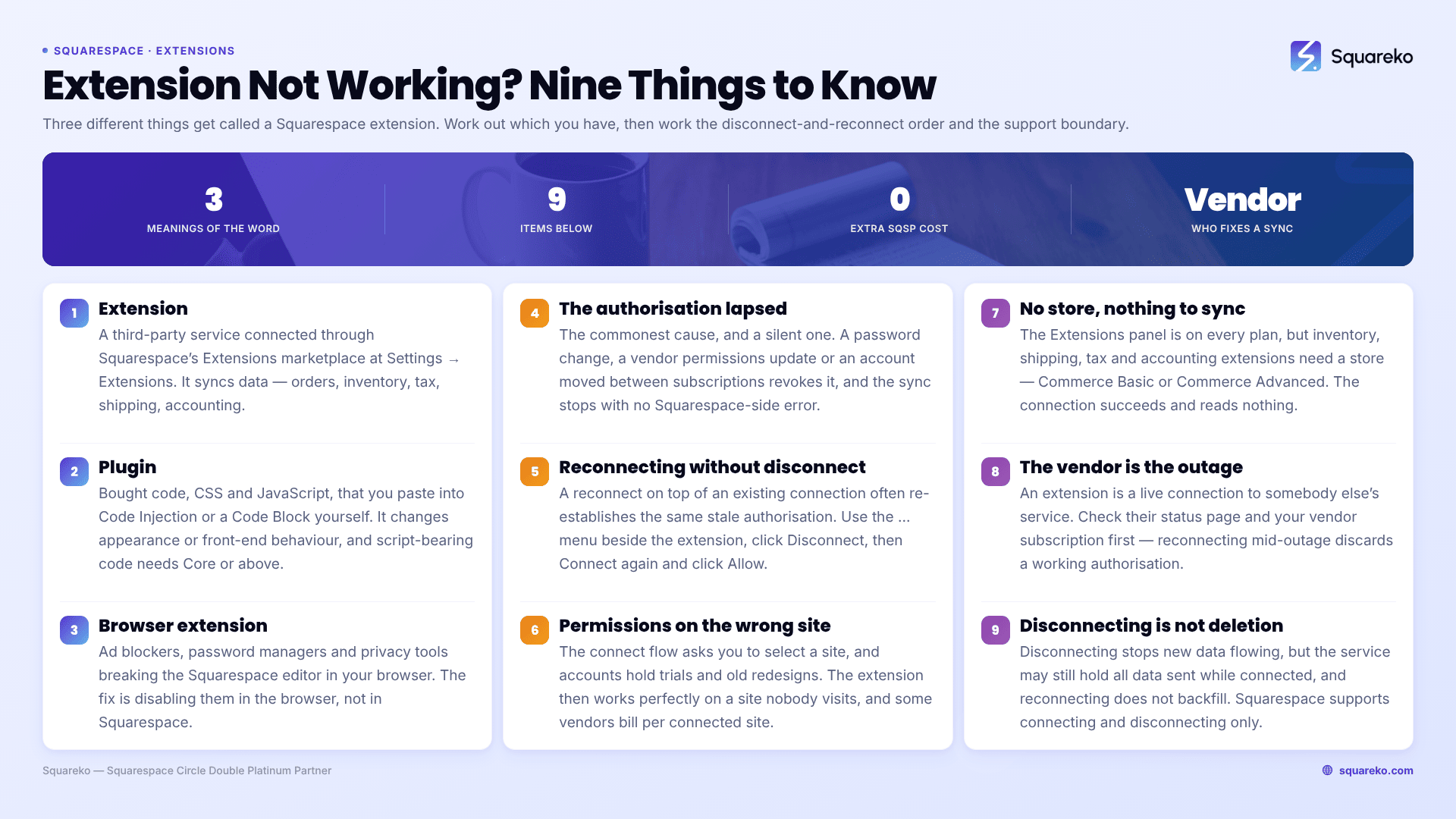
The short answer: an extension that has stopped syncing has almost always lost its authorisation rather than developed a bug. The reliable fix is a clean disconnect and reconnect from Settings → Extensions → Connected extensions → … → Disconnect, then connecting again from the Extensions panel and granting permissions afresh. Reconnecting without disconnecting first often reuses the same broken authorisation and changes nothing.
Before you troubleshoot, though, work out which of three different things you actually have.
Three things people call a "Squarespace extension"
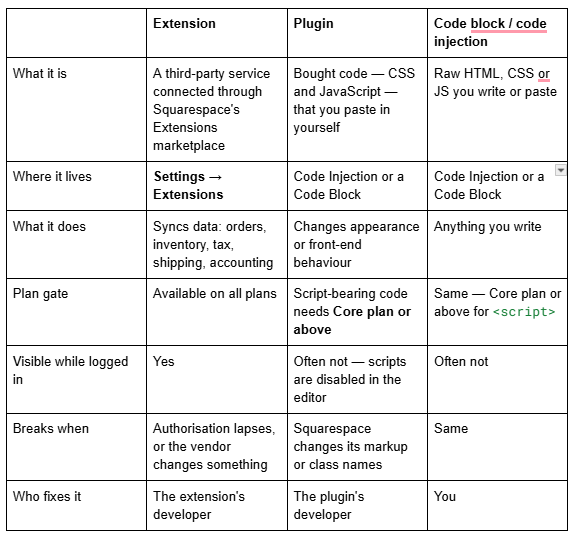
The rest of this page is about the first column — marketplace extensions. If you bought code from a plugin shop, the diagnosis is completely different and the failure modes are covered in will that plugin work with Squarespace.
And if you arrived here because Squarespace's editor is misbehaving in your browser, that is a browser extension — ad blockers, password managers, privacy tools — and the fix is disabling them in the browser, not in Squarespace.
Cause 1 — The extension's authorisation has lapsed
The commonest cause by a wide margin, and the reason the symptom is usually silent. A Squarespace extension works by holding permission to read and write specific data on your site. When that permission expires or is revoked — by a password change, by a permissions update from the vendor, by an account being moved between Squarespace subscriptions — the extension stops syncing without any visible error on the Squarespace side.
How to confirm it in 30 seconds: open Settings → Extensions, click Connected extensions, and look at the extension's status. Then open the vendor's own dashboard and check when it last received data from your site. A last-sync timestamp that stopped on a specific date is the signature.
The fix, in this order:
Open Settings → Extensions.
Click Connected extensions.
Click the … next to the extension.
Click Disconnect.
Return to the main Extensions panel, find the extension, and click Connect.
Select your site.
Click Allow to grant permissions.
Complete any setup steps on the vendor's own site.
Do not skip step 4. A reconnect on top of an existing connection frequently re-establishes the same stale authorisation, which is why "I already tried reconnecting" is such a common report.
Step 8 is also load-bearing. Most extensions require configuration at the vendor end — mapping your Squarespace products to their catalogue, choosing which order statuses to sync, setting a tax nexus. Reconnecting Squarespace does not restore that configuration if the vendor cleared it.
Cause 2 — Permissions were granted to the wrong site
Squarespace accounts commonly hold several sites, and the connect flow asks you to select your site before granting permission. On an account with a live site, a trial site and an old redesign, it is easy to authorise the wrong one — and the extension then works perfectly, on a site nobody visits.
Check Connected extensions on the site you actually mean. If the extension is not listed there, it is connected somewhere else. Disconnect it from the wrong site first, then connect it to the right one; some vendors bill per connected site and will otherwise charge for both.
Cause 3 — The extension needs a plan you don't have
Connecting an extension does not itself require a paid plan tier — the Extensions panel is available across plans. What varies is whether the data the extension needs exists.
An inventory, shipping, tax or accounting extension needs a Squarespace store, which means Commerce Basic or Commerce Advanced. Connect it to a Core-plan site with no store and the connection will succeed while the sync has nothing to read. The extension is not broken; there is nothing there.
The same trap applies at the vendor's end. Extensions are free to connect through Squarespace, but many of the services behind them carry their own subscription, and an expired or trial-ended vendor plan silently stops the sync while the Squarespace side still shows "connected".
Cause 4 — The vendor is the one with the outage
An extension is a live connection to somebody else's service. When that service has an incident, your Squarespace site looks fine and the sync simply stops.
Check the vendor's status page and their support channel before doing anything else, particularly if the extension stopped at a clean, identifiable moment rather than degrading. Disconnecting and reconnecting during a vendor outage wastes the reconnect and occasionally makes the recovery messier, because you have discarded a working authorisation.
Cause 5 — Data written before disconnection is still at the vendor
Worth knowing before you disconnect anything, and often the actual question behind "my extension isn't working".
Disconnecting an extension stops the flow of new data. It does not delete what has already been sent. As Squarespace puts it, the service "may still have data you sent while the extension was connected." If your reason for disconnecting is data privacy rather than troubleshooting, disconnecting in Squarespace is only half the job — you need a deletion request to the vendor as well.
Equally, reconnecting does not backfill. Orders placed while the extension was disconnected are usually not retroactively synced, and most vendors offer a manual import for that gap. Ask before assuming the gap will fill itself.
What Squarespace support will and won't help with
This is the part that saves the most time, because it tells you who to contact first.
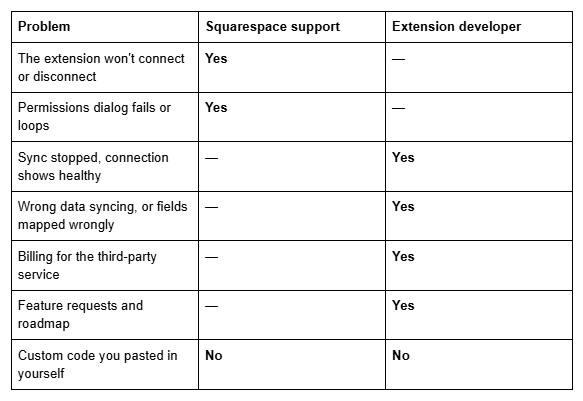
Squarespace's own wording is direct: extensions "aren't official Squarespace integrations" and "fall outside our scope of support", with the explicit carve-out that "we can help with connecting or disconnecting your extensions." Everything else belongs to the developer.
The same boundary applies more strongly to custom code. Squarespace states that code-based customisations fall outside the scope of their support, that they cannot guarantee functionality or full compatibility, and that they cannot help with setup or troubleshooting. Nobody is being unhelpful — it is a stated policy, and knowing it means you open the right ticket first time.
There is no additional cost through Squarespace to connect an extension. Every charge you see comes from the vendor, and it is billed by the vendor, so refunds and cancellations go there too.
Still not syncing?
The order that resolves this fastest: confirm you have an extension rather than a plugin, check the vendor's status page, check you are looking at the right site, disconnect fully, reconnect, grant permissions, then redo the vendor-side configuration.
If the extension reconnects cleanly and still does nothing, the problem is nearly always at the vendor end — a lapsed subscription, a configuration reset, or a product mapping that no longer matches your Squarespace catalogue — and their support has visibility into it that you don't.
That's the kind of thing our Squarespace website support plans exist for, particularly when several extensions and a store are involved and it isn't obvious which link in the chain broke. Most single-extension faults, though, are the disconnect-and-reconnect sequence above and take five minutes.
FAQ
-
Settings → Extensions. Extensions you have already added appear under Connected extensions in that same panel. Disconnect one by clicking the … next to it and choosing Disconnect. The Extensions panel is available on all Squarespace plans, though many extensions need a Commerce plan to have data to work with.
-
Disconnect it fully first — Settings → Extensions → Connected extensions → … → Disconnect — then reconnect from the Extensions panel, select the correct site, click Allow to grant permissions, and redo any setup on the vendor's own dashboard. Reconnecting without disconnecting often reuses the broken authorisation.
-
An extension is a third-party service connected through Squarespace's Extensions marketplace that syncs data such as orders, inventory or tax. A plugin is code you buy and paste into Code Injection or a Code Block yourself, which changes appearance or front-end behaviour. They fail for entirely different reasons.
-
Only connection and disconnection. Squarespace states that extensions are not official Squarespace integrations and fall outside their scope of support, with an explicit exception for help connecting or disconnecting. Sync failures, data mapping and billing all go to the extension's developer.
-
Not through Squarespace. There is no additional charge from Squarespace to connect an extension, but many of the services behind them require their own subscription, billed by the vendor. An expired vendor subscription stops the sync while the Squarespace side still shows the extension as connected.
-
No. Disconnecting stops new data flowing, but the service may still hold everything sent while the extension was connected. If you are disconnecting for privacy reasons, send a deletion request to the vendor as well. Reconnecting also does not backfill data missed during the gap.

Author Bio
I'm Walid Hasan, a Certified Squarespace Expert and Squarespace Circle Platinum Partner with over 12 years of hands-on experience designing and optimizing high-performing websites. Over the years, I've had the privilege of building more than 2,000 Squarespace websites for clients around the world, always focusing on clean design, strong user experience, and conversion-driven results.
