
Squarespace Mailchimp Integration Not Working? Reconnection Guide
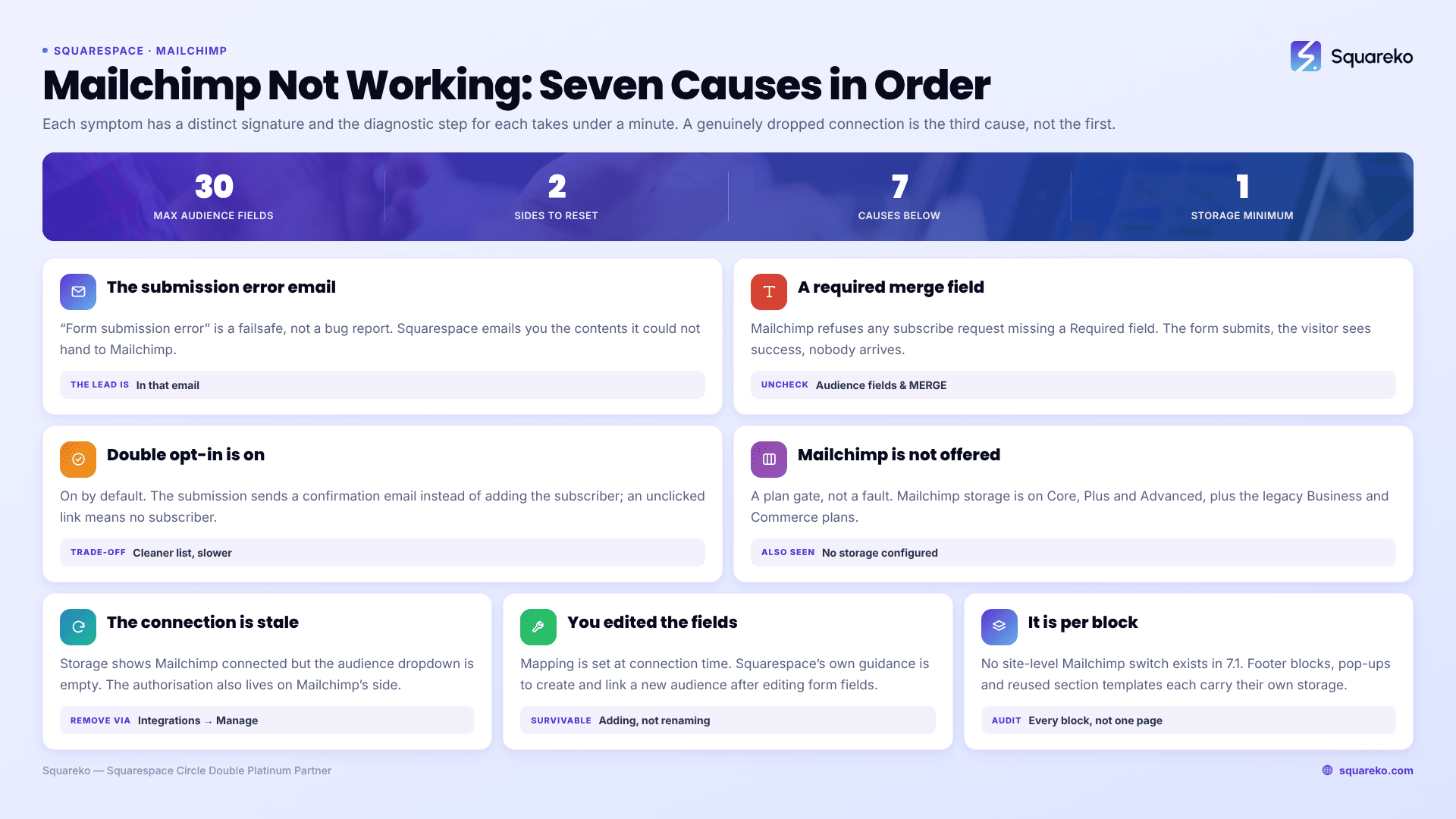
The short answer: in most cases the Squarespace form is submitting fine and Mailchimp is refusing the subscriber. The two commonest reasons are a required merge field in your Mailchimp audience that the Squarespace form doesn't collect, and double opt-in, which is on by default and holds subscribers back until they confirm by email. A genuinely dropped connection is the third cause, not the first.
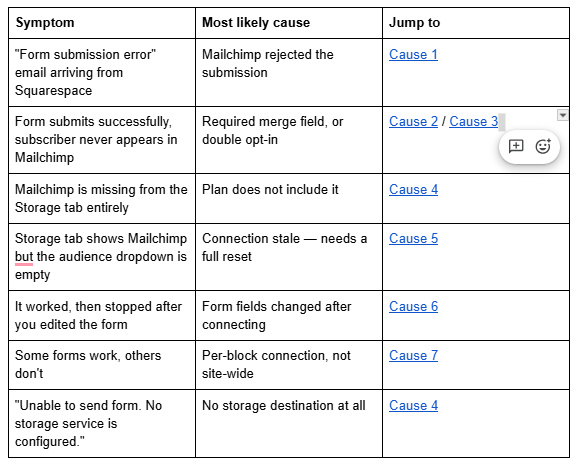
Work through the symptoms below in order. Each has a distinct signature, and the diagnostic step for each takes under a minute.
Quick diagnostic table
Cause 1 — The "Form submission error" email
If Squarespace emails you with the subject line "Form submission error", that email is not a bug report. It is a failsafe: Squarespace could not hand the submission to Mailchimp, so it sends you the contents instead. The lead is in that email. Nothing has been lost.
Squarespace sends it for two situations. Either Mailchimp flagged the submitted email address as fake or mistyped and refused it, or the connection between the form and Mailchimp failed at that moment.
What to do with one: read the email address in the notification. If it is obviously mistyped (gmial.com, a trailing space, a missing TLD), the visitor is at fault and you can add them manually in Mailchimp. If the address looks perfectly normal, the connection is the problem — go to Cause 5 and reset it.
If these arrive in a steady trickle rather than a burst, it is almost always mistyped addresses and there is nothing to fix.
Cause 2 — A required merge field in your Mailchimp audience
This is the most under-diagnosed cause on the list, because from the Squarespace side everything looks perfect. The form submits, the visitor sees the success message, and the subscriber simply never arrives.
Mailchimp rejects any subscribe request that omits a field marked Required on the audience. If your audience requires FNAME and LNAME but your Squarespace newsletter block only collects an email address, every submission is refused.
How to confirm and fix it in Mailchimp:
Go to Audience → Signup forms.
Open the Settings dropdown and choose Audience fields and MERGE tags.
Uncheck Required on every field your Squarespace form does not collect.
Email address is always required by Mailchimp and that never causes a problem, because every Squarespace form connected to Mailchimp collects one.
While you are there: Mailchimp audiences cannot exceed 30 fields. On an audience that has accumulated fields over years, a Squarespace form adding new ones can push it over the limit and fail. The clean fix is a fresh audience rather than pruning an old one.
Cause 3 — Double opt-in is holding subscribers in limbo
Mailchimp enables double opt-in by default. With it on, a Squarespace form submission sends a confirmation email rather than adding the subscriber, and if the visitor never clicks the link, Mailchimp never adds them to the audience.
That produces the exact symptom people report as "the integration isn't working": submissions counted on the Squarespace side, subscribers missing on the Mailchimp side, with no error anywhere.
Check your audience's signup settings for the double opt-in toggle. Turning it off adds subscribers immediately. Whether you should turn it off is a judgement call — double opt-in produces a cleaner list and better deliverability, and in some jurisdictions it is the safer consent record. If you keep it on, the fix is not technical: it is making sure the confirmation email is expected, by saying so on your Squarespace form's post-submit message.
Cause 4 — Mailchimp isn't offered as a storage option
If the Storage tab of your Squarespace form block does not list Mailchimp at all, this is a plan gate rather than a fault. The Mailchimp integration is available on the Core, Plus and Advanced plans, and on legacy Business, Commerce Basic and Commerce Advanced plans. On the entry-level plan it is absent.
The related error — "Unable to send form. No storage service is configured." — appears to visitors when a Squarespace form has no storage destination connected at all. Every form needs at least one. New form blocks default to emailing the account owner, so this usually appears on a form where somebody removed that default and connected only Mailchimp, then the Mailchimp connection failed.
Cause 5 — The connection is stale and needs a full reset
A Squarespace–Mailchimp connection can end up in a half-broken state where the Storage tab shows Mailchimp as connected but the audience dropdown is empty, returns an error, or lists audiences that no longer exist. Reconnecting from the Squarespace side alone often does not clear it, because the authorisation record lives on the Mailchimp side too.
The full reset, in this order:
In the Squarespace form editor, open the Storage tab and click Disconnect (or the X) on the Mailchimp connection.
Log in to Mailchimp. Click Integrations in the left menu, then Manage.
Click Other connections.
Click the X next to Squarespace.
Return to Squarespace, open the form block's Storage tab, click Connect on Mailchimp, log in, and select your audience.
Repeat step 5 for every form and newsletter block on the site.
Step 6 is not optional. Removing the connection in Mailchimp invalidates it for all blocks at once, and each one has to be reconnected individually. Miss one and you have a form that silently stores nothing.
Cause 6 — You edited the form fields after connecting
Squarespace's own guidance is explicit on this: if you edit form fields after connecting to Mailchimp, create and link a new Mailchimp audience. The field mapping is established at connection time, and changing the Squarespace form's fields afterwards leaves a mapping that no longer describes the form.
In practice, adding a field is usually survivable and renaming or removing one is not. If a Squarespace form started failing right after you edited it, this is your cause, and the reliable fix is a new audience rather than an attempt to re-map the old one.
The same applies in reverse: if multiple Squarespace blocks feed one Mailchimp audience, Squarespace recommends that all blocks connected to that audience are identical. Mismatched field sets across blocks pointed at one audience is a slow-burning source of failures.
Cause 7 — Mailchimp is connected per block, not site-wide
There is no site-level Mailchimp switch in Squarespace 7.1. Every form block and newsletter block carries its own storage configuration, which is why "the Mailchimp integration is broken" is so often really "one of six forms is broken".
Audit the whole site rather than the page you noticed the problem on: footer newsletter blocks, pop-up forms, blocks inside section templates reused across pages. Open each, check the Storage tab, confirm the correct audience is selected.
What happens to submissions while the connection is down
The honest answer, and the one nobody publishes:
Mailchimp is a pass-through, not storage. Squarespace passes submissions to Mailchimp; it does not keep a copy on Mailchimp's behalf. If Mailchimp refuses the subscriber, that subscriber does not exist in Mailchimp.
The failsafe email is your recovery. When the handoff fails, Squarespace emails you the submission. That email is often the only surviving copy.
The Contacts panel may still have them. If the Squarespace form has a required email field, submitters are also recorded in the Contacts panel under Form submitters, independently of Mailchimp. Check there before assuming leads are gone.
Storage destinations are independent. This is the argument for connecting a second one. A form with Mailchimp and the email notification, or Mailchimp and Google Drive, cannot lose a submission to a single broken integration.
Set up the second destination now rather than after the next outage. It costs nothing and it is the only thing on this page that prevents the problem rather than fixing it.
Still not connecting?
The order that resolves this fastest: check for a "Form submission error" email, then check required merge fields in Mailchimp, then double opt-in, then do the full disconnect-both-sides reset, then reconnect every block on the site.
If the reset completes cleanly and submissions still never arrive, the problem is usually inside the Mailchimp audience — a compliance state on the audience, a field limit, or an address Mailchimp has permanently suppressed — and it needs unpicking in Mailchimp before Squarespace can do anything with it.
That's the kind of thing our Squarespace website support plans exist for, especially where a broken signup form has been quietly losing subscribers for weeks. Most cases, though, are one of the seven above and clear in ten minutes.
FAQ
-
Usually a required merge field or double opt-in. Mailchimp rejects any submission missing a field marked Required on the audience, and double opt-in — on by default — holds subscribers until they confirm by email. Check both in Mailchimp under Audience → Signup forms before touching the connection.
-
It means Squarespace could not pass your form submission to Mailchimp, so it emailed you the contents instead as a failsafe. The lead is in that email. Usual causes are a mistyped email address that Mailchimp refused, or a connection failure at that moment.
-
Disconnect from the form block's Storage tab, then remove Squarespace in Mailchimp under Integrations → Manage → Other connections. Return to Squarespace and reconnect. Then reconnect every other form and newsletter block on the site individually — removing it in Mailchimp invalidates all of them.
-
It is a plan gate. The Mailchimp integration is available on the Core, Plus and Advanced plans, plus legacy Business, Commerce Basic and Commerce Advanced plans. On the entry-level plan Mailchimp does not appear in the Storage tab at all.
-
Not entirely. Squarespace emails you the submission when the handoff fails, and if the form has a required email field, submitters are also recorded in the Contacts panel under Form submitters. Mailchimp itself is a pass-through, so nothing is queued there for later delivery.
-
The connection is stale. Reconnecting from Squarespace alone often will not clear it because the authorisation record also exists on the Mailchimp side. Disconnect in both places — Squarespace Storage tab and Mailchimp's Other connections — then connect again from scratch.

Author Bio
I'm Walid Hasan, a Certified Squarespace Expert and Squarespace Circle Platinum Partner with over 12 years of hands-on experience designing and optimizing high-performing websites. Over the years, I've had the privilege of building more than 2,000 Squarespace websites for clients around the world, always focusing on clean design, strong user experience, and conversion-driven results.
