
Squarespace Images Not Loading: Causes and Fixes
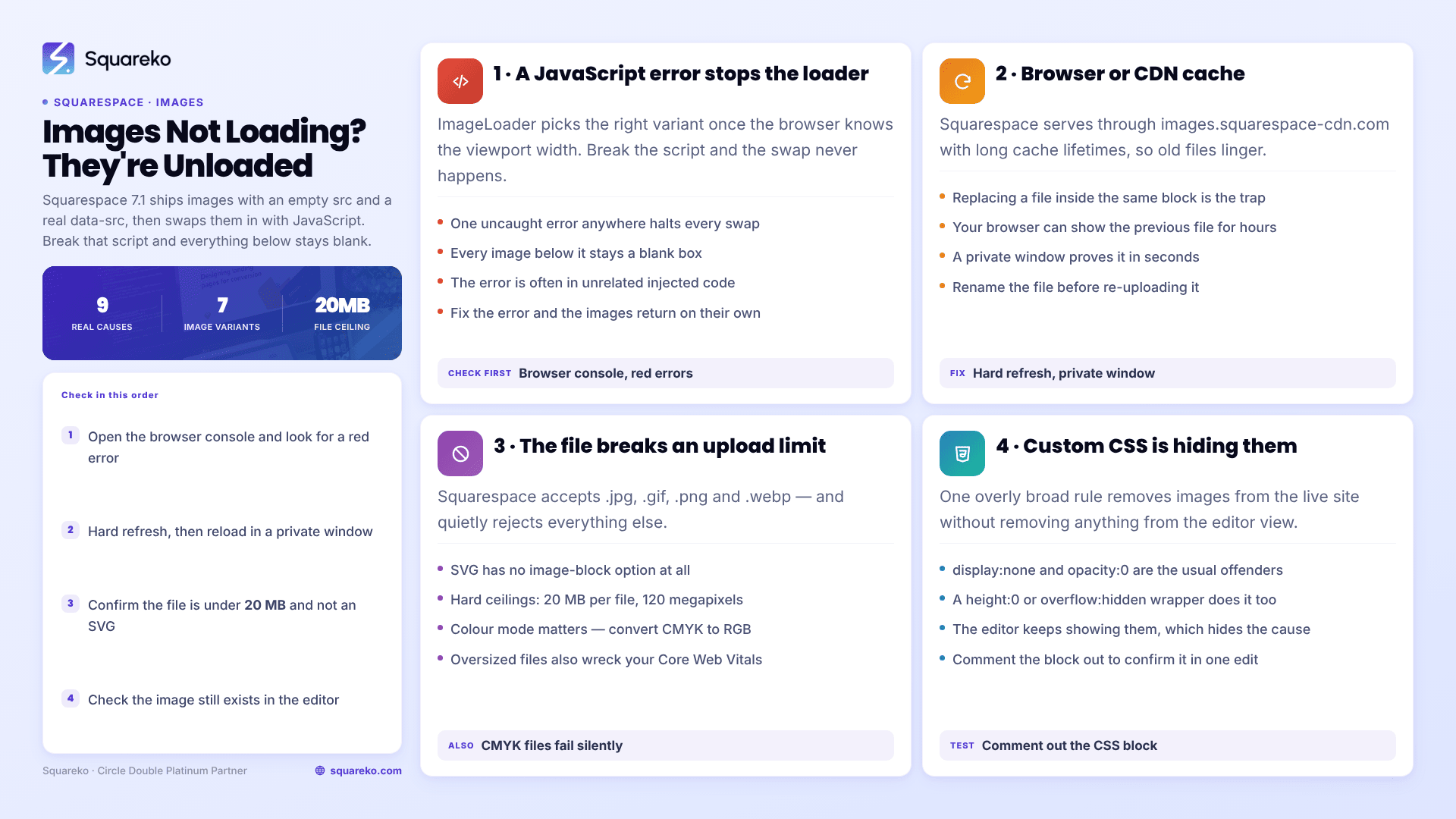
Most Squarespace images are not broken, they are unloaded. Squarespace 7.1 ships images with an empty or placeholder src and a real data-src, then swaps them in with JavaScript once the browser knows the viewport width. Any JavaScript error anywhere on the page stops that swap, and every image below it stays a blank box. Check your browser console for a red error before you touch the images themselves.
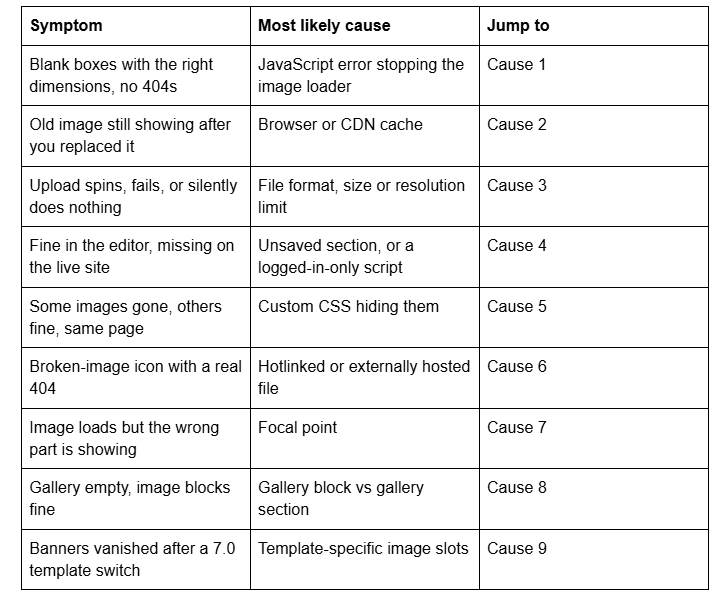
Here are the nine causes, ordered by how often they turn out to be the problem.
Quick diagnostic table
Cause 1 — A JavaScript error is stopping Squarespace's image loader
Squarespace 7.1 does not put the final image URL in src at page load. It stores the source in a data-src attribute and lets its ImageLoader script pick the right variant — Squarespace generates seven, at format=100w through format=2500w — for the current viewport, then writes src and adds a loaded class to the element.
If any script on the page throws before that runs, the swap never happens. The image element exists at full size with no source, so you get a correctly proportioned blank box and no 404 in the Network tab. That combination is the signature of this cause.
How to confirm it in 20 seconds: open the browser console (F12 → Console) on the live page. A red error is your culprit. Then inspect a broken image: if it has data-src but no src, or is missing the loaded class, the loader never reached it.
The trigger is usually your own code. A single unclosed tag inside a Code Block is enough — one Squarespace Forum thread on galleries failing site-wide traced it to a missing </i> in a quote block. Malformed HTML reshapes the DOM, and the image loader walks a tree that no longer matches.
The fix: remove custom code in blocks, then per-page injection, then site-wide injection, retesting after each. Whichever removal restores the images contains the error. The Squarespace code injection troubleshooting guide covers the placement and syntax faults behind most of them.
Cause 2 — Browser or CDN cache is serving the old file
Squarespace serves every image through images.squarespace-cdn.com with long cache lifetimes. Replace an image and keep the same block, and your browser will often keep showing the previous file for hours.
How to confirm it in 10 seconds: open the page in a private window, or on your phone on mobile data. If the correct image appears there, it was cache — nowhere else.
Hard refresh with Cmd + Shift + R (Mac) or Ctrl + Shift + R (Windows). Note that deleted images can take weeks to clear the CDN entirely, so an old URL still resolving is not evidence that the new upload failed.
Cause 3 — The file breaks an upload limit
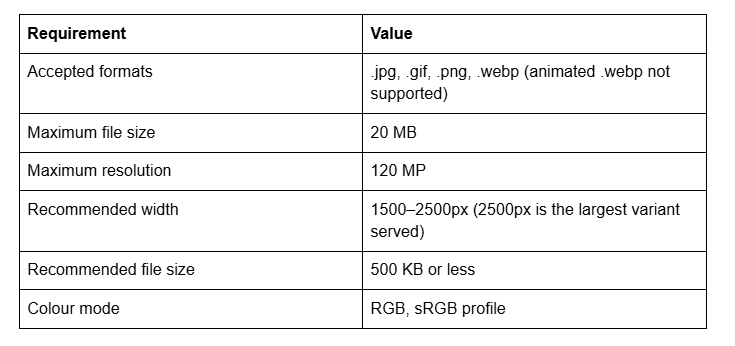
Squarespace accepts .jpg, .gif, .png and .webp only. It rejects everything else, including SVG — there is no SVG option in the image block. The hard limits are 20 MB per file and 120 megapixels, and the colour mode must be RGB with an sRGB profile. CMYK files, which is what most print-ready exports are, either fail or render with visibly wrong colour.
To use an SVG, upload it through Website → Website Tools → Custom CSS → Manage Custom Files and reference the resulting URL from a Code Block. That is the only supported route.
Oversized files are the quieter version of this problem: they upload fine, then load slowly enough on mobile that visitors report them as "not loading". Across 54 Squareko-built sites measured in August 2026 (Playwright/Chromium lab test, unthrottled, single run per site), median page weight was 3.0 MB across 93 requests, and 86% of images were served as WebP by the Squarespace CDN — which converts regardless of the format you uploaded. Upload at 2500px and let the CDN do the rest.
Cause 4 — Images show in the editor but not on the live site
Two different things cause this, and they need different fixes.
The first is an unsaved or unpublished change. Squarespace 7.1 keeps edits in a draft state until you click Save, and a page set to a hidden state in the Pages panel will not serve its images to logged-out visitors at all.
The second is the reverse of what people expect: Squarespace disables embedded scripts while you are logged in and editing. If your images are delivered by a Code Block or a third-party gallery script, that script is dead in the editor and alive on the live site — and the message "This block contains embedded scripts. Embedded scripts are disabled while you're logged in and editing your site." is telling you exactly that. Always confirm image problems logged out, in a private window.
Cause 5 — Custom CSS is hiding the images
An overly broad rule in Website → Website Tools → Custom CSS can remove images without removing anything visible from the editor. The usual offenders are display: none, opacity: 0, a height: 0 on a wrapper, and overflow: hidden on a section with a zero-height parent.
How to confirm it in 20 seconds: right-click the missing image → Inspect. If the element is present in the DOM with a computed style hiding it, this is your cause, and the inspector names the exact rule and line.
Watch for rules written against the mobile breakpoint. Squarespace 7.1's mobile breakpoint is 767px, so a rule written at 768px fires one pixel out and can hide images on phones only. If a selector is misbehaving generally, work through the custom CSS troubleshooting guide before rewriting it.
Cause 6 — The image is hotlinked or hosted somewhere else
An image pulled into a Code Block from Google Drive, Dropbox, an old host or another website is not under Squarespace's control. It breaks when that host changes a sharing permission, moves the file, or blocks hotlinking — and unlike Causes 1–5 it produces a genuine 404 or 403 in the Network tab.
An http:// source on an https:// Squarespace site is the other version of this: browsers block mixed active content and many block mixed images too. The fix in both cases is the same — upload the file into Squarespace and use the images.squarespace-cdn.com URL. External image hosting saves nothing on Squarespace and costs you a dependency.
Cause 7 — The image loaded, it's just cropped
If a face is cut off or the subject sits outside the visible area, the image is loading correctly and the container is cropping it. Squarespace 7.1 supports focal points on image blocks, gallery sections, featured images and section background images: open the block, hover over the image, and drag the small circle to the part that must stay in frame.
The focal point defaults to centre, which is why full-width banners so often crop to the middle of a landscape photo. Focal points cannot be set on product featured images.
Cause 8 — Gallery block versus gallery section in Squarespace 7.1
These are different features with different rules, and mixing them up looks like a loading fault.
In Squarespace 7.1, gallery blocks cannot be added to any area that uses page sections — layout pages, blog and portfolio and store landing pages, portfolio sub-pages, or footers. They remain available inside blog posts and events, where gallery sections are not supported. Gallery sections are the 7.1 default and use srcset rather than the data-src loader, which is why a gallery section sometimes renders while image blocks on the same page do not.
Gallery blocks hold up to 250 images. Anywhere near that number and slow loading is the expected behaviour, not a bug — split the gallery across pages.
Cause 9 — Images disappeared after a Squarespace 7.0 template switch
Only relevant on version 7.0, where banner images are stored per template. Switching templates leaves the files in your library but empties the slots that displayed them. Nothing is lost; the images have to be re-added in the new template's banner fields. Squarespace 7.1 has no template switching, so this cannot happen there.
Still not working?
Work the list in order — console error, cache, upload limits, editor versus live, CSS, external hosting, focal point, block type, template. The first three account for the large majority of cases.
If images are still failing after all nine, it is usually a script conflict between injected code and Squarespace's image loader, which means reading the console output rather than guessing at the images.
That is the kind of thing our Squarespace website support plans exist for — most image-loading faults we are sent are diagnosed inside a single support block. No obligation either way; the nine causes above resolve the overwhelming majority on their own.
FAQ
-
Most often a JavaScript error is stopping Squarespace's image loader, which swaps data-src into src after page load. Open the browser console on the live page and look for a red error. A blank box at the correct dimensions with no 404 in the Network tab is the signature of this cause.
-
Either the change was never saved, the page is hidden in the Pages panel, or the images come from a Code Block. Squarespace disables embedded scripts while you are logged in and editing, so script-delivered images behave differently in the editor. Always verify logged out in a private window.
-
20 MB per file and 120 megapixels maximum, in .jpg, .gif, .png or .webp only. Images should be RGB with an sRGB colour profile. Upload at 1500–2500px wide; 2500px is the largest variant Squarespace serves, and 500 KB or less per file is recommended.
-
Not to an image block — SVG is not an accepted upload format. The supported route is Website → Website Tools → Custom CSS → Manage Custom Files, which gives you a hosted URL you can reference from a Code Block. This works for logos and icons but not for standard image blocks.
-
In Squarespace 7.1, gallery blocks cannot be used on pages that have sections — only inside blog posts and events. Use a gallery section instead. Gallery blocks also hold up to 250 images, and pages near that limit load slowly by design rather than by fault.
-
You cannot purge the Squarespace CDN yourself. Hard refresh with Cmd/Ctrl + Shift + R, or open the page in a private window to bypass your browser cache. Deleted images can remain on the CDN for weeks, so an old URL still resolving is normal.

Author Bio
I'm Walid Hasan, a Certified Squarespace Expert and Squarespace Circle Platinum Partner with over 12 years of hands-on experience designing and optimizing high-performing websites. Over the years, I've had the privilege of building more than 2,000 Squarespace websites for clients around the world, always focusing on clean design, strong user experience, and conversion-driven results.
