
Squarespace Code Injection Not Working? Placement and Syntax Fixes
In most cases the code is fine and you are looking at it from the wrong place. Squarespace deliberately disables embedded scripts while you are logged in and editing, so injected code that works perfectly for visitors appears dead to you. Log out, open the page in a private window, and check again before changing anything. If it still fails there, the next two suspects are missing <script> or <style> wrapper tags, and code placed in the header that needs to be in the footer.
Here are the nine causes, ordered by how often they turn out to be the problem.
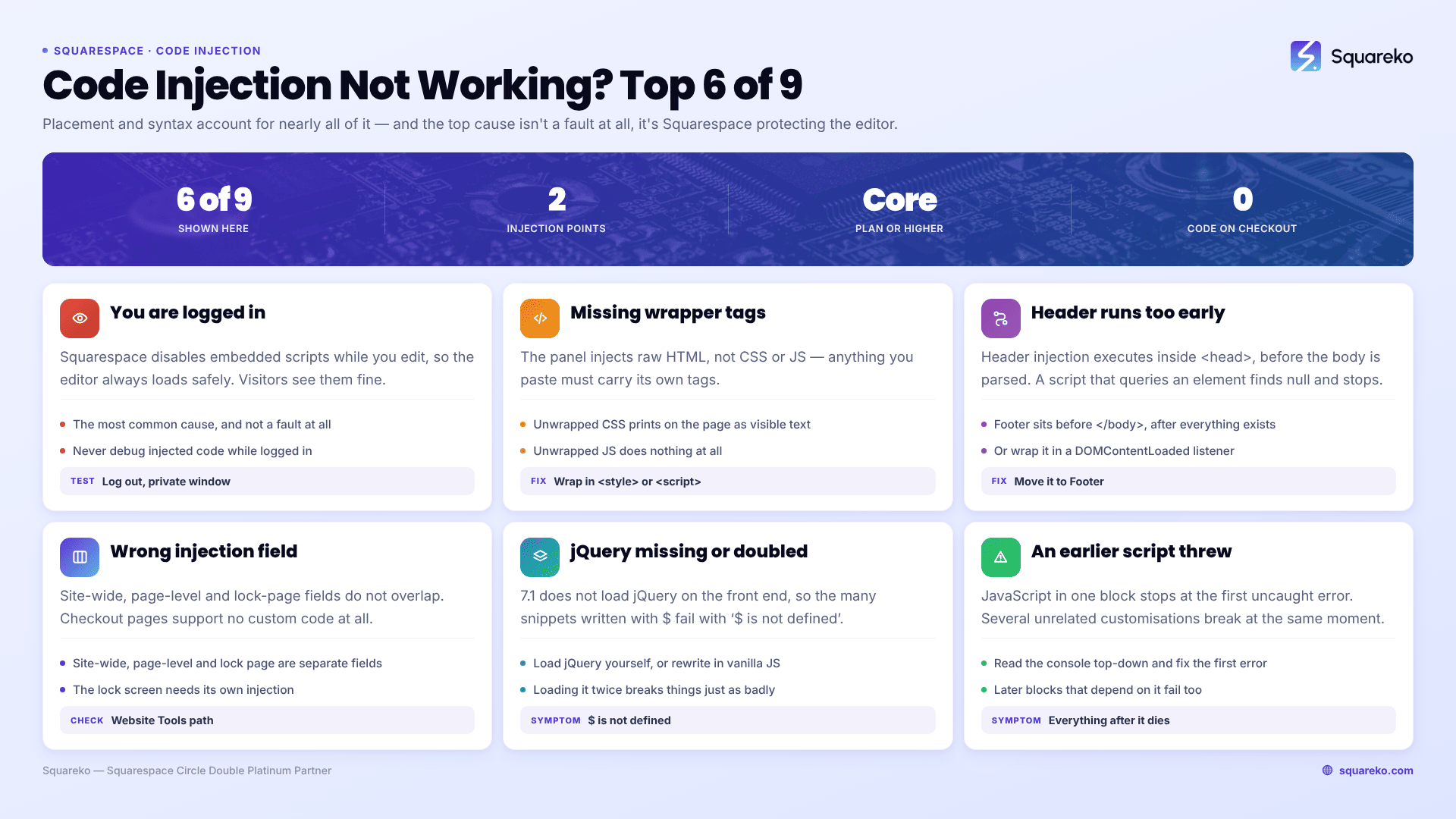
Quick diagnostic table
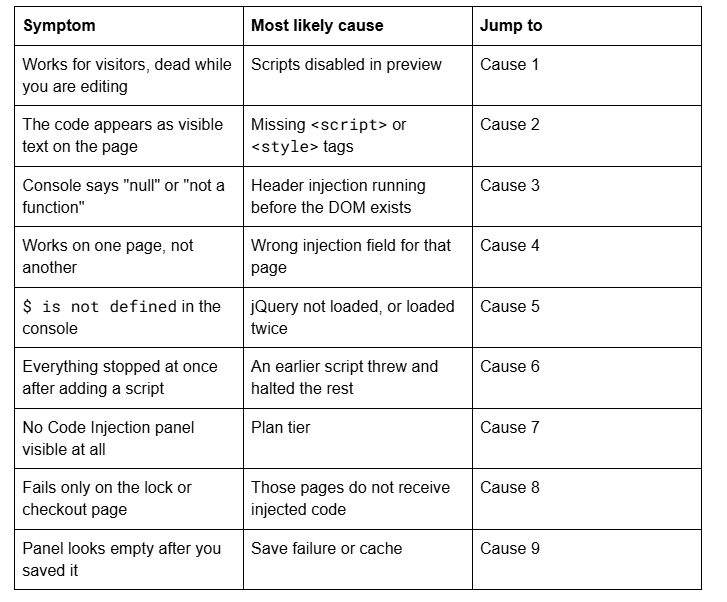
Cause 1 — Squarespace disabled your scripts because you are logged in
This is the single most common cause and the easiest to mistake for a real fault.
Squarespace blocks embedded scripts while you are logged in and editing, because custom code can prevent the editor loading safely. A script-bearing Code Block shows the message "This block contains embedded scripts. Embedded scripts are disabled while you're logged in and editing your site." Injected scripts fail more quietly — they simply do nothing.
There is also a Disable Scripts in Preview control at the bottom of the site preview, and Squarespace support routinely asks people to switch it on when custom code is interfering with editing. If somebody turned it on and left it on, everything you inject will look broken to you and work fine for visitors.
How to confirm it in 15 seconds: open the live URL in a private window. If the code runs there, nothing is wrong. Test every code-injection change logged out, on the live site, from now on.
Cause 2 — The code is missing its wrapper tags
The Code Injection panel is not a CSS or JavaScript editor. It injects raw HTML into the page, so anything you paste must carry its own tags.
Paste raw CSS with no <style> wrapper and the browser prints it on the page as text. Paste raw JavaScript with no <script> wrapper and the same thing happens. This is the cause behind almost every "my code is showing up on my website" post.
<!-- Wrong — renders as visible text on every page -->
  .site-title { color: #1b2a4a; }
<!-- Correct -->
<style>
  .site-title { color: #1b2a4a; }
</style>
<!-- Correct for JavaScript -->
<script>
  console.log('running');
</script>
For site-wide styling, use Website → Website Tools → Custom CSS instead of the injection panel — no tags needed there, and the custom CSS troubleshooting guide covers what to do when a rule still refuses to apply.
Cause 3 — Header injection runs before the elements exist
Header injection is placed inside the <head> tag, which the browser executes before the page body has been parsed. Footer injection is placed immediately before the closing </body> tag, after everything exists.
So a script in the header that tries to find an element gets null, and the console reports something like Cannot read properties of null. The same script in the footer works immediately.
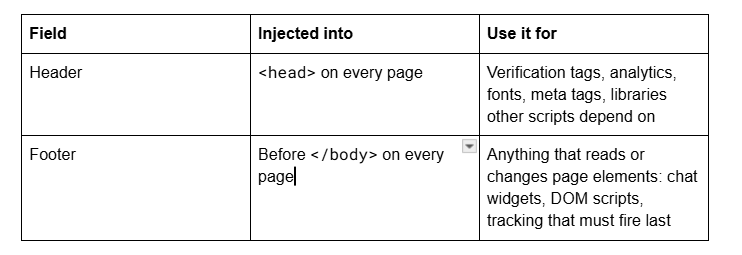
If the code must stay in the header, wrap it so it waits:
<script>
  document.addEventListener('DOMContentLoaded', function () {
    var el = document.querySelector('.header-title');
    if (el) el.textContent = 'Loaded';
  });
<script>
Rule of thumb for Squarespace 7.1: if the script touches the page, put it in the footer. If other scripts depend on it, put it in the header.
Cause 4 — The code is in the wrong injection field
Squarespace 7.1 has several injection points and they do not overlap.
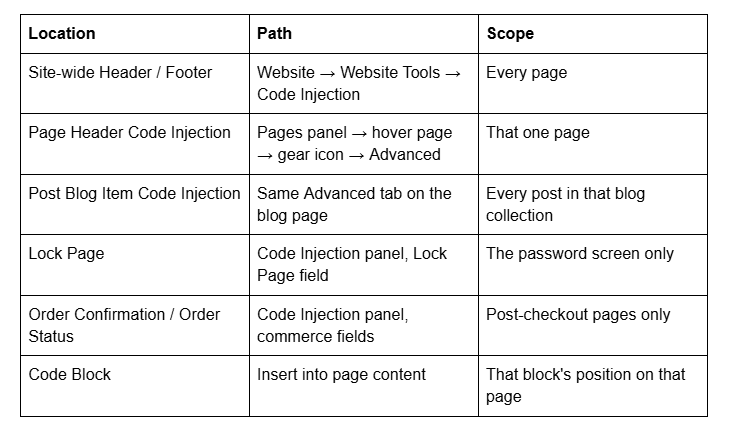
Two things catch people out. Post Blog Item Code Injection sits on the blog page's settings, not on the individual post — Squarespace 7.1 has no per-post header injection at all, which is why post-level schema has to go in a Code Block in the post body. And per-page injection does not appear on Index landing pages in version 7.0.
Cause 5 — jQuery is missing, or loaded twice
A great many Squarespace snippets circulating online are written in jQuery, using the $ shorthand. Squarespace 7.1 does not load jQuery on the front end, so those snippets fail with $ is not defined unless you load the library yourself first.
How to confirm it in 10 seconds: open the console on the live page and type typeof jQuery. If it returns "undefined", the library is not there.
Load it in the Header field, above anything that depends on it:
<script src="https://code.jquery.com/jquery-3.7.1.min.js"></script>
The opposite problem is just as common. Install several plugins and each may load its own jQuery version; the last one to load wins, and plugins written for a different version break. Search your page source for jquery — if there is more than one, remove the duplicates and keep a single version in the header.
Cause 6 — An earlier script threw and stopped everything after it
JavaScript in a single <script> block stops at the first uncaught error. Anything after that line never runs, and separate blocks that depend on it fail too. The visible result is that several unrelated customisations break simultaneously the moment you add one new snippet.
How to confirm it in 20 seconds: open the console on the live page. The first red error, with its file and line number, is the one that matters — the rest are usually consequences.
Remove your most recent addition first. If everything returns, that snippet is the fault. Keep each injected feature in its own <script> block rather than one long one, so a single failure cannot take the others with it. Broken galleries and dead navigation are common casualties — see why Squarespace images stop loading and mobile menu failures for this cause seen from the other end.
Cause 7 — Code injection is not on your plan
The Code Injection panel requires a Core, Plus or Advanced plan, or a legacy Business or Commerce plan. On the entry-level plan there is no panel to open.
If you cannot find it at Website → Website Tools → Code Injection, check the plan before assuming the interface moved. This is easy to miss on an inherited site or a client account.
Cause 8 — Injected code does not reach every page
Site-wide injection is not quite site-wide. Checkout pages do not support custom code at all, so analytics injected in the header will not fire there. The lock screen has its own Lock Page field and site-wide injection does not reach it — and injection into the lock screen is unavailable during a trial. Order confirmation and order status pages likewise have their own fields.
If a tracking script is missing conversions, this is usually why: the code is on the site, but not on the page where the conversion happens.
Cause 9 — The panel did not save, or you are seeing a cached page
The last thing to rule out. Reopen the Code Injection panel and confirm the code is actually there — a session timeout or a browser extension can cause a save to fail without an obvious error.
If it is present, hard refresh with Cmd + Shift + R or Ctrl + Shift + R, then use View Source and Ctrl + F for a distinctive string from your snippet. If it is in the delivered source, the code is injected and the problem is in the code, not the injection.
Still not working?
Work the list in order — logged-in blocking, wrapper tags, header versus footer, injection field, jQuery, earlier errors, plan, page coverage, save and cache. The first three account for most of what we see.
If the code is verifiably in the page source and the console is clean but it still does nothing, you are usually looking at a conflict between two third-party scripts, which means reading execution order rather than guessing at snippets.
That is the kind of thing our Squarespace website support plans exist for — most injection conflicts we are sent are diagnosed inside a single support block. No obligation either way; the nine causes above resolve the overwhelming majority on their own.
FAQ
-
Website → Website Tools → Code Injection. It contains the site-wide Header and Footer fields plus the Lock Page and commerce fields. It requires a Core, Plus or Advanced plan, or a legacy Business or Commerce plan — on the entry-level plan the panel does not exist.
-
Squarespace disables embedded scripts while you are logged in and editing, and there is a Disable Scripts in Preview control that keeps them off. Neither affects visitors. Always test injected code logged out, in a private window, on the live URL rather than in the editor.
-
Header injection runs inside <head> before the page body exists, so it suits verification tags, analytics and libraries. Footer injection runs before the closing </body> tag, after every element exists, so it suits anything that reads or changes the page. A DOM script in the header will return null.
-
The Code Injection panel injects raw HTML, so anything pasted into it needs its own tags. CSS requires <style> wrappers and JavaScript requires <script> wrappers. Without them the browser treats the content as text and prints it. For site-wide CSS, use the Custom CSS panel instead.
-
No. Squarespace 7.1 does not load jQuery on the front end, so snippets written with the $ shorthand fail with "$ is not defined". Type typeof jQuery in the console to check, then load the library in the Header field above anything that depends on it.
-
Yes. Hover the page in the Pages panel, click the gear icon, then Advanced, and use Page Header Code Injection. The same tab on a blog page offers Post Blog Item Code Injection, which applies to every post in that collection. Squarespace 7.1 has no per-post header injection.

Author Bio
I'm Walid Hasan, a Certified Squarespace Expert and Squarespace Circle Platinum Partner with over 12 years of hands-on experience designing and optimizing high-performing websites. Over the years, I've had the privilege of building more than 2,000 Squarespace websites for clients around the world, always focusing on clean design, strong user experience, and conversion-driven results.
