
How to Switch a Section to Fluid Engine in Squarespace
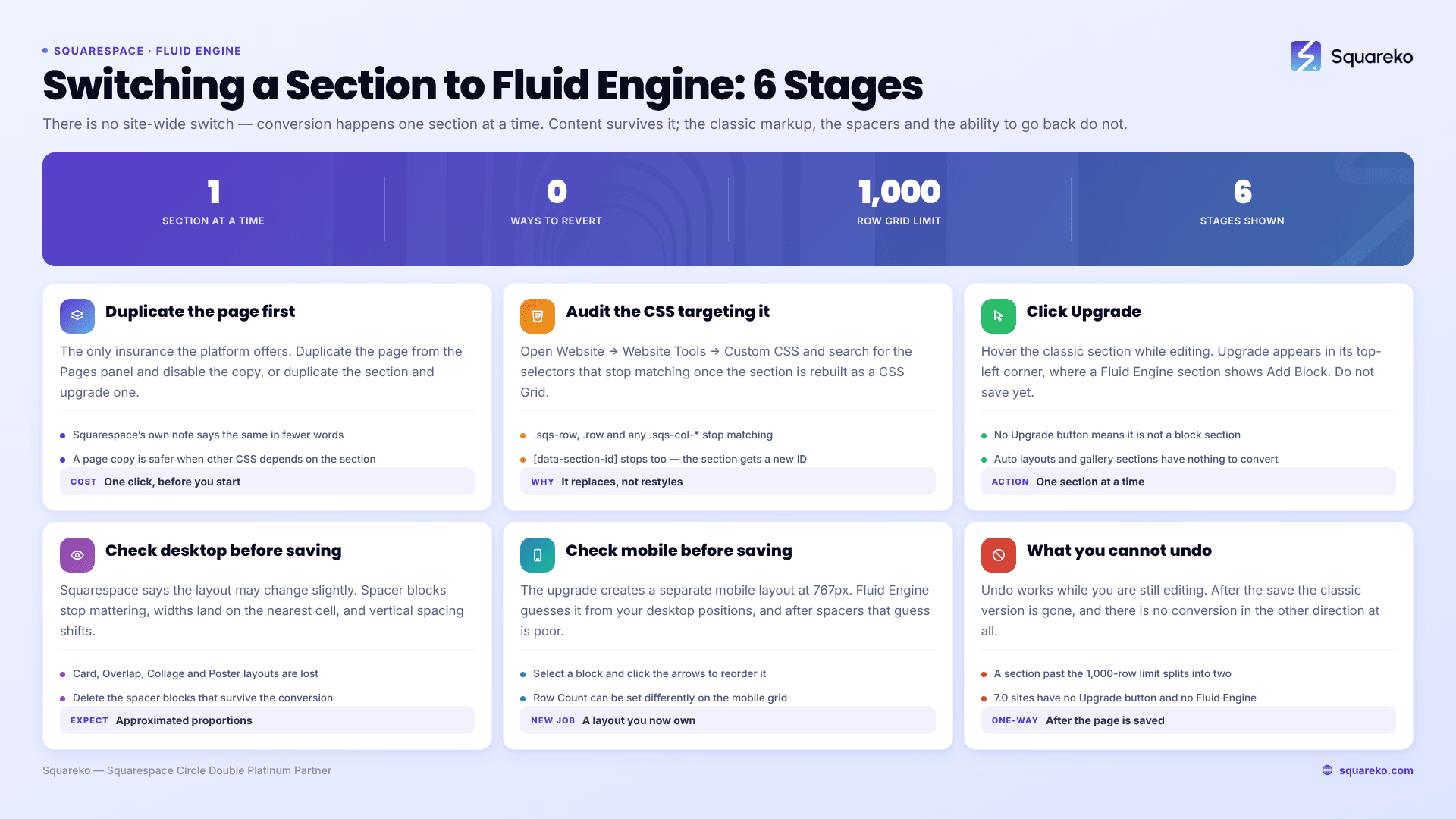
Click Edit on the page, then click Upgrade in the top-left corner of the classic editor section. That is the whole procedure — and it is one-way. Squarespace states plainly that an upgraded section cannot be reverted once the page is saved. Undo works while you are still editing; after you save, the classic version of that section no longer exists. Duplicate the page first.
There is no site-wide switch. Fluid Engine conversion in Squarespace 7.1 happens one section at a time.
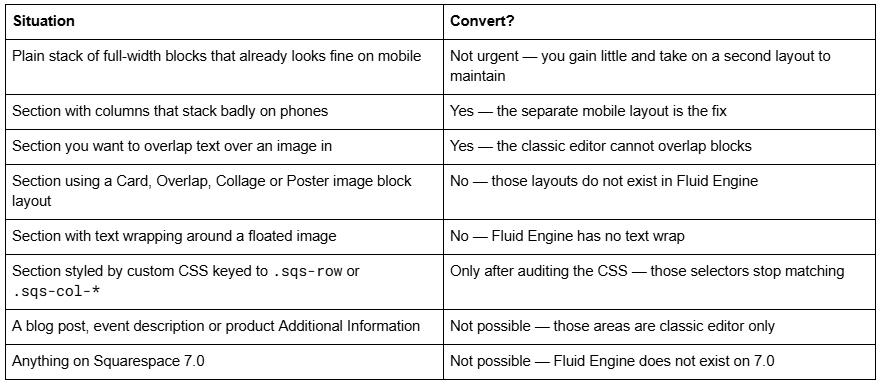
Decide before you click
Step 1 — Duplicate the page first
This is the step almost every guide omits, and it is the only insurance available.
Open the Pages panel, hover the page, click the ... icon and duplicate it. Set the copy to a disabled or password-protected state. If a conversion goes badly, you have an untouched classic editor version to copy content back from.
Duplicating the section alone also works and is quicker: hover the section while editing and click the duplicate icon. You end up with two identical classic sections; upgrade one and delete the other when you are happy. The page-level copy is safer for a section that other sections' custom CSS depends on.
Squarespace's own note on the Upgrade button says the same thing in fewer words: if you're not sure you want to use Fluid Engine with a section, you can duplicate the section first just in case.
Step 2 — Audit the custom CSS that targets the section
Fluid Engine does not restyle a classic section. It replaces it.
The classic editor renders blocks inside rows and columns:
<div class="row sqs-row">
<div class="col sqs-col-6 span-6"> ... </div>
</div>
Fluid Engine renders them as CSS Grid:
<div class="fluid-engine fe-678617c7cf28ed1a1e1e1524">
<div class="fe-block fe-block-yui_3_17_2_1_1736862061587_601121"> ... </div>
</div>
So before you upgrade, open Website → Website Tools → Custom CSS and search your stylesheet for these selectors:
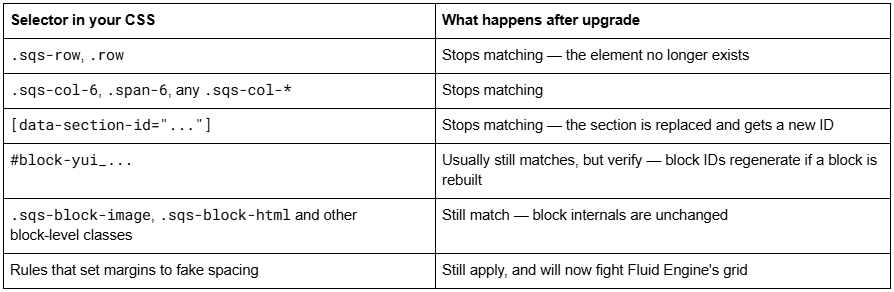
That last row is the sneaky one. Custom margin and padding hacks written to compensate for classic editor spacing keep applying after conversion and now conflict with the grid's own gap. Delete them rather than adjust them — Fluid Engine's Gap control in section styles does the same job properly.
If you inherited the site and are not sure what the CSS does, the diagnostic sequence is in Squarespace custom CSS not working.
Step 3 — Click Upgrade
Open the Pages panel and click the page containing the classic editor section.
Click Edit in the top-left corner of the page.
Hover over the classic editor section. Upgrade appears in its top-left corner — the same corner where a Fluid Engine section shows Add Block.
Click Upgrade. The section converts immediately.
Do not save yet.
If no Upgrade button appears, the section is already Fluid Engine, or it is not a block section at all. Auto layouts, gallery sections, and collection sections have no blocks to convert and no Upgrade button.
Step 4 — Check the desktop layout before saving
Squarespace's own wording is that your layout may change slightly. In practice, expect these:
Spacer blocks disappear from the layout logic. They were creating your column widths; Fluid Engine sizes blocks directly instead. Any spacer blocks that survive can be deleted.
Block widths land on the nearest grid cell. The classic editor's 12 columns map onto Fluid Engine's 24, so widths translate cleanly in principle — but proportions that were set by dragging a spacer rarely landed on an exact twelfth in the first place.
Vertical spacing changes. Classic sections got their height from block content plus Section Height; Fluid Engine sections get it from Row Count and Gap.
Image blocks lose their layout. If the section used a Card, Overlap, Collage or Poster image block, the caption and text that were part of that block are no longer arranged. This is the change most likely to make you want the Undo.
Press G to show the grid, then tidy the block positions. If it is wrong beyond repair, click Undo now — while you are still editing, Undo reverses the upgrade.
Step 5 — Check the mobile layout before saving
Upgrading creates a separate mobile layout for the section, split at Squarespace 7.1's 767px breakpoint. Before conversion the mobile view was generated automatically from the desktop layout; after conversion it is a layout you own and maintain.
Click the Mobile View icon in the top-right corner. Expect the initial arrangement to be approximately right and occasionally nonsensical — Fluid Engine places blocks in the mobile layout as close to their desktop positions as it can, and on a section that used spacers or floated images, that guess is poor.
Fix it there:
Select a block and click ↑ or ↓ to move it above or below the adjacent block.
Drag and resize on the 8-column mobile grid.
Use Edit Section → Design → Row Count to change the mobile grid height independently.
Use the Layers panel's eye icon to hide anything that does not belong on a phone.
Only then click Save. The details of the two-layout model are in Fluid Engine mobile editing.
What converts cleanly and what does not
A quick inventory, so you know what to expect rather than discovering it after saving.
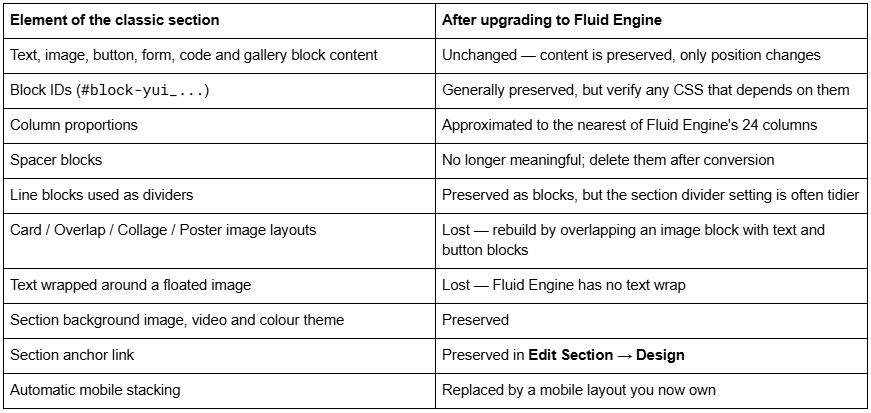
Nothing in the content itself is destroyed by conversion. What you lose is arrangement — the preset image layouts, the text wrap and the automatic mobile behaviour.
Converting the footer and portfolio sections
The Upgrade button is not limited to layout pages. Fluid Engine runs in block sections across all page types, in portfolio project sub-pages, and in the site footer, so a classic footer can be upgraded the same way.
Two cautions specific to the footer. It appears on every page, so a conversion that goes wrong is visible site-wide rather than on one URL — check it on a phone before you consider the job done. And auto layouts cannot be added to a footer at all, so if you were planning to replace a converted footer section with an auto layout, that route is closed.
Portfolio project pages behave like ordinary layout pages: hover the classic section, click Upgrade, check both layouts, save.
Why a section sometimes splits in two
Conversion respects a 1,000-row grid limit. If the classic editor section is taller than that limit allows, Squarespace splits the result into multiple Fluid Engine sections rather than failing.
This is not a bug and there is nothing to fix — but it does mean two sets of section styles where you had one. Background colour, background image and padding now have to be set on each of the resulting sections, and a background image that spanned the whole original section will repeat or crop differently across the two.
If you would rather control where the break happens, split the classic section yourself before upgrading.
What you cannot undo
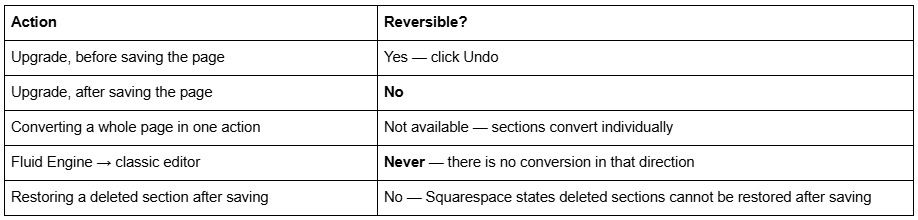
There is no site-wide "switch to Fluid Engine" toggle and no bulk conversion, which is inconvenient on a large site but does mean you cannot destroy a whole page in one click.
If you have already converted and regret it, the realistic options are in can you switch back to the classic editor.
Squarespace 7.0 sites cannot be converted
Fluid Engine is a Squarespace 7.1 feature. There is no Upgrade button on a 7.0 site and no plugin, code injection or setting that adds one. Getting Fluid Engine on a 7.0 site means rebuilding on 7.1 — a full migration, not a conversion, because 7.0 templates and 7.1 sections have no shared structure.
The specifics are in is Fluid Engine available on 7.0.
A sensible order of work on a real site
Convert the sections that gain the most first: anything with columns that stacks badly on phones, and anything where you want blocks to overlap. Leave simple full-width stacks alone until you have a design reason to touch them — converting them buys you a second layout to maintain and very little else.
Do one section, save, look at the live page on an actual phone, then do the next. Converting eight sections in one editing session and saving once means eight things changed and no way to tell which one broke the layout.
Where this stops being straightforward is a site carrying years of custom CSS written against classic markup, where the selector audit is the real work and the Upgrade click is trivial. That's the sort of thing our Squarespace website support plans exist for — a conversion audit is usually a single support block. No obligation either way; on a site without heavy custom code, duplicating the page and converting section by section is a job you can finish in an afternoon.
FAQ
-
Click Edit on the page, then hover the classic editor section. Upgrade appears in the section's top-left corner — the same place a Fluid Engine section shows Add Block. If no Upgrade button appears, the section is already Fluid Engine or is an auto layout, gallery or collection section with no blocks to convert.
-
No. There is no bulk conversion and no site-wide toggle. Fluid Engine upgrades happen one section at a time, and each one is confirmed by saving the page. On a large site that is slow, but it also means a single click cannot damage an entire page.
-
It breaks any rule keyed to classic editor markup — .sqs-row, .sqs-col-*, .span-* — because Fluid Engine replaces that structure with CSS Grid. Rules targeting a specific data-section-id also stop matching, since the section is replaced. Block-level classes such as .sqs-block-image still work.
-
Conversion respects a 1,000-row grid limit. If the classic editor section was taller than that limit allows, Squarespace splits it into multiple Fluid Engine sections. Each resulting section then has its own background, padding and Row Count settings to configure.
-
Yes. The upgraded section gains a separate mobile layout, split at Squarespace 7.1's 767px breakpoint. Squarespace makes an initial guess based on the desktop arrangement, and on sections that used spacer blocks or floated images that guess is often wrong. Check mobile view before saving.
-
No. Fluid Engine exists only on Squarespace 7.1, and no plugin or code injection adds it to 7.0. Moving to Fluid Engine from 7.0 means rebuilding the site on 7.1, since 7.0 templates and 7.1 sections share no underlying structure.

Author Bio
I'm Walid Hasan, a Certified Squarespace Expert and Squarespace Circle Platinum Partner with over 12 years of hands-on experience designing and optimizing high-performing websites. Over the years, I've had the privilege of building more than 2,000 Squarespace websites for clients around the world, always focusing on clean design, strong user experience, and conversion-driven results.
