
Can You Switch Back to the Classic Editor in Squarespace?
No. Once you have saved the page, a section upgraded to Fluid Engine cannot be reverted to the classic editor. Squarespace states this directly and there is no setting, plugin or code injection that changes it. Undo works only while you are still editing, before the save.
What you can do is add a new classic editor section and rebuild in it. That route is still available in Squarespace 7.1 in 2026, including on brand-new sites, and it is what the rest of this page covers.
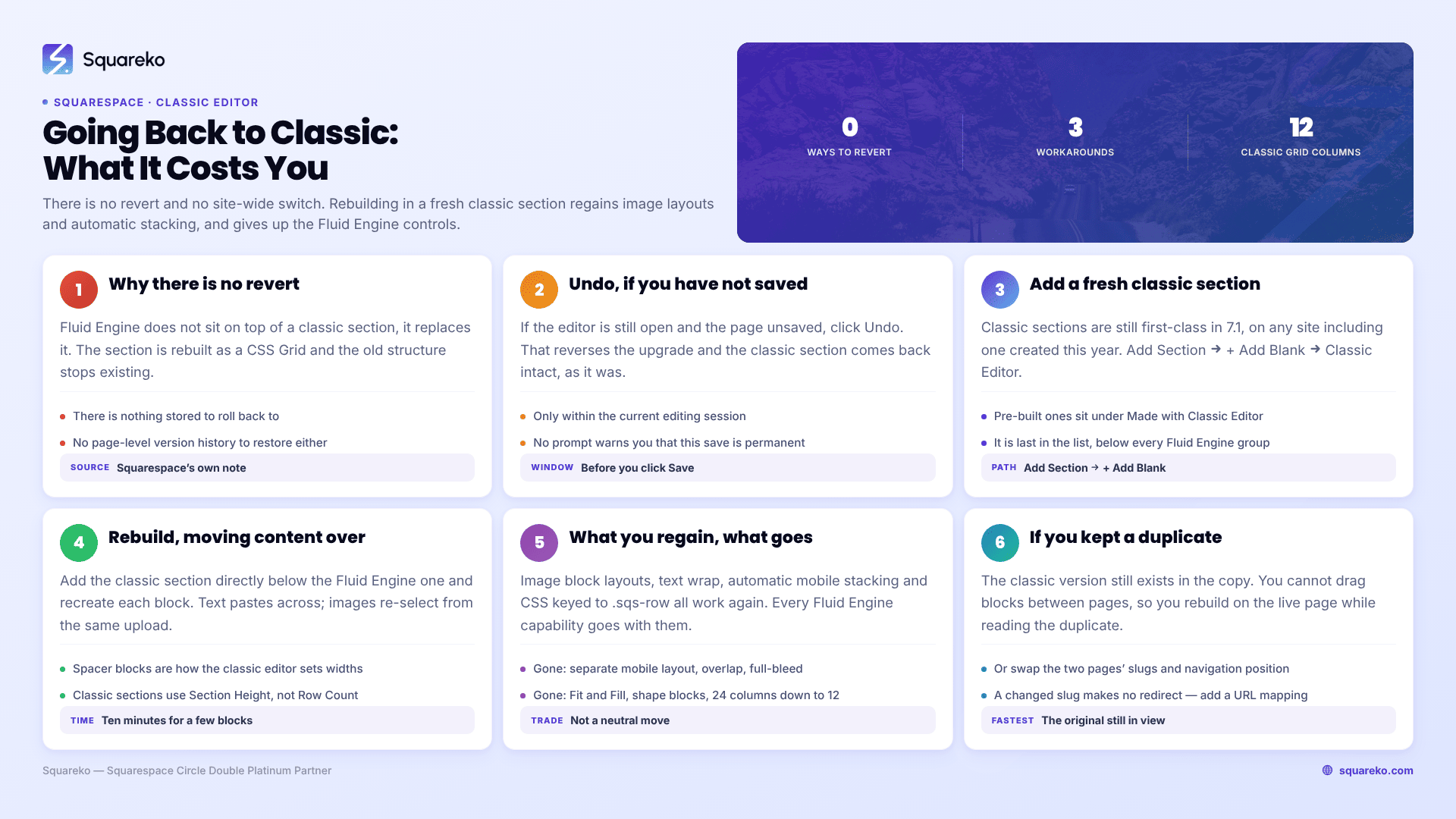
What is and is not possible
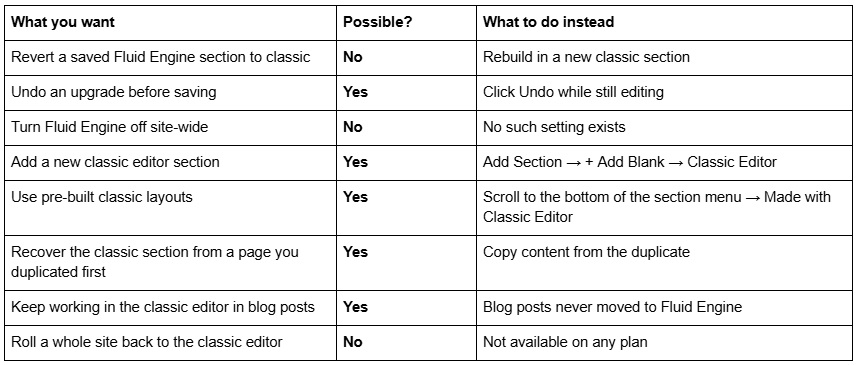
Why is there no revert
Fluid Engine does not sit on top of a classic section. It replaces it.
A classic editor section renders blocks inside rows and columns (.sqs-row, .sqs-col-6, .span-6). A Fluid Engine section renders them as a CSS Grid (.fluid-engine, .fe-block, with grid-area coordinates per block). When you click Upgrade, Squarespace rebuilds the section in the new structure and the old one stops existing. There is nothing stored to roll back to.
Squarespace's own note on the Upgrade button is unambiguous: it is not possible to revert an upgraded section after saving the page, and if you are unsure you should duplicate the section first. That advice is only useful before the fact, which is why so many people arrive at this question after the fact.
Version history does not help either. Squarespace has no page-level version history you can restore an earlier layout from. There is no "restore previous version" on a page or a section.
Workaround 1 — Undo, if you have not saved yet
If you are reading this with the editor still open and the page unsaved, stop and click Undo. That reverses the upgrade and the classic section comes back intact.
This only works within the current editing session. Once you click Save, or leave the editor and let the save go through, the option is gone. There is no undo after a save and no confirmation prompt warning you that this particular save is permanent.
Workaround 2 — Add a fresh classic editor section
Classic editor sections are still first-class citizens in Squarespace 7.1. You can add them to any layout page, on any site, including a site created this year.
For a blank classic section:
Open the Pages panel and click the page.
Click Edit in the top-left corner.
Click Add Section.
Click + Add Blank, then click Classic Editor.
For pre-built classic layouts: click Add Section, scroll to the bottom of the section menu, and click Made with Classic Editor. That opens the older section library — About, Contact, Form and similar layouts, all built in the classic editor. It can take a moment to load.
This is the entry that people miss, because it sits below every Fluid Engine category in the panel and is easy to scroll past. It is not hidden in the sense of being deprecated; it is simply last in the list.
Once the classic section exists, it behaves exactly as classic sections always did: a 12-column invisible grid, spacer blocks for spacing, automatic mobile stacking, no overlap, no separate mobile layout.
Workaround 3 — Rebuild the section, moving content across
You cannot convert a Fluid Engine section back, but you can move its content into a new classic section by hand. On a section with a handful of blocks this takes ten minutes.
Add a new classic editor section directly below the Fluid Engine one, so you can compare them as you work.
Recreate each block in the classic section. Text can be copied and pasted; images can be re-selected from the same upload, so you do not need the original files.
Use spacer blocks to set widths — this is how the classic editor does columns, and it is the habit most people have to relearn.
Rebuild the section's styling in Edit Section: background, colour theme, Section Height, Content Width and Content Alignment. Classic sections use Section Height rather than Fluid Engine's Row Count.
Check the page on a phone. The classic section will stack automatically; you are checking the order, not the positions.
Delete the Fluid Engine section and save.
Two things to know before you start. Blocks cannot be dragged between a Fluid Engine section and a classic section — you can only drag blocks between two classic sections on the same page, and copy-paste blocks between two Fluid Engine sections. And deleting a section is itself irreversible after saving, so keep the Fluid Engine section in place until the classic replacement is finished and correct.
What you get back, and what it costs
Before you rebuild anything, be clear about the trade. Going back to the classic editor is not a neutral move — you regain some capabilities and lose others outright.
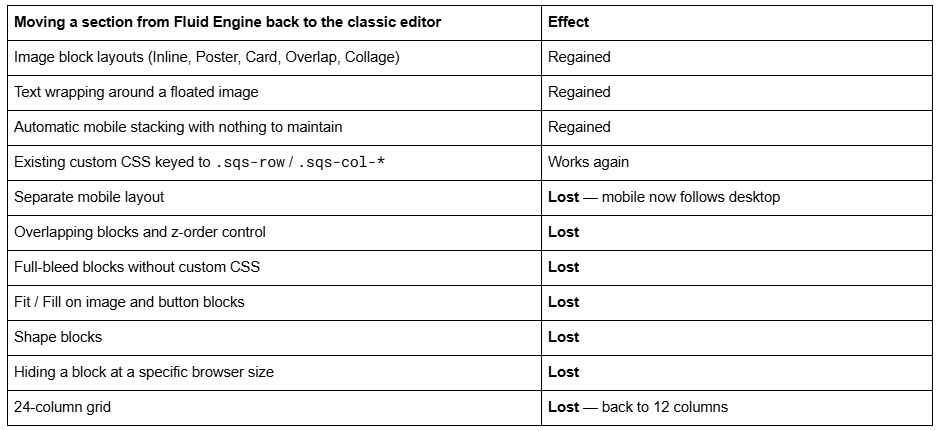
The honest reading of that table: the classic editor is a better fit for simple, stacked, text-led sections and for anything that depends on the old image layouts. Fluid Engine is a better fit for everything with columns, asymmetry or a phone layout that needs to differ from desktop. The side-by-side detail is in Fluid Engine vs classic editor.
If you kept a duplicate, use it
The one case where "going back" is quick is the one where you took the precaution first.
If you duplicated the page or the section before clicking Upgrade, the classic version still exists in that copy. You cannot drag blocks between pages, so recovery means rebuilding the section on the live page while reading the duplicate — but you have the original layout, spacing and content in front of you rather than working from a screenshot.
If the duplicate is a whole page and the live page has not changed much since, the faster route is often the reverse: fix the remaining content on the duplicate, then swap the two by changing their URL slugs and navigation position. Remember that changing a page's slug creates no automatic redirect on Squarespace, so if the original URL had traffic or backlinks, add a redirect in the Developer Tools → URL Mappings panel before you publish the swap.
Where the classic editor never went away
Some of the reason people want to "switch back" is that they associate the classic editor with areas they still use daily. Those areas never moved.
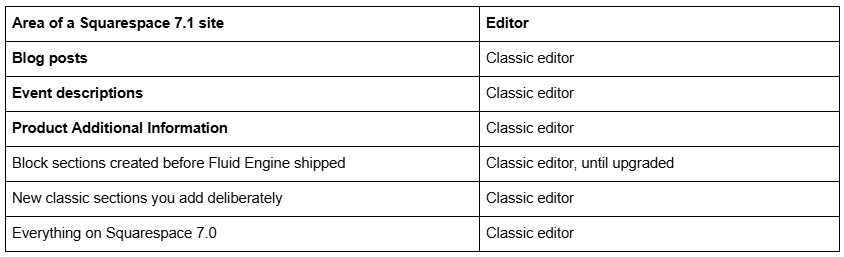
Blog posts are the significant one. Every blog post body in Squarespace 7.1 is a classic editor content area — 12-column grid, spacer blocks, automatic mobile stacking. Fluid Engine has never applied there, so nothing about your blogging workflow changes regardless of what you do to your layout pages.
What people actually mean by "go back"
Read the Squarespace Forum thread on this question and the requests are rarely about the editor as a whole. They are about four specific things, and three of them have a fix that is not reverting.
"The mobile layout is a mess." Fluid Engine keeps a separate mobile layout per section, split at Squarespace 7.1's 767px breakpoint, and it does not arrange it for you. Click the Mobile View icon and fix it there — selecting a block and clicking ↑ or ↓ moves it above or below its neighbour, which is far faster than dragging. This is the complaint that going back would genuinely solve, at the cost of all mobile control.
"I lost my image layouts." Card, Overlap, Collage and Poster image block layouts are classic-only. The Fluid Engine equivalent is to overlap an image block with a text block and set a background colour on the text. More blocks, same result.
"I can't get spacing consistent." Use Edit Section → Design → Gap rather than resizing blocks by eye, and press G to keep the grid visible. Most "Fluid Engine spacing is impossible" complaints are the grid being switched off.
"It is slower to work in." Check your browser window. Squarespace's stated minimum for editing is 1280 × 768, and below that the drag targets crowd badly.
The honest summary
There is no revert, no site-wide Fluid Engine switch, and no version history to restore from. If you have saved, your options are to keep the Fluid Engine section and learn its controls, or to rebuild the content in a new classic editor section — which is still available at Add Section → + Add Blank → Classic Editor and is not going anywhere in the near term.
Before your next upgrade, duplicate the page. It costs one click and it is the only insurance the platform offers.
Where this becomes genuinely painful is a site where a batch of sections were converted at once, the mobile layouts were never checked, and nobody kept a copy — rebuilding half a site by hand is slow, unglamorous work. That's the sort of thing our Squarespace website support plans exist for. No obligation either way; a single section is a ten-minute rebuild you can do yourself with the steps above.
FAQ
-
No. Once the page has been saved, a section upgraded to Fluid Engine cannot be reverted. Squarespace states this directly and no setting, plugin or code injection changes it. Undo reverses an upgrade only while you are still editing, before saving.
-
Only within the same editing session, before you save. Click Undo and the classic editor section returns intact. After the save goes through there is no undo, no confirmation prompt and no version history to restore an earlier layout from.
-
Click Edit on the page, click Add Section, then click + Add Blank followed by Classic Editor. For pre-built classic layouts, scroll to the bottom of the section menu and click Made with Classic Editor. Both routes work on new Squarespace 7.1 sites.
-
No. There is no account setting or site setting that disables Fluid Engine. New block sections default to Fluid Engine, and the only way to work in the classic editor is to add classic sections individually or to work in areas that still use it.
-
Blog posts, event descriptions and product Additional Information, plus any block section created before Fluid Engine shipped and any classic section you add deliberately. Everything on Squarespace 7.0 uses the classic editor, since Fluid Engine does not exist there.
-
Add a classic editor section below it, recreate the blocks by copying text and re-selecting the same images, use spacer blocks to set widths, then rebuild the section styling under Edit Section. Delete the Fluid Engine section only once the replacement is finished — deletions are permanent after saving.

Author Bio
I'm Walid Hasan, a Certified Squarespace Expert and Squarespace Circle Platinum Partner with over 12 years of hands-on experience designing and optimizing high-performing websites. Over the years, I've had the privilege of building more than 2,000 Squarespace websites for clients around the world, always focusing on clean design, strong user experience, and conversion-driven results.
