Where to Find Your Squarespace Sitemap XML — and How to Read It
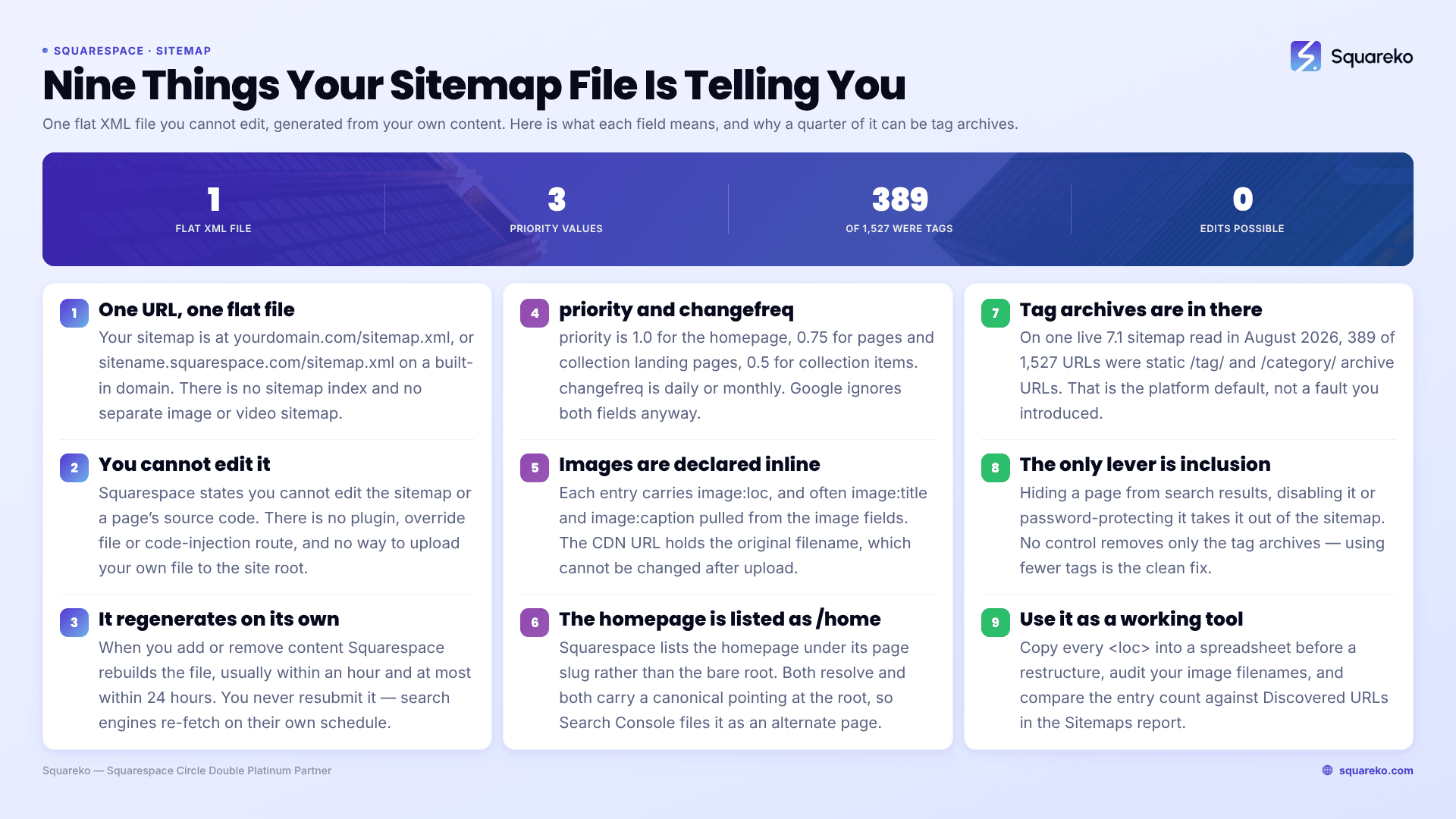
Your Squarespace sitemap is at yourdomain.com/sitemap.xml, or sitename.squarespace.com/sitemap.xml if you have not connected a custom domain yet. It is generated automatically, there is exactly one of them, and you cannot edit it. That last fact is the one with consequences: thin pages, tag archives and category archives land in it whether you want them there or not.
Open it in a private browsing window. Everything below is a guide to what you are looking at.
The URL, and the two things it is not
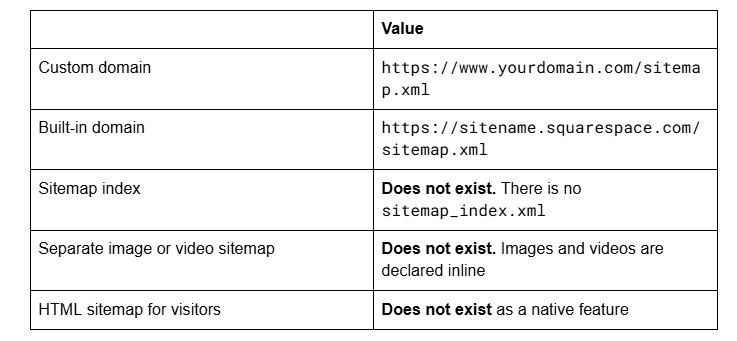
Squarespace produces one flat XML file covering the whole site. If you have come from WordPress and are looking for a sitemap index that fans out into post-sitemap.xml and page-sitemap.xml, there is nothing to look for — that is a plugin behaviour, not a platform standard.
There is also no native HTML sitemap — the human-readable index page some sites publish for navigation. If you want one on Squarespace you build it as an ordinary page with links on it, by hand.
What one entry actually looks like
Here is a real entry from a live Squarespace 7.1 sitemap, unedited apart from the domain:
<url>
  <loc>https://www.example.com/blog/post-slug</loc>
  <changefreq>monthly</changefreq>
  <priority>0.5</priority>
  <lastmod>2026-04-30</lastmod>
  <image:image>
    <image:loc>https://images.squarespace-cdn.com/content/v1/…/Featured+Image.png</image:loc>
    <image:title>Blog - Post Title - Make it stand out</image:title>
    <image:caption>Whatever it is, the way you tell your story online can make all the difference.</image:caption>
  </image:image>
</url>
Five things to notice, because each of them is a fixed platform behaviour you cannot change:
priority takes exactly three values. On a 1,527-URL sitemap we read in August 2026, every entry was 1.0 (the homepage), 0.75 (pages and collection landing pages) or 0.5 (collection items). You cannot set it. Google has said for years that it ignores the field anyway.
changefreq takes exactly two values — daily for collection pages, monthly for items. Also ignored by Google, also not editable.
lastmod is a date, not a timestamp, and it reflects the last content change Squarespace registered. This one Google does use as a hint.
Images are declared inline with image:loc, and often image:title and image:caption pulled from the image's title and description fields. If you left the Squarespace demo caption on an image, it is in your sitemap. The one above still says "Whatever it is, the way you tell your story online can make all the difference."
The image URL contains the original filename. Featured+Image.png is the file as uploaded. Squarespace filenames cannot be changed after upload, so whatever you named the file is permanent — in the CDN URL, in the sitemap, and often in the alt text.
Video content gets the same inline treatment, with video:content_loc, video:thumbnail_loc, video:title and video:description nodes.
What Squarespace puts in, and what it leaves out
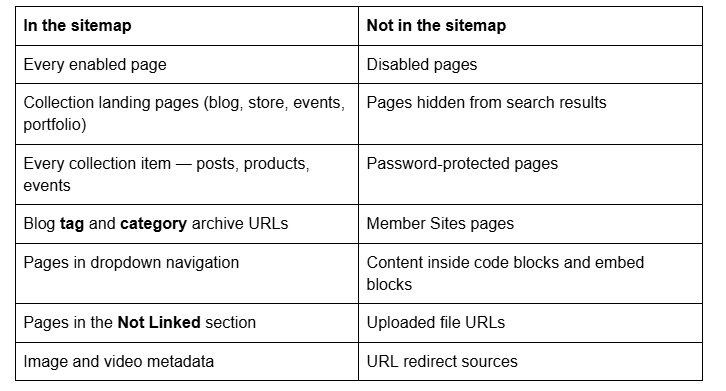
Two rows deserve attention.
Not Linked pages are in the sitemap. Moving a page to Not Linked removes it from your navigation and nothing else. It stays public, crawlable and listed. This is why thank-you pages, old landing pages and internal briefing pages turn up in Google on Squarespace sites — the owner assumed Not Linked meant hidden.
Tag and category archives are in the sitemap by default. Squarespace's own documentation confirms these URLs appear in the site map and can appear in search results. On the 1,527-URL sitemap we read, 389 entries — a quarter of the file — were /tag/ and /category/ archive URLs. That is not a fault; it is the default.
The homepage is listed under its slug, not as /
Worth knowing because it explains a Search Console message that alarms people.
Squarespace lists the homepage in the sitemap under its page slug — commonly https://www.example.com/home — rather than as the bare root URL. Both URLs resolve with a 200 status, and both carry the same canonical tag pointing at the root.
So Google discovers /home, crawls it, finds a canonical pointing elsewhere, and files it under "Alternate page with proper canonical tag" in the Page indexing report. Squarespace documents this explicitly and the guidance is correct: no action is needed. It is not duplicate content, it is not a penalty, and there is no setting to change it.
It updates itself, and it cannot be edited
Squarespace states it plainly: you cannot edit the sitemap or a page's source code.
There is no plugin, no override file, no extension and no code injection route. Uploading your own sitemap.xml is impossible because you cannot place files at the site root — which is also why Google's HTML-file verification method does not work on Squarespace.
Updates are automatic. When you add or remove content, Squarespace regenerates the sitemap, usually within an hour and at most within 24 hours. You never resubmit it. If you have just published and the sitemap has not caught up, wait an hour before assuming something is broken.
Sitemap bloat: the real consequence, and what to do about it
Because you cannot edit the file, the only lever you have is changing what qualifies for inclusion. Squarespace removes a URL from the sitemap when it is hidden from search results, disabled or password-protected. That is the whole mechanism, and it is enough.
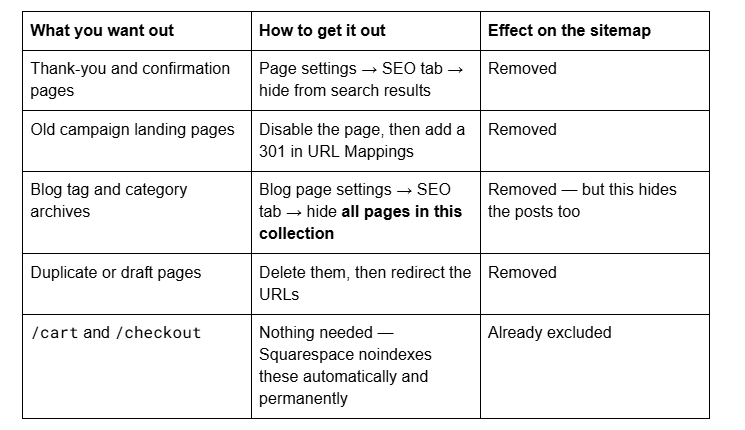
The tag and category problem has no clean answer, and you should know that before you start. The SEO tab's "all pages in this collection" option hides the blog landing page and every post on it, not just the archives. There is no control that removes only /blog/tag/… URLs. Your realistic options are:
Leave them. Google is generally competent at ignoring thin archive URLs, and Squarespace already applies a canonical tag telling search engines which URL is the real one. On most sites this is the right call.
Use fewer tags. The count is generated from your taxonomy, so 40 tags across 60 posts produces 40 archive URLs of near-zero value. Consolidating to eight categories and no tags removes the URLs at source. This is the only clean fix.
Accept the trade and hide the whole collection only if the blog genuinely should not be indexed at all — an internal changelog, for instance.
Does bloat actually cost you anything? On a site of a few hundred URLs, essentially nothing. Crawl budget is a real constraint on sites with hundreds of thousands of URLs; below that, Google's own position is that most sites should not think about it. The reason to care is diagnostic clarity, not ranking: a Page indexing report where 400 of 1,500 URLs are archives you never intended to publish is much harder to read, and it hides the pages you actually care about among the noise.
How big does a Squarespace sitemap get, and does size matter?
Because Squarespace produces one flat file with no index, the whole site lives in a single download. The 7.1 site we read in August 2026 came to 1,527 URLs across roughly 6.5 MB — large for a single sitemap, and almost entirely because of the inline image metadata. Every image on every page contributes a image:loc node, and on an image-heavy site those nodes outweigh the page URLs several times over.
Google's published limits for a single sitemap file are 50,000 URLs and 50 MB uncompressed. A Squarespace site would need to be enormous to breach the URL limit, but the size limit is closer than people assume on portfolio and photography sites with thousands of gallery images. Squarespace handles the file generation, so there is nothing to configure either way — this is worth knowing only so that you recognise a "Has errors" status in the Sitemaps report for what it would be.
A practical consequence of the flat structure: you cannot tell Google to prioritise part of the site by submitting a subset. On WordPress you might submit post-sitemap.xml separately during a content push. On Squarespace there is one file and one submission, and prioritisation happens through internal linking instead — pages linked from your homepage get crawled more often than pages that are only in the sitemap.
If you want a quick size check, load the sitemap in a private window and look at the page length, or count the <loc> occurrences in your browser's find bar. Both take seconds and both tell you more about your site than the Pages panel does.
How to use the sitemap as a working tool
Four things it is genuinely good for.
1. Exporting your URL list before a restructure. Open sitemap.xml, copy every <loc> value into a spreadsheet, and you have a complete before-state to build redirects from. Do this before you change anything — the sitemap regenerates within the hour and the old state is gone.
2. Catching pages you forgot were public. Read the list. Every time we do this on an inherited site we find at least one page nobody knew was live — a 2023 pricing page, a client proof page, a duplicate homepage from a rebuild.
3. Auditing image filenames. The image:loc values expose every filename on the site. If it reads like IMG_4471.jpg and Screen+Shot+2024-03-02.png, you have a naming discipline problem you can only fix on future uploads, because filenames cannot be changed after upload.
4. Sanity-checking the URL count. Compare the number of <loc> entries against the Discovered URLs figure in Search Console's Sitemaps report. A large gap means Google fetched an older copy, or a lot of your pages are excluded for reasons worth investigating.
One caveat from reading real sitemaps: the file is generated from your content state and can briefly list a URL that no longer resolves — a post whose slug changed minutes earlier, for instance. If you spot an entry that 404s, check the redirect first rather than assuming the sitemap is broken.
The three things people ask for that do not exist
A visitor-facing HTML sitemap. Build a page with links if you want one.
Per-page control over priority or changefreq. Fixed by the platform, and ignored by Google regardless.
A way to add a URL that Squarespace did not generate. The sitemap only ever describes your Squarespace content.
Reading your own sitemap is a fifteen-minute job that most site owners never do, and it is the single fastest way to find out what your site actually publishes rather than what you think it publishes. Where it turns into real work is a site with a few thousand URLs, a tag taxonomy that grew without a plan, and a Page indexing report nobody can read. Sorting out what should be indexed and what should not is what our Squarespace SEO service does first on any engagement. On a 40-page site, the table above covers it.
FAQ
-
https://www.yourdomain.com/sitemap.xml, or https://sitename.squarespace.com/sitemap.xml on a built-in domain. There is one flat file for the whole site — no sitemap index, no separate image or video sitemap. Open it in a private browsing window to see the current version.
-
No. Squarespace generates it automatically and states that you cannot edit the sitemap or a page's source code. There is no plugin or code-injection route, and you cannot upload your own file because Squarespace does not allow files at the site root. The only lever is changing which pages qualify for inclusion.
-
Hide it from search results on the SEO tab of page settings, disable it, or password-protect it. Any of those removes it from the sitemap. Deleting the page also works, but then add a 301 in URL Mappings so the old URL does not 404.
-
Because Squarespace includes them by default. On one live 7.1 sitemap we read in August 2026, 389 of 1,527 URLs were tag and category archives. There is no setting that removes only those URLs — the only clean fix is using fewer tags, so fewer archive URLs are generated.
-
Automatically, whenever you add or remove content. Squarespace says updates usually appear within an hour and can take up to 24 hours. You never need to resubmit it to Google — search engines re-fetch it on their own schedule.
-
Squarespace lists the homepage under its page slug rather than the bare root URL. Both resolve, and both carry a canonical tag pointing at the root, so Google files the slug version under "Alternate page with proper canonical tag" in Search Console. No action is needed and there is no setting to change it.

Author Bio
I'm Walid Hasan, a Certified Squarespace Expert and Squarespace Circle Platinum Partner with over 12 years of hands-on experience designing and optimizing high-performing websites. Over the years, I've had the privilege of building more than 2,000 Squarespace websites for clients around the world, always focusing on clean design, strong user experience, and conversion-driven results.