How to Submit Your Squarespace Sitemap to Google (and What It Actually Does)
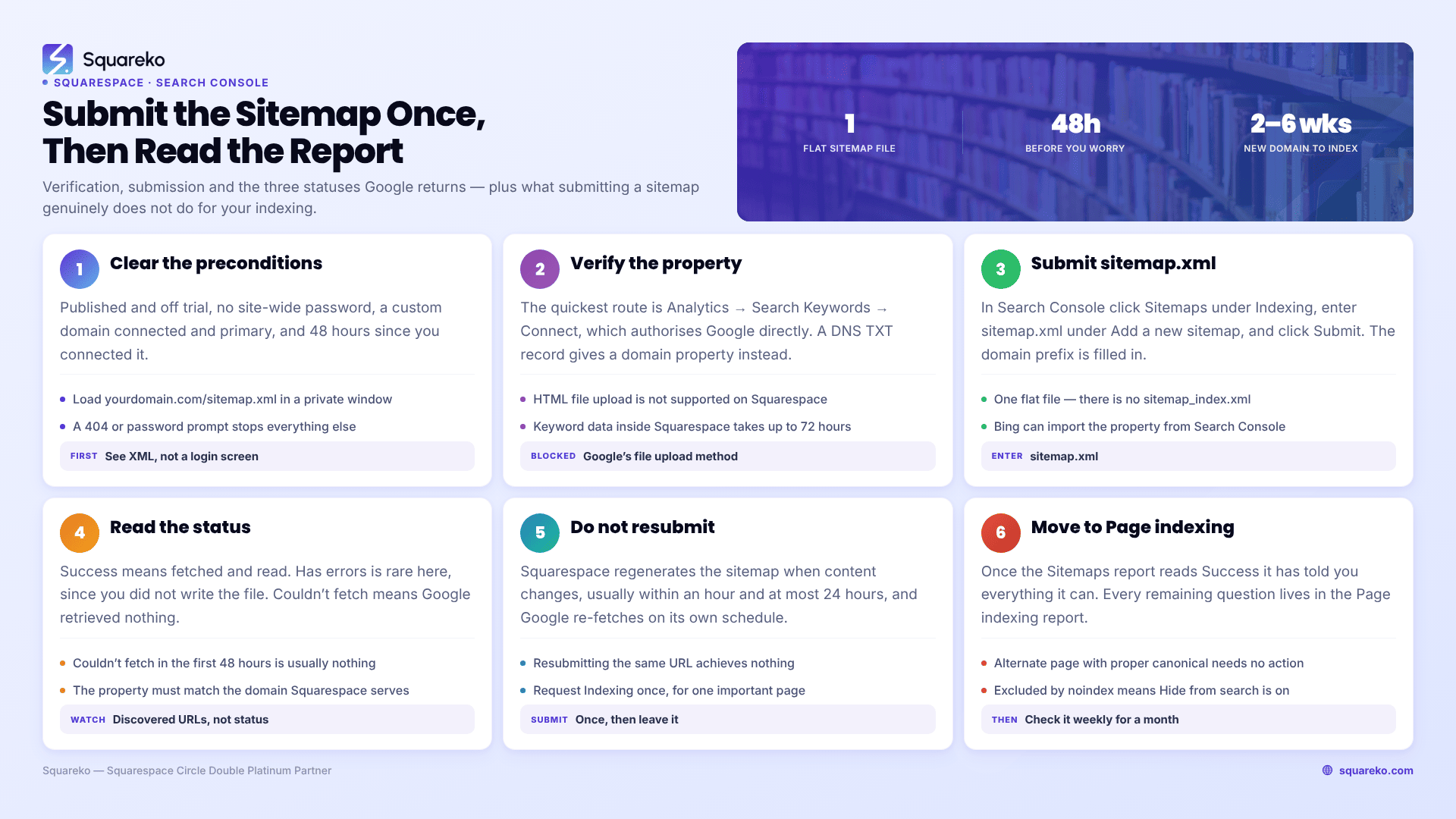
Your Squarespace sitemap is always at yourdomain.com/sitemap.xml. Verify the site in Google Search Console first — the easiest route is Analytics → Search Keywords → Connect, which authorises Google directly — then in Search Console go to Sitemaps, enter sitemap.xml and click Submit. You do this once. Submission tells Google your URLs exist; it does not make Google index them faster.
Everything below is the detail that makes those three steps work first time.
Before you submit: four preconditions
Submission fails in predictable ways, and every one of them traces back to something that was not true when you started.
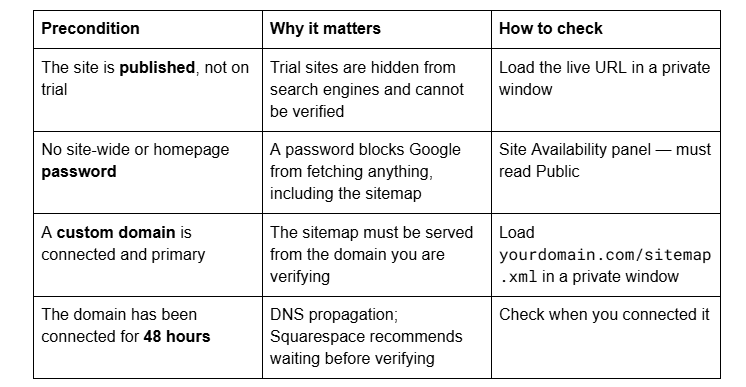
Load yourdomain.com/sitemap.xml in a private browsing window before you go anywhere near Search Console. If you see XML, you are ready. If you see a login screen, a password prompt or a 404, fix that first — no amount of clicking Submit will help.
Step 1 — Verify the site with Google Search Console
Squarespace supports several verification routes and blocks one of them outright.
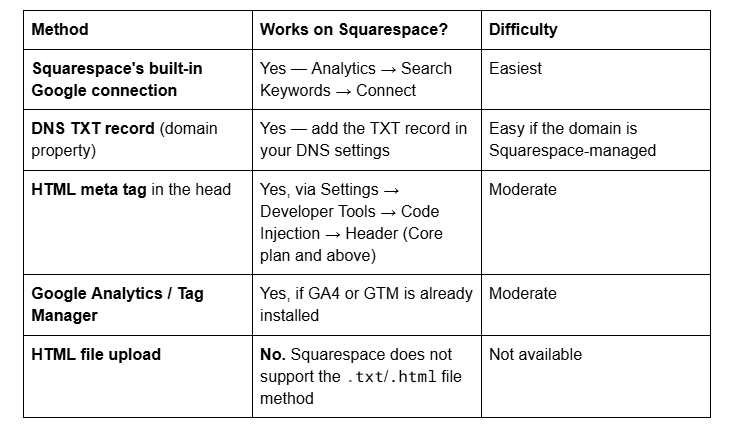
The HTML-file method is the one every generic Search Console tutorial recommends, and it is the one Squarespace explicitly does not support — you cannot upload a file to the site root. If you have been going in circles because Google keeps asking you to upload google1a2b3c.html, that is why. Back out and use one of the other four.
The built-in route, step by step:
Open the Analytics panel.
Click Search Keywords.
Click Connect in the panel's pop-up.
Log into the Google account you want linked to the site.
Review the permissions and click Allow.
Squarespace notes that keyword data takes up to 72 hours to populate. That is the analytics data appearing back inside Squarespace — the Search Console property itself is verified immediately.
The DNS TXT route is the one to use when you want a domain property in Search Console rather than a URL-prefix property. A domain property covers http, https, www and non-www in one place, which is tidier and worth the extra five minutes. Copy the TXT value Google gives you, add it as a TXT record on the root of your domain, and click Verify.
The built-in connection is not a substitute for Search Console
Connecting through Analytics → Search Keywords puts a stripped-down keyword panel inside Squarespace: your top queries, impressions and clicks, refreshed on Google's schedule. It is convenient and it is genuinely useful for spotting which queries already send you traffic.
It is not Search Console. The Squarespace panel has no Sitemaps report, no Page indexing report, no URL Inspection tool and no way to submit anything. Every diagnostic that matters — why a page is not indexed, whether the sitemap was fetched, what Google's canonical choice was for a URL — lives only in Search Console itself at search.google.com/search-console.
So the connection is step one, not the whole job. Once it has verified the property, go to Search Console in a browser tab and work there. The Squarespace panel is a dashboard; Search Console is the tooling.
One consequence worth knowing: because the built-in connection verifies a URL-prefix property for the domain Squarespace serves, you may end up with a property for https://www.example.com only. That is fine for submission, but it means Search Console will not show you data for the non-www or http variants. If you would rather have everything in one property, verify a domain property with a DNS TXT record instead and submit the sitemap there.
Step 2 — Submit sitemap.xml
Once the property is verified, submission takes under a minute.
In Google Search Console, select the property from the property menu at the top left.
Click Sitemaps in the left-hand navigation, under Indexing.
Under Add a new sitemap, enter sitemap.xml. The domain prefix is filled in for you.
Click Submit.
Squarespace generates one flat sitemap. There is no sitemap index, no sitemap_index.xml, and no separate image or video sitemap — images and videos are declared inline inside the single file. So there is exactly one URL to submit, and you submit it once.
Bing takes the same file. Bing Webmaster Tools has an import-from-Search-Console option that carries the verification and the sitemap across in a couple of clicks. Worth doing; Bing also feeds several AI answer engines.
Step 3 — Read the status Google gives you
The Sitemaps report shows one of three statuses, and they mean specific things.
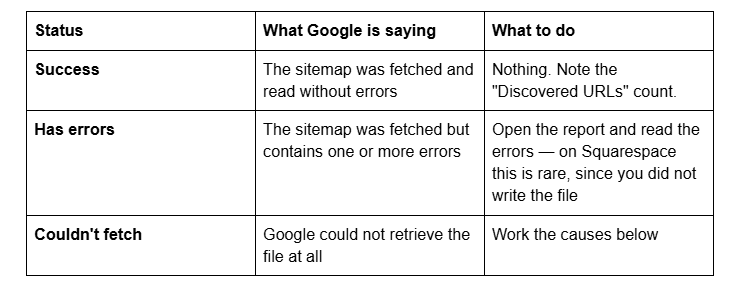
"Couldn't fetch" in the first 24–48 hours after a fresh submission is usually nothing. Google frequently reports it before it has actually attempted a real fetch. Give it two days before you treat it as a fault.
If it persists, Google documents the causes, and on Squarespace they narrow down fast:
The URL is wrong. You typed sitemap_index.xml or /sitemap.xml/. Squarespace serves sitemap.xml and nothing else.
The property does not match the domain. A property for example.com cannot fetch a sitemap at www.example.com. This is the single most common cause on Squarespace, because the platform redirects non-www to www — verify the www version or use a domain property.
The site is password-protected or unpublished. Google gets the lock screen instead of XML.
Low crawl demand. On a very new site with no links pointing at it, Google may simply not have prioritised the fetch yet.
robots.txt blocking. On Squarespace this only happens if Settings → Crawlers → Block search engine crawlers is ticked, which adds Disallow: / to the file. Check that box first if nothing else fits.
Discovered URLs is the number to watch, not the status. If Success shows 40 discovered URLs on a 200-page site, the problem is not submission — it is that Google fetched an older copy, or that most of your pages are hidden from search and therefore excluded from the sitemap.
What submitting a sitemap does — and does not — do
This is where most advice on this SERP is quietly wrong.
What it does: it gives Google a complete, machine-readable list of the URLs you consider canonical, along with a lastmod date for each. On a new site with no inbound links, that is genuinely the difference between discovery in days and discovery in weeks, because Google has no other route in. It also gives you the Sitemaps report, which is a useful diagnostic surface even when everything is fine.
What it does not do:
It does not index anything. A sitemap is a discovery aid. Google decides independently whether each URL is worth crawling and, separately, worth indexing. Google's own documentation is explicit that not all URLs in a sitemap will be crawled, and that crawling depends on site size, activity and traffic.
It does not speed up indexing of an established site. If Google already crawls you regularly, the sitemap adds nothing to the rate.
It does not need resubmitting. Squarespace regenerates the sitemap automatically when content changes — usually within an hour, up to 24 hours at the outside — and Google re-fetches it on its own schedule. Resubmitting the same URL does nothing. The only reason to submit again is if you removed and re-added the property.
It does not fix a page that Google has chosen not to index. Sitemap inclusion is not a ranking or indexing instruction.
The realistic timeline: Google's guidance is that crawling can take anywhere from a few days to a few weeks. A brand-new domain with no links routinely takes two to six weeks to move from submitted to fully indexed. Nothing you do in Search Console compresses that meaningfully.
Request Indexing: when it helps and when it is theatre
Search Console's URL Inspection tool has a Request Indexing button, and it is the most over-used control in the product.
It is worth using for: a single important page you have just published or substantially rewritten, or a page you have just fixed after a noindex accident. One request, once.
It is not worth using for: every page on the site, the same page repeatedly, or as a substitute for the sitemap. Google states plainly that requesting a crawl multiple times for the same URL will not get it crawled any faster, and that there is a daily quota. Requesting indexing does not guarantee inclusion at all.
For a bulk relaunch, the sitemap plus internal links from pages Google already crawls frequently will outperform manual requests every time.
After submission: the two reports worth checking
Sitemaps report — check it once a week for the first month. You want Status: Success and a Discovered URLs count in the right neighbourhood.
Page indexing report — this is where the real information is. It splits your URLs into indexed and not indexed, with a reason for every exclusion. On Squarespace the reasons that show up most often are:
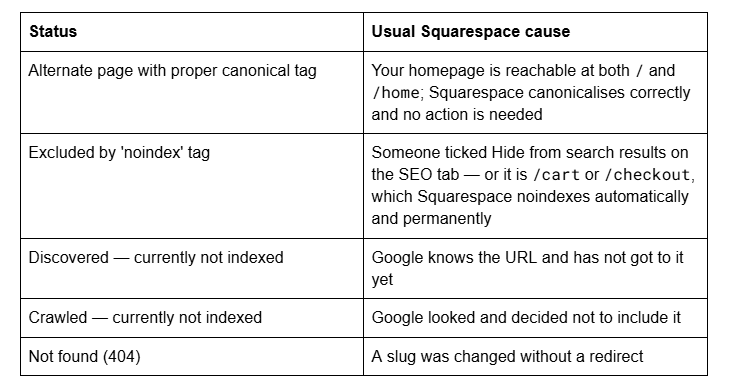
The last three each have their own diagnosis and are covered in detail elsewhere in this cluster. The point here is that once your sitemap reads Success, the Sitemaps report has told you everything it can, and every remaining question lives in Page indexing.
If your site is brand new
A newly launched Squarespace site with a new domain has no links, no history and no crawl budget. Verifying and submitting is the right first move, and then the honest advice is to stop refreshing Search Console.
Two things genuinely accelerate a new site, and neither is a Search Console button: inbound links from pages Google already crawls (a directory listing, a supplier page, a professional profile, a Google Business Profile), and internal links from your own most-crawled page, which is almost always the homepage. An orphan page nobody links to will sit in "Discovered — currently not indexed" for a long time regardless of what the sitemap says.
Verifying and submitting is a fifteen-minute job and you should do it yourself — there is no version of this that is worth paying for. Where we do get called in is a step further on: a site that has been verified and submitted for three months, reads Success, and still has two-thirds of its pages sitting in Page indexing exclusions with no obvious cause. Untangling that is what our Squarespace SEO service is for. If your sitemap reads Success and your pages are appearing, you are already done.
FAQ
-
Always at yourdomain.com/sitemap.xml, or sitename.squarespace.com/sitemap.xml on a built-in domain. Squarespace generates it automatically and there is only one file — no sitemap index, no separate image sitemap. That is the URL you enter in Search Console's Sitemaps report.
-
Squarespace does not support Google's file-upload verification, because you cannot place a file at the site root. Use Squarespace's built-in connection at Analytics → Search Keywords → Connect, a DNS TXT record, an HTML meta tag via Code Injection, or an existing Google Analytics install instead.
-
Google could not retrieve the file. In the first 24–48 hours it usually means Google has not really tried yet. If it persists, check that the Search Console property matches the exact domain Squarespace serves, that the site is published without a password, and that Settings → Crawlers is not blocking search engines.
-
On a brand-new site with no inbound links, yes — it is Google's only discovery route. On an established site, no. A sitemap lists URLs; it does not instruct Google to crawl or index them. Google's own guidance is that crawling takes days to weeks regardless.
-
No. Squarespace regenerates the sitemap automatically when content changes, usually within an hour and at most within 24 hours, and Google re-fetches it on its own schedule. Resubmitting the same URL achieves nothing. Submit once, then leave it.
-
Google states that crawling can take anywhere from a few days to a few weeks. In practice a new domain with no inbound links commonly takes two to six weeks to be fully indexed. Inbound links and internal links from your homepage move this faster than anything in Search Console.

Author Bio
I'm Walid Hasan, a Certified Squarespace Expert and Squarespace Circle Platinum Partner with over 12 years of hands-on experience designing and optimizing high-performing websites. Over the years, I've had the privilege of building more than 2,000 Squarespace websites for clients around the world, always focusing on clean design, strong user experience, and conversion-driven results.