Squarespace 301 Redirect Setup: The URL Mappings Syntax, Line by Line
Squarespace 301 redirects are written by hand in Settings → Developer Tools → URL Mappings, one rule per line, in the form /old-url -> /new-url 301. The arrow is a hyphen followed by a greater-than sign with no space between them. A rule only fires once the old URL genuinely no longer exists on the site — and changing a page or post slug never creates a redirect for you.
That last point is the one that costs people rankings, so it goes first.
Squarespace never creates a 301 for you when a slug changes
There is no automatic redirect on Squarespace. Not on pages, not on blog posts, not on products, not on any plan. The moment you save a new URL slug, the old URL returns a 404 — and it keeps returning a 404 until you write a URL Mappings rule yourself.
Squarespace's own documentation of Search Console errors confirms the mechanism from the other side: a 404 crawl error "can happen if you've removed a page or changed its URL slug without setting a 301 or 302 redirect."
Two consequences worth internalising before you touch a slug:
Every slug change is a two-step job. Change the slug, then immediately add the redirect. Treat them as one action.
A blog page slug change rewrites every post URL at once. Blog post URLs are always /{blog-page-slug}/{post-slug}. Renaming the blog page from /blog to /insights changes the URL of every post on it in a single save. That is a one-line fix with a variable, covered below — but only if you notice.
The only redirects Squarespace does perform automatically are domain-level: non-www to www, HTTP to HTTPS, and any additional connected domain to your primary domain. Those are real 301s and you do not need to write them. Everything path-level is yours.
Where URL Mappings lives, and the anatomy of one rule
Open the Settings panel, click Developer Tools, then URL Mappings. It is available on every plan.
Each redirect is one line with four parts:
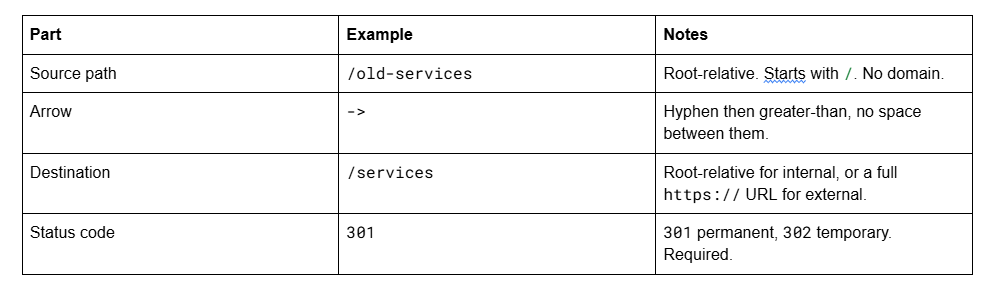
/old-services -> /services 301
/about-us -> /about 301
/team/jane -> /about#jane 301
Blank lines are fine. Comments are not — the field rejects anything that is not a correctly formatted rule, so you cannot annotate your redirect list inside the panel. Keep the annotated version in a spreadsheet and paste the clean lines in.
Case matters. Squarespace advises keeping the same capitalisation as your live URLs. Slugs are forced to lowercase, so in practice your rules should be lowercase too — but tag and category URLs preserve capitalisation (/blog/tag/Live+Chat), and if you are redirecting one of those, match it exactly.
The rule that stops most redirects firing: the old URL must be gone
Squarespace states the requirement plainly: to use a 301 redirect, the original URL can no longer exist, and the new one must exist.
A live page always wins over a redirect rule pointing away from it. If you add /about-us -> /about 301 while /about-us is still a published page, nothing happens — Squarespace serves the page, and you conclude the syntax is broken when it is not.
Three ways to make the old URL stop existing, in order of preference:
Change its slug to the new one. The page keeps its content and history; the old path frees up.
Disable the page (Pages panel → page settings → toggle off). It leaves the navigation and the sitemap and stops resolving.
Delete it. Recoverable for 30 days from the Pages panel's trash, but the crudest option.
The same applies in the other direction: the destination has to be a real, published, publicly reachable URL. Redirecting to a page that is disabled or password-protected sends visitors and crawlers into a wall.
301 or 302: which status code to write
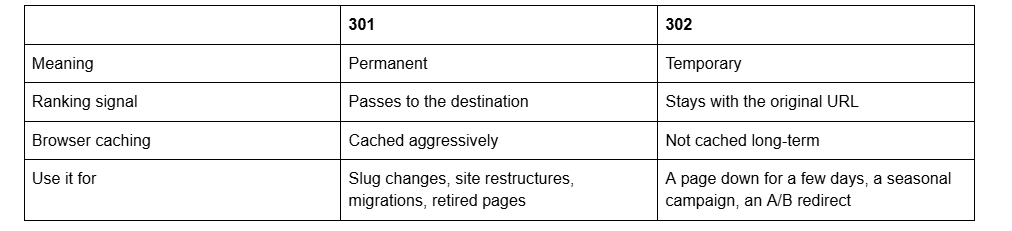
For anything to do with SEO, the answer is 301. A 302 tells Google to keep the original URL in the index and keep the ranking there — which, if the original URL now 404s, means you have parked your ranking on a dead page.
The one case where 302 is genuinely right: a temporary destination you intend to reverse, such as pointing /shop at a holiday landing page for three weeks. Reverse it and the original recovers cleanly because Google never moved the signal.
Browser caching makes 301s hard to undo. Once a visitor's browser has cached a permanent redirect it may keep following it after you delete the rule. Test in a private window; if you have already cached a wrong 301 on your own machine, that is why it appears stuck.
The [name] variable: what it matches and what it does not
Squarespace has one variable, [name], and it is narrower than most people assume. It substitutes the slug of a collection item — a blog post, product or event — so you can move an entire collection with one line instead of one line per item.
/blog/[name] -> /insights/[name] 301
/store/p/[name] -> /shop/p/[name] 301
The first rule moves every post from /blog/... to /insights/..., preserving each post's own slug. This is the fix for the blog-page-rename problem described above, and it is the single most valuable line in the panel.
What [name] cannot do:
It is not a general wildcard. There is no *. You cannot write /services/* -> /solutions/* 301.
It does not work for ordinary pages. It matches items inside a collection, not arbitrary path segments.
It does not span multiple segments. One variable, one slug.
It does not rewrite the slug. [name] on the left is reproduced verbatim on the right. If the post slugs themselves changed, you need individual rules.
For everything else — a set of standalone pages moving to a new parent path, for instance — you write one line each. On a 40-page restructure that is 40 lines, generated in a spreadsheet and pasted in.
Rules fire top to bottom, so order them specific-first
Squarespace activates redirects from top to bottom, and the first match wins. A broad collection rule placed above a specific exception will swallow it.
/blog/pricing-guide -> /pricing 301
/blog/[name] -> /insights/[name] 301
Written in that order, /blog/pricing-guide goes to /pricing and every other post goes to /insights/. Swap the two lines and the collection rule catches the pricing guide first, sending it to /insights/pricing-guide, which does not exist.
Practical convention: individual page rules at the top, collection [name] rules underneath, and a comment-free but consistently sorted list so a future editor can find a rule without reading all 300.
Avoid chains. If /a redirects to /b and /b redirects to /c, edit the first rule to point at /c directly. Chains slow crawling and are the usual source of the "Redirect error" status in Search Console.
Limits, and what Squarespace will not redirect
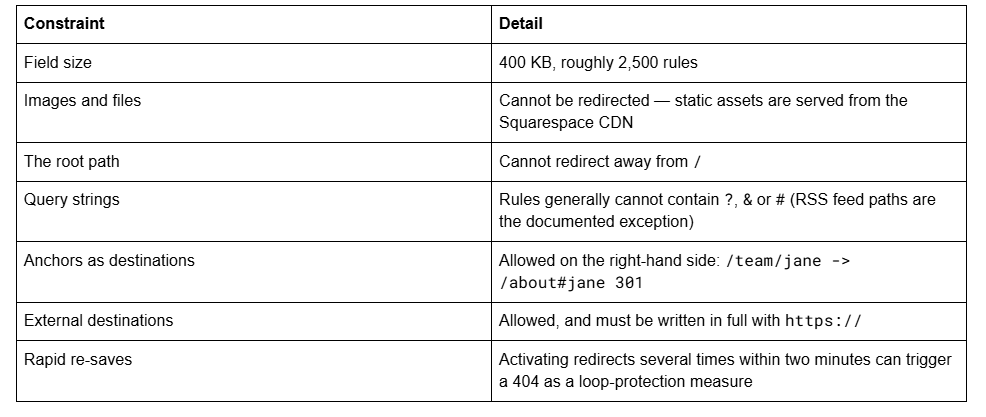
That last one causes a genuine scare during a migration. You paste, save, test, fix a typo, save again, test — and get a 404 on a rule you know is right. Wait two minutes and retest before changing anything.
External redirects look like this:
/webinar -> https://events.example.com/spring-webinar 301
Useful for moving a booking flow or a campaign off-site. Do not use it to point a page at a competitor's URL you do not control.
How to test a redirect properly
Squarespace's documentation does not cover testing, and testing badly is how bad redirects survive to launch.
Open a private window. Your normal browser may have cached the old page, the new page, or a previous version of the rule.
Type the old URL and press enter. You should land on the destination with the destination's URL in the address bar.
Check the status code, not just the landing. Open DevTools → Network, reload, and look at the first request in the list. It should read 301. A 302 where you wrote 301 means the rule did not save as written. A 200 on the old URL means the old page still exists — go back to the previous section.
Test one rule from each pattern, not every rule. If one [name] post redirects correctly, they all will.
Recheck after publishing. Redirects behave differently for logged-in editors on some paths; the logged-out private window is the source of truth.
Two weeks later, open Search Console's Page indexing report and look for 404s and "Redirect error". A migration that produces zero new 404s in the first crawl cycle is a migration you can stop thinking about.
Why a Squarespace redirect rule silently does not fire
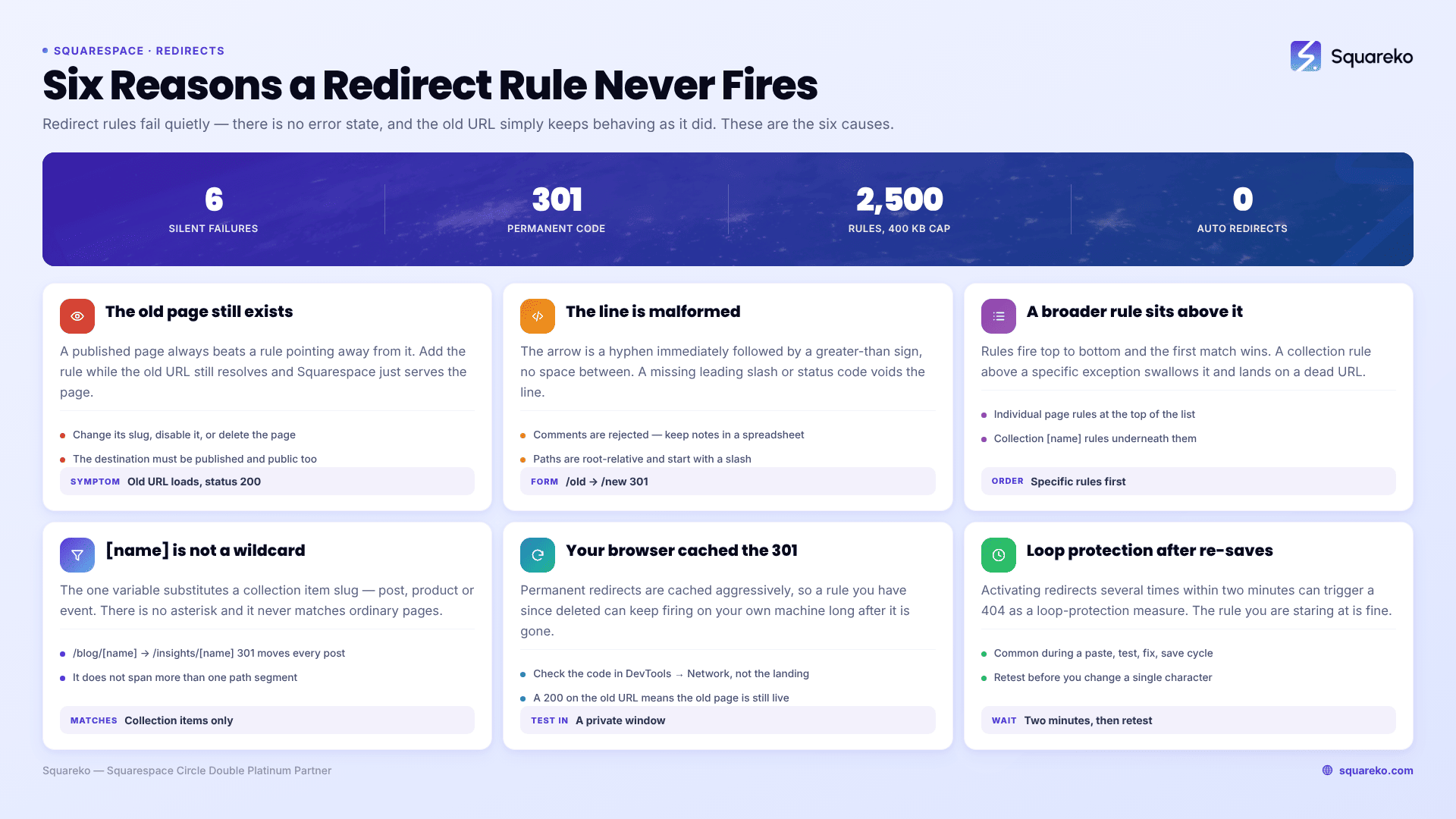
Redirect rules fail quietly. There is no error state — the old URL simply keeps behaving as it did. This table is the fastest way to work out which of the six causes you have.
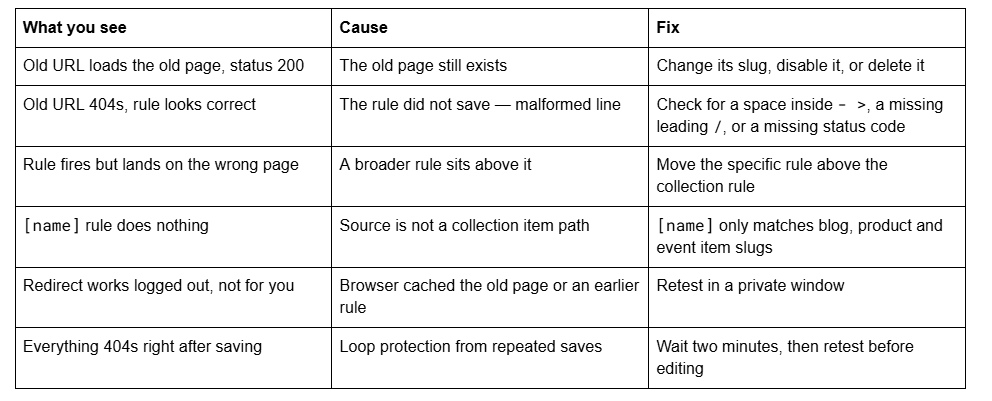
One more that looks like a syntax fault and is not: a rule containing ?, & or # in the source path will not work, because those characters interfere with matching. Anchors are fine on the destination side only.
A working order of operations for a restructure
Export the current URL list first. Load yourdomain.com/sitemap.xml and copy every <loc> into a spreadsheet. This is your before state, and it is the only one you get — the sitemap regenerates within an hour of a change.
Add a column for the new URL of each page. Anything with no new URL is a deletion and needs a redirect to the closest surviving equivalent, not to the homepage.
Write the rules in the spreadsheet, sorted specific-first.
Make the structural changes on the site — slugs, deletions, disables.
Paste the rules into URL Mappings and save once.
Test one rule per pattern in a private window, checking status codes.
Resubmit sitemap.xml in Search Console and watch the Page indexing report for a fortnight.
Redirecting everything to the homepage instead of a real equivalent is the most common shortcut and the most expensive one. Google treats a redirect to an irrelevant page as a soft 404 and passes nothing.
Most redirect work on Squarespace is exactly this: a spreadsheet, a text field, and the discipline to test logged out. Where it stops being a one-afternoon job is a large migration — a few hundred URLs, a blog page rename, and a store restructure at once, with rankings you cannot afford to drop while you find out which rule fired first. That is the situation our Squarespace SEO service is built for. For a dozen pages, the seven steps above are the whole method.
FAQ
-
No. Squarespace creates no automatic redirect on any plan when you change a page, post, product or event slug. The old URL returns a 404 immediately. You must write the rule yourself in Settings → Developer Tools → URL Mappings, using the format /old -> /new 301.
-
One rule per line: /old-url -> /new-url 301. The arrow is a hyphen immediately followed by a greater-than sign with no space between them. Paths are root-relative and start with a slash. The status code at the end is required — 301 for permanent, 302 for temporary.
-
Almost always because the old URL still exists. A published page always beats a redirect rule pointing away from it, so change the slug, disable the page or delete it first. Second most common cause is a cached result in your own browser — retest in a private window.
-
There is no asterisk wildcard. Squarespace provides one variable, [name], which substitutes a collection item's slug — for example /blog/[name] -> /insights/[name] 301 moves every blog post at once. It does not work for ordinary pages and does not span multiple path segments.
-
The URL Mappings field caps at 400 KB, which works out to roughly 2,500 rules. Images, files and other CDN-served assets cannot be redirected at all, and you cannot redirect away from the root path /.
-
Use 301 for anything permanent — slug changes, restructures, migrations, retired pages — because it passes ranking signal to the destination. Use 302 only for a genuinely temporary destination you intend to reverse, since it deliberately leaves the ranking with the original URL.

Author Bio
I'm Walid Hasan, a Certified Squarespace Expert and Squarespace Circle Platinum Partner with over 12 years of hands-on experience designing and optimizing high-performing websites. Over the years, I've had the privilege of building more than 2,000 Squarespace websites for clients around the world, always focusing on clean design, strong user experience, and conversion-driven results.