Squarespace SEO Settings: Every Panel, Path and Field in 7.1
The short answer: Squarespace 7.1's SEO controls are not in one place, and the main panel has been renamed. Site-wide title formats, the site description and llms.txt now live in the SEO/AI Visibility panel under SEO Settings — not Marketing → SEO, where most tutorials still send you. Everything else sits in page settings, item settings, Settings and Analytics.
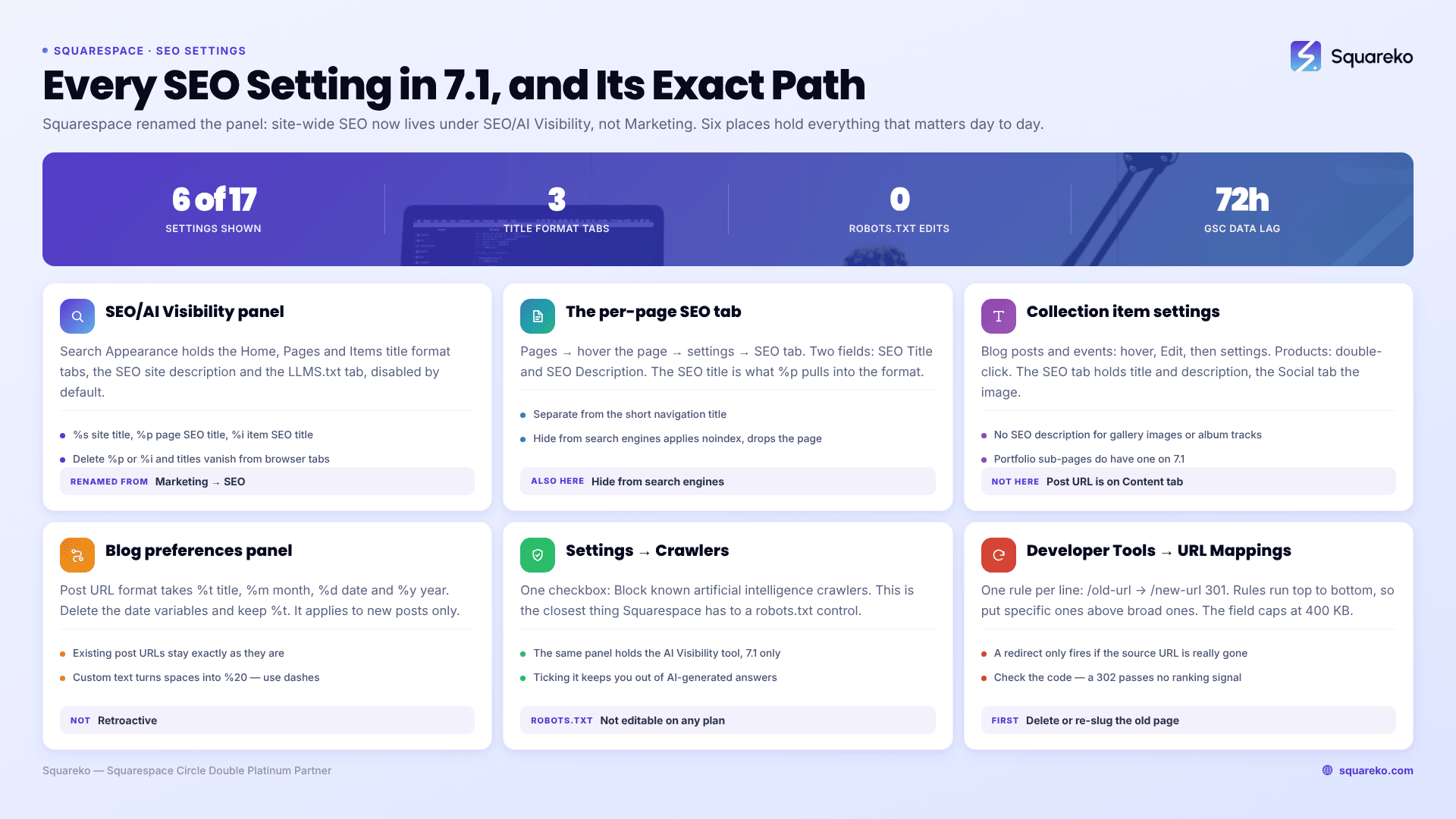
Every SEO setting in Squarespace 7.1, and where it lives
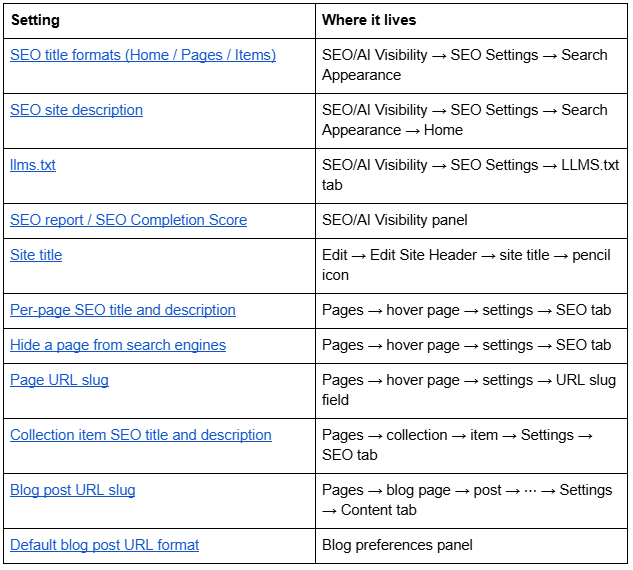
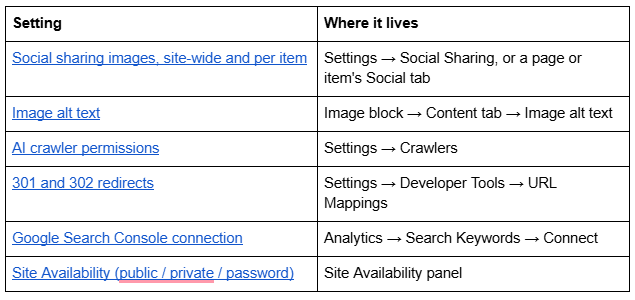
SEO title formats: the Home, Pages and Items tabs
SEO/AI Visibility → SEO Settings → Search Appearance holds three tabs — Home, Pages and Items — each with an SEO Title Format field built from variables. On 7.0, the equivalent is the older SEO appearance panel under Marketing.
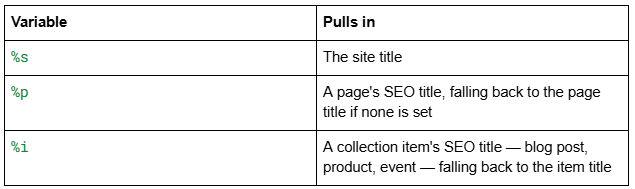
Variables mix with custom text: %s | Digital Branding Agency appends that phrase to every homepage title.
What each tab governs. Home is the homepage only; Pages is every page except the homepage and collection items; Items is blog posts, products, events and album tracks. Defaults are Page Title — Site Name and Item Title — Site Name.
The failure mode that looks like a bug. Remove %p from the Pages format and no page title appears in browser tabs at all — even where you wrote an SEO title by hand. Removing %i does the same to every blog post and product. It runs undetected for months because search results still populate something from the underlying title. Keep both variables in place.
Homepages and %p. Promote a page to homepage and its SEO title field disappears from page settings; %p then pulls whatever SEO title the page held beforehand, or the page title if it never had one. The two fields are compared in page title vs SEO title on Squarespace.
How to verify: read the browser tab on the live page in a private window. The SEO tab's editor preview can show the page title instead of the SEO title.
SEO site description: the homepage's meta description
Same panel — SEO/AI Visibility → SEO Settings → Search Appearance → Home — in the SEO site description field. It represents your homepage and nothing else.
Squarespace's guidance is 50–300 characters against a 400-character limit. Search engines truncate around 160, so write the first 155 as if they are the whole thing. The lightning-bolt icon generates one with Squarespace AI, which needs a Brand Identity first.
How to verify: view source on the live homepage for <meta name="description">. Updated text will not reach search results immediately; engines re-index on their own schedule.
llms.txt: the LLMS.txt tab
SEO/AI Visibility → SEO Settings → LLMS.txt tab, on 7.1 sites. The file is disabled by default; adding text to the field enables it, and clicking Delete then Save disables it again.
llms.txt is a proposed Markdown standard meant to help large language models parse a site's key content. Measured request volumes are essentially zero — none at all on 97% of sites that publish one. Enable it if you want; do not expect it to move anything.
How to verify: load yourdomain.com/llms.txt in a private window.
SEO report and the SEO Completion Score
The SEO/AI Visibility panel shows an SEO Completion Score with an Improve with AI button, on 7.1 only. It scans image blocks, gallery sections and auto layout sections for missing alt text and missing SEO descriptions, then offers suggestions you can edit or accept. Images inside collection items are not scanned, and a 100% score means those fields are populated, not that the site is optimised.
Site title: not where you expect it
The site title feeds %s in every title format, so it is an SEO setting even though it lives in the header editor. On 7.1: click Edit, hover the header and click Edit Site Header, click the site title or logo, then the pencil icon. The Site Title field caps at 120 characters. On 7.0 it is in Design → Logo & Title.
A long site title is the commonest cause of truncated titles across a whole Squarespace site, because it repeats in every format string. Shortening "Northfield Physiotherapy & Sports Injury Clinic" to "Northfield Physio" gives 30 characters back on every page at once.
The per-page SEO tab
Open the Pages panel, hover a page title and click to open page settings, then the SEO tab. Two fields: SEO Title and SEO Description.
The SEO title here is what %p pulls into the title format, and it is separate from the navigation title — the short label in your menu. Keeping navigation titles short ("About", "Contact") and SEO titles descriptive is the point of having both.
Hiding a page from search engines
Same SEO tab in page settings, Hide from search engines section. It applies a noindex tag and drops the page from the sitemap while leaving it publicly reachable. On a blog page the section adds an option covering all pages in this collection, which keeps category and tag archives out of the index.
Five ways to control visibility, and they are not equivalent:

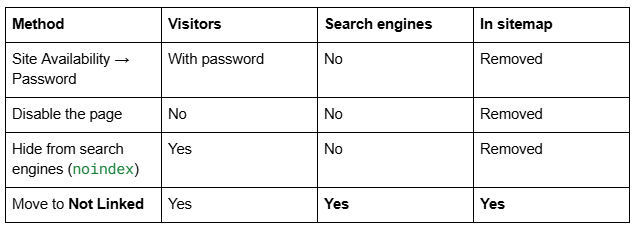
Not Linked hides a page from your navigation and nothing else. It stays public, crawlable and in the sitemap — behind most of the "why is my thank-you page in Google" questions in the Squarespace Forum. The full routine is in how to noindex a page on Squarespace.
URL slugs, for pages and for collection items
Pages → hover the page → page settings → URL slug field.
Rules Squarespace enforces: lowercase only; dashes as the only separator; 3–250 characters for most pages and 3–200 for blog posts, events and products; and around twenty reserved slugs (account, api, cart, checkout, commerce, search, static and similar) that are rejected outright.
Before you touch this field: changing a slug creates no automatic redirect — the old URL 404s the instant you save. And because a blog post URL is always /{blog-page-slug}/{post-slug}, re-slugging the blog page changes every post URL on it at once.
Collection item SEO: blog posts, products, events
Open the Pages panel, click the blog, store, calendar or portfolio page, then:
Blog posts and events — hover the item, click Edit, then the settings control top-right.
Products — double-click the product.
Portfolio sub-pages — click ⋯, then Settings.
The SEO tab holds SEO Title and SEO Description; the Social tab holds that item's Alternate Social Sharing Image.
The post URL slug is elsewhere: Pages → blog page → hover the post → ⋯ → Settings → Content tab → Post URL on 7.1, an Options tab on 7.0. Only the post's own slug is editable there.
SEO descriptions exist for blog posts, products, events and — on 7.1 — portfolio sub-pages, but not for gallery images, project items or album tracks.
Default blog post URL format
Open the Blog preferences panel and edit the Post URL format field. Variables:
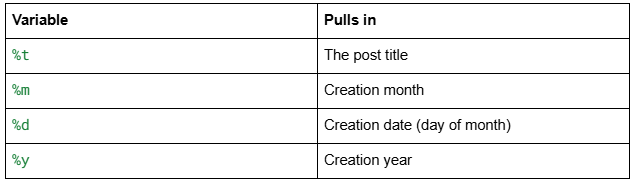
Delete a variable to remove it. The default on many sites includes dates, which bakes an ageing signal into every URL and makes a refreshed post look stale for as long as it exists; keeping %t alone is the usual choice.
This is not retroactive. The format applies to new posts only — existing URLs stay as they are, which is correct given there is no automatic redirect. Custom text turns spaces into %20, so use dashes.
Social sharing images
Two separate settings. The site-wide social sharing logo sits in the Social Sharing panel under Settings, and represents the whole site wherever a page has no image of its own.
The Alternate Social Sharing Image is per page, blog post, product, event and — on 7.1 — portfolio sub-page, on the Social tab of that item's settings. Computer only; not in the app. Facebook's minimum is 200×200px, and its preferred dimensions change often enough that Squarespace declines to publish a recommended size.
How to verify: paste the live URL into the platform's own link debugger, not a private window — the platforms cache aggressively and their scrapers are the only source of truth.
AI crawler permissions
Open the Settings panel and click Crawlers. One control: a Block known artificial intelligence crawlers checkbox. Tick it and your content is unlikely to appear in AI-generated answers from the engines that respect it.
The same panel also ships an AI Visibility tool that prompts ChatGPT and Gemini and reports whether your site was mentioned; it consumes AI credits and is 7.1 and English only.
Crawlers is the closest thing Squarespace has to a robots.txt control. The robots.txt file itself cannot be edited on any plan.
URL mappings: where 301 redirects live
Open the Developer Tools panel from Settings, then click URL Mappings. One redirect per line:
/old-url -> /new-url 301
Four elements: old URL, arrow (->), new URL, type — 301 permanent, 302 temporary. Rules that catch people out:
A redirect only fires if the source URL no longer exists. Delete, disable or re-slug the old page first.
Rules are evaluated top to bottom, so put specific ones above broad ones.
The field caps at 400 KB, rejects comments and stray text, and cannot redirect file URLs or away from /.
How to verify: load the old URL in a private window and check the response code in your browser's network tab — a 302 where you meant a 301 does not pass ranking signal. Wildcards, query strings and bulk migrations are in Squarespace 301 redirect setup.
Connecting Google Search Console
Not in the SEO panel. Open the Analytics panel, click Search Keywords, then Connect, and authorise the Google account. Keyword data appears in the Google tab within 72 hours.
Three preconditions: the site published (trial sites cannot be verified), any password removed, and a third-party domain connected for 48 hours. Squarespace does not support Google's HTML file verification method — use the built-in connection or a DNS TXT record, both walked through in Squarespace Google Search Console verification.
Your sitemap is at yourdomain.com/sitemap.xml, generated automatically and updated within an hour of a content change in most cases, 24 hours at worst. Submit that URL under Sitemaps once.
Alt text
For an image block on 7.1: open the block editor, click the Content tab, fill Image alt text. Up to 250 characters, saved automatically.
Everywhere else Squarespace falls back: the image description acts as alt text, and failing that the file name does. Image blocks and auto layouts have no fallback — leave those blank and the image is hidden from screen readers entirely.
Two consequences. The site logo uses the site title as its alt text; and because file names are fixed at upload, DSC_0491.jpg ends up as alt text on a lot of sites. Name files before uploading.
What is not a setting anywhere in Squarespace
Before you go looking: robots.txt and the sitemap cannot be edited, canonical tags cannot be set manually, hreflang cannot be added, and there is no per-post header code injection — the blog injection field covers every post at once. Per-post schema goes in a Code Block in the post body, HTML mode.
If every field above is set and the site still is not moving, it is not a settings problem — the diagnosis lives in Squarespace SEO best practices or the full Squarespace SEO guide, not in a panel. Where we get called in is the site that has been through several owners and nobody knows which of these fields were changed or why. Untangling that is what our Squarespace SEO service is for. Everything above you can do yourself in an afternoon, which is the honest reason most sites never need us.
FAQ
-
Site-wide SEO settings are in the SEO/AI Visibility panel, under SEO Settings. That is a rename — they used to sit under Marketing → SEO, which is where most older tutorials point. Page-level and item-level SEO fields are separate, on the SEO tab of each page's or item's settings.
-
Open SEO/AI Visibility → SEO Settings → Search Appearance, then choose the Home, Pages or Items tab. Edit the SEO Title Format field using %s for site title, %p for a page's SEO title and %i for a collection item's. Keep %p and %i in place or titles vanish from browser tabs.
-
Open the Pages panel, click the blog page, hover the post and click Edit, then open the post's settings and click the SEO tab. Enter the text in the SEO Description field and save. If left blank, search engines fall back to the post excerpt.
-
Open the Analytics panel, click Search Keywords, then Connect, and authorise your Google account. Data takes up to 72 hours. Your site must be published and unpassworded first — trial sites are hidden from search engines and cannot be verified.
-
Open the page's settings, click the SEO tab, and use the Hide from search engines section. That applies a noindex tag and removes the page from your sitemap while keeping it publicly reachable. Moving a page to Not Linked does not hide it from Google.
-
No, on any plan. The nearest control is Settings → Crawlers, which has a single checkbox to block known AI crawlers. Per-page indexing is controlled by the Hide from search engines setting in the page's SEO tab.

Author Bio
I'm Walid Hasan, a Certified Squarespace Expert and Squarespace Circle Platinum Partner with over 12 years of hands-on experience designing and optimizing high-performing websites. Over the years, I've had the privilege of building more than 2,000 Squarespace websites for clients around the world, always focusing on clean design, strong user experience, and conversion-driven results.