How to Noindex a Page on Squarespace (3 Methods, and One Gap)
The short answer: for an ordinary page, open the Pages panel, click the page's settings, open the SEO tab, and turn on the option to hide the page from search results. That applies a noindex tag and removes the page from your sitemap, and it works on every plan — but not on the homepage. For a single blog post there is no equivalent control at all, and the workarounds are covered below.
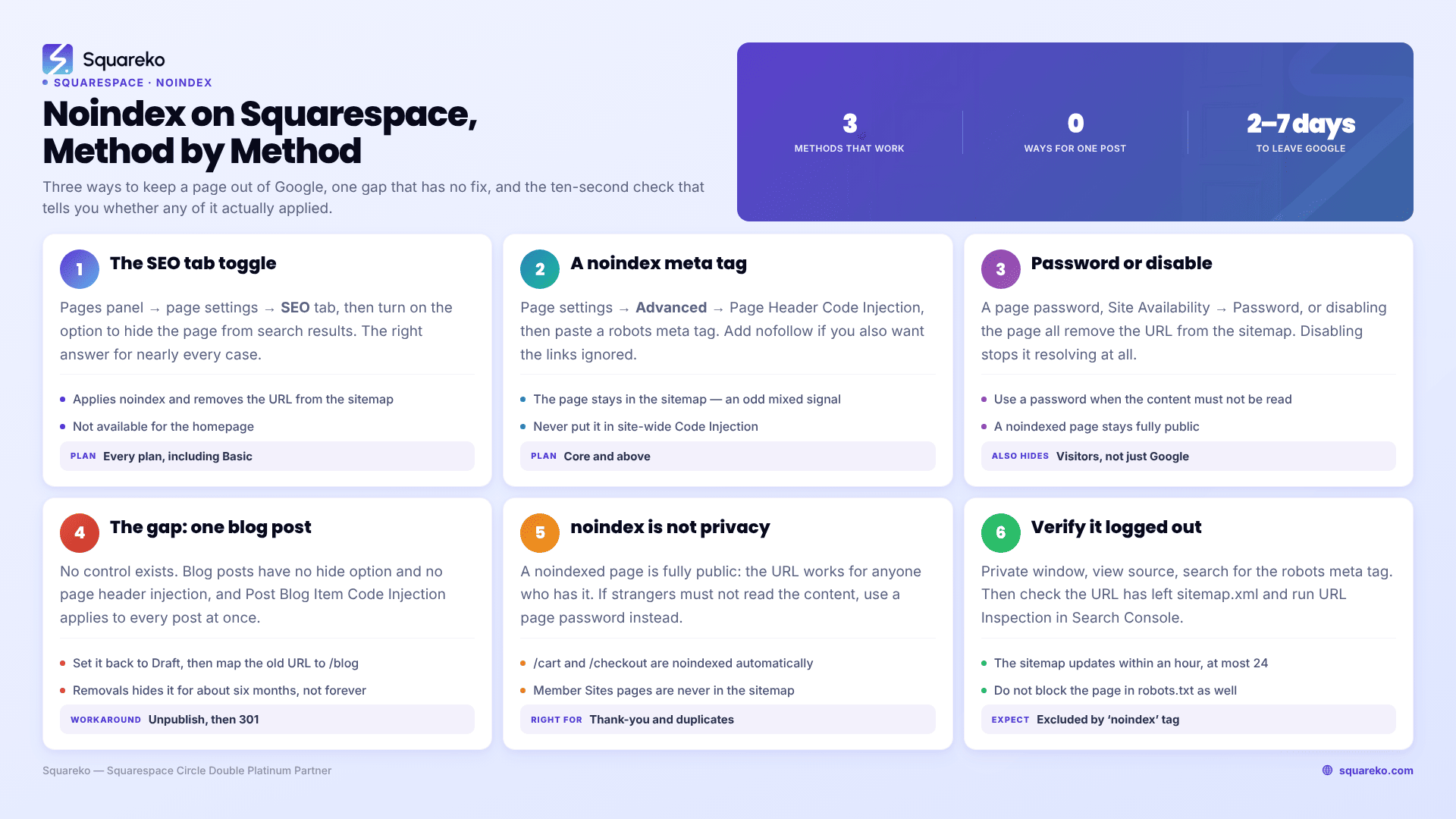
Three methods, one gap, and a verification step that takes ten seconds.
Which method to use
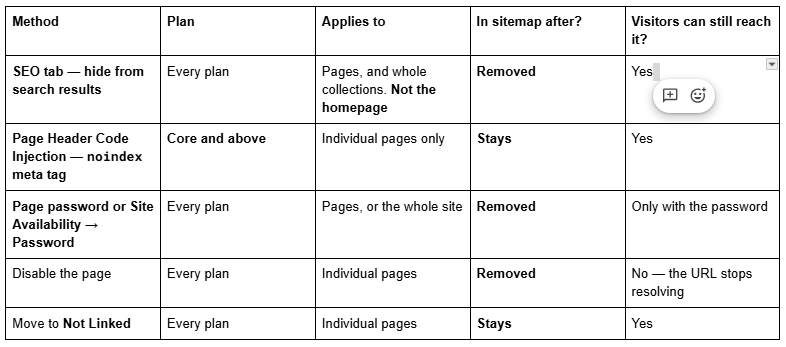
The last row is on the table because it is the most common mistake on this topic. Not Linked does not hide anything from Google. It removes the page from your navigation menu and nothing else — the page stays public, crawlable, and listed in your sitemap. Thank-you pages, internal briefing pages and old landing pages turning up in search results are almost always Not Linked pages whose owner believed they were hidden.
Method 1 — The SEO tab toggle
This is the right answer for nearly every case.
Open the Pages panel.
Hover the page and open its settings.
Click the SEO tab.
Turn on the option to hide the page from search results.
Save.
What it does: applies a noindex tag to the page and removes the URL from your sitemap. Search engines that already have the page will drop it on their next crawl; new crawlers will not index it at all.
What it does not do: hide the page from visitors. Anyone with the URL can still open it, and it will still appear in your own site's internal search.
Three details worth knowing:
It is available on every plan, including Basic. This is not a Core-plan feature.
It is not available for the homepage. If you want the homepage out of search, your only routes are a site-wide password or the Settings → Crawlers block, both of which take the whole site out.
On a blog page's SEO tab, the same section offers an option covering all pages in this collection. That hides the blog landing page and every post on it, which is exactly what you want for an internal changelog and exactly what you do not want if you were trying to hide one post.
Method 2 — A noindex meta tag via Page Header Code Injection
Squarespace's second documented route, and the one to reach for when you want the page to stay in the sitemap or you are working around something the SEO tab will not do.
Open the page's settings, click the Advanced tab, and paste into Page Header Code Injection:
<meta name="robots" content="noindex">
To keep Google from following the links on the page as well:
<meta name="robots" content="noindex, nofollow">
Requirements and caveats:
Code injection requires Core, Plus, Advanced or an equivalent legacy plan. It is not available on Basic.
This field exists on ordinary pages, not on blog posts. Page Settings → Advanced → Page Header Code Injection is a page-level control. Individual blog posts, products and events have no equivalent — a point that matters enough to have its own section below.
The page stays in the sitemap. Squarespace only removes URLs when you use the SEO tab, disable the page or password-protect it. A page carrying an injected noindex while still listed in the sitemap is a slightly odd signal — Google will honour the tag, but the sitemap keeps advertising a URL Google is being told to ignore.
Do not put this in site-wide Code Injection. The site-wide Header field applies to every page on the site, so a noindex there deindexes everything. This is a genuinely common accident and it is behind a meaningful share of "my whole site disappeared from Google" cases.
Because of the sitemap point, Method 1 is better in almost every situation. Use Method 2 when the SEO tab is not available for what you are trying to do, or when you specifically want nofollow alongside noindex.
The gap: a single blog post
Squarespace gives you no way to keep one blog post out of the search index while leaving the rest of the blog indexed. This is the question that brings most people to this keyword, and the honest answer is that the control does not exist.
Why each obvious route fails:
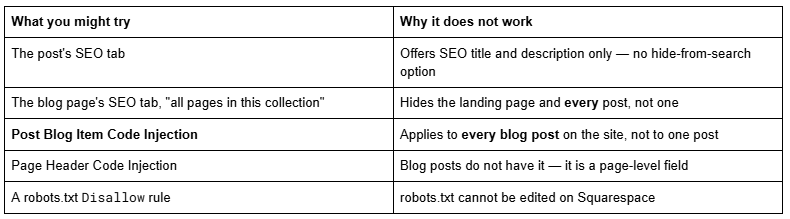
The three workarounds that do work, in order of preference:
1. Unpublish it. Set the post's status back to Draft (or Scheduled, or Needs Review). The URL stops resolving, the post leaves the sitemap, and Google drops it on the next crawl. Then add a URL Mappings rule so the old URL sends visitors and crawlers somewhere sensible:
/blog/old-post-slug -> /blog 301
2. Delete it and redirect. Cleaner if the post is genuinely finished with. Deleted posts are recoverable from the Pages panel trash for 30 days. Always pair a deletion with a 301 — see Squarespace 301 redirect setup — because a slug that disappears without a redirect leaves a 404 that Search Console will report for months.
3. Password-protect the whole blog page if the entire collection should be private. That removes the landing page and every post from the sitemap and from search. It is a blunt instrument and it only makes sense for an internal blog.
If the post is already indexed and you need it gone today, use Google Search Console's Removals tool. It hides a URL from Google results for about six months, which buys time while the unpublish or redirect works through. It is a temporary measure, not a fix, and it only affects Google.
Noindex or password? They solve different problems
People reach for one when they need the other. The question to ask is who are you hiding this from.
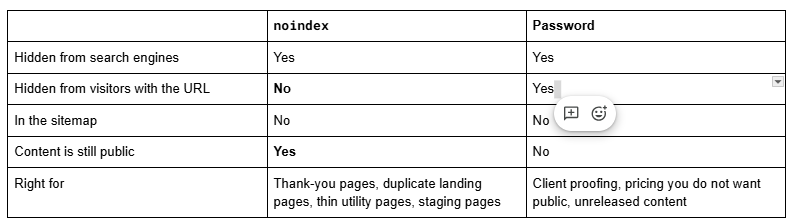
noindex is not privacy. A noindexed page is fully public — the URL works for anyone who has it, it can be shared, and it can be linked to from elsewhere. If the content genuinely must not be read by strangers, use a page password or set Site Availability to Password. If you simply do not want it competing in search results, noindex is correct.
For a whole site, the equivalents are Site Availability → Private / Password or Settings → Crawlers → Block search engine crawlers. Both are all-or-nothing.
The pages Squarespace already noindexes for you
Two you never need to touch: Squarespace applies an automatic, permanent noindex to /cart and /checkout, and there is no way to remove it. If Search Console reports those URLs as "Excluded by 'noindex' tag", that is correct behaviour and needs no action.
Also worth knowing: Member Sites pages have no SEO options and never appear in the sitemap. Member-only content is outside the index by design.
How to verify a noindex actually applied
Never verify from the editor. Three checks, all logged out.
1. Read the rendered source. Open the page in a private browsing window, view source, and search for noindex. You are looking for:
<meta name="robots" content="noindex">
If it is not there, the setting did not save, or you are looking at a cached copy — hard refresh and try again.
2. Check the sitemap. Load yourdomain.com/sitemap.xml and search for the URL. With Method 1 it should be gone within an hour, at most 24 hours. With Method 2 it will still be listed, which is expected.
3. Run URL Inspection. In Google Search Console, inspect the URL. Once Google has recrawled, the status should read Excluded by 'noindex' tag. Until then it will still show as indexed — a noindex tag does not remove a page instantly, it removes it on the next crawl, which typically takes days to weeks.
Do not block the page in robots.txt as well. If a crawler is not allowed to fetch the page, it cannot read the noindex tag on it, and the URL can linger in results as a bare link with no description. On Squarespace this only arises if someone has ticked the site-wide crawler block, but the principle is worth holding: crawl control and index control are different levers, and using both at once defeats the second.
How long until the page actually leaves Google?
A noindex tag is not a delete button. Google has to recrawl the page, read the tag, and then drop the URL from the index. On a page Google visits often that can be a couple of days; on a rarely-crawled page it can be several weeks.
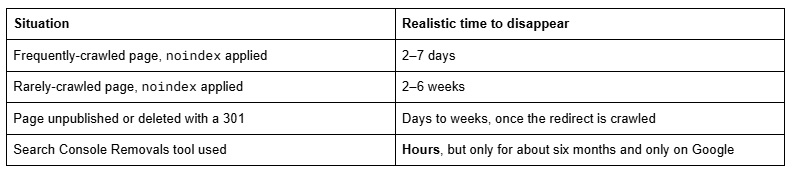
Two things speed it up legitimately: requesting indexing once for the URL in URL Inspection, which puts the recrawl in a priority queue, and making sure nothing on your site still links to the page — an internal link keeps signalling that the URL matters.
Two things that do not: repeating the indexing request, and blocking the page from being crawled at all. The second actively slows removal, because a crawler that is not allowed to fetch the page can never read the noindex tag on it.
A short list of pages worth noindexing
On a typical service-business Squarespace site:
Thank-you and form-confirmation pages
Duplicate landing pages built for a single ad campaign
Pages that exist only to hold a download or a redirect
Staging or work-in-progress pages that went live by accident
Internal pages — team briefings, client proofing, process notes
Near-identical location pages you have not yet consolidated
And a list of pages not to noindex, because people do: category and tag archives (Squarespace already applies canonical tags to those), the homepage (you cannot anyway), and thin pages you should be improving rather than hiding.
For most Squarespace sites this is a five-minute job on a handful of pages, and the SEO tab does all of it. The gap is real and worth being clear-eyed about: a single blog post cannot be noindexed, and the workaround is to unpublish or delete it with a redirect.
Where this stops being simple is a site with several hundred URLs where nobody can say which pages should be in the index and which should not, and the Page indexing report is unreadable as a result. Deciding that — and then implementing it consistently — is the first phase of our Squarespace SEO service. If you have six thank-you pages to hide, the SEO tab is the whole answer.
FAQ
-
Open the Pages panel, go to that page's settings, click the SEO tab, and turn on the option to hide the page from search results. That applies a noindex tag and removes the page from your sitemap. It is available on every plan, including Basic, but it is not available for the homepage.
-
No. Blog posts have no hide-from-search option on their SEO tab, no page-level code injection field, and the Post Blog Item Code Injection field applies to every post at once. The workaround is to set the post back to Draft or delete it, then add a 301 redirect in URL Mappings so the old URL does not 404.
-
No. The Not Linked section removes a page from your navigation menu only. The page stays public, stays crawlable and stays in your sitemap. To keep it out of search results, use the hide-from-search option on the SEO tab of page settings instead.
-
noindex keeps a page out of search results while leaving it fully public — anyone with the URL can read it. A password keeps both search engines and visitors out. Use noindex for thank-you pages and duplicate landing pages; use a password for anything that genuinely must not be read.
-
Not individually — the SEO tab's hide-from-search option is unavailable for homepages. Your only routes are site-wide: set Site Availability to Password or Private, or tick Block search engine crawlers in Settings → Crawlers. Both remove the entire site from search, not just the homepage.
-
Open the page in a private browsing window, view source, and search for <meta name="robots" content="noindex">. Then check that the URL has left yourdomain.com/sitemap.xml, which happens within an hour to 24 hours. Google Search Console's URL Inspection will confirm the status once it has recrawled.

Author Bio
I'm Walid Hasan, a Certified Squarespace Expert and Squarespace Circle Platinum Partner with over 12 years of hands-on experience designing and optimizing high-performing websites. Over the years, I've had the privilege of building more than 2,000 Squarespace websites for clients around the world, always focusing on clean design, strong user experience, and conversion-driven results.