Squarespace H1 and Heading Structure: What 7.1 Actually Renders
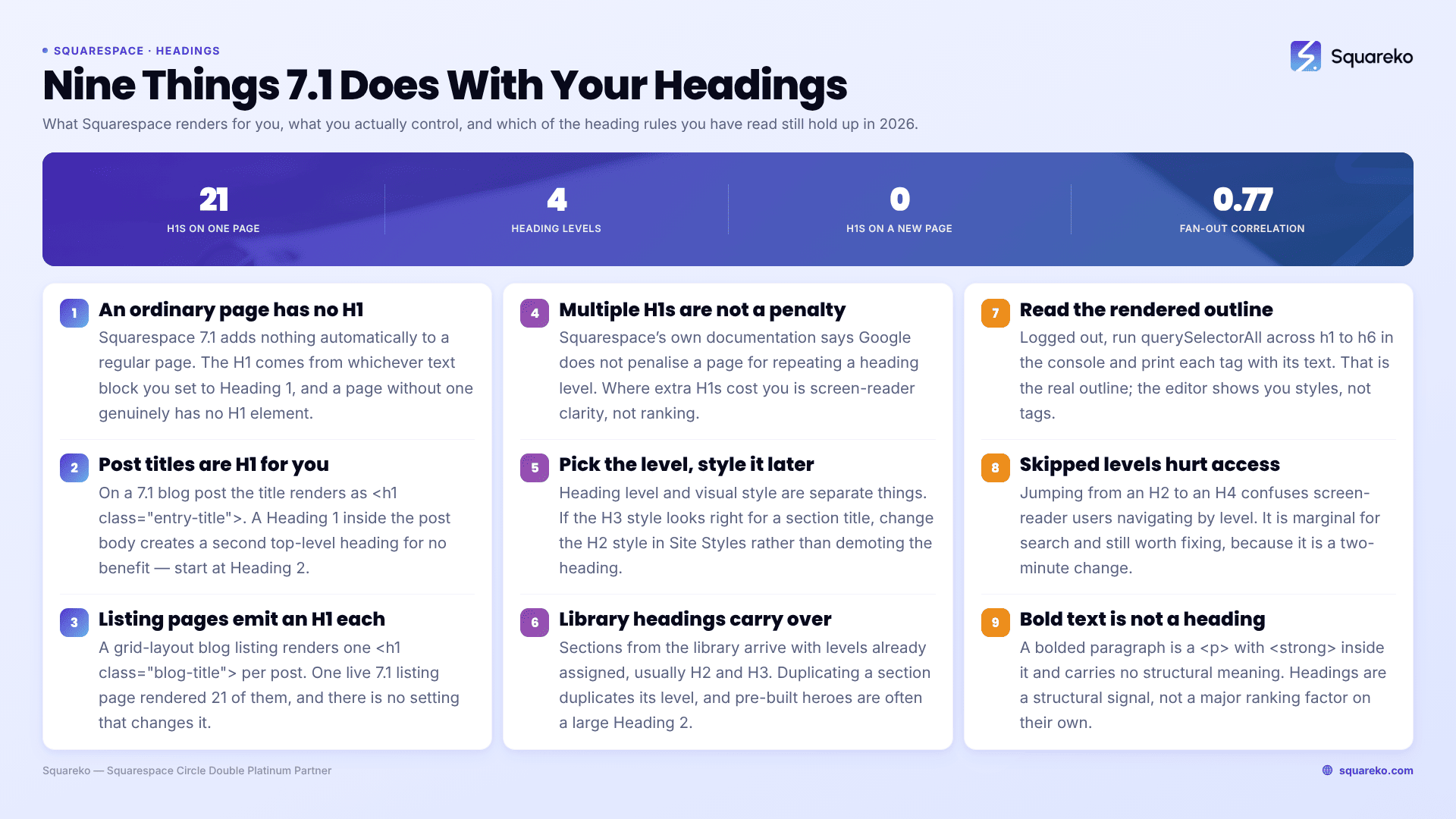
The short answer: Squarespace 7.1 does not give an ordinary page an H1 automatically — the H1 comes from whichever text block you set to Heading 1, and a page with no Heading 1 block ships with no H1 at all. Blog posts are the opposite: the post title is rendered as an <h1> for you, so adding a Heading 1 inside the post body creates a second one. And blog listing pages emit an H1 for every post in the list, which is normal and not a fault.
Here is what 7.1 assigns automatically, how to read your own page's outline in ten seconds, and which of the heading rules you have read actually hold up.
What Squarespace 7.1 assigns automatically
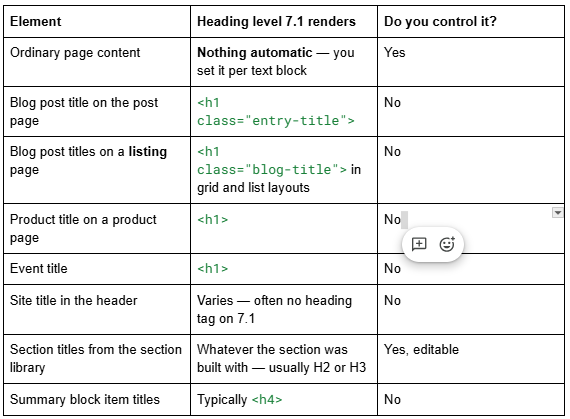
The first row is the one that catches people. An ordinary 7.1 page has no automatic H1. The page title you set in the Pages panel appears in the navigation and the browser tab, not on the page. If nobody set a text block to Heading 1, the page genuinely has no H1 element, and a lot of Squarespace pages are in exactly that state.
The ten-second check: read your page's rendered outline
Do not judge this from the editor. Open the live page in a private browsing window, open DevTools' Console, and paste:
document.querySelectorAll('h1,h2,h3,h4,h5,h6')
.forEach(h => console.log(h.tagName, '—', h.textContent.trim().slice(0,70)));
That prints the page's real heading outline in order. Read it as if you had never seen the page: does it describe the content? Does the first line tell you what the page is?
Two results are worth reacting to:
No H1 in the list at all. Add one — set your main page heading to Heading 1.
H1 says something generic like "Welcome" or your business name. Rewrite it to describe what the page is for.
Everything else is usually fine, including outcomes that violate the folklore.
The multiple-H1 situation, and why it is usually not a problem
Here is what we measured on a live Squarespace 7.1 site in August 2026.
A blog listing page — the standard 7.1 blog collection page, grid layout — rendered 21 <h1> elements: one from the section text block at the top of the page, and one for each of the twenty post titles in the list, each as <h1 class="blog-title">. The blog landing page on the same site rendered 13, for the same reason.
That is not a misconfiguration. It is what the 7.1 blog list layout emits, and there is no setting that changes it.
Does it matter? Squarespace's own documentation answers this directly: Google does not penalise a page for having multiple <h1> tags, so you can use the same heading level more than once on a page. Google's own guidance has said the same for years — modern search engines derive document structure from the whole page, not from a single tag.
Where multiple H1s do cost you something is accessibility and clarity, not ranking. A screen-reader user navigating by heading level hears twenty "level one" headings on that listing page, which is a worse experience than one level-one heading followed by twenty level-twos. You cannot change it on the listing page. You can, and should, avoid creating the same pattern by hand on pages where you do control it.
The practical rule: aim for one H1 on pages you build yourself, because it is clearer and costs nothing. Do not spend an afternoon trying to eliminate the H1s Squarespace generates on collection listing pages. That is a fight you cannot win and would not benefit from winning.
Blog posts: the title is already your H1
On a 7.1 blog post, Squarespace renders the post title as:
<h1 class="entry-title entry-title--large p-name" itemprop="headline">Your Post Title</h1>
That is automatic, it is correct, and it means you should not use Heading 1 inside the post body. Start your in-post sections at Heading 2 and go down from there. A post that opens with a Heading 1 block gives the page two competing top-level headings for no benefit.
This connects to something covered in Squarespace image alt text SEO: the post title is doing several jobs at once. It is the H1, the link text on the listing page, the alt text on the featured image, and — through the %i variable in your title format — the basis of the SEO title. One string, four roles. Write it accordingly.
How to set and change heading levels in 7.1
Select the text, then use the toolbar to apply Heading 1, Heading 2, Heading 3 or Heading 4.
Two constraints worth knowing:
There is no Heading 5 or Heading 6. Squarespace 7.1's editor offers four heading levels and no more. In practice this is not a limitation — a page needing an H5 usually needs to be two pages.
Heading level and visual style are separate things. Squarespace's documentation puts it plainly: font styles are not necessarily connected to HTML tags, and styling your Heading 1 text does not affect an element that uses <h1> for structural reasons, such as a site title. The corollary matters more: do not choose a heading level because you like how it looks. If your H3 style is the right size for a section title, change the H2 style in Site Styles rather than demoting the heading to an H3.
That single habit — picking levels for meaning and adjusting size in Site Styles — resolves most Squarespace heading structure problems at source.
Fluid Engine and section-library headings
Fluid Engine changes how blocks are positioned; it does not change how headings are marked up. A text block set to Heading 2 emits an <h2> whether it sits in a Fluid Engine section or a classic one.
What Fluid Engine and the section library do change is what you inherit. Sections added from Squarespace's library come with heading levels already assigned by whoever designed them, usually H2 for the section title and H3 for sub-items. Two consequences:
Duplicating a section duplicates its heading level. Build a page from six copies of the same testimonial section and you have six identically-levelled headings — fine if they are all genuinely siblings, wrong if one is meant to contain the others.
Pre-built hero sections sometimes use Heading 1 and sometimes do not. This is the most common source of a page with no H1: a hero section whose headline was built as a large Heading 2. It looks like a page title and is not marked up as one.
Run the console check above after building a page from library sections. It takes ten seconds and it catches both problems.
What actually matters in 2026, and what is folklore
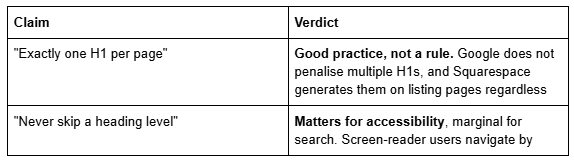
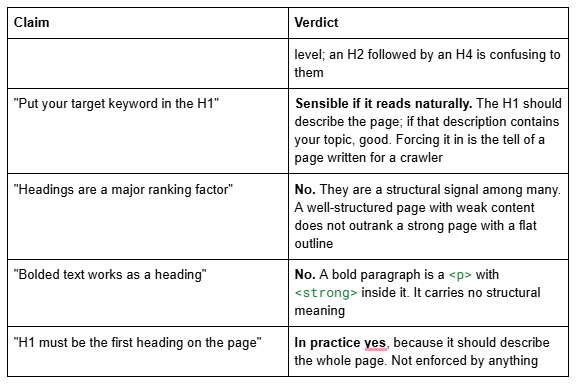
What genuinely earns you something in 2026 is a heading outline that maps to distinct questions a reader might ask. That is not an aesthetic preference — it is how retrieval works. AI answer engines and Google's passage-level ranking both extract sections, and a section that reads sensibly on its own gets used. Fan-out sub-query coverage is the strongest measured predictor of AI citation in published analysis, with a Spearman correlation of 0.77, and headings are how you signal which sub-query each section answers.
Which leads to the one heading rule worth following religiously: write headings that make sense out of context. "Why it happens" tells a retrieval system nothing. "Why Squarespace 7.1 blog listing pages render multiple H1s" tells it everything.
H1, page title and SEO title are three different things
Half the confusion on this topic comes from four Squarespace fields that all look like "the title".

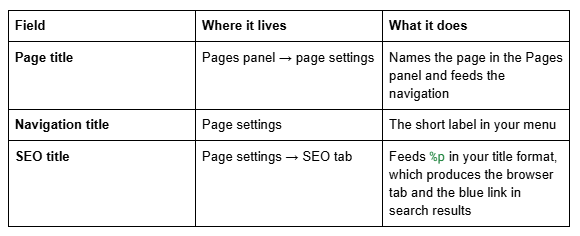
They are independent. Changing your H1 does not change what appears in Google's results, and changing your SEO title does not change anything on the page. A page can legitimately have a long, descriptive H1, a two-word navigation title, and a 55-character SEO title written for the search result — and on a well-built site it usually does.
A workable heading structure for a Squarespace service page
H1 Emergency Boiler Repair in Leeds
H2 What we cover, and what we do not
H2 Call-out charges and hourly rates
H3 Weekday call-outs
H3 Evenings, weekends and bank holidays
H2 How quickly we can get to you
H2 Boiler brands we service
H2 What happens on the visit
H2 Frequently asked questions
H3 Do you charge for the initial call-out?
H3 Do you work on landlord properties?
One H1 naming the service and the place. H2s that each answer a distinct question someone would type. H3s only where they genuinely sit inside their H2. No level skipped, no heading used for its size.
Build the FAQ block at the bottom with Squarespace's native Accordion block rather than a code embed — accordion blocks in 7.1 render server-side, so the question and answer text is in the initial HTML and fully crawlable.
Heading structure on Squarespace is a twenty-minute pass per page: run the console check, add an H1 if there isn't one, demote anything that was promoted for its font size, and make sure each heading would make sense to someone who landed on that section alone.
Where it becomes a bigger job is a site of eighty pages built by three people over four years, where the outlines are inconsistent and nobody has ever looked at the rendered HTML. That kind of systematic pass is part of what our Squarespace SEO service does on an audit. On a ten-page site, the console snippet above is genuinely the whole toolkit.
FAQ
-
Not to an ordinary 7.1 page. The H1 comes from whichever text block you set to Heading 1, and a page with no Heading 1 block has no H1 at all. Blog posts, products and events are different — Squarespace renders the item title as an <h1> automatically on those.
-
Yes, and Squarespace's own documentation confirms Google does not penalise it. Blog listing pages in 7.1 render every post title as an <h1> — we counted 21 on one live listing page. Aim for a single H1 on pages you build yourself for clarity and accessibility, but do not fight the ones Squarespace generates.
-
Select the text and use the toolbar to apply Heading 1, Heading 2, Heading 3 or Heading 4. The editor offers no Heading 5 or Heading 6. Choose the level for structural meaning, not for size — adjust the size in Site Styles instead.
-
No. Squarespace already renders the post title as <h1 class="entry-title">, so a Heading 1 in the body creates a second top-level heading. Start in-post sections at Heading 2 and work down from there.
-
Open the live page in a private browsing window, open DevTools' Console, and run document.querySelectorAll('h1,h2,h3,h4,h5,h6').forEach(h => console.log(h.tagName, h.textContent)). That prints the rendered outline in order. Do not judge it from the editor, which shows styles rather than tags.
-
As structure, yes; as a ranking lever, marginally. Headings tell search engines and AI answer engines how a page is organised, and passage-level retrieval means a well-labelled section can be extracted on its own. They will not lift a page whose content is weak, and keyword-stuffed headings help nothing.

Author Bio
I'm Walid Hasan, a Certified Squarespace Expert and Squarespace Circle Platinum Partner with over 12 years of hands-on experience designing and optimizing high-performing websites. Over the years, I've had the privilege of building more than 2,000 Squarespace websites for clients around the world, always focusing on clean design, strong user experience, and conversion-driven results.