Squarespace Templates for Clothing Stores: The Variant and Inventory Build
The short answer: for a clothing store the template matters less than the variant structure underneath it. Every garment is one product with size and colour as variant options — Squarespace allows up to six options and 250 variant combinations per product, each with its own SKU, price, stock level and image. Styleza is the best starting point in the Squareko range because it ships the store page, the FAQs page and the refund policy page a clothing store needs. The rest is setup, and the setup is what decides your return rate.
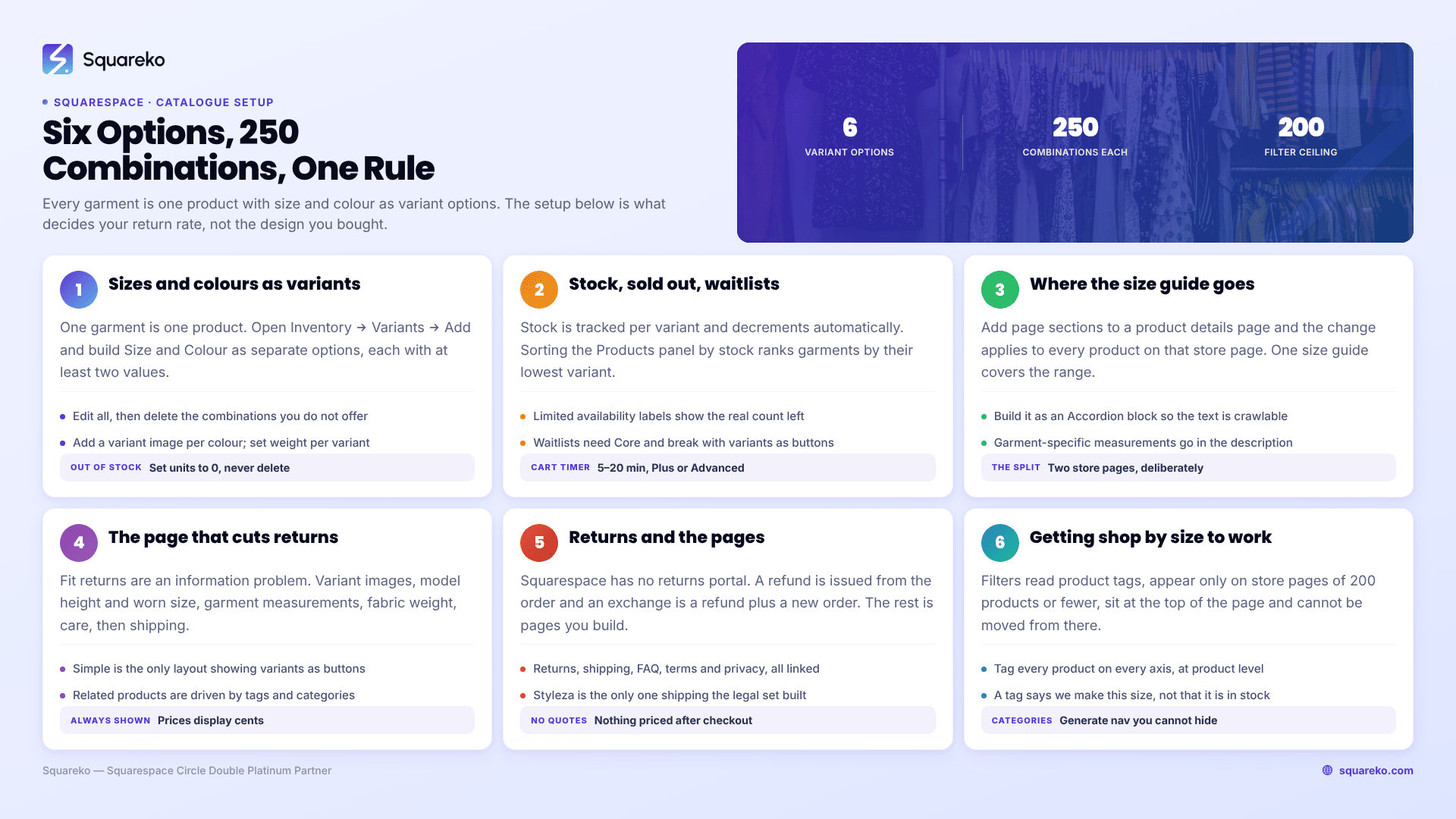
The numbers that govern a clothing catalogue
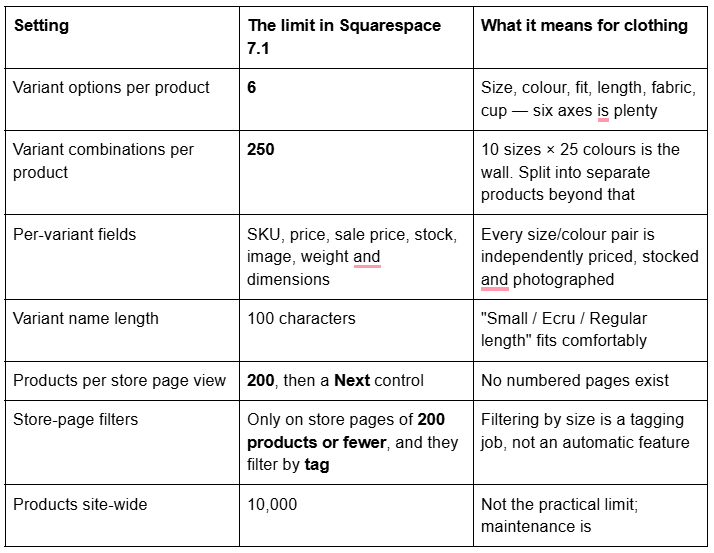
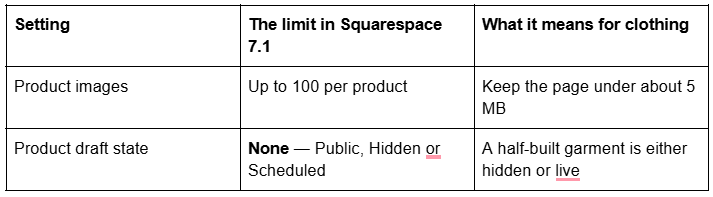
Two of these decide the whole build. Filters read tags, not variants — so "shop by size" needs somebody to tag every product, and it disappears entirely once a store page passes 200 products. And there is no draft state, so adding a new season means a discipline of building Hidden and switching to Public, with nothing in the interface to stop you publishing a garment with no size guide attached.
Setting up sizes and colours as variants
One garment is one product. Colour is a variant option, not a separate product — that keeps the review count, the URL and the SEO value in one place.
The build, in order:
Open the product editor and scroll to Inventory → Variants → Add.
Add your first option. Squarespace offers suggested option names, or click Custom to name your own. Use Size and Colour as separate options rather than one combined "Small / Black" option, because combined options cannot be stocked or filtered independently.
Enter the option values. Each option needs at least two values. If your values contain commas, paste them in rather than typing — typing a comma saves everything before it as a new value.
Squarespace generates every combination automatically. Click Edit all and delete the combinations you do not offer, using the trash icon.
For a combination you do offer but that is currently out of stock, set the units to 0 rather than deleting it. That produces a "Sold out" label instead of silently removing the option.
Add a variant image for each colour. In the product editor, click a variant then Add images. Variant images display when a shopper selects that variant on the product details page.
Set weight and dimensions per variant if you use carrier-calculated shipping, which requires the Core plan or above.
How unavailable combinations behave is worth knowing before you design your options. With two options, unavailable combinations simply do not appear in the dropdown menus. With three or more options they do appear, but the Add to Cart button disables when the shopper picks one. Fewer options means a cleaner experience.
Stock, sold-out states and waitlists
Stock is tracked per variant and decrements automatically on purchase. In the Products panel you can expand a product to see every variant's price, SKU, stock and visibility in one list, and sorting by stock ranks products by their lowest variant — so a size that has run out pulls the whole garment to the top of the list. That is the fastest restock check on the platform.
Four settings a clothing store should turn on or knowingly turn down:
Limited availability labels — shows the remaining count per variant on the product details page. Available on Basic and above. The most honest scarcity signal you can run, because it is a real number.
Low stock alert emails, plus push notifications through the Squarespace app, so a restock decision is not a manual audit.
Quantity limits — caps how many units one order can take. Requires the Core plan or above and Squarespace 7.1.
Product waitlists — collects an email when a sold-out variant is selected. Requires Core or above, and comes with three real caveats: the signup does not appear if your variants display as buttons instead of a dropdown menu; waitlists apply to every sold-out product and cannot be limited to some; and with waitlists enabled, sold-out labels stop appearing in the variant dropdown. The list also cannot be exported.
That last set is a genuine design decision, not a checkbox. Variant buttons look better for a small colour range. Waitlists earn more money on a garment that sells out. You cannot have both, and the choice belongs to whoever runs the store, not to whoever built it.
One more, for drops: the reserved cart and countdown timer holds an item for 5 to 20 minutes while a shopper checks out, and returns it to stock if the timer expires. It requires the Plus or Advanced plan and Squarespace 7.1.
Where the size guide actually goes
This is the question that sends most clothing-store owners to the forum, and the answer is a Squarespace 7.1 behaviour worth understanding properly.
In 7.1 you add extra content to a product details page by opening it and adding page sections, the same way you would on any other page. But any change you make applies to every product details page on the same store page. One size guide, one care-instructions block, one shipping-and-returns summary — added once, appearing on every garment.
That is exactly right for a clothing store, where the size guide is usually the same across the range. Build it as an Accordion block, which renders server-side in Squarespace 7.1, so the question and answer text is crawlable rather than hidden behind JavaScript. A table block inside the accordion carries the measurements.
Where it is wrong is when sizing genuinely differs — outerwear against knitwear, for example. There are two clean answers. Either put the garment-specific measurements in the product description, which is per-product, or split the catalogue across two store pages with a different section set on each. Multiple store pages are supported in 7.1, though Squarespace's own recommendation is a single store page with categories, so treat the split as a deliberate trade.
The product-page architecture that reduces returns
Clothing returns are mostly fit returns, and fit returns are an information problem. This is the order that works, and every element of it exists natively.
Variant images per colour, so the shopper sees the colour they selected rather than the one you photographed first.
Model height and worn size, in the first line of the description. "Model is 5'9" and wears a size S" removes more uncertainty than a measurement table.
Garment measurements, not body measurements — chest, length, sleeve, per size. Body measurement charts assume the buyer knows their body; garment measurements let them compare against something they already own.
Fabric, weight and stretch. "Non-stretch cotton twill, 320gsm" tells an experienced buyer more than three paragraphs of description.
Care instructions, in the shared accordion.
Shipping and returns summary on the page, with a link to the full policy. Do not make a shopper hunt for the returns window before they will risk a size.
Limited availability labels, so "only 2 left in Medium" is visible where the decision happens.
Choose the product details page layout once, because the choice applies to every product on the store page: Simple, Wrap, Half or Full. Simple is the right default for clothing, and it is the only layout that can display variants as buttons rather than dropdowns — the swatch-style selector most clothing shoppers expect. Remember the waitlist trade-off above before you commit to it.
Two smaller things. Related products are driven by tags and categories, so the tagging you do for filters also powers cross-selling. And all prices display cents, always — there is no setting to show whole pounds or dollars.
Returns, exchanges and the pages you must build
Squarespace has no returns portal. Refunds are issued from the order, full or partial, and an exchange is processed as a refund plus a new order. Everything else is policy and pages, and the pages are load-bearing:
Returns and exchanges — window, condition, who pays return postage, how to start one, and the exchange process stated as a process. In most jurisdictions this has to be visible before checkout, not after.
Shipping — dispatch times, delivery windows, countries served. Note that Squarespace cannot quote a custom shipping amount after checkout, so anything unusual has to be priced into a shipping option in advance.
FAQ — the fit and sizing questions in Accordion blocks.
Terms of Service and Privacy Policy.
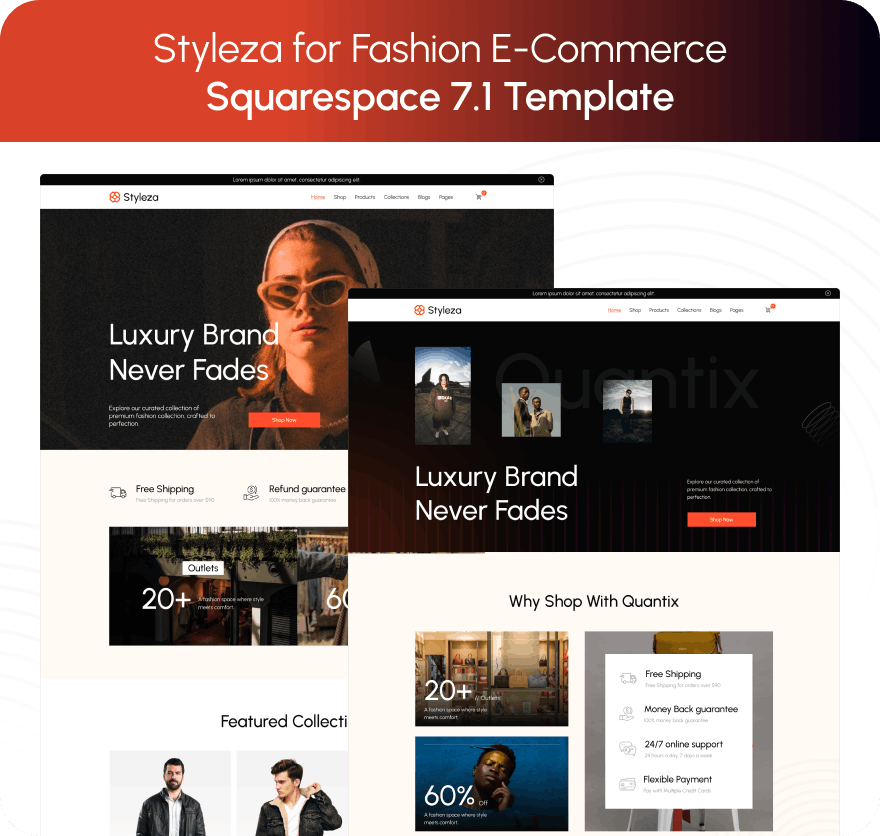
Styleza is the only template in the Squareko range that ships the legal set already built — Privacy Policy, Terms of Service and Refund Policy as three separate designed pages, plus an FAQs page. Its twelve pages also include two homepage variants, About, a Blog, the Products store page, Contact, a Style Guide, a 404 page and a sections library, and it includes a Figma file. The live demo is a menswear outerwear brand with products under /products/p/.
Skyline is the alternative if you want the lookbook prebuilt: twelve pages tagged Shop, Beauty and Fashion, with a Shop, Portfolio, Gallery, Blog, Services, Freebie, About, Contact and Style Guide. It ships no legal or refund pages, so budget that work. Scholar — eleven pages with a Shop, Portfolio, Gallery, Services, Freebie, About and Contact — is a strong maker template but ships no blog collection, which matters less for catalogue operations than it does for the brand side covered in the fashion template post.
Getting "shop by size" to work
Store-page filters exist, and they are more limited than most people expect. They rely on product tags, they appear only on store pages holding 200 products or fewer, they display at the top of the store page, and their position cannot be changed.
So the working method is:
Decide the filter axes before you load the catalogue — usually category (tops, knitwear, outerwear), then colour family, then size.
Tag every product for every axis, at the product level. A garment with sizes S to XL gets tags for all of them.
Accept that the tag says "we make this in Medium", not "Medium is in stock right now". Tags are static; stock is not. Nothing native reconciles the two.
Use categories for the structural divisions, since categories generate the store page's own navigation — which, incidentally, cannot be hidden.
If genuine in-stock-by-size filtering is a requirement rather than a nice-to-have, that is one of the honest cases for a different platform, and the ecommerce pillar sets out the rest of them.
Most clothing stores can build all of this themselves in a week: the variants are quick once the option structure is decided, and the size guide is one shared section. Where it stops being a solo job is a migration — moving an existing catalogue off Shopify or Etsy with variants, SKUs, stock levels and URLs intact, or repairing a store whose tags were added after the products and whose filters therefore return nothing useful. That is what our premium Squarespace templates and installation exists for, with the template installed onto your live site in around 48 hours and the variant and tag structure set correctly the first time. If you are starting with thirty garments and a clean slate, you genuinely do not need us.
FAQ
-
In the product editor go to Inventory → Variants → Add, then create Size and Colour as two separate options with at least two values each. Squarespace generates every combination automatically; click Edit all and delete the combinations you do not offer. Each combination gets its own SKU, price, stock and image.
-
Up to six options and 250 variant combinations per product, whether added in the product editor or through the CSV importer. Variant names are capped at 100 characters. Ten sizes across twenty-five colours reaches the limit; beyond that, split the garment across separate products.
-
Open a product details page, click Edit, and add a page section with an Accordion block containing the measurement table. In Squarespace 7.1 that section applies to every product details page on the same store page, so one size guide covers the whole range. Garment-specific measurements go in the product description.
-
Only through product tags, and only on a store page holding 200 products or fewer. Filters read tags rather than variants, so every product has to be tagged with the sizes it comes in, and the tag says the size exists rather than that it is currently in stock.
-
Stock is tracked per variant and decrements automatically on purchase. The Products panel expands each product to show every variant's stock, price, SKU and visibility. Setting a variant's units to 0 shows a Sold out label; deleting the variant removes the option entirely.
-
No. Refunds are issued from within the order, in full or in part, and an exchange is handled as a refund plus a new order. Everything else is policy: build a returns and exchanges page, a shipping page and an FAQ, and link them from the product page and the footer.

Author Bio
I'm Walid Hasan, a Certified Squarespace Expert and Squarespace Circle Platinum Partner with over 12 years of hands-on experience designing and optimizing high-performing websites. Over the years, I've had the privilege of building more than 2,000 Squarespace websites for clients around the world, always focusing on clean design, strong user experience, and conversion-driven results.