
15 Best Squarespace Blog Templates for Serious Content Sites
The short answer: Every Squarespace 7.1 template runs the same blog engine, so a template cannot make your blog rank. What it can do is set the list layout, the post-page reading width and whether discovery surfaces like featured posts and newsletter capture are already built. Pick by content type, then fix the four platform-level SEO gaps yourself — because no template fixes them.
Fifteen templates across six content types, scored the same way, followed by the mechanics section nobody else writes.
How I scored these
Five criteria, weighted, out of 5.
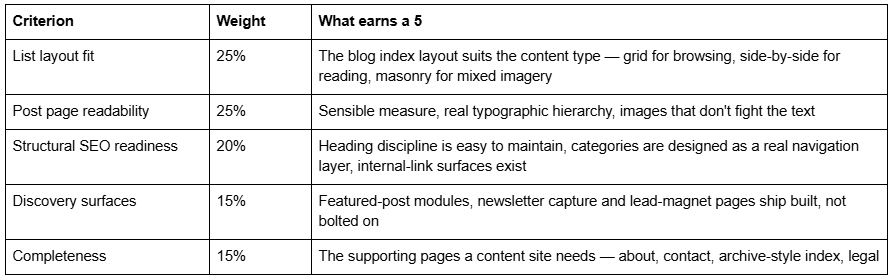
What this scoring is and isn't. It measures structure, not aesthetics, and it deliberately excludes anything the platform controls. Pagination, table of contents, related posts and URL redirects are identical across every 7.1 template, so scoring templates on them would be dishonest. Those are covered in the mechanics section instead.
Disclosure: Squareko sells 11 of the 15 templates below, marked (Squareko, $249). Two are free with a Squarespace subscription and two are from Big Cat Creative. 19 of Squareko's 24 templates ship with a Blog or Journal page — counted off the published page lists, not the marketing copy — so the range genuinely covers most of this list. Where a competitor does something better, I've said so.
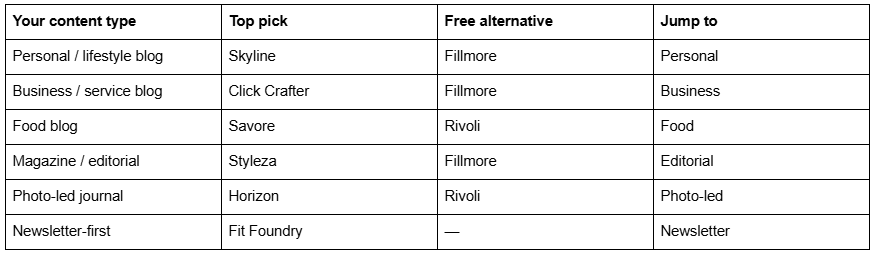
Quick pick by content type
What actually makes a Squarespace blog template SEO-ready
This is the part every other roundup skips, and it is the part that decides whether your content site works. Five mechanics, all specific to Squarespace 7.1.
Heading structure — the mistake almost every Squarespace blog makes
In a Squarespace 7.1 blog post, the post title is the page's H1. It is emitted automatically; you do not write it in the body.
The body text block then offers Heading 1, Heading 2, Heading 3 and Heading 4. Heading 1 sits at the top of that menu, and it is the one people reach for when they want a section heading to look big. Doing that puts a second H1 on the page.
The rule: section headings in a Squarespace blog post start at Heading 2. Use Heading 3 for sub-points beneath them. If Heading 2 looks too small for your template, change its size in Site Styles rather than promoting the heading level — the visual size and the semantic level are independent, and only one of them is read by a search engine.
A template earns points here by setting a heading scale where H2 already looks like a section heading. Several in this list do not, which is a five-minute fix and a very common unfixed problem.
Post URL behaviour — and the redirect that never happens
A Squarespace 7.1 blog post URL is /blog-page-slug/post-slug. The blog page's own slug is a prefix on every post beneath it.
Two consequences worth internalising before you publish anything:
Renaming the blog page renames every post URL underneath it. A blog at /journal moved to /blog changes 200 URLs at once.
Changing a slug creates no automatic 301 redirect. Ever. Squarespace will not do it for you, on any plan. The old URL becomes a 404 and every link and every ranking pointing at it is lost until you add the redirect by hand in Settings → Developer Tools → URL Mappings.
Decide your blog page slug before your first post, and treat every subsequent slug change as a manual redirect job.
Categories are indexable. Tags are not.
This is the single most useful thing in this article and it comes straight from the platform's own robots.txt, which cannot be edited on any plan.
Squarespace disallows /*?tag=*, /*?author=*, /*?month=* and /*?view=*. It does not disallow ?category=.
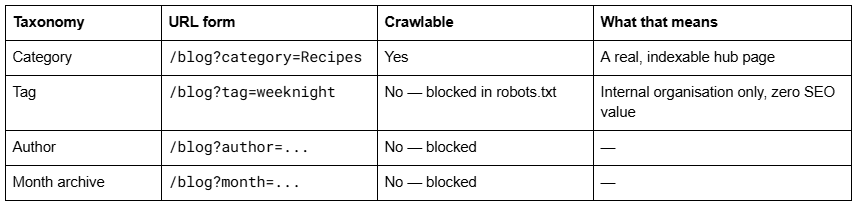
So: categories are a public information architecture; tags are a private filing system. Design your categories deliberately — six to ten, each with enough posts to justify a page — and use tags freely for your own sorting, knowing they will never be crawled. The failure mode is 40 categories with one post each, which produces 40 crawlable near-empty pages competing with the posts themselves.
Pagination — 20 posts a page, no page numbers, no way round it
Squarespace 7.1 blog pagination is cursor-based. Posts per page is settable between 1 and 20 in the blog page's settings, and 20 is the hard maximum. There are no numbered pages, no infinite scroll and no "view all". Navigation is a pair of Older / Newer links, and the URLs they generate use an ?offset= timestamp cursor rather than a page number.
The consequence is crawl depth. With 20 posts a page and 200 posts published, your oldest post sits ten sequential offset-links from the blog index — and those cursor URLs are unstable, because a new post shifts everything. Google will get there via your sitemap, but internal link equity will not.
The fix, and it is a real one: build category pages as your genuine navigation layer. ?category= is crawlable, categories are stable, and a well-categorised blog with eight hub pages gives every post a shallow path from the index. This is why the categories point above is not academic.
What Squarespace 7.1 does not have
Three absences that no template can fill:
No native table of contents. Long-form posts need one built manually — an anchor-linked list at the top of the post, with {#anchor}-style IDs added to your headings via a Code Block. There is no plugin-free automated option.
No native related-posts module. The bottom of a 7.1 post shows Newer Post and Older Post links, which are adjacent by publish date and usually unrelated by topic. Genuine related-content links have to be written into the post body by hand.
No blog write API on any plan. Everything is published through the editor. If your content workflow assumes programmatic publishing, that assumption fails here.
One more thing to know before you add markup: Squarespace auto-emits one Article JSON-LD block per post, with the author as a bare string rather than a Person object. Do not add your own Article or BlogPosting schema on top — you'll create a competing node. Add complementary types only, in a Code Block in the post body, HTML mode, because 7.1 has no per-post header code injection. Script-bearing code blocks are disabled while you're logged in, showing "This block contains embedded scripts. Embedded scripts are disabled while you're logged in and editing your site." That message is not an error — check logged out.
The five blog list layouts
Every 7.1 template picks from the same five. Knowing which suits your content type is most of what the segments below are deciding.
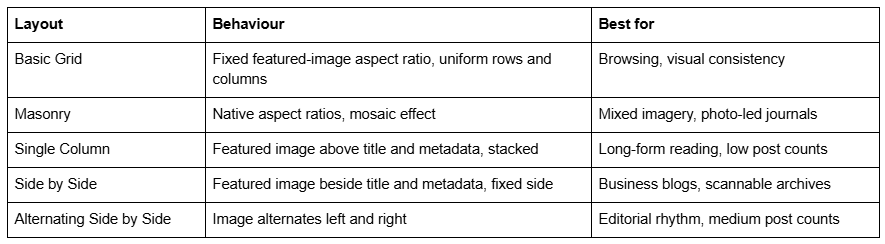
You can also show or hide excerpts, the read-more link, author, date and categories, and set 2, 3 or 4 columns on the grid layouts.
Personal and lifestyle blogs
The trap here is designing for the homepage and forgetting that almost every visitor arrives on a post from search or a link. Reading width and typographic hierarchy matter more than the index layout.
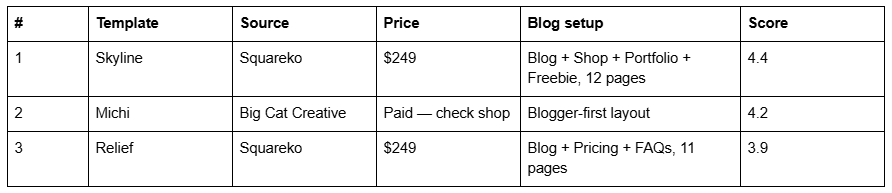
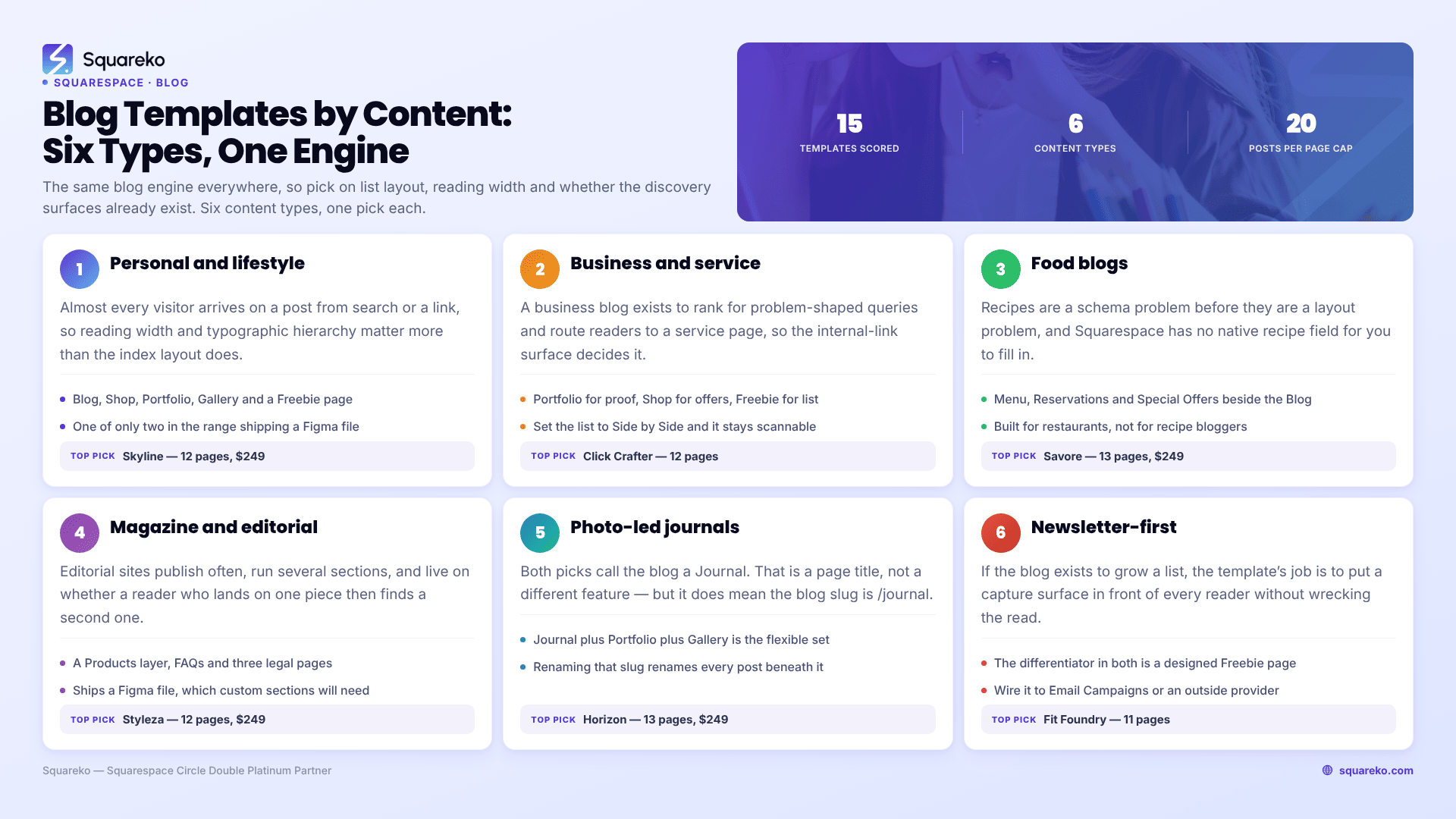
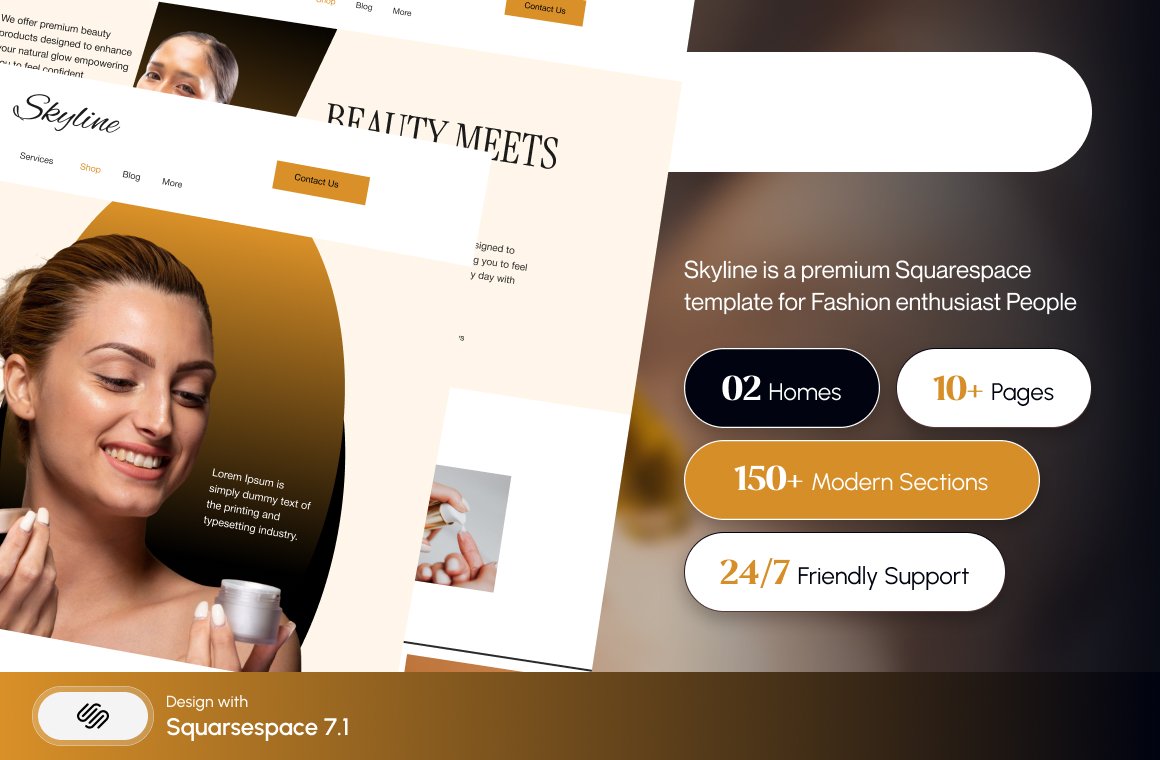
Skyline is the most complete personal-brand template in the Squareko range: 12 pages covering Blog, Shop, Portfolio, Gallery and a Freebie page for a lead magnet, and it's one of only two templates in the range that ship a Figma file. That matters if you or a designer will restyle it properly rather than swapping colours.
Michi from Big Cat Creative is worth naming because it was designed for bloggers first rather than adapted into one, and it shows in the post-page typography. If your site is genuinely a blog with a bit of business attached — rather than a business with a blog attached — this is the more natural starting point, and Big Cat has the deepest library of blogger-specific layouts of any premium shop.
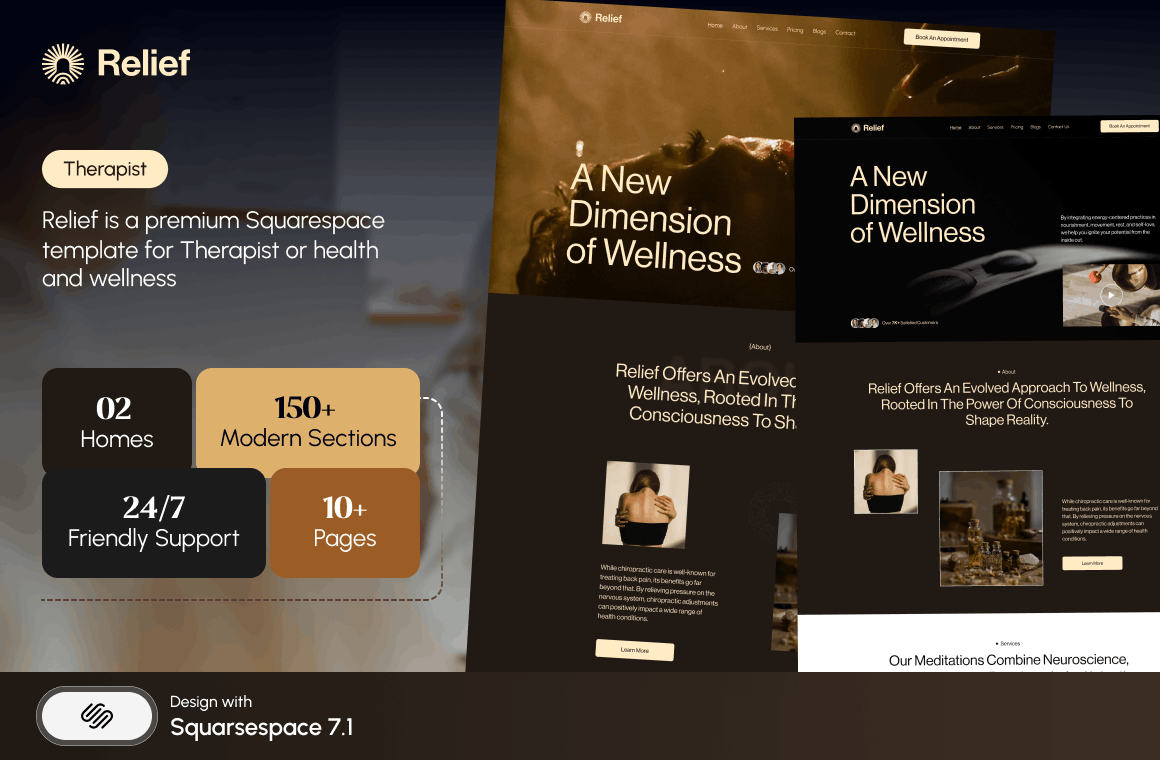
Relief is the quieter option, built for therapists and wellness coaches: Blog, Pricing and FAQs across 11 pages. Its restraint is the point. There is no shop and no lead-magnet page, so if email list growth is the goal you'll be building that yourself.
Business and service blogs
A business blog exists to rank for problem-shaped queries and route readers to a service page. That makes the internal-link surface and the service-page structure more important than the blog design.
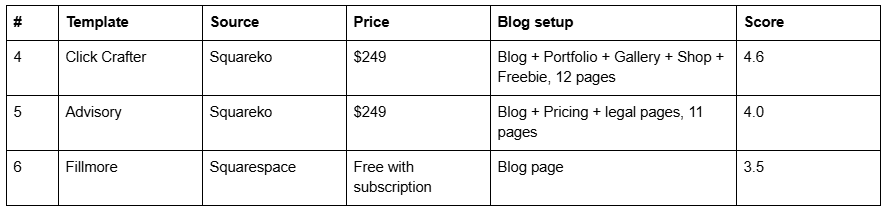
Click Crafter scores highest in this segment because it ships every surface a service business needs to convert a reader: a Portfolio for proof, a Shop for productised offers, a Freebie page for list capture, and a Blog to feed all three. Twelve pages, no filler. Set its blog list to Side by Side and the archive stays scannable past a hundred posts.
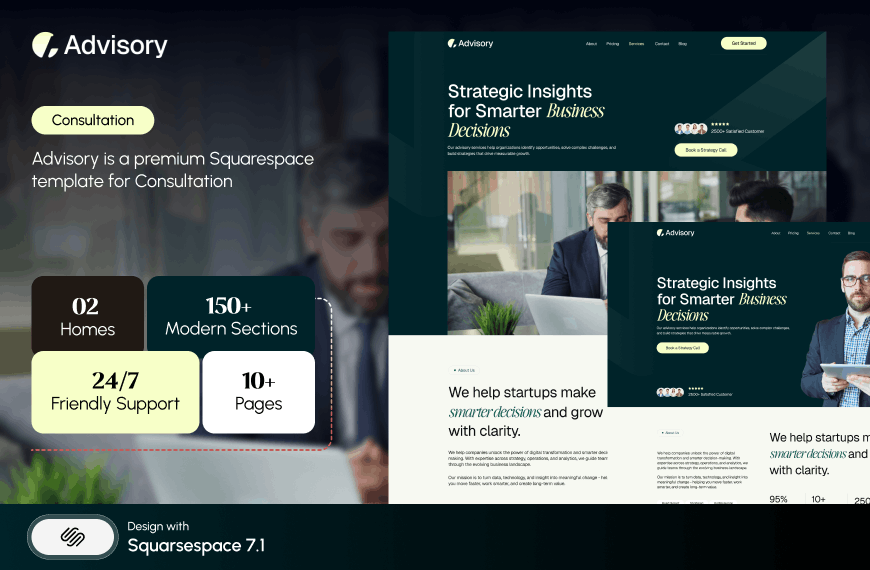
Advisory suits consultants and speakers — Blog, Pricing and two legal pages across 11 pages. It is deliberately plain, which is right for the audience. Note that Advisory's published demo link currently returns an authentication error, so you'll be assessing it from the page list rather than a live walkthrough.

Fillmore stands in for Squarespace's own free starting points. Squarespace refreshes its template gallery periodically, so treat any free-template name in any roundup — including this one — as a pointer rather than a permanent fixture. What's durable is the advice: a free template gives you the same blog engine and none of the supporting pages.
Also blog-capable in the Squareko range if none of these fit the sector: Cleanko (cleaning services, 12 pages), BRIX Construction (13 pages), Justify (attorneys, 9 pages, the smallest in the range) and Kiddo (childcare and education, 12 pages).
Food blogs
Food is the most demanding content type on this list, for a reason that has nothing to do with design: recipes are a schema problem before they are a layout problem.

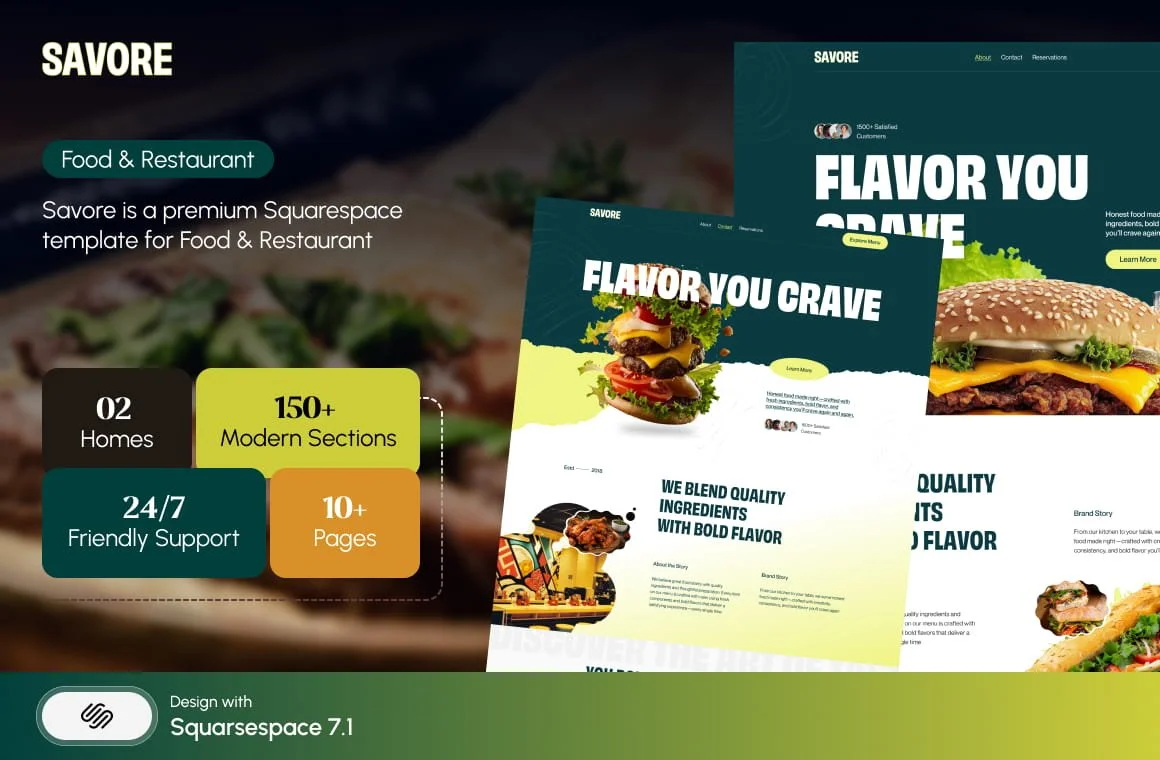
Savore is built for restaurants rather than recipe bloggers — 13 pages with Menu, Reservations and Special Offers alongside the Blog — and that distinction matters. A restaurant blog supports a business that already exists. A recipe blog is the business, and needs different things.
If you are a recipe blogger, here is the part that will save you: Recipe structured data is the only reason food content earns rich results, and Squarespace has no native recipe field. You add Recipe JSON-LD manually in a Code Block in the post body, HTML mode. It coexists fine with the Article block Squarespace emits automatically, because they are different types — the rule about not duplicating applies only to Article and BlogPosting.
Second: build recipes as blog posts, not as pages. Poshplatter in the Squareko range has an attractive Recipes page but no blog at all, and a Recipes page is a single URL. Recipes need to be collection items with individual URLs, categories and dates, which is what a blog gives you.
Rivoli is a free Squarespace option with a warm editorial feel that works for food. Use Masonry for the index — food photography rarely crops to one ratio without losing the shot.
Magazine and editorial sites
Editorial sites publish frequently, run multiple sections, and live or die on whether a reader who lands on one piece finds a second. This is where the pagination and category mechanics above stop being theory.
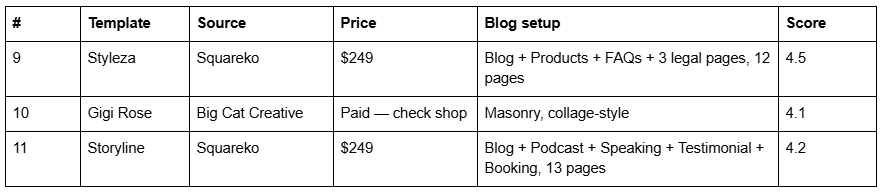
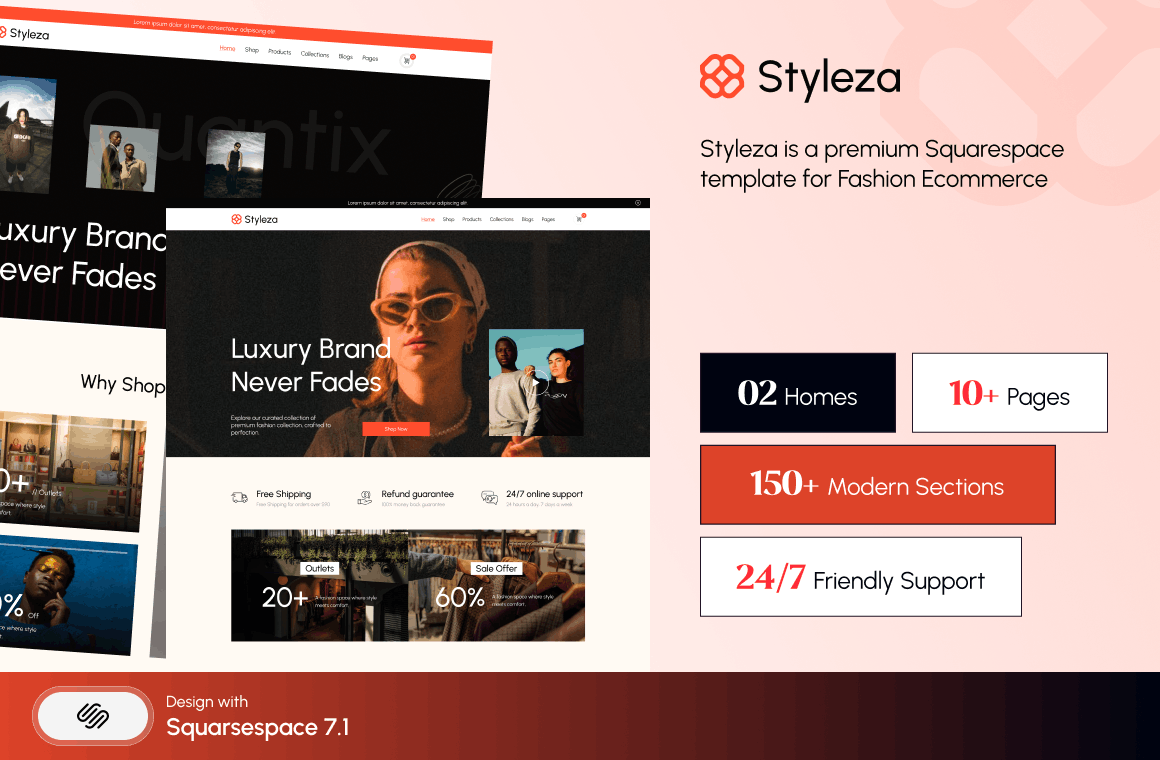
Styleza is the strongest editorial base in the Squareko range. Twelve pages, a full ecommerce Products layer, FAQs, three legal pages, and — like Skyline — a Figma file, which for a publication that will inevitably need custom section designs is worth more than any single template feature. The commerce layer is not incidental: editorial sites that survive usually sell something.
Gigi Rose from Big Cat Creative is the pick if you want a genuine masonry collage index. It's a different visual register — busier, more magazine-rack than broadsheet.
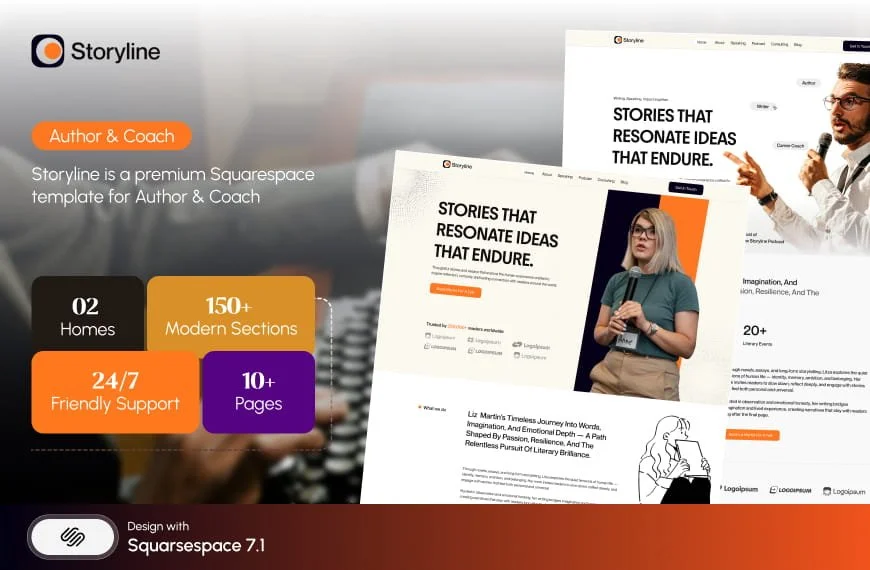
Storyline is for the single-author publication: Blog, Podcast, Speaking, Testimonial and Booking across 13 pages. If your editorial site is really a person with an audience, that page list is a better description of your business than any magazine layout. Its demo link is among the six in the Squareko range that currently return an authentication error.
Set up your sections as categories on day one. Six to ten, named as a reader would name them, each linked from the main navigation. With no numbered pagination available, category hubs are the only shallow path to older work you get.
Photo-led blogs and journals

Both of these call the blog a Journal, which is a naming choice, not a different feature — it is a standard Squarespace blog collection with a different page title. Worth knowing, because it also means the blog page slug is /journal, and per the URL section above, changing that later renames every post beneath it.
Horizon is tagged Real Estate and Interior in the shop but its actual 13 pages are a photography site — Wedding, Engagement, Portraits, Photo Booth, Journal and Inquire. Judge it by its pages, not its tag. The Journal plus Portfolio plus Gallery combination is the most flexible content structure in the range.
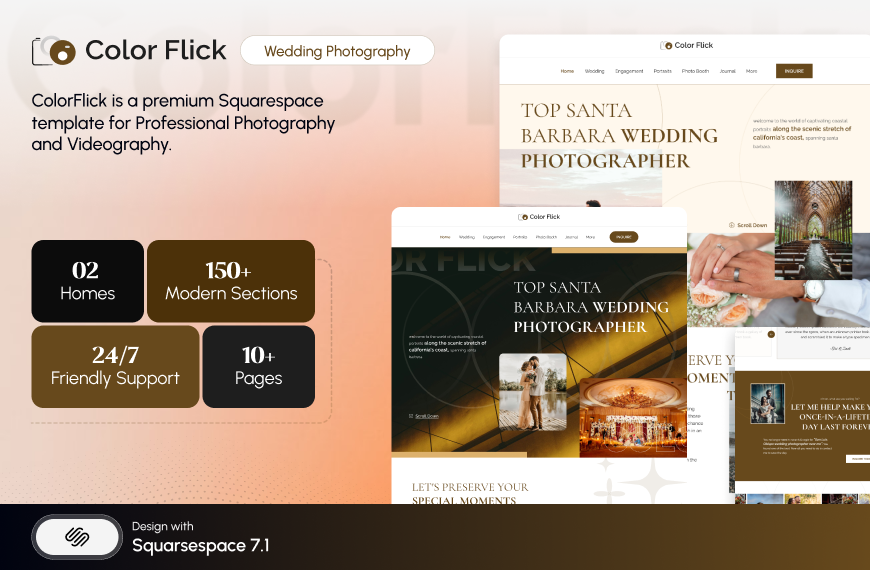
ColorFlick pairs a Journal with Gallery, Weddings, Engagements and Photo Booth pages across 12 pages. Note that the shop page for ColorFlick misspells its own name and describes a different template entirely — again, placeholder copy, not a description of the product.

For both: use Masonry for the journal index and keep featured images between 1500 and 2500px wide. Squarespace serves WebP unconditionally and caps served width at 2500px, so anything larger is bandwidth you paid to upload and nobody downloads. And remember that blog featured images have no alt-text field — the post title is used as the alt text, so write titles that describe the image as well as the post.
Newsletter-first blogs
If the blog exists to grow an email list, the template's job is to put a capture surface in front of every reader without wrecking the reading experience.

The differentiator in both is the Freebie page — a designed lead-magnet landing page, ready for a Newsletter block wired to Squarespace Email Campaigns or an external provider. Most templates make you build that page from scratch, and most people building it from scratch build it badly.
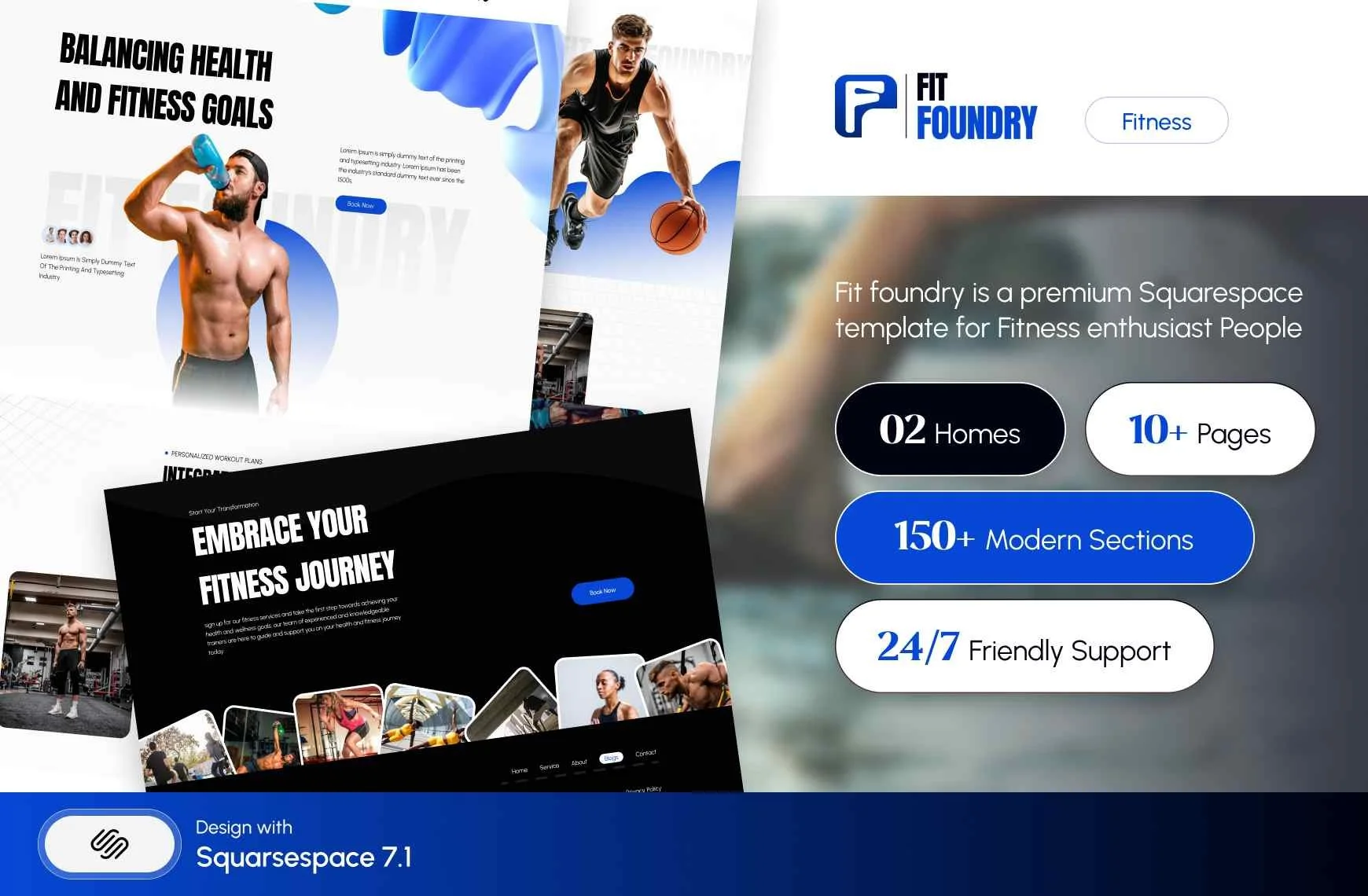
Fit Foundry is fitness and coaching by tag, but the structure — Blog, Shop, FAQs, Freebie across 11 pages — is a generic list-building shape that transfers to almost any niche. Harmony is the interior-design equivalent with a Store and a Portfolio attached.

One structural note for newsletter-first sites: with no native related-posts module in Squarespace 7.1, the end of every post is dead space by default. That is the natural home for your capture block. It is the one place where the platform's limitation and your goal happen to agree.
What no blog template fixes
Before you spend anything, the four things that are identical across all 15 templates above and every other Squarespace 7.1 template in existence:
Pagination is capped at 20 posts per page, cursor-based, with no numbered pages.
There is no native table of contents and no native related posts.
Changing a post or blog-page slug creates no 301 redirect, ever, on any plan.
Tag pages are blocked in robots.txt and cannot be unblocked, because robots.txt is not editable.
Two practical notes on buying. Demo images are not licensed for live use — every template from every shop ships with placeholder photography you are obliged to replace. And Squareko's templates specifically are delivered as a Squarespace contributor invitation rather than a file download, which removes the upload step entirely; installation onto an existing site is a manual process taking around 48 hours. All template sales are final, so work the demo properly first.
If your blog is the main engine of the business rather than a supporting page, the template matters less than the categories, the internal linking and the redirect discipline. Get those right on a free template and you'll outrank a beautiful site that got them wrong.
Where a paid template earns its place is when you want the supporting pages — lead magnet, shop, service pages — already built and consistent, rather than assembled over six months of evenings. That's what the premium Squarespace templates in our shop are for, and each is listed with its full page structure so you can check it against the segments above before buying.
FAQ
-
No. Squarespace 7.1 has no native table of contents. Long posts need one built manually — an anchor-linked list at the top of the post, with IDs added to your headings through a Code Block. There is no plugin-free automated option, and no template changes this because it is a platform-level absence.
-
Twenty is the maximum. Posts per page is settable between 1 and 20 in the blog page's settings. Pagination is cursor-based using an offset parameter, with Older and Newer links rather than numbered pages, and there is no infinite scroll or view-all option.
-
Categories, for anything you want found. Squarespace's robots.txt blocks tag, author and month archive URLs but does not block category URLs, so category pages are crawlable and tag pages are not. Use categories as your public navigation layer — six to ten of them — and tags purely for internal organisation.
-
No. Squarespace never creates an automatic 301 when a slug changes, on any plan. The old URL returns a 404 immediately, taking its rankings and inbound links with it. Add the redirect manually in Settings → Developer Tools → URL Mappings, and decide your blog page slug before publishing.
-
Five: Basic Grid, Masonry, Single Column, Side by Side, and Alternating Side by Side. You can show or hide excerpts, read-more links, author, date and categories, and set two, three or four columns on the grid layouts. Every 7.1 template picks from the same five.
-
Not natively. Squarespace 7.1 shows only Newer Post and Older Post links, which are adjacent by publish date rather than by topic. Genuine related-content links must be written into the post body by hand, or built with a third-party plugin. Category hub pages are the more durable alternative.

Author Bio
I'm Walid Hasan, a Certified Squarespace Expert and Squarespace Circle Platinum Partner with over 12 years of hands-on experience designing and optimizing high-performing websites. Over the years, I've had the privilege of building more than 2,000 Squarespace websites for clients around the world, always focusing on clean design, strong user experience, and conversion-driven results.
