Fashion Squarespace Templates: Building the Brand Layer
A fashion template is chosen on its editorial pages, not its shop page. Every Squarespace 7.1 site gets the same store engine, so what separates a fashion template is whether it ships a blog collection for drops and campaigns, and gallery or portfolio pages for the lookbook. Styleza is the strongest fashion starting point in the Squareko range because it ships the blog and the full legal set; Skyline is the alternative if the lookbook matters more than the writing.
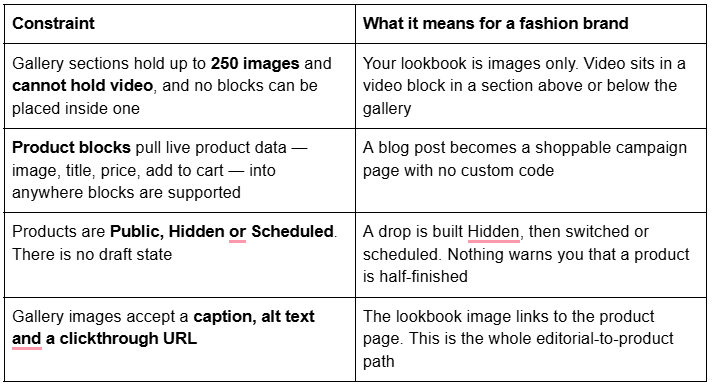
Before the template choice, the four constraints that shape every fashion build in Squarespace 7.1.
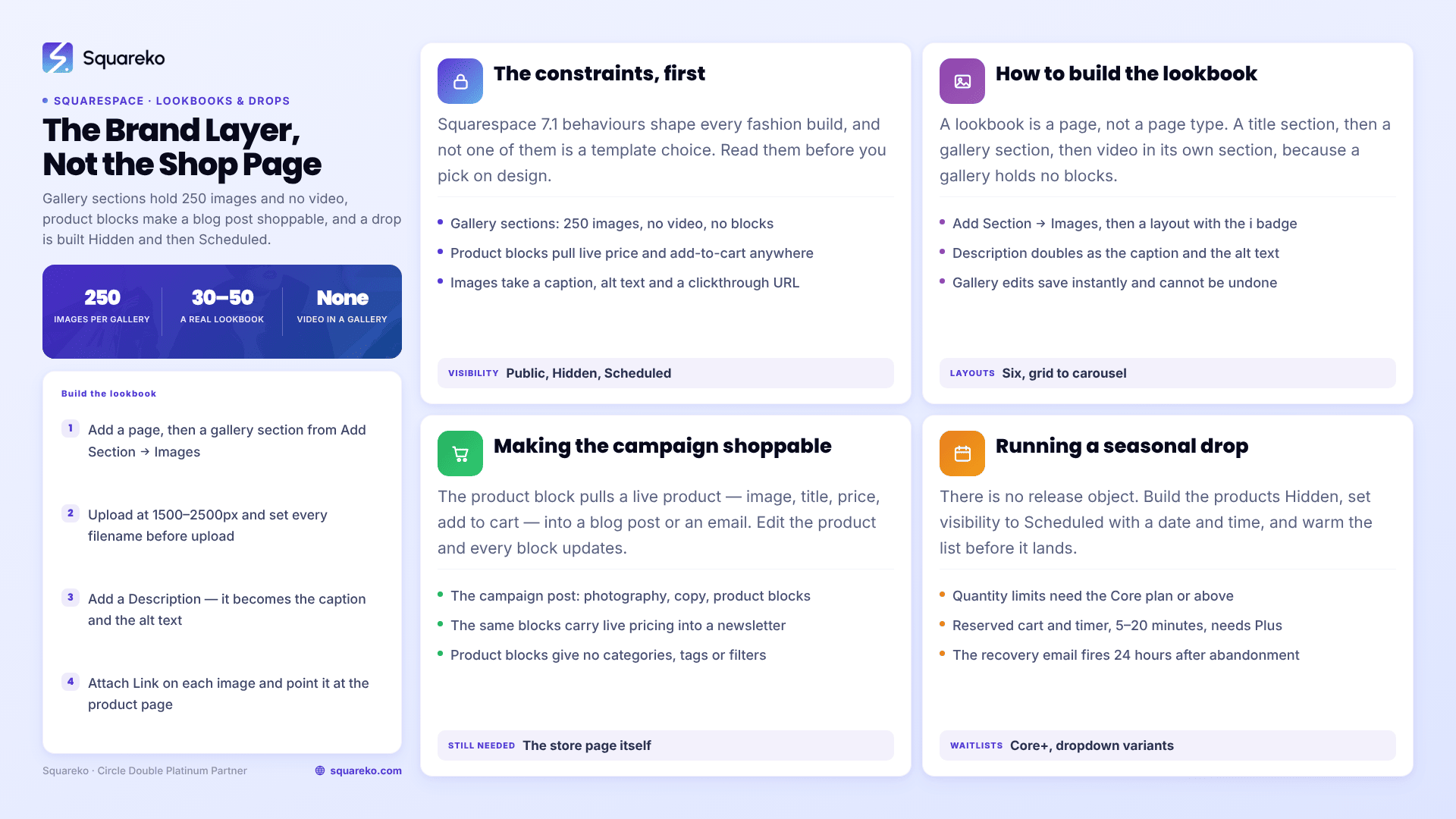
The four constraints that shape a fashion site
Squarespace's own guidance is worth repeating: although a gallery section takes 250 images, the recommendation is closer to 50. A 250-image lookbook is a page nobody scrolls and a Largest Contentful Paint nobody wants.
Styleza: the fashion template that ships the editorial layer
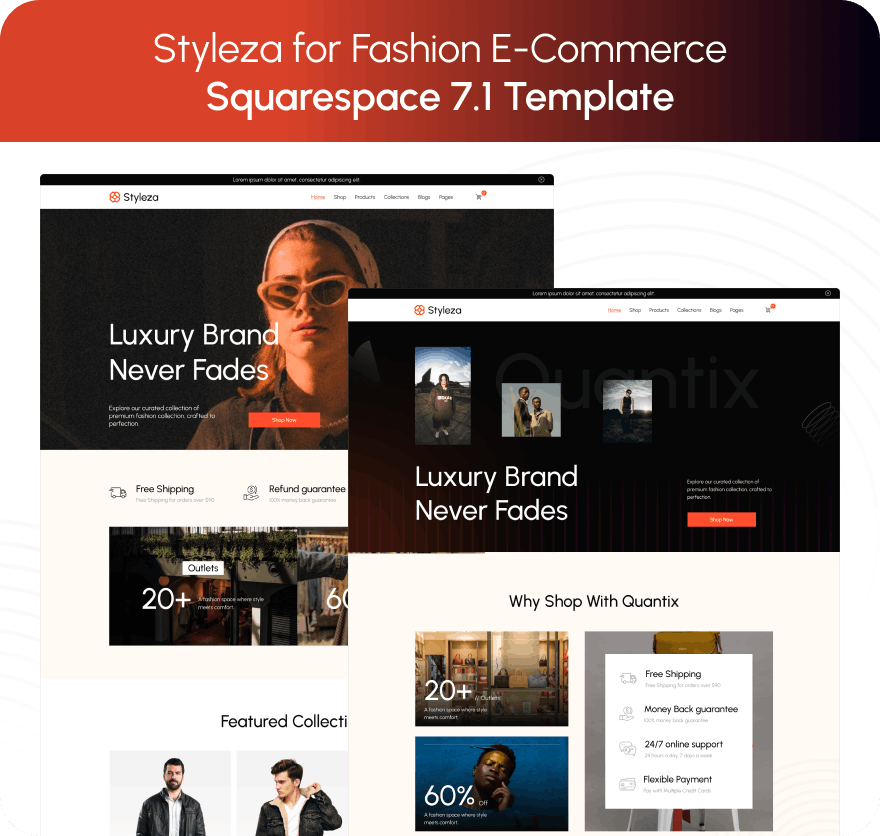
Styleza is tagged E-Commerce, Fashion and Shop and runs to twelve pages. The verified build ships two homepage variants, an About page, a Blog, a Products store page, Contact, an FAQs page, a Style Guide, a 404 page, a sections library, and three separate legal pages — Privacy Policy, Terms of Service and Refund Policy. It is one of only two Squareko templates that includes a Figma file. The live demo is a menswear outerwear brand, with products under /products/p/.
For a fashion label the blog is the load-bearing page, not a nice-to-have. It is where the drop announcement lives, where the campaign story lives, and — because product blocks work inside blog posts — where the shopping happens. The FAQ page carries sizing and shipping answers. The refund policy is the page a first-time buyer checks before entering a card number.
What Styleza does not ship: a Portfolio page or a Gallery page. The lookbook has to be built as gallery sections inside a regular page. That is a ten-minute job, and the next section covers exactly how.
Skyline: the fashion template that ships the lookbook
Skyline is tagged Shop, Beauty and Fashion, runs to twelve pages, and is the second Squareko template that includes a Figma file. Its verified build carries two homepages, About, Services, a Shop, a Portfolio, a Gallery, a Blog, a Freebie page, Contact, a Style Guide and a 404 page.
Skyline is the only fashion-adjacent template in the range that ships Portfolio and Gallery and Blog. If your brand runs seasonal campaigns with a lot of imagery and comparatively little writing, Skyline saves you the build. The trade is the paperwork: Skyline ships no legal or refund pages, and a clothing brand needs all three before its first order.
Scholar deserves a mention here because it is tagged Fashion, but its verified pages tell a different story: two homepages, About, Services, a Shop, Portfolio, Gallery, Freebie, Contact and a Style Guide — and no blog collection at all. The demo is a ceramics and homeware brand. Scholar is a strong maker template. For a fashion label that intends to publish, it starts you a page behind.
How to actually build a lookbook in Squarespace 7.1
A lookbook is a page, not a page type. Build it like this.
Add a page and give it a section for the season title and standfirst — a text section, not part of the gallery.
Add a gallery section. In the editor: Add Section → Images, then pick a layout with the small i badge in its top-right corner, which marks the gallery layouts. Squarespace gives you six gallery layouts — Grid: Simple, Grid: Masonry, Grid: Strips, Slideshow: Simple, Slideshow: Full, and Carousel.
Load the images. Upload at 1500–2500px wide; 2500px is the largest size Squarespace will serve. Set the filename before you upload, because filenames cannot be changed afterwards.
Caption and link every image. Click an image in the gallery editor, add a Description — this becomes both the caption and the alt text — and then click Attach Link and point it at the product's page. This is the editorial-to-product path, and it is the single most-skipped step in every lookbook tutorial online.
Put video in its own section. You cannot upload video into a gallery section and you cannot place a block inside one. A campaign film goes in a video block in a separate section above or below the gallery, or as a background video on a banner section. Squarespace's video storage allowance is plan-dependent — 30 minutes on Basic, 5 hours on Core, 50 hours on Plus, unlimited on Advanced — or you can embed from YouTube or Vimeo and use none of it.
Keep the image count sane. The cap is 250. The sensible number is closer to 30–50 for a season.
One editing warning worth knowing before you start: changes to gallery images save automatically, and adding, removing, reordering or editing an image cannot be undone with Undo or Discard Changes. Build the shot list before you build the gallery.
Making the campaign shoppable
The mechanism is the product block. It pulls a live product — featured image, title, price and add-to-cart button — from your store page into anywhere on the site that accepts blocks, including blog posts and email campaigns. Edit the product in the product editor and every block showing it updates automatically.
That gives a fashion brand three genuinely useful patterns:
The campaign post. A blog post of photography and copy, with product blocks dropped in beside the looks. The reader never leaves the story to buy.
The shoppable email. The same product blocks work in Squarespace Email Campaigns, so the newsletter carries live pricing rather than a screenshot.
The edit page. A "the edit" or "styling notes" page built from image sections and product blocks, sitting outside the store page entirely.
What the product block does not do is replace a store page. Product blocks show a product; they do not give you categories, tags, filters or pagination. The store page is still the catalogue, and the clothing store post covers how to structure it.
Running a seasonal drop
Squarespace has no "release" object, but it has the pieces to run one properly.
Build the products Hidden. Products have no draft state — visibility is Public, Hidden or Scheduled — so a product in progress must be set Hidden or it is live. Get the photography, description, variants and stock in, then move on.
Schedule the release. Set the product's visibility to Scheduled with the date and time you want it live. This is the closest thing Squarespace has to a drop mechanic, and it is genuinely reliable.
Warm the list first. Squarespace Email Campaigns and announcement bars are the built-in tools. A drop with no list is a drop with no traffic.
Turn on the protections you have. Quantity limits, which stop one buyer sweeping the whole run, need the Core plan or above. The reserved cart and countdown timer, which holds an item in a cart for 5 to 20 minutes while the buyer checks out, needs Plus or Advanced and Squarespace 7.1. Product waitlists, which collect emails on sold-out items, need Core or above — with the caveat that the waitlist signup does not appear if your variants display as buttons rather than a dropdown menu.
Expect abandoned checkout recovery to help, not to save you. The email fires 24 hours after a cart is abandoned, is disabled by default, and only sends when the shopper is signed into a customer account or has typed an email into the first checkout field, with at least one item still in stock. Twenty-four hours is a long time in a drop that sells out in an hour.
The pages a fashion brand needs, in build order
Homepage — one campaign image, one clear route to the current collection. Not a grid of everything.
Shop — the store page. One store page, with categories rather than several store pages.
Lookbook or collection page — gallery sections with linked images, one page per season.
Journal or blog — drops, campaigns, shoppable posts.
About — the label's story. On a fashion site this page gets read far more than owners expect.
FAQ — sizing, shipping windows, exchanges. Build it with Accordion blocks, which render server-side in 7.1 so the text is crawlable.
Shipping and returns — its own page, linked from the product page and the footer.
Terms and privacy — non-negotiable before the first order.
Styleza ships 1, 2, 4, 5, 6, 7 and 8. You build the lookbook. Skyline ships 1, 2, 3, 4, 5 and you build the policy pages. Neither is more work than the other; they are different work.
Keeping the brand consistent after launch
The thing that degrades a fashion site is not the design. It is the twentieth product added six months later by somebody working quickly, using a heading size that does not exist anywhere else on the site.
Every Squareko template ships a Style Guide page — a single page holding the type scale, the colour themes, the button styles and the section spacing as they were designed. It is an uncommon inclusion and it is the most useful page in the file. Keep it, set it to Not Linked so it stays out of the navigation, and check new pages against it before publishing.
Two Squarespace behaviours support the same discipline. Colour themes are site-wide, so editing a theme changes every section using it — which is why campaign pages should use an existing theme rather than a one-off background colour. And in Squarespace 7.1 the product details page layout is a section-level setting that applies to every product on the same store page, so you choose Simple, Wrap, Half or Full once and every garment inherits it. That is a constraint in some contexts and a gift in this one: nobody can accidentally style one product differently.
Styleza and Skyline both include a Figma file alongside the template, which is the other half of this — a place to lay out campaign assets in the same type scale before they reach the site.
One honest note on imagery and page weight
Fashion sites are the heaviest sites we build, because photography is the product. Across 54 Squareko-built client sites measured in August 2026 — Playwright and Chromium, cloud datacentre, unthrottled, single run per site, load-only CLS, so lab data rather than field data — median mobile Largest Contentful Paint was 2.01 seconds, with 74% under Google's 2.5-second threshold, and median page weight was 3.0 MB across 93 requests. Squarespace's CDN serves WebP unconditionally regardless of what you upload, which does most of the work for you; 86% of images across that sample were served as WebP.
The variable you control is how many images you put on a page. A 200-image lookbook will be slow on any platform and on any template. A 40-image lookbook will not.
Most fashion brands can build all of this themselves — the lookbook is genuinely a ten-minute job once you know that captions double as alt text and that video needs its own section. Where it stops being a solo job is a full season launch on a deadline: catalogue, variants, campaign pages and email all landing on the same morning. That is what our premium Squarespace templates and installation is for, with the template installed onto your live site in around 48 hours. If you have a fortnight and a shot list, you do not need us.
FAQ
-
No. Gallery sections in Squarespace 7.1 accept images only — you cannot upload video into one, and you cannot place any block inside one. A campaign film goes in a video block in a separate section above or below the gallery, or as a background video on a banner section.
-
Add a page, add a gallery section from Add Section → Images, upload your images at 1500–2500px, then click each image and add a Description, which becomes both the caption and the alt text. Use Attach Link on each image to point it at the matching product page.
-
Up to 250 in a gallery section. Squarespace's own recommendation is far lower — around 50 — and for a seasonal lookbook 30 to 50 images is a more realistic number. Gallery edits save automatically and cannot be undone with Undo or Discard Changes.
-
Build the products with visibility set to Hidden, then set visibility to Scheduled with your release date and time. There is no draft state, so a product that is not Hidden is live. Quantity limits need the Core plan; the reserved cart and countdown timer needs Plus or Advanced.
-
Styleza, if the brand publishes: twelve pages including a Blog, an FAQs page and three legal pages covering privacy, terms and refunds. Skyline, if the imagery matters more than the writing: it ships Portfolio, Gallery and Blog, but no legal or refund pages.
-
Open the gallery editor, click the image, then click Attach Link in the sidebar and enter the product's URL. In Squarespace 7.1 product URLs always take the form /store-page-slug/p/product-slug. This turns a lookbook into a working path from campaign imagery into the catalogue.

Author Bio
I'm Walid Hasan, a Certified Squarespace Expert and Squarespace Circle Platinum Partner with over 12 years of hands-on experience designing and optimizing high-performing websites. Over the years, I've had the privilege of building more than 2,000 Squarespace websites for clients around the world, always focusing on clean design, strong user experience, and conversion-driven results.