
How to Migrate Squarespace 7.0 to 7.1 Without Losing Content
Content is almost never lost by accident during a Squarespace 7.0 to 7.1 migration — it is lost because nobody recorded it beforehand. Squarespace's update tool carries structure, SEO fields, orders, sales, customer data, members, domains, URL mappings and subscriptions across. Everything it cannot carry, it removes without warning. So the protocol is: capture a record of the 7.0 site, run the migration, then verify against that record.
The update is permanent. That single fact is why the capture stage is not optional — there is no rollback to compare against later.
What a Squarespace 7.0 to 7.1 migration can lose, and what protects it
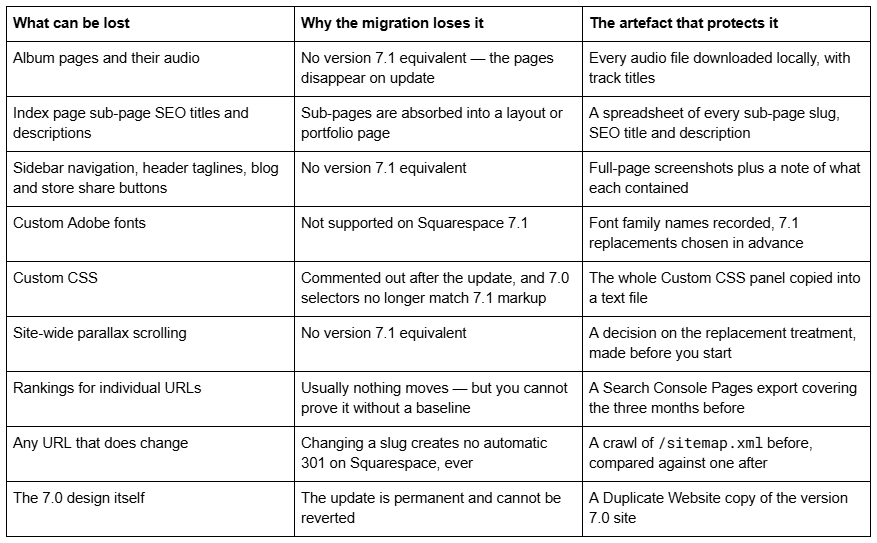
Work down the stages below in order. Stages 1 to 5 happen before you touch the update tool.
Stage 1 — Duplicate the Squarespace 7.0 site before anything else
This is the only genuine backup Squarespace offers, and it takes two minutes.
From your Account Dashboard, click the ⋯ menu on the site and choose Duplicate Website. The copy appears in your dashboard with "(Copy)" appended to its title, still on version 7.0.
Two limits apply, and both are worth checking before you rely on this: Duplicate Website will not run on a site with more than 150 pages, and it is unavailable on Developer Platform sites. If either applies, your reference copy has to be screenshots instead.
Understand what a duplicate is and is not. It copies pages, blog posts, galleries, products and design. It does not copy orders, discounts, subscriptions and other selling settings, blog comments, analytics, contributor permissions, domains, Email Campaigns, audio files inside audio blocks, saved sections, or unused Asset Library media. Duplicated collection items also get extra characters appended to their slugs, so the copy is not URL-identical to the original.
It is also a new, separate site on a trial — a reference copy of how the version 7.0 site looked and read, not a permanent archive. Treat it as something you will consult during the rebuild, not something you will restore from.
Stage 2 — Export the text, and understand what the export leaves behind
Settings → Import & Export Content → Export → WordPress icon produces an XML file. Do it, because it costs nothing and it is a plain-text record of your writing.
Then be clear about its limits. The export includes layout pages, one blog page with its posts, text and image blocks, and gallery pages. It excludes album, cover, index, info, calendar, portfolio and store pages, page-specific headers, footers and sidebars, additional blog pages, audio, product and video blocks, draft posts, style settings and Custom CSS.
And critically: content cannot be exported from one Squarespace site and imported into another. Squarespace states this plainly. The XML is an archive you can read, not a restore point. Anyone planning a migration around "I'll just export and import" is planning around something the platform does not do.
Stage 3 — Build the URL inventory that the redirect map is built from
Every Squarespace site publishes /sitemap.xml, and it cannot be edited. Open https://yourdomain.com/sitemap.xml and save the full list of URLs. If the site is large, run a crawler over it and export the list to a spreadsheet.
Alongside each URL, record three things: the page's SEO title, its SEO description, and its H1. These are what you will diff afterwards.
Pay particular attention to index pages. Squarespace's update tool converts stacked index pages into layout pages and grid index pages into portfolio pages — and the SEO titles and descriptions on the sub-pages inside an index are lost in that conversion. If those sub-pages have earned rankings, either record every field now or move the sub-pages out of the index before you update, which preserves their settings.
This inventory is the single most useful artefact in the whole protocol. It is what turns "I think everything is still there" into a two-column comparison.
Stage 4 — Record the ranking baseline before the Squarespace 7.1 migration
In Google Search Console, open Performance → Search results, set the date range to the last three months, switch to the Pages tab and export. Do the same on the Queries tab.
You now have clicks, impressions, average position and CTR per URL for the period before the migration. Without it, every wobble in the four weeks afterwards is unattributable — you will not know whether a page dropped because of the update, because of an algorithm update, or because of seasonality.
Two practical notes. Search Console holds 16 months of data, so a three-month window is a choice, not a limit — take twelve months if the site is seasonal. And export before you start rather than afterwards, because the value of a baseline is that it predates the change.
Stage 5 — Record the performance baseline, and save what the tool deletes
Run the site's key templates through PageSpeed Insights and note both the lab scores and the CrUX field data if the site has enough traffic to produce it. Record Largest Contentful Paint, Cumulative Layout Shift and Interaction to Next Paint for the homepage, one blog post and one product page.
Be realistic about what version 7.1 changes here. Across 54 Squareko-built client sites measured in August 2026 (Playwright/Chromium lab test, cloud datacenter, unthrottled, single run per site, load-only CLS), median mobile LCP was 2.01s and median page weight 3.0 MB across 93 requests — imagery, not platform version, is what usually decides the number. Migrating to Squarespace 7.1 is not a performance fix.
Then save what the update tool will remove: download every album page audio file, change the layout on any cover page using the audio layout (it will not import otherwise), screenshot sidebar navigation, header taglines and share buttons, note your custom Adobe font families, and copy the entire Custom CSS panel into a text file. Also disable Developer Mode, which blocks the update tool from running at all.
Stage 6 — Run the migration, keeping the preview stage as your last exit
With the artefacts captured, run the update: Design → Update to Version 7.1 → Get Started → Preview site in 7.1.
Preview is fully reversible. Nothing about your live version 7.0 site changes while you are in it, and Squarespace states that updating "is optional, and you can stop at any time before you click Publish update". Use that window properly — open every page template in preview with your URL inventory beside you and tick pages off.
Two hard limits will stop the tool outright: more than 150 pages, or more than 200 products on a single store page. If either applies, the in-place route is closed and the answer is a manual rebuild on a new Squarespace 7.1 site, which needs the same artefacts and considerably more of them.
When you click Publish update, the change is permanent.
Stage 7 — Verify content against the inventory in the first hour
Do this immediately, while you still remember what the site looked like.
Open the inventory spreadsheet and walk it top to bottom. For each URL: does the page load, is the body content complete, is the H1 the same, and are the SEO title and description still populated? Blog posts, products, events and forms normally survive intact. The failures cluster in a small set of places — index sub-pages, gallery pages that became layout pages with gallery sections, portfolio and project items, and anything that depended on a template-specific header.
Check galleries specifically and count the images. The most common post-update forum report is a gallery that renders one image where it previously held dozens, or portfolio items that lost their titles and descriptions. If you find one, the duplicate 7.0 site from Stage 1 is where you read the original values back from.
Then uncomment the Custom CSS, expecting most of it not to work. Version 7.0 selectors such as .Index-page, .Header-nav-item and .Content-outer target markup that does not exist on Squarespace 7.1, so they need rewriting rather than restoring.
Stage 8 — Diff the URL list and write every redirect the migration created
Fetch /sitemap.xml again and diff it against the copy from Stage 3.
Most URLs will match — the update tool preserves slugs and existing URL mappings. The ones that do not are almost always index sub-pages that became sections of a single layout page, and gallery or album pages that no longer exist.
Squarespace creates no automatic 301 when a URL changes. Ever. Every mismatch needs a rule written by hand in Settings → Developer Tools → URL Mappings, one per line:
/old-url -> /new-url 301
/blog/[name] -> /journal/[name] 301
The bracketed [name] form matches every item in a collection and substitutes each item's slug, which saves writing a rule per post. Rules evaluate top to bottom, so put specific rules above general ones. The field holds 400 KB, roughly 2,500 lines. And a redirect only fires if the original page has actually been deleted or disabled — a rule pointing away from a page that still exists does nothing.
Once the rules are in, request indexing for the changed URLs in Search Console and resubmit the sitemap.
Stage 9 — Watch the ranking baseline for four weeks, and know what normal looks like
Compare Search Console's Pages report against your Stage 4 export weekly for a month.
A well-executed update where slugs did not change usually produces no visible movement at all, because the thing that normally causes ranking loss — URLs changing without redirects — has not happened. What you may see is a short indexing wobble as Google re-crawls pages whose HTML changed substantially, and per-page position noise of a point or two that is indistinguishable from ordinary fluctuation.
What is not normal: a specific URL that loses all impressions, which means it is 404ing or has been deindexed. Check the URL Inspection tool first, then your redirect rules.
Give it four weeks before drawing conclusions. Sitemap processing and re-crawl on Squarespace sites is documented in days-to-weeks, not hours, and reading week one as a trend is how people talk themselves into unnecessary changes.
Working the protocol in order
Duplicate, export, inventory, ranking baseline, performance baseline, save the deletions — then migrate, verify against the inventory, diff the URLs, write the redirects, and watch for a month. The routes this protocol wraps, and how to choose between them, are set out in the Squarespace 7.0 to 7.1 complete upgrade guide. Nine of the ten stages are cheap. The one that is not — rebuilding Custom CSS — is unavoidable either way, and knowing that in advance is what stops it becoming a surprise.
If the inventory turns up a site built around index pages, heavy custom code or a discontinued template, the honest read is usually that a rebuild on Squarespace 7.1 costs less than a conversion plus repairs. That is the scenario where starting from a well-built premium Squarespace 7.1 template rather than a blank site removes most of the rebuild time. For a straightforward 7.0 site under the limits, the protocol above is a morning's work and needs nobody but you.
FAQ
-
No. Blog posts, their slugs, SEO titles and meta descriptions carry across the update intact, as do comments from version 7.0 sites. The content types that genuinely disappear are album pages, audio-layout cover pages, sidebars, header taglines and share buttons — none of which hold post content.
-
Duplicate it from your Account Dashboard — the ⋯ menu on the site, then Duplicate Website. It will not run above 150 pages or on Developer Platform sites. The duplicate excludes orders, blog comments, analytics and domains, so treat it as a visual reference copy rather than a restore point.
-
A family is a group of version 7.0 templates that share the same code, features and style options, differing only in default styling. Squarespace has 22 families. Because family members share a template ID, the page source can identify the family but never the individual template.
-
Not usually, because URLs and SEO fields survive the update and that is what normally causes ranking loss. Risk comes from URLs you change afterwards. Export Search Console's Pages report before you start so you can tell an actual drop from ordinary week-to-week fluctuation.
-
Usually yes — you can switch templates and switch back as long as you do not uninstall the original. The exceptions are the 32 discontinued templates, which Squarespace does not offer in the switcher, so they cannot be reinstalled once removed.
-
In Settings → Developer Tools → URL Mappings, one rule per line in the form /old-url -> /new-url 301. Rules run top to bottom, the field holds about 2,500 lines, and a redirect only fires once the original page has been deleted or disabled.

Author Bio
I'm Walid Hasan, a Certified Squarespace Expert and Squarespace Circle Platinum Partner with over 12 years of hands-on experience designing and optimizing high-performing websites. Over the years, I've had the privilege of building more than 2,000 Squarespace websites for clients around the world, always focusing on clean design, strong user experience, and conversion-driven results.
