
The Squarespace 7.0 to 7.1 Checklist: 38 Items
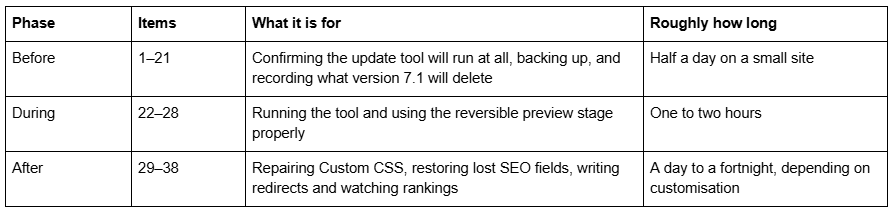
Most of the work in a Squarespace 7.0 to 7.1 update happens before you click anything and after you finish. The update itself is four clicks. What surrounds it is a set of checks that either get done or get discovered later, when the site is already permanently on version 7.1 and there is no way back. Below is the full list — 21 items before, 7 during, 10 after — with the reason each one is on it.
Print it, tick it, keep it beside you. Nothing here is gated. If you have not yet decided whether to update at all, start with the Squarespace 7.0 to 7.1 complete upgrade guide and come back to this list once the decision is made.
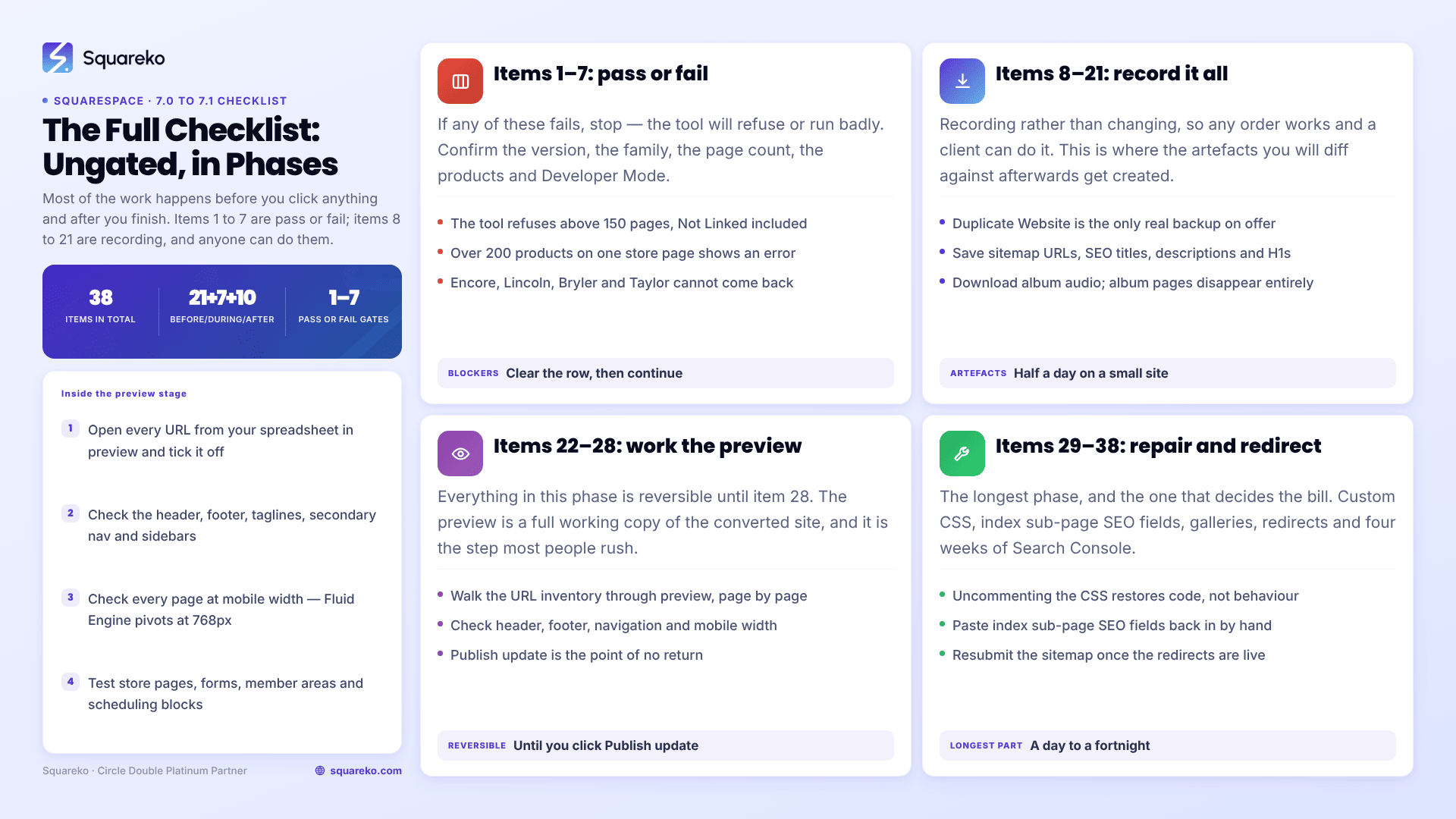
How the 38 items are grouped
The single item people most often skip is number 8. The single item that costs the most time is number 30.
Two notes on sequencing. Items 1 to 7 are pass-or-fail — if any of them fails, stop, because the update tool will either refuse to run or run badly, and the rest of the list is wasted effort until the blocker is cleared. Items 8 to 21 can be done in any order and by anyone, including a client, since they are all recording rather than changing. And if you are doing this on someone else's site, send them items 17 to 21 first: they are the ones that need decisions only the site owner can make.
Before the Squarespace 7.1 update — items 1 to 21
Confirm the update tool will run
1. Confirm the site is actually on Squarespace 7.0. Open the Design panel — only version 7.0 sites show Update to Version 7.1. If it is not there, you are already on 7.1 and none of this applies.
2. Identify your version 7.0 template family. Check Design → Template. The family — Brine, Bedford, Pacific, York and the rest — decides which features you are about to lose, and Squarespace's template comparison charts spell out which ones each family had.
3. Count every page, including Not Linked pages. The update tool refuses to run above 150 pages. Blog posts do not count as pages, so a 400-post blog on a 20-page site is fine.
4. Count products on each store page. More than 200 products on a single store page and the tool shows an error instead of a route. Split the page or take the manual route.
5. Turn off Developer Mode. The update tool will not run while Developer Mode is on, and sites built on the Developer Platform cannot use it at all.
6. Switch away from a discontinued version 7.0 template if you are on one. The tool requires a supported template first — and Encore, Lincoln, Bryler and Taylor cannot be reinstalled once you uninstall them, so confirm before you touch anything.
7. Check nothing launches in the next fortnight. The site stays live throughout, and the repair work afterwards is not optional. Do not start this in front of a campaign or a busy season.
Back up and record
8. Duplicate the site. Account Dashboard → ⋯ on the site → Duplicate Website. This is the only real backup Squarespace offers, and it is blocked above 150 pages and on Developer Platform sites.
9. Note what the duplicate does not include. Orders, discounts and subscriptions, blog comments, analytics, contributor permissions, domains, Email Campaigns, audio files inside audio blocks, saved sections and unused Asset Library media. It is a visual reference copy, not a restore point.
10. Export the content. Settings → Import & Export Content → Export → WordPress icon. It is a readable text archive of pages, one blog and text and image blocks — and it cannot be imported into another Squarespace site, so do not plan around it.
11. Save your URL inventory. Open https://yourdomain.com/sitemap.xml and copy every URL into a spreadsheet. This is what you diff against afterwards to find which URLs moved.
12. Record the SEO title, SEO description and H1 for every URL. Index sub-page SEO fields are destroyed by the conversion, and this spreadsheet is the only place you will get them back from.
13. Export Search Console data. Performance → Search results, last three months, export both the Pages and Queries tabs. Without a pre-update baseline, every post-update wobble is unattributable.
14. Record a Core Web Vitals baseline. Run the homepage, one blog post and one product page through PageSpeed Insights and note LCP, CLS and INP. Version 7.1 is not a speed fix, and this stops anyone claiming it was.
15. Copy the entire Custom CSS panel into a text file. Website → Website Tools → Custom CSS. The update comments it out, and you will be rewriting rather than restoring it.
16. Screenshot every page, desktop and mobile. Full-page captures. Headers, footers, spacing and typography are where conversion drift shows up, and memory is not a reference.
Save what version 7.1 deletes
17. Download the audio from every album page. Squarespace states album pages and their content disappear after the update. There is no recovery route once it is done.
18. Move index sub-pages out of their index pages — or accept losing their SEO fields. Sub-pages moved out beforehand keep their titles, descriptions and URLs. Left inside, they are absorbed into a layout or portfolio page.
19. Change the layout on any cover page using the audio layout. Audio-layout cover pages do not import at all; any other layout converts to a regular page with the header and footer hidden.
20. List your custom Adobe fonts and pick version 7.1 replacements now. Custom Adobe fonts do not carry across, and choosing substitutes under time pressure after the update is how sites end up with the wrong typography.
21. Inventory Code Injection scripts and third-party embeds. Settings → Advanced → Code Injection. Scripts carry over, but anything targeting version 7.0 class names or block structures stops matching and needs rewriting.
During the Squarespace 7.1 update — items 22 to 28
Everything in this phase is reversible until item 28.
22. Open Design → Update to Version 7.1 and click Get Started. Nothing about your live version 7.0 site changes at this point.
23. Click Preview site in 7.1. The preview is a full working copy of the converted site. Squarespace states that updating is optional and you can stop any time before you click Publish update.
24. Walk your URL inventory through the preview, page by page. Open each URL from the item 11 spreadsheet in preview and tick it off. This is the entire value of the preview stage and the step most people rush.
25. Check the header, footer and navigation. Header layouts, taglines, secondary navigation and sidebars are where version 7.0 template families differed most, and where the conversion approximates rather than reproduces.
26. Check every page at mobile width. Fluid Engine keeps separate desktop and mobile arrangements per section — 24 columns on desktop, 8 on mobile, pivoting at 768px — so a converted page can look correct on desktop and wrong on a phone.
27. Check store pages, forms, member areas and scheduling blocks. These are the elements with real business consequences if they break, and the ones least likely to be noticed in a visual scan.
28. Click Publish update only when items 24 to 27 are ticked. This is the point of no return: the change is permanent and there is no revert to version 7.0.
After the Squarespace 7.1 update — items 29 to 38
29. Uncomment your Custom CSS and expect most of it not to work. Removing the comment tags restores the code, not the behaviour.
30. Rewrite version 7.0 selectors against Squarespace 7.1 markup. Selectors such as .Index-page, .Header-nav-item and .Content-outer target classes that do not exist on 7.1. Budget an hour or two under 200 lines, a day or two at 200–800, and treat anything above that as a rebuild.
31. Re-check every gallery and portfolio item, image by image. The most common post-update forum report is a gallery rendering one image where it previously held dozens, or portfolio items that lost their titles and descriptions. Read the originals back off the duplicate from item 8.
32. Restore index sub-page SEO titles and descriptions. Paste them back from the item 12 spreadsheet. Nothing else will do this for you, and their absence is silent.
33. Fetch /sitemap.xml again and diff it against item 11. Most URLs will match. The mismatches are almost always former index sub-pages and gallery or album pages that no longer exist.
34. Write a 301 rule for every URL that changed. Settings → Developer Tools → URL Mappings, one per line as /old-url -> /new-url 301. Squarespace creates no automatic redirect when a URL changes, ever. Rules run top to bottom, the field holds about 2,500 lines, and a rule only fires once the old page is deleted or disabled.
35. Rebuild what Squarespace 7.1 removed. Blog sidebars, blog and store share buttons, header taglines and site-wide parallax have no 7.1 equivalent. Decide the replacement rather than leaving a hole.
36. Test every form, button and third-party embed. Forms and embeds carry across but their surrounding markup does not, and a form that submits nowhere is the most expensive quiet failure on this list.
37. Resubmit the sitemap and request indexing for the changed URLs. Do it in Search Console after the redirects are live, not before. Sitemap processing on Squarespace sites is documented in days to weeks.
38. Compare Search Console's Pages report against your item 13 baseline weekly for four weeks. A clean update with unchanged slugs usually shows no movement at all. A single URL losing all impressions means a 404 or a missing redirect — check the URL Inspection tool first.
The five items people skip, and what it costs
Every item on the list earns its place, but these five are the ones that turn up in support requests months later.
Item 8 — the duplicate. Skipped because the update has a preview stage and the preview feels like a safety net. It is not one. The preview vanishes the moment you publish, and after that the version 7.0 design exists nowhere. The most common thing we are asked for is a screenshot of how a converted page used to look, and the answer is usually that nobody has one.
Item 12 — recording SEO fields per URL. Skipped because the update tool genuinely does preserve SEO titles and descriptions — for pages. Index sub-pages are the exception, and they are precisely the pages that tend to hold rankings on a version 7.0 site. Losing them is silent: the pages still exist, they just have no metadata.
Item 18 — moving index sub-pages out first. Skipped because it looks like extra work for the same outcome. It is not. Moving a sub-page out of an index page before the update keeps its URL, title and description; leaving it in means the conversion absorbs it and you rebuild all three by hand.
Item 31 — checking galleries image by image. Skipped because galleries look fine at a glance. The failure mode is a gallery that renders its first image and drops the rest, or portfolio items that keep their photographs and lose their titles and descriptions. Both look like design choices until someone counts.
Item 34 — writing the redirects. Skipped because "Squarespace handles redirects". It does not. Changing a URL slug on Squarespace creates no automatic 301 under any circumstances, on either version. Every URL the conversion moved is a 404 until a rule exists for it in URL Mappings.
If you are rebuilding manually instead of using the update tool
Items 1 to 21 apply unchanged. Items 22 to 28 are replaced by building the new Squarespace 7.1 site alongside the live version 7.0 one, and items 33 to 38 become considerably more important, because a manual rebuild changes far more URLs than the update tool does.
Two extra items belong on a manual rebuild: recreate every URL slug exactly rather than accepting the default Squarespace generates, and keep the version 7.0 site live until the new site is verified. The full sequence is in how to migrate Squarespace 7.0 to 7.1 manually.
Working the checklist
Twenty-one items before, seven during, ten after. On a straightforward version 7.0 site under the limits, the whole list is a day's work and most of it is recording rather than doing.
The two items that decide how long it takes are 15 and 30 — how much Custom CSS you have, and how much of it is doing layout rather than typography. Everything else is bounded. If the answer to those two is "a lot, and the person who wrote it has moved on", the arithmetic usually favours rebuilding on Squarespace 7.1 rather than converting onto it, and starting from a well-built premium Squarespace 7.1 template removes most of the layout work that a rebuild otherwise implies. For everyone else, this list is the whole job.
FAQ
-
Confirm the site is under 150 pages and 200 products per store page, turn off Developer Mode, switch away from a discontinued template, duplicate the site, save your URL list and SEO fields, export Search Console data, copy your Custom CSS out, and download any album page audio.
-
The tool itself takes one to two hours including preview checks. The repair afterwards takes a day on a lightly customised site and up to a fortnight on one with several hundred lines of layout CSS. Recording the pre-update baseline adds about half a day.
-
Custom CSS is commented out and its 7.0 selectors no longer match. Album pages disappear, audio-layout cover pages do not import, and sidebars, header taglines, blog and store share buttons, custom Adobe fonts and site-wide parallax have no version 7.1 equivalent.
-
No. Both versions expose the same SEO title and description fields, generate the same automatic sitemap, share the same uneditable robots.txt, and neither creates an automatic 301 when a URL slug changes. Ranking differences after a move come from content and structure changes, not the version.
-
Usually yes — you can switch templates and switch back as long as you do not uninstall the original. The exceptions are the 32 discontinued templates, which Squarespace does not offer in the switcher, so they cannot be reinstalled once removed.
-
They start from the same single template family, so an unedited 7.1 site is recognisable. Fluid Engine, per-section colour themes and Site Styles give more design range than version 7.0 ever had — the difference is that the distinctiveness now comes from design work rather than from template choice.

Author Bio
I'm Walid Hasan, a Certified Squarespace Expert and Squarespace Circle Platinum Partner with over 12 years of hands-on experience designing and optimizing high-performing websites. Over the years, I've had the privilege of building more than 2,000 Squarespace websites for clients around the world, always focusing on clean design, strong user experience, and conversion-driven results.
