
Should I Upgrade to Squarespace 7.1? An Honest Decision Matrix
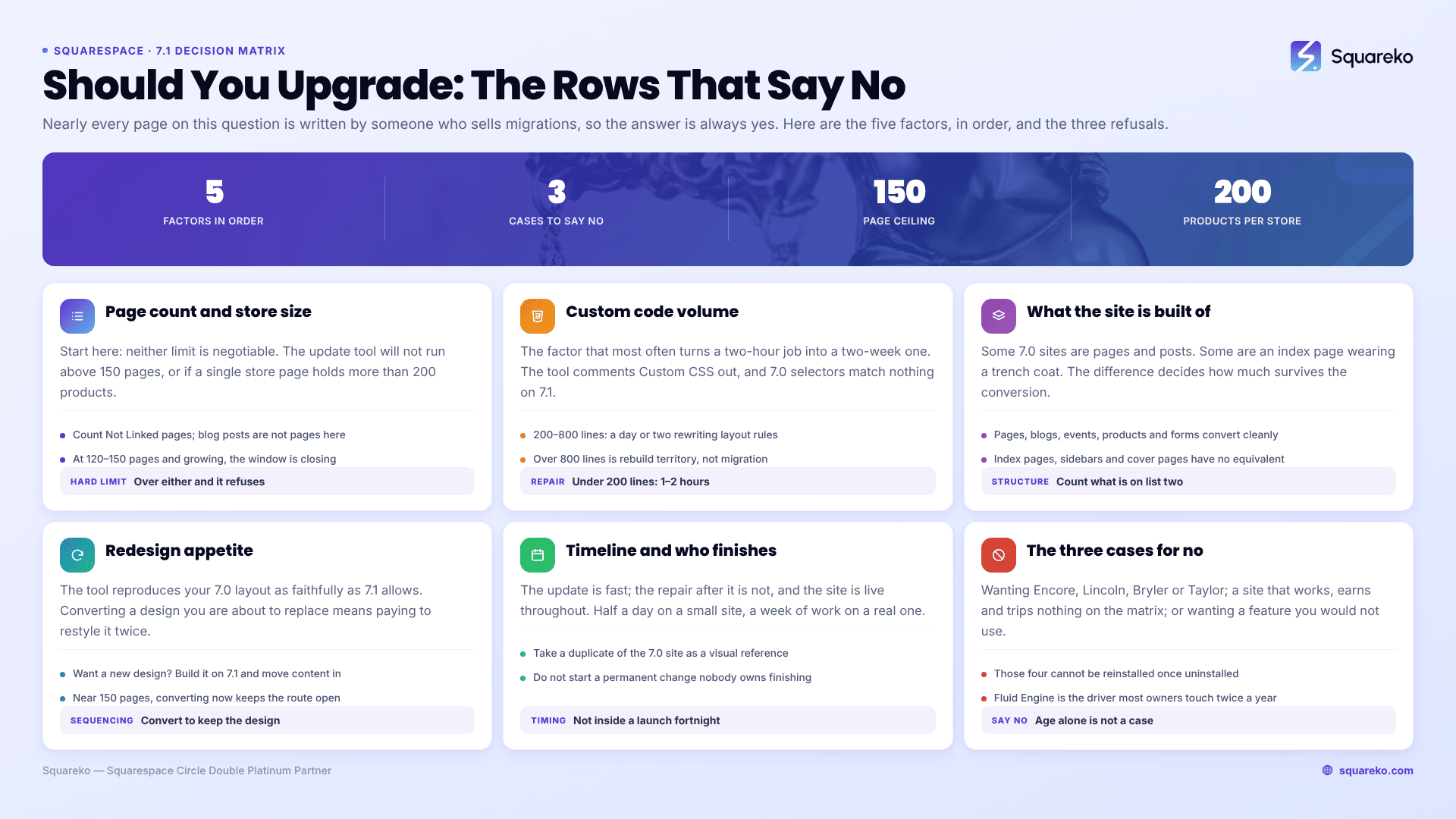
Upgrade if your Squarespace 7.0 site is under 150 pages, has no store page over 200 products, uses little custom code, and you are happy to keep roughly the layout you already have. In that case the built-in update tool at Design → Update to Version 7.1 does the job in an afternoon. Say no — or not yet — if you have a redesign planned, a heavily customised template, an index-page-driven structure, or a discontinued template you cannot switch away from. The update is permanent, so a wrong yes cannot be undone.
There is no deadline forcing this decision. Squarespace states plainly that updating is optional, and it has announced no end-of-life date for version 7.0.
The Squarespace 7.1 upgrade decision matrix
Score your site down this table. Any single Blocker row makes the in-place update the wrong route regardless of everything else.
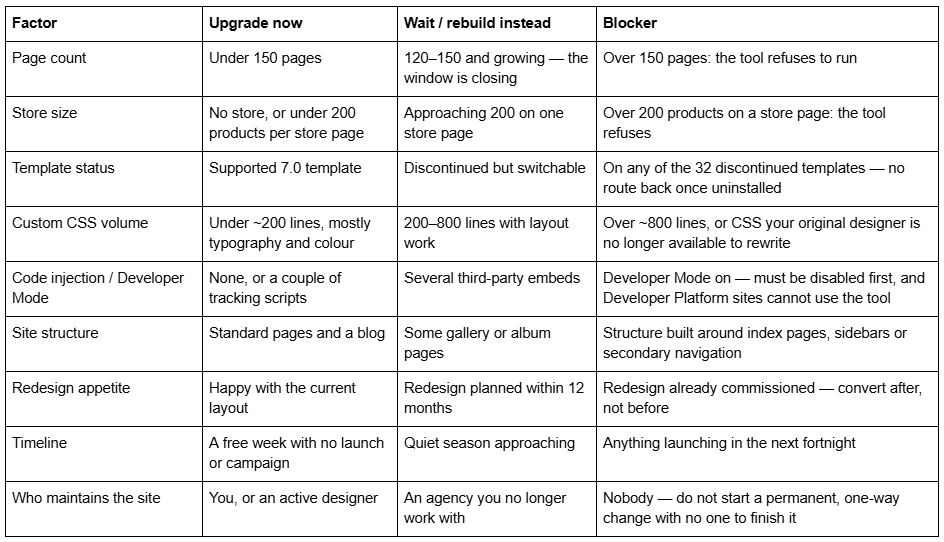
If you scored Upgrade now on every row, the procedure is in how to upgrade your Squarespace site to 7.1. If any row landed on Blocker, keep reading — the alternatives are below.
Factor 1 — Page count and store size decide whether you have a choice
Start here, because these two limits are not negotiable and they are the fastest to check.
Squarespace's update tool will not run on a site with more than 150 pages, and it will not run if any store page holds more than 200 products. Over either limit and the tool shows an error rather than a route.
How to check in a minute: count the entries in your Pages panel, including Not Linked pages, and open each store page to check its product count. Blog posts are not pages for this purpose — a 400-post blog on a 20-page site is fine.
If you are at 120 to 150 pages and still adding, treat that as a soft deadline of your own making. The in-place route is only available while you are under the limit; cross it and the only path to 7.1 is a manual rebuild on a new site, which is meaningfully more work and does not carry orders, customer accounts or URL mappings across.
Factor 2 — Custom code volume is the single best predictor of pain
This is the factor that most often turns a two-hour job into a two-week one, and it is the one most upgrade guides skip.
The update tool leaves your Custom CSS commented out. Squarespace documents this: "Custom CSS may be commented out after the update. To add it back in, remove the comment tags in the CSS editor." Uncommenting it does not make it work. Version 7.0 selectors — .Index-page, .Header-nav-item, .Content-outer — target classes that do not exist on 7.1. Every rule that referenced template-specific markup has to be rewritten against the new DOM.
A rough rule from doing this repeatedly:

Code injection is a second bucket. Scripts in Settings → Advanced → Code Injection carry over, but anything that queries 7.0 class names or block structures stops matching. Developer Mode must be off before the tool will run at all, and sites built on the Developer Platform cannot use it.
Decision rule: if you cannot read your own CSS and the person who wrote it is unavailable, the honest answer is not "upgrade" — it is "get the CSS audited first, then decide".
Factor 3 — What your site is structurally built out of
Some version 7.0 sites are mostly pages and blog posts. Some are an index page wearing a trench coat. The difference decides how much of your site survives the conversion.
Converts cleanly: standard pages, blog collections, events, products, forms, most block types, page titles, SEO titles, meta descriptions, URL slugs and existing URL mappings.
Converts badly or not at all: index pages (stacked and grid), sidebars, secondary navigation, cover pages, album pages, some gallery page behaviours, parallax banners and template-specific header layouts. Version 7.1 has no equivalent for several of these, so the conversion approximates them or drops them.
Decision rule: open your Pages panel and count how much of the site is made of things on the second list. If the answer is "the homepage and the portfolio, which are the two pages that matter", you are not upgrading a site — you are rebuilding two pages and upgrading the rest. That may still be the right call, but price it honestly.
The full breakdown of what transfers is in the Squarespace 7.1 migration tool reviewed.
Factor 4 — Redesign appetite, and the sequencing mistake
The update tool reproduces your existing 7.0 layout as faithfully as version 7.1 allows. That is its goal.
So if you already know the site needs a redesign, converting first means paying to restyle a layout you are about to throw away, then paying again to design the new one. Convert first only if you want to keep the design. If you want a new design, build the new design on 7.1 directly — starting from a ready-made 7.1 template or a fresh 7.1 site — and migrate content into it.
There is one exception worth naming. If the site is close to the 150-page limit and a redesign is more than a year away, converting now to keep the in-place route available can be the right sequencing, because the tool will not be available to you later.
Factor 5 — Timeline, and who is going to finish the job
The update itself is fast. The repair afterwards is not, and it is not optional — the site is live throughout.
Plan for: a duplicate of the 7.0 site taken first as a visual reference, an hour or two for the update, then a pass over every page template, the header, the footer, mobile layouts, and the Custom CSS. On a small site that is half a day. On a 60-page site with real customisation it is a week of intermittent work.
Do not start it in the fortnight before a launch, a campaign, or your busy season. And do not start it if nobody owns the finish. This is a one-way change: Squarespace states that "after you click Publish update, you can't undo your changes or revert to version 7.0." A half-finished permanent migration is the worst outcome available.
The three cases where the answer is no
Case 1 — You want to switch TO Encore, Lincoln, Bryler or Taylor. These four version 7.0 templates are not offered in Squarespace's template switcher. If your template is also discontinued, the update tool requires you to switch to a supported template first — and once you uninstall one of these four, you cannot reinstall it. Anyone on Encore (Aviator family), Lincoln (Brine family), Bryler (Pacific family) or Taylor (York family) should confirm their template before touching anything, using how to tell what Squarespace template I'm using.
Case 2 — The site works, earns, and nothing on the matrix bites. There is no announced end of life for Squarespace 7.0, and Squarespace calls updating optional. A 7.0 site that converts visitors, ranks, and needs no new features is not a problem waiting to happen. "It's the old version" is not a business case. The real position on 7.0's future is set out in Squarespace 7.0 end of life: what's announced and what isn't.
Case 3 — You want 7.1 for a feature you would not actually use. Fluid Engine is the usual driver. It is genuinely better for building custom layouts, and it is also the thing most site owners touch twice a year. If the honest reason for upgrading is "everyone says to", that is a reason to wait until there is a second reason.
What you actually gain by moving to Squarespace 7.1
To be fair to the yes case, these are the real gains, not the marketing ones.
One template family instead of 22. Every 7.1 site has the same features and the same style options. On 7.0, whether you can have a sidebar or a particular header layout depends on which family you landed in years ago. On 7.1 that ceiling disappears — every tutorial, plugin and section library applies to your site.
Global styles that actually behave globally. Version 7.1's Site styles panel changes fonts, colours and buttons across the whole site. Version 7.0's style editor is per-template and often page-context-sensitive, which is why 7.0 style changes so often need CSS to finish.
Fluid Engine and section colour themes. Drag-anywhere layout with separate desktop and mobile arrangements, and per-section colour themes that make a long page look designed rather than assembled.
Active development. Everything Squarespace has shipped since 2020 is 7.1-only, and the third-party ecosystem has followed. This is the compounding reason, and it is the strongest one.
On performance, be sceptical of big claims. Version 7.1 is generally lighter than a heavily tweaked 7.0 template, but imagery usually decides the outcome. Across 54 Squareko-built client sites measured in August 2026 (Playwright/Chromium lab test, cloud datacenter, unthrottled, single run per site, load-only CLS), median mobile LCP was 2.01s and median page weight 3.0 MB across 93 requests — the platform version is rarely the bottleneck. Do not upgrade for speed alone.
Making the call
Run the matrix. If it comes out clean, use the tool and follow the full 7.0 to 7.1 upgrade guide — take a duplicate first, uncomment the CSS, then audit every page.
If it came out mixed, the useful question is not "7.0 or 7.1" but "convert or rebuild". Sites with heavy custom code, index-driven structures, or a design that is due a refresh anyway usually come out cheaper and better rebuilt on 7.1 than converted onto it.
That second scenario is where most of the sites we are sent land, and where starting from a well-built premium Squarespace template rather than a blank site saves the most time. Most readers of this page will run the matrix, come out clean, and do it themselves in an afternoon — which is the right outcome and costs nothing.
FAQ
-
Usually yes if your site is under 150 pages, has under 200 products per store page, uses little custom CSS and you are happy keeping the current layout. It is usually not worth it if a redesign is already planned, since the tool faithfully reproduces the layout you are about to replace.
-
Load yourdomain.com/sitemap.xml and copy every URL into a spreadsheet. Squarespace generates the sitemap automatically and it cannot be edited, so it is a reliable inventory of what is currently indexable. Diff the new sitemap against it after the switch.
-
Custom CSS is commented out after the update and 7.0 selectors no longer match, so it usually needs rewriting. Index pages, sidebars, secondary navigation, cover pages and album pages have no direct 7.1 equivalent. And the change is permanent.
-
Keep every URL identical where you can, and write a manual 301 in Settings → Developer Tools → URL Mappings for every URL that changes. Squarespace never creates redirects automatically. Old index sub-page URLs need particular attention, because index pages have no version 7.1 equivalent.
-
Page titles, SEO titles, meta descriptions, URL slugs and existing URL mappings carry over, so the usual cause of ranking loss is absent. Risk comes from structural changes you make afterwards — changing a slug creates no automatic 301 on Squarespace, ever.
-
The site must be 150 pages or fewer, no store page may hold more than 200 products, Developer Mode must be switched off, and the template must not be discontinued. Over either limit, build a new 7.1 site and migrate manually instead.

Author Bio
I'm Walid Hasan, a Certified Squarespace Expert and Squarespace Circle Platinum Partner with over 12 years of hands-on experience designing and optimizing high-performing websites. Over the years, I've had the privilege of building more than 2,000 Squarespace websites for clients around the world, always focusing on clean design, strong user experience, and conversion-driven results.
